One thing to check (parts of) your setup is loading the BRG.icc profile I linked earlier as your are loading your current display profile and then check if your image viewer is showing “wrong” colors – red should become blue, green should become red and blue should be turned green. If that’s the case you know that loading the profile works and that the image viewer is correctly fetching the profile from the system and applying it.
Next you should reset the profile to your normal display profile (verify that images look normal again) and open an image like the color circle linked above (DON’T use the image embedded in the post, it’s broken by the forum software!). If the word “Rot” is shown in red, “Grün” in green and “Blau” in blue then your image viewer supports loading color profiles embedded in image files.
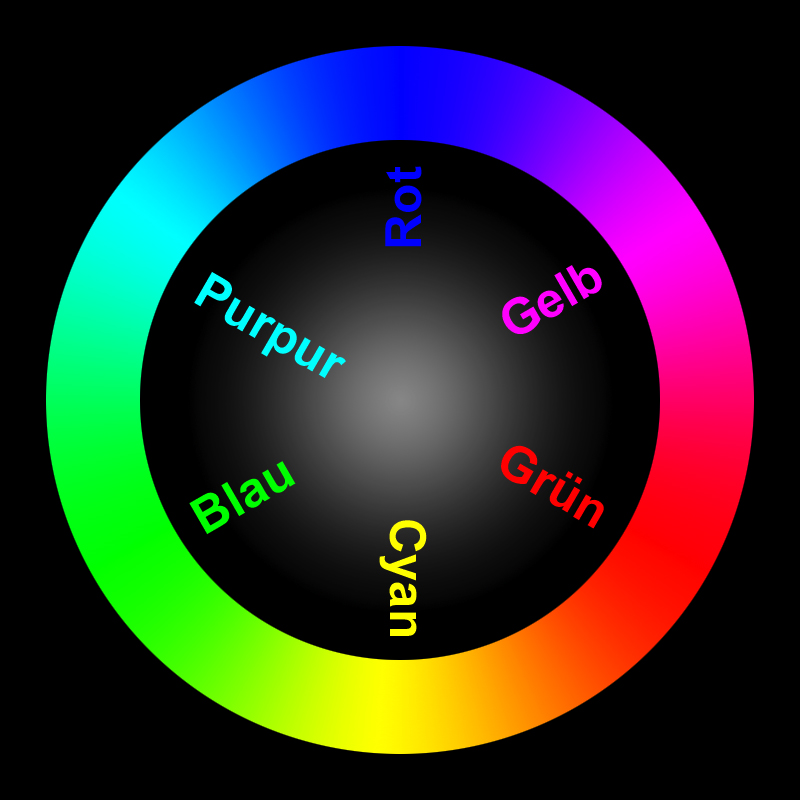
If both of these tests worked you can be confident that your setup is working. There is one thing that wasn’t tested: the graphics card’s LUT. Unfortunately I don’t have a profile with a test vcgt tag, maybe something with x=y for red and x=0 for green and blue would work, I’ll have a look if I can create such a profile and report back.
If you also want to test your image editor’s writing capabilities you should use the same BRG profile as the image profile for an exported JPEG. Then look at the image in your known good image viewer – it should look just normal. However, when looked at in an image viewer that you know doesn’t handle color management (I always use display from imagemagick) the colors should be off like in the first test.
Once you have gone through those three tests (they shouldn’t take longer than a few minutes) we migth be able to narrow down the problems with your setup.