Exported images don't look like the editor

I’m just asking because I think as I understand things (that’s a shaky subject at best but here goes) there is room for there to be the potential for differences to occur if your monitor is a wide gamut panel. Even in a perfectly configured CM setup of apps and OS would you not expect some differences if you have a monitor with a much better gamut that might be potentially profiled to be color accurate within that gamut but maybe also using a 2.2, 2.4 or native gamma curves and not the srgb one which I think is a little different in the toe area??. So there could be some tone and gamut differences from sRGB.

What I am getting at is you have your processed raw file in a wide gamut working space and you are sending that data through the your calibrated display profile to preview on the screen. So that is one colorspace conversion, and then you send the same data to an exported file using an embedded srgb profile and that is a different transformation. So when you open that file it has to go from that back to the higher gamut display profile from srgb which is not the same data fed to the display profile from within ART as it is now an srgb to display conversion…depending on the profiles used (matrix/lut) and how that back and forth goes in the application would you not expect some differences in this case…

If it is the case that your monitor is closer to P3 or some other wider gamut profile and you use that option for the embedded icc profile then your exports using that profile might give you a better match when you go to open it and compare at least on your system and for others with wide gamut monitors.

Users with a monitor that is close to srgb spec wont have this spread in colorspace and so will likely see closer matches when looking at or comparing files exported with an srgb profile…

I don’t have one so I can’t really test this out but I think it is a problem and it why some monitors have a dedicated rgb mode to adjust the monitor so that it will be a better match…

Along the lines of this…

What monitor are you using?? Is any of this a consideration?? You mention HDR and 4K so I was thinking some degree of this wrt your hardware could be contributing to what you are seeing…

Hi,

But that’s not what’s happening. You don’t have to believe me, just read the code. I can point you to it if you want.

1 Like

Just to be a bit more precise, ART never goes from working profile to display profile directly, but it always goes through the output profile, precisely to avoid the situation that you described above. So yes, if you bypass the output profile you can get some differences between preview and saved image, but that’s not what ART does.
If you get differences, they are due to one of the possibilities below (in order of likelihood):

  1. There’s a bug in art
  2. You are using different colour management settings between art and the image viewer
  3. The image viewer is using a different colour management engine that does things slightly differently from LCMS
  4. You have an HDR screen, and are using both a viewer capable of displaying HDR content and a suitable output profile and output format that support HDR content. Since art has no support for previewing HDR (but only for generating it), then in this case this is the expected behaviour

Hope this helps!

4 Likes

Immensely helpful in understanding how the data is handled…thank you as always for taking the time to explain the inner workings

Thanks @agriggio. So what image viewer would you recommend for the output files?

My goal is to create some wallpapers for my desktop, so I suppose ultimately the viewer will be whatever Windows uses. For previews I use the Directory Opus viewer, and the above images were simply dragged into the browser window and are presumably rendered exactly as Firefox would render the original JPEG.

My editing system has an LG 27UL500. It claims 98% sRGB. I have HDR turned off because it’s a joke on this monitor, and I my calibrator doesn’t support HDR anyway. I have a second machine with an OLED panel, which is supposed to be factory calibrated, and is Dolby Vision certified. It seems decently accurate but I have not actually measured it yet.

Windows on my editing machine has the profile I created with DisplayCal set, so I would have expected every app to use that unless told otherwise. I have ART set to use the same profile, which is also its default.

Edit: The working profile in ART is set to REC 2020. Should I change that to something else?

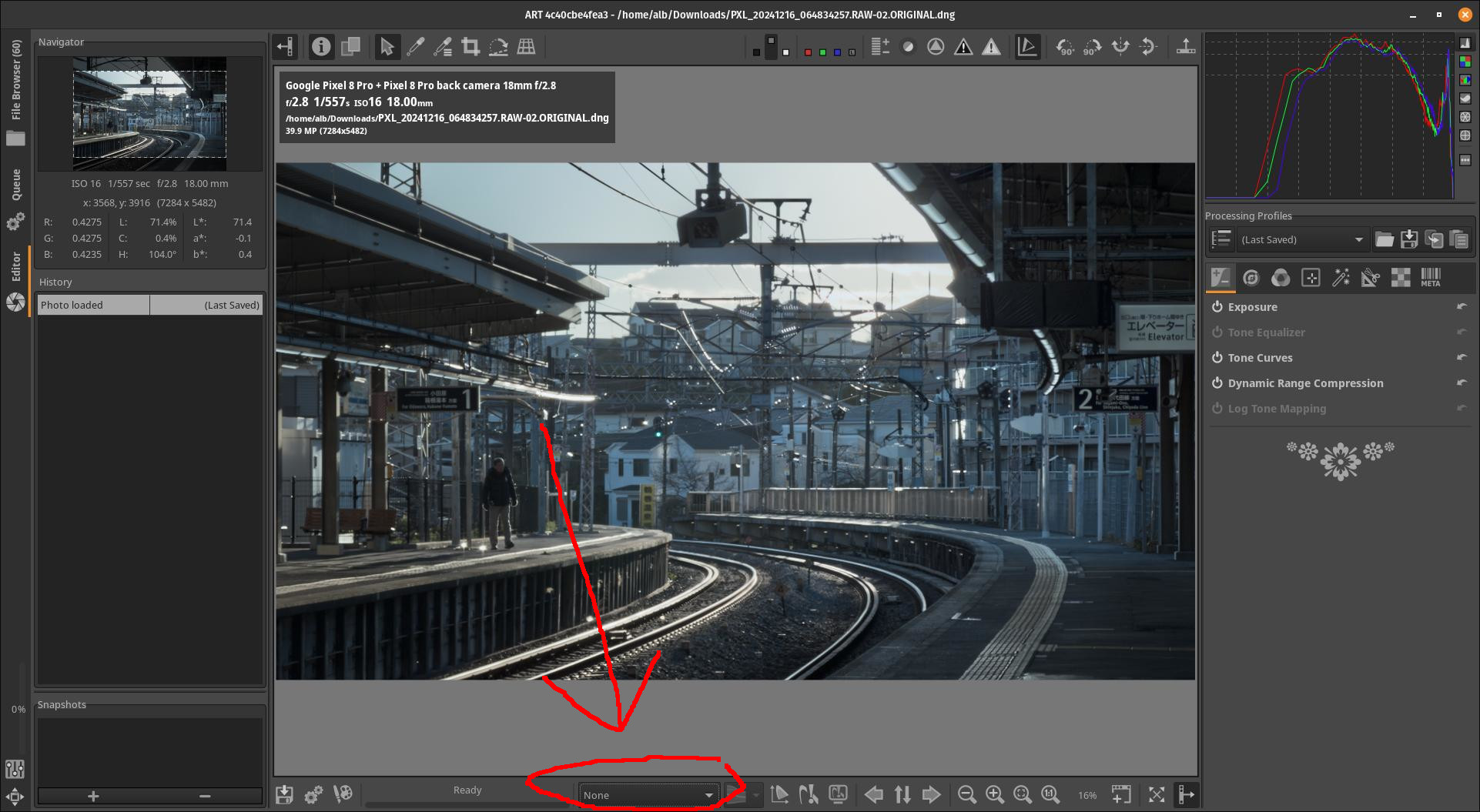
I think (but I’m not 100% sure) that windows will just not use color management for displaying the wallpaper. If that is the case, your best bet is to select “None” as display profile inside ART:

Regarding the working profile: that is a different thing, and I suggest to leave it as Rec2020.

HTH

Out of curiosity, I have set a BRG test image as a Windows wallpaper and it looks OK. (Bravo, Windows! …)

1 Like

Hi,
Even if your monitor is well color calibrated, image files may not look correct in your image application software. In Windows, some image programs have color management and some don’t. Even if the application has color management, it may be turned off. If color management is turned on in the application, the image will look the same regardless of the color space assigned to the image.
Therefore, it is recommended that you make sure that your image viewer has color management and that its color management setting is turned on.
Windows itself is not color managed, so Windows wallpaper images must be sRGB.

Searching a bit more on the topic, it seems that you can optionally enable system-level colour management in recent versions of win 11:

If this is your case, and you have this “auto colour management” turned on, then again I suggest to set the display profile in art to None, to avoid double correction. Unfortunately I don’t have a win 11 machine, so I can’t test this myself at the moment, sorry…

1 Like

@agriggio Alberto, I am using ART with Win11.

Its my understanding that apps need to be “ACM aware” in Windows otherwise they default to sRGB and I am not sure what that involves ie to be ACM aware ( at some point there was mention of some tag inserted into the ICC??)… At least that is what I took home when this first was announced. I’m glad to be corrected and or to get a better understanding if someone has clear understanding of this option.

In the last paragraph here…

It basically says at least as I understand it that there is a compatibility process/helper app to use in ACM for apps that are not ACM aware but that this is basically the same as having it turned off… at least this is how I read the section provided below.

" ICC profile behavior with Advanced Color

We’ve also published a new documentation that describes the changes in ICC (International Color Consortium) profile behavior with Advanced Color. In addition, if your color-managed app needs to continue using display ICC profiles, then this topic will show how to adapt your app to incrementally leverage Advanced Color benefits.

Automatic system color management necessarily impacts the way that existing ICC profile-based apps behave, since they’re performing many actions themselves that are now handled by the OS. Windows applies the default behavior (explained in the new documentation) to ICC profile-based apps. That ensures that those apps don’t have incorrect behavior. However, without further work, they won’t get access to any of the extended color capabilities.

In particular, by default your ICC profile-based app is restricted to the sRGB gamut, even if the monitor is actually wider gamut. Windows also provides an ICC compatibility helper that can give your ICC app access to the display’s entire gamut. For more info, see the Display ICC profile compatibility helper section in this topic."

I use ART and other CM applications with Win11. I found the explanation of that CM process confusing enough that I didnt’ want to introduce it into my workflow with these various programs. I also had no idea but figured it was fair to assume that ART was not an ACM compliant windows application and so might have been set fixed to srgb or somehow otherwise impacted.

Currently I stick to a standard ICC workflow in Win11. I use either displaycal or the updated Calibrite software that comes with my device to calibrate my screen to make display profiles. I copy those profiles in the Windows OS profile directory and I install and set as default the most current or a chosen icc profile if I want to change.

I then set this explicitly, ie the display profile in all the CM Windows apps that let you specify it including ART.

When it comes to some windows apps and viewers they will not offer any CM settings or let you select the display profile. You have to test them to know how they behave. Currently, Win11 photos is like that. It does CM using the OS default display profile but there are no settings. Some other 3rd party Windows apps will let you enable CM in their settings and they use the system display profile in theory howerver in the past apparently many apps would ignore or not use it… Likely this sort of thing is why they are trying to come up with a system to clean this up using ACM.

For now I prefer to use apps that will let you explicitly specify a display profile… like ART and for viewing Xnview. As long as you confirm the CM and profiles that you have set match between apps things seem to behave.

I don’t feel like I have any bad color mismatches with ART when comparing previews in Xnview but I have noted that in Xnview and in darktable that the test images from displaycal will behave differently when you are not at 100%. In other words the scaling aligos impact things… For example using none or bilinear scaling in Xnview did not cause the images to indicated failed CM but using bicubic or any of the lanzcos ones did and color seemed degraded. In DT it was similar but using the full HQR preview removed this as did zooming to 100%. I’m not sure if this translates to noticable changes in actual photos or is just a side effect of the nature of the test image.

I didn’t see this behaviour in ART with scaling. I’m not sure if there are settings for scaling of the preview or if it uses a set method…perhaps you could clarify but I didn’t see the same impact of scaling.

Finally most of the default export profiles are I think matrix profiles not supporting rendering intents and bp compensation but if you do use one that does then the viewing app might have settings that will be different from the ART preview. Xnview has options for rendering intent and bp compenation and if you use one of the icc profiles from color.org that has lut tables then these settings will kick in…if you use the standard matrix profiles there is no change…

Art seems to be one of the few programs that when you change the bp or rendering intent that you actually see it in the preview if the output profile supports it… Likely because as you pointed out yesterday to me that the preview comes after the output profile and not from the working space… So if you use one of those profiles in ART and change the bp compensation or rendering intent then you see it reflected in the preview…

I would have to test but it might be that in a viewer like Xnview if you change the rendering intent that it uses it might not be the one that you used in ART for preview or export and that might be a source of variation…

To me ART seems solid and if the preview is different at least in the Windows OS then some investigation into how that viewer handles CM is important to fully qualify any observed differences… as well as knowing about the properties of the icc file that you are using for export.
Wow that’s a wall of text :slight_smile:
The bottom line for me is: I don’t have win 11 at the moment, so I can’t test. I will try to read further about ACM, in my reply above I was assuming it was like on macOS, where the content is assumed to be sRGB by default (for gtk+ apps at least) so if you use another transform that takes into account the display you will get wrong results. Note though that if your screen is close to srgb to begin with, you might not even notice.
Incidentally though, and FWIW, I think system-wide colour management is a good thing for most use cases (or at least for those I care about :slight_smile:

I guess if you can trust it to all work…

There seem to be many people complaining about it messing things up and of course perhaps they just have things set incorrectly or it might just be resistance to change, in any case trying to wade throught this link below and the other related ones just trying to understand how a traditional app using icc workflow would be impacted made me decide to keep it disabled and carry on with things the traditional way…

The irony of it all for me is that my monitor is an okay panel, calibrated and pleasing to my eye but its only SDR srgb gamut so I could likely get away without doing very much and not see a huge differences.