This is making me crazy, and when I think I’ve got it working, the next time I go to do it, it doesn’t work. I typically shoot a bunch of photos at the same location. Yesterday, I photographed one grandson’s basketball game, today another grandson’s game at a different gym. I want to apply the same city, sublocation, and state to 300+ images from a game, but it only applies to one image at a time. In the Edit Metadata panel, I was able to add a caption or description to all the images at one go (it asked me if I really wanted to apply it to all images), but when I edit the location info, it only applies to the next image, not all the images. If I try to use the Captions>Information tab on the right panel, it won’t let me type in the empty boxes. What am I doing wrong, and why is this so hard? It’s crazy because it’s easy to add the GPS data to a mass of photos. I’ve already done that. Thanks for any light you can shed. Windows 10 PC.
You can create a template, and apply that. Afaik, the fields you want to fill in are meant to be used through a template.
I agree it would be nice to be able to modify them directly, just like you can caption and title. I have no idea why that’s not possible.
Yes, I do it the same way and didn’t find another yet.
It’s indeed one of the (very few) annoying things in digiKam.
Hi,
I’ve struggled with this DigiKam weakness (seen by a previous long time Lightroom user). Finally I found the location of the file containing the templates.
See in /home/clinart/.var/app/org.kde.digikam/data/digikam/templates.xml file.
After creating a template in DigiKam where all fields have been filled with sample data, open the file with a text editor.
You can create as many templates as you want with the values of your choice.
The next time you launch DigiKam, you will only need to select the template from the drop-down menu.
On a Linux system, see in /home/[…]/.var/app/org.kde.digikam/data/digikam/templates.xml file.
*Replace […] with your home folder name.
Thanks for the replies. I created a template for copyright info, which is what I thought the template was for. It seems more than a little absurd to require a separate template for every location you visit. Or do you just edit the template for each shoot?
On Windows 10, I found the templates.xml at
C:\Users[username]\AppData\Roaming\digikam\
I just discovered an absolute crazy thing. (sorry for the stream of consciousness reply, I’ve literally kept this reply open for two hours while working in digiKam) When trying to apply my template to a few dozen images, the template option (where it says “Do not change” and “To remove”) appear greyed out, as if they’re not able to be selected, but you CAN select them. How crazy is that?
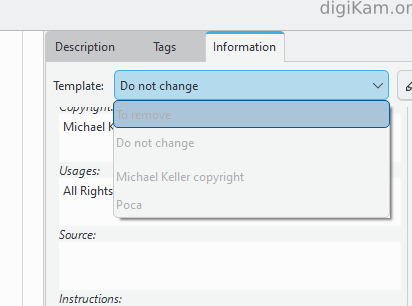
Hi,
You will need to modify the file to add new templates. For example, I added many locations where I have taken photos or where I regularly return to take photos.
I also have a “template” for copyright notices, without any location entries.
NB: all these steps are necessary for me, as I lost all the location metadata I had previously entered in Lightroom.
Strange behaviour. Are the modifications still applicable?
I don’t know what could be causing this, but I don’t have Windows.
If you want to use templates, you can just add them from the config screen (Settings > Configure digiKam, then go to the Templates section). I think that’s easier than editing the xml directly.
But I only use templates for copyright info. For location names, I use hierarchical tags. I have a root tag for location, then nested under it is the country, subdivision, city, etc. It’s also a lot quicker to add new locations, since it’s just a new tag that usually falls under an existing one. I’m not sure if that’s a workable option for you or not.
Just to inform all of you who are disappointed by the input limits of the Templates section: As I mentioned, I’m disappointed too and therefore made a feature request, hoping for a better solution: