Following MareroQ’s suggestion, I commented out the relevant lines from with Rsvg and the plug-in launches correctly
@MrQ This is a Windows-specific issue and the kind of thing that will be fixed by the GIMP developers. It’s also the kind of thing that plug-in developers normally can’t and shouldn’t try to code around. It’s not a problem with the Linux 3.2 RC1.
Even so, I’ll take a look at the code tomorrow to make sure Rsvg isn’t required. If it isn’t, removing that import is a simple fix.
And thank you for troubleshooting this! Very helpful!
Thanks for your plug-in. Might come in handy sometime.
I have an issue with rsvg, too. I’m on Linux Mint 22.2. / GIMP 3.0.6 from PPA
@MrQ @RobertsDaughter I checked and Rsvg isn’t necessary so I’ve removed/commented it. Please download again and reinstall, to test it. I’ve tested on both 3.0.6 and 3.2RC1 and it works. It would be really helpful to know if it works on your systems too.
As @Jacob_Boerema mentioned with the link to GitLab, Rsvg may or may not be included with GIMP going forward. One of the challenges in developing for multiple operating systems and users’ computers is that they might not have specific versions or libraries of Python code installed. I’ve just found a light-touch way to include extra Python libraries with my plugins, which I’ll use going forward.
Thanks again to both of you for flagging the issue!
There is still one occurrence of rsvg left in helpers.py line 49
Good catch! Sorry about that. I’ve updated the file, please download and install again, and let me know if the issue is fixed.
Yes! It works.
Tested on 3.0.6 PPA, 3.1.5 Appimage, 3.2 RC1 Appimage (Linux Mint 22.2 MATE)
still in the terminal I have this warning:
(average-image-colour-v3:18145): Gtk-WARNING **: 10:26:32.357: Theme parsing error: <data>:331:32: Not using units is deprecated. Assuming 'px'.
Don’t know if it’s important.
1 Like
I checked in GIMP 3.2RC1 the rsvg file is in bin
I conducted one more experiment
I installed GIMP 3.0.4-2 Portable and installed average-image-colour-v3 with NO Rsvg removed
The plugin launches correctly.
So I think the problem lies with the GIMP team
Excellent news, thanks for testing!
That Terminal warning is just that, a heads up. It doesn’t affect functionality. I’ll get around to eliminating that warning this week. But it’s not important.
Do let me know if you have any other questions or suggestions.
Thank you for your useful plug-in.
I found one thing that concerns me. It seems that if you change the color profile of the image, the result of this plug-in will change according to the TRC of the profile. Is this operation is intended?
@yasuo I’m not clear what you mean. Could you please post the steps to reproduce the issue?
Update: that warning was about the CSS in my code. Apparently using a number by itself for specifying things like padding, margins, etc is deprecated. I went through the CSS and made sure all those lonely digits had a “px” to keep them company. The warnings have gone.
I’ve uploaded the updated version. But there’s no need to re-download/install. The warning pointed out that “px” was assumed and it all works without updating.
Thank you. It’s fine now.
Yay! 
1 Like
The merits of earlier authors using the method should be acknowledged, it should be mentioned that:
However, it is appropriate to mention that since 2009, there is a simple script sample_avg_color.scm created in by Rob Antonishen in response to requests.
It takes a medium color and allows you to set a medium color in the foreground, background, or add it to the active palette.
Its purpose is to determine the average color of the area of our selection (this can be the entire image).
With me in GIMP 2.10.38 it still works today
The script was in the repository:
Attached Files [sample_avg_colour.zip]
sample_avg_colour.zip (1,6 KB)
(https://www.gimp-forum.net/attachment.php?aid=14064) (Size: 1.62 KB / Downloads: 0)
As of January 9, 2017. There is Ofnuts for GIMP 2.10 ofn-average-fill.py, which works reliably on an available basis.
What is gamma coding and why are my color calculations wrong?
https://www.gimp-forum.net/Thread-What-i…ions-wrong
16.07.2024
For example…
Here is normal perceptual image.
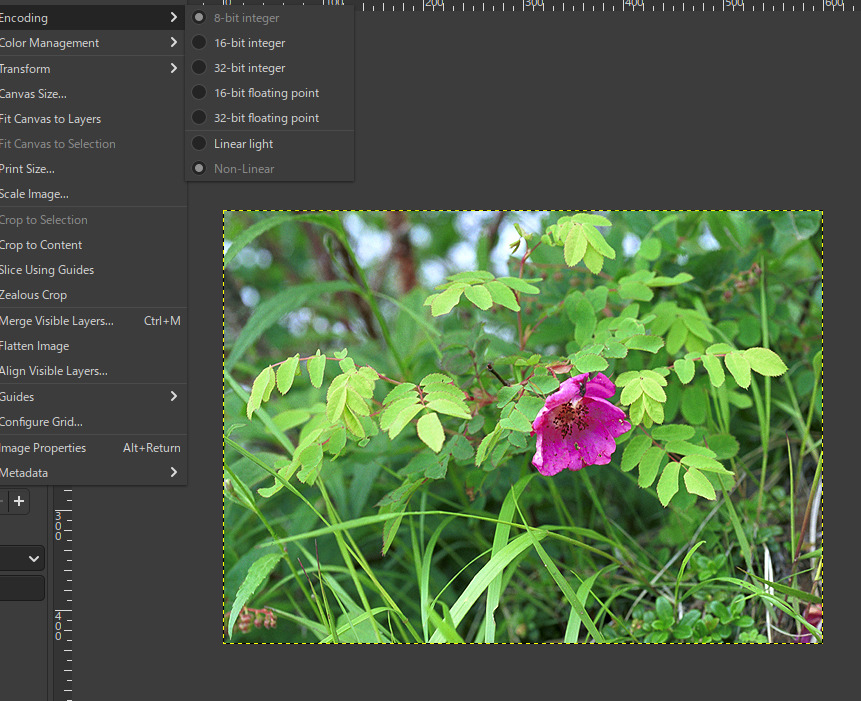
From upper image, I got the following result.
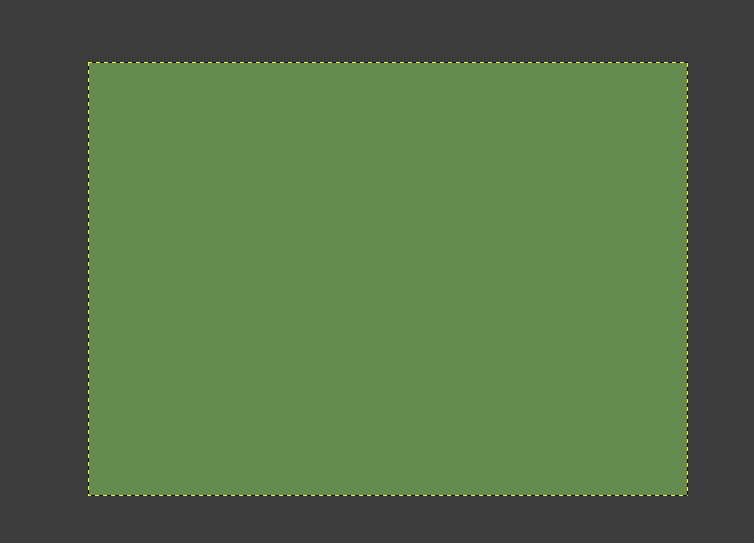
I changed the upper image to linear image. However the look is the same as it is color-managed.
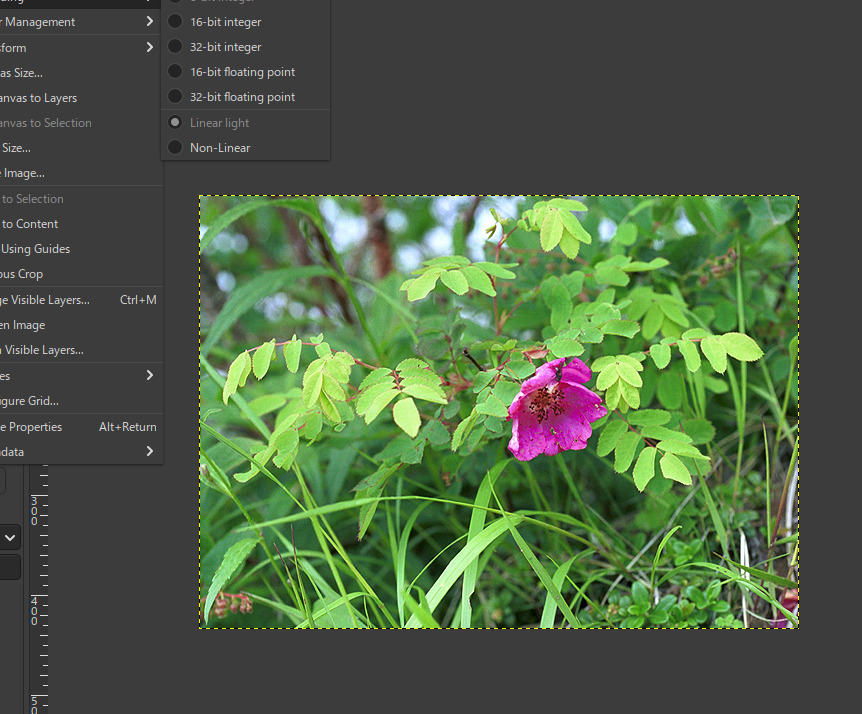
From the linear image, I got the different result.
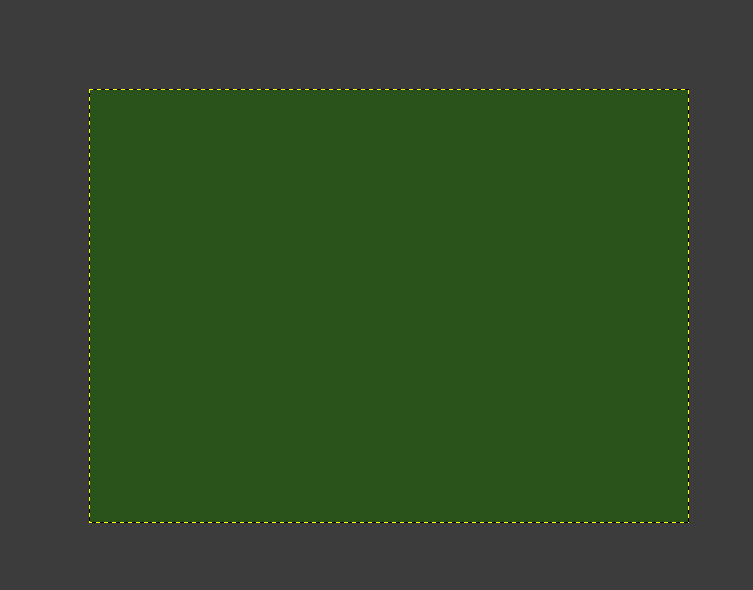
Same things happen, if user changes the color profile of the image, like Adobe RGB, or ProPhoto, and so on.
These images are all color-managed, so in spite of the difference of TRC encoding of the images or color profiles, is it better to be able to get the same results?
Thanks @yasuo for engaging with the plug-in. I appreciate your curiosity and thoughtful questions.
The feedback on this plug-in has been enlightening (pun intended). I’ll be adding linear light mode to support additional workflows.
Currently, the plug-in computes the average color by taking the mean of each RGB channel. I’ll add a linear light option so you can compute the average in either RGB or linear light space.
Current functionality
The plug-in calculates the mean of each RGB channel and creates a single-color layer from those means. This produces a simple, predictable RGB channel average.
Why results differ between sRGB, Adobe RGB, ProPhoto, and bit depths
Different transfer functions
Color spaces like sRGB, Adobe RGB, and ProPhoto apply different transfer functions (gamma curves) that encode brightness non-linearly. These gamma-encoded values distribute precision to match human vision sensitivity, but they’re not proportional to physical light intensity. So averaging gamma-encoded RGB values yields different numeric results than averaging linear light values.
Bit depth effects
Higher bit depths (16-bit, 32-bit) provide greater precision. The numeric average can shift slightly with different bit depths due to rounding. These variations are expected and reflect how the image data is stored, not a bug.
Planned enhancement: linear light support
I will add a linear light mode that computes the average in linear light space (where values are proportional to actual light) and generates a floating-point, profile-tagged layer. The plug-in will offer two modes: Linear Light and RGB.
Why RGB averaging works for most users
Standard workflow compatibility
Most photographers, designers, and digital artists work in standard color spaces (sRGB, Adobe RGB, ProPhoto RGB) throughout their workflow. RGB averaging integrates seamlessly with these workflows and produces expected results.
Predictable and practical
RGB averaging delivers intuitive results that match how colors appear on screen and align with familiar tools like eyedroppers and color pickers. This is the practical choice for design work, photo retouching, web graphics, and general photography.
Wide application support
Most imaging applications, plug-ins, and export workflows use these standard color spaces, making RGB averaging the compatible default.
Why linear light support is useful for specific workflows
Specialized high-precision editing
Some photographers work in 16- or 32-bit linear light for specific situations requiring maximum precision: HDR processing, complex compositing, or scientific imaging where maintaining physical light relationships is critical.
Physically accurate blending
Linear light averaging respects how light combines physically: two lights at 50% intensity equal one light at 100% intensity. This matters for certain technical workflows but is usually unnecessary for general photography.
Specialized output workflows
Photographers working in linear-to-output pipelines benefit from maintaining linear light throughout processing.
Summary
The plug-in currently provides RGB channel averaging, which serves the vast majority of users in standard photographic and design workflows. Linear light support will be added as an option for specialized workflows.
1 Like
I’ve updated my average colour plugin to detect the image type automatically and calculate the average correctly. You still need to know what kind of image you’re working with, but the plugin handles the math for you.
Download the updated plugin here:
https://www.chuckhenrich.com/average-colour-gimp-plugin/
The traditional GIMP way to get an image’s average colour (pixelise-to-1px) delivers linear average colour. That’s fine in linear space images. But in non-linear RGB images, it gives misleading results.
Most photographers, designers, and editors work in RGB spaces like sRGB, Adobe RGB, ProPhoto, etc. That makes non-linear output the standard. Linear output is fine if your printer, collaborators, or clients expect it; otherwise, non-linear is what people rely on.
For RGB images, the plugin makes average colour easy and reliable. For linear images, you can still use pixelise if you want—but the plugin is faster and simpler. One click, and you’re done.
2 Likes
The traditional GIMP way to get an image’s average colour (pixelise-to-1px) delivers linear average colour. That’s fine in linear space images. But in non-linear RGB images, it gives misleading results.
Internal Precision in GIMP
No matter what image precision you choose in
Image → Precision (8-bit, 16-bit, or 32-bit; integer or floating-point), GIMP’s processing engine (GEGL/babl) always performs all internal operations in:
 32-bit floating-point, linear RGB(A)
This is fixed behavior in GEGL: all blending, filtering, and compositing are done in linear-light float, independent of the file’s nominal precision.
How the Image Is Displayed
When the result is shown on the screen, the following pipeline is used:
- Internal GEGL buffer:
32-bit floating-point, linear RGB(A) - Conversion to the display color space
usually your monitor’s ICC profile (commonly sRGB) - Application of the display’s transfer function / gamma
If your display is standard sRGB, this means:
4.* roughly gamma 2.2 - Final rendering on the monitor
So although processing is done in linear light, the final display is always gamma-corrected according to the monitor profile (typically sRGB gamma ≈ 2.2).
Important Distinction
- Processing: always 32-bit float, linear RGB
- Display: non-linear (typically sRGB gamma ~2.2)
This is why layer blending, opacity, and filters in modern GIMP behave photometrically correctly: they operate in linear light internally.
That is, in a nutshell:
Display:
always TO monitor profile → from monitor gamma
Notation:
to the profile SELECTED IN DOCUMENT / SET FOR EXPORT.
gamma of the monitor never affects the output data
1 Like
I’m not sure what you’re trying to say, but I think we agree that GIMP processes internally linearly. I encourage you to read my companion post about industry standards in GIMP:
https://www.chuckhenrich.com/average-colour-in-gimp-industry-standard/