Average colour plugin for GIMP 3: one-click

I’ve published a new plugin that generates the average colour for any RGB or greyscale image. It sits at the end of the Colors menu: “Average colour” (after you install it properly of course).

I was surprised that average colour wasn’t a thing in GIMP. I did a lot of research and discovered the topic generated various solutions that were all challenging in one way or another. Then I found a thread from 2014 where someone suggested a really simple manual approach. So I took that as inspiration and automated it.

You can read more about it and download it here:

https://www.chuckhenrich.com/average-colour-gimp-plugin/

It’s available in the following languages:

Dutch (Nederlands)
English (English)
French (Français)
German (Deutsch)
Italian (Italiano)
Hungarian (Magyar)
Japanese (日本語)
Polish (Polski)
Portuguese (Português)
Spanish (Español)
Ukrainian (Українська)
Chinese (Simplified) (简体中文)
Chinese (Traditional) (繁體中文)

Feedback and suggestions welcome and encouraged!
7 Likes

You may like to look at the method used in the attached GIMP 2 plug-in. It pixelizes the image to a single pixel which is the average colour.
No credit to me - I only coded the technique into a plug-in for colour cast reduction - the original ideas came from Krikor.

col-cast-reduction.zip (2.9 KB)

@Ofnuts wrote the plug-in of the same function for GIMP 2.10.

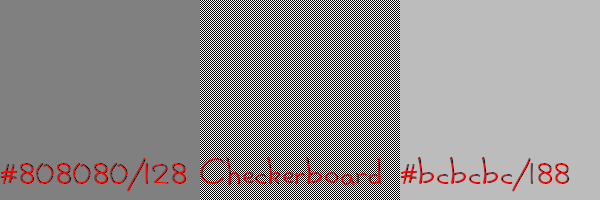
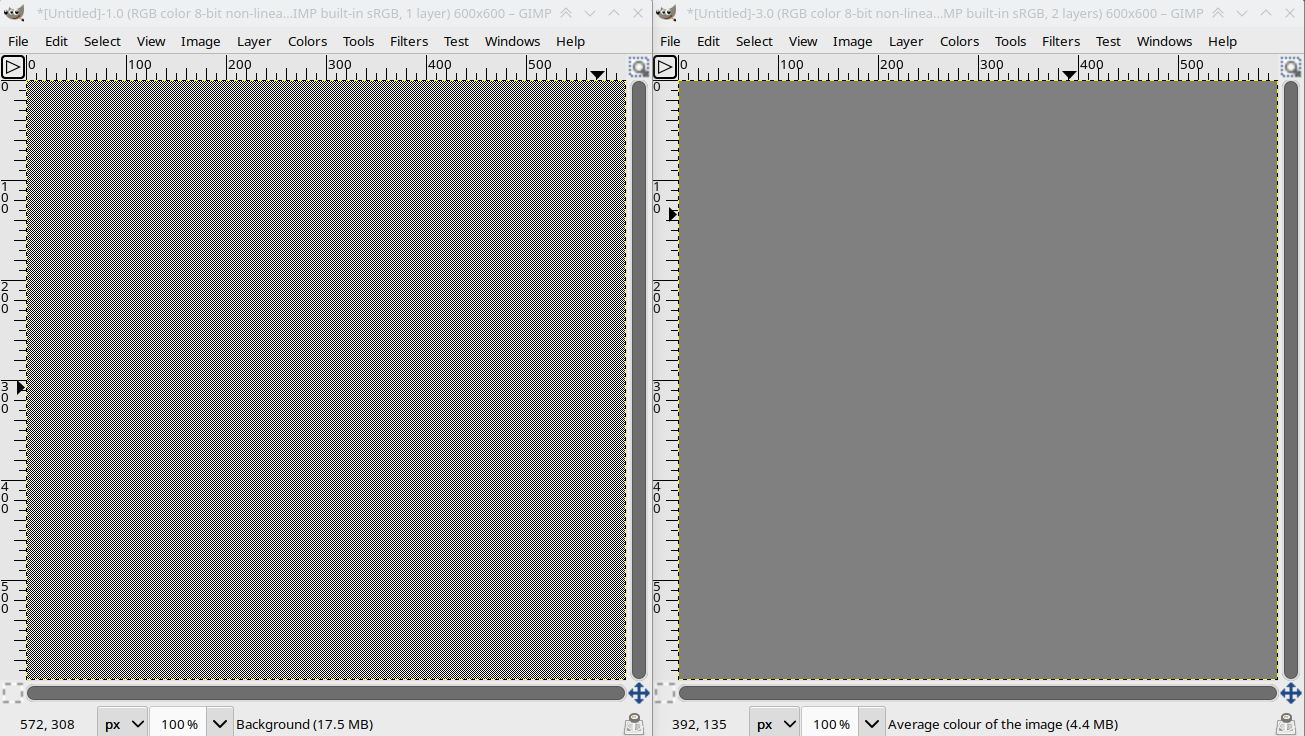
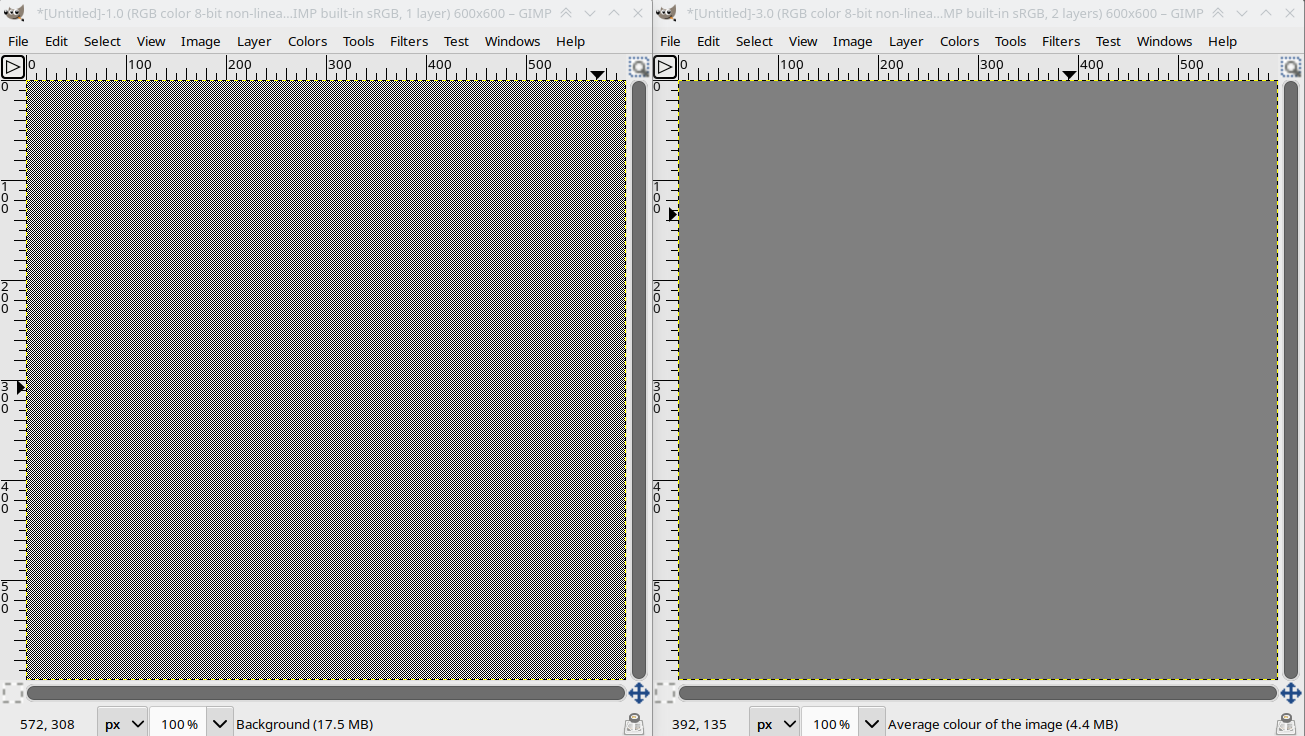
On the left, the original image (a very thin checkboard). On the right, the average computed by your plugin (127,127,127).

Important: check image at full size by clicking on it… because your browser is also not doing things right when it scales images on the fly.

Your plugin is averaging the gamma corrected values. It should be averaging the linear values, and then obtaining the gamma-encoded value of the linear average (188,188,188). You should obtain the same color as Filters > Blur > Pixelize (which is the fast way to do it)

See What is the gamma encoding and why are my color computations wrong?.

@Yasuo That script was written in Gimp 2.8 days, so it is not gamma-aware. I should erase it to protect my reputation :blush:

1 Like

@david @Ofnuts @yasuo Unfortunately I can’t load that plugin because it was written for GIMP 2. In any case, I know that there has been a lot of discussion about using pixelise to get the average colour.

But pixelising to 1px is not accurate.

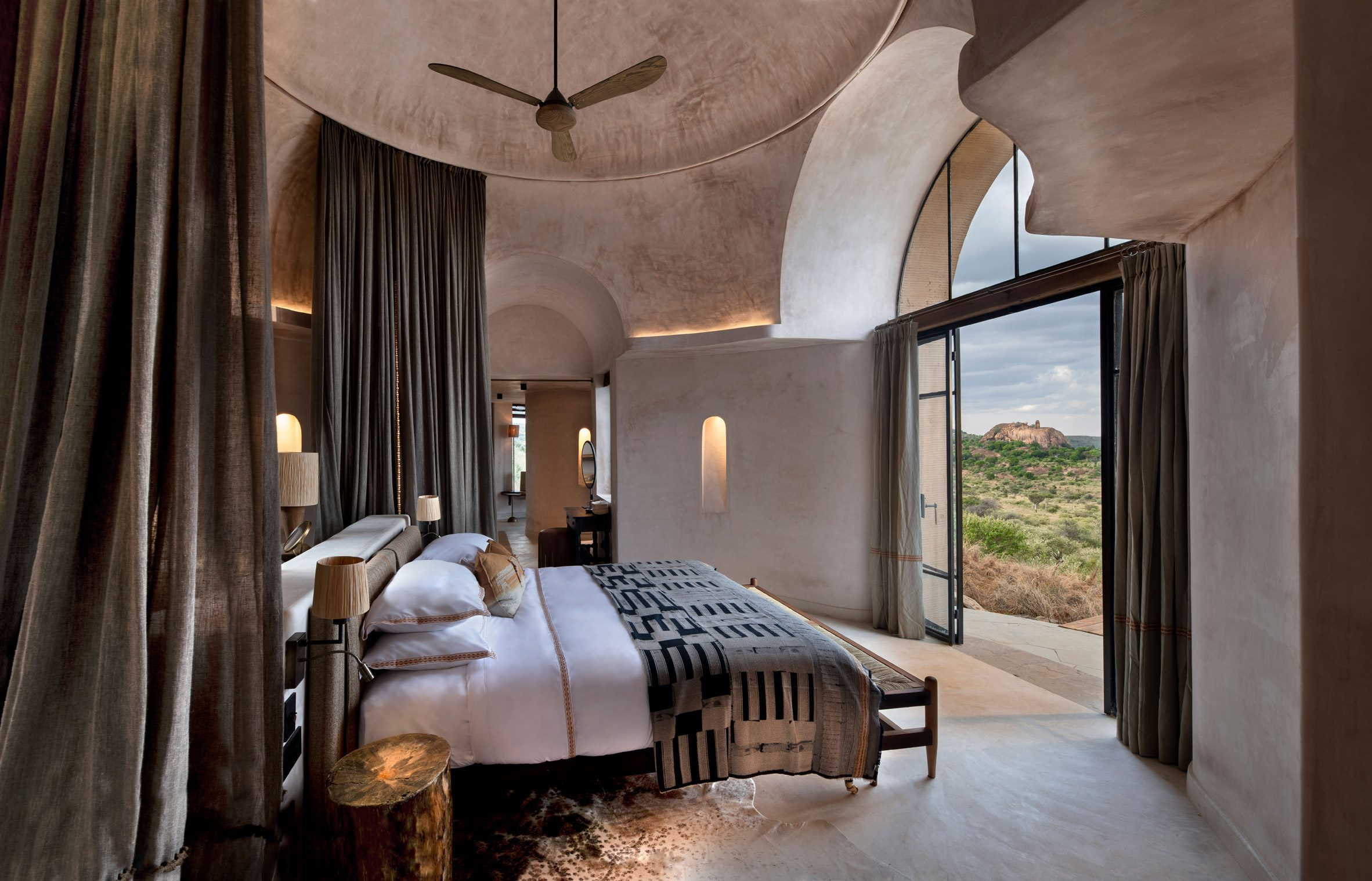
Here’s a test image:

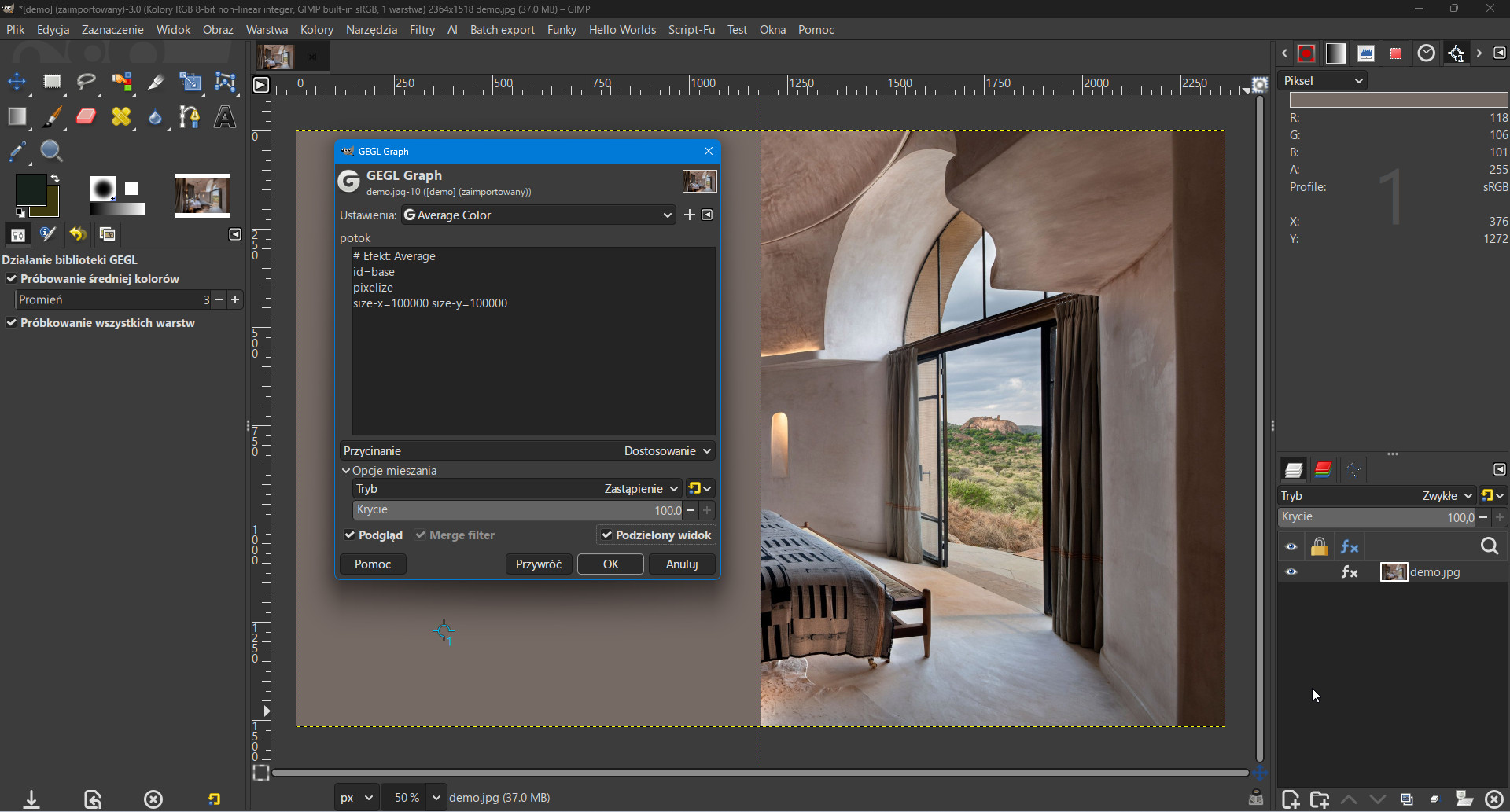
Here’s what I get when I pixelise to 1px (R=118, G=106, B=101, #766a65):

Here’s what I get when I use the process Claudio Bacchiani proposed back in 2014 (use the mean value of each of the RGB channels from the histogram) (R=102, G=88, B=81, #655851):

Here’s what I get when I use my plugin (R=102, G=88, B=81, #655851), :

Here’s what I get when I use Photoshop’s Average blur (R=102, G=88, B=81, #655851):

You can see the pixelised approach is significantly lighter than all the others.

I don’t know what the algorithm is behind the pixelise blur, but it’s an outlier. Claudio’s 2014 insight - using the mean value from the RGB histogram channels - is obvious, logical, and corresponds to a completely different approach (Photoshop) which is an industry standard (like it or not).

When someone proposes a different way of doing something, it rocks the boat a little. Perhaps the pixelise-to-1 approach got accepted as a “good enough” solution sometime in the past. But it’s not accurate when compared to a variety of other approaches that all return the same values.

Isn’t it better to adapt to a different way of doing something that works better (in this case more accurately), than sticking to tradition that sounds plausible in theory but doesn’t deliver correctly in practice?

As always, use whatever approach works best for you. I think I’ve confirmed that my plugin works correctly and aligns with industry standards. I’m putting it out there in case anyone finds value in it.

@Ofnuts The plugin leverages both gamma‑encoded and linear‑light values, with the linear ones suitable for GEGL math.

I use gamma-encoded sRGB space to align with Photoshop’s Average Blur filter and other industry tools. As far as I know, those tools don’t convert to linear light before averaging; they operate directly on the sRGB byte values. In any case, those are the results consistent with what image professionals expect in practice.

It’s important to differentiate linear vs gamma spaces. Linear space is what happens in the physics of reality. But the human eye perceives reality in gamma space.

Linear space delivers the true midpoint of light intensity: linear values are proportional to actual photons. Averaging in linear space gives blends that are correct from a physics point of view (e.g., black + white = a lighter gray than 50%). Linear values are essential for compositing engines (GEGL, OpenColorIO, ACES) and film/VFX pipelines where light transport must be modeled correctly.

Gamma space (sRGB) compresses shadows and expands highlights to match human vision. That’s why most images are stored and displayed in gamma-encoded form. Gamma processing is industry-normal. Photoshop and most average color tools operate directly on RGB bytes. Importantly, professional image workers expect the average of black and white to be mid-grey (128), even though that’s not “physically” accurate .

Photoshop’s Average Blur filter operates in the gamma‑encoded sRGB space, not in linear light. That’s confirmed by Adobe’s documentation: Average Blur filter replaces pixels with the average of their sRGB values, which matches what I do in my code and explains why those results align with Photoshop’s output.

How to confirm this?

  1. Adobe/community documentation
  • The Average Blur filter is described as replacing each pixel with the average color value of neighboring pixels.
  • There’s no mention of a linear conversion step. And Photoshop’s default working spaces are sRGB/Adobe RGB/ProPhoto RGB, all gamma‑encoded.
  1. Color management context
  • Photoshop can work in linear profiles, but unless you explicitly set the document to a linear color space, operations like Average Blur are performed in the document’s working space (typically sRGB/Adobe RGB/ProPhoto RGB).

Again - and this is an essential consideration - professionals expect the average color to match what Photoshop shows and the human eye sees. So gamma‑space averaging is the de facto standard.

That’s why in my code, I use get_average_rgb in gamma space and get_average_color as the bridge to linear: that ensures compatibility with industry workflows.

My approach prioritises the following:

  • Gamma space ensures compatibility with Photoshop/GIMP averages and user expectations.
  • Linear bridge provides the mathematically correct values for compositing engines like GEGL.
  • Explicit separation allows maintainers to see at a glance which domain is being used, avoiding silent errors.
  • Future‑proofing ensures that if workflows shift toward linear‑light standards, the bridge is already in place.

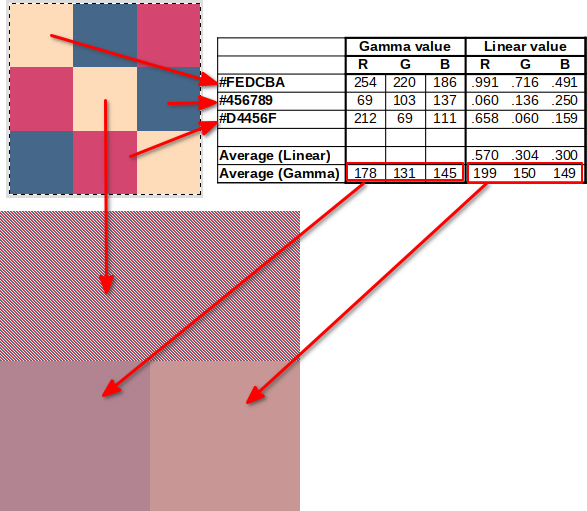
Yes, sRGB is perceptual, but perceived(average(x,y)) is not the same as average(perceived(x),perceived(y)).

Try the experience described here. Make an image with a pixel-size checker board. Step back a couple of yards/metres until you can’t make out the pixels: the image is gray. This is the gray you perceive as a human. Now put that image next to uniform grays, and step back, you will see that the one that most closely matches the checkerboard is (188,188,188):

The same is true for color blends:

1 Like

I’m turning 91, I’m not an IT professional, from ca. I have been promoting and using GIMP for 25 years.

I believe that there is nothing to split a hair into four.

For many years I used the average plugin by Ofnuts.

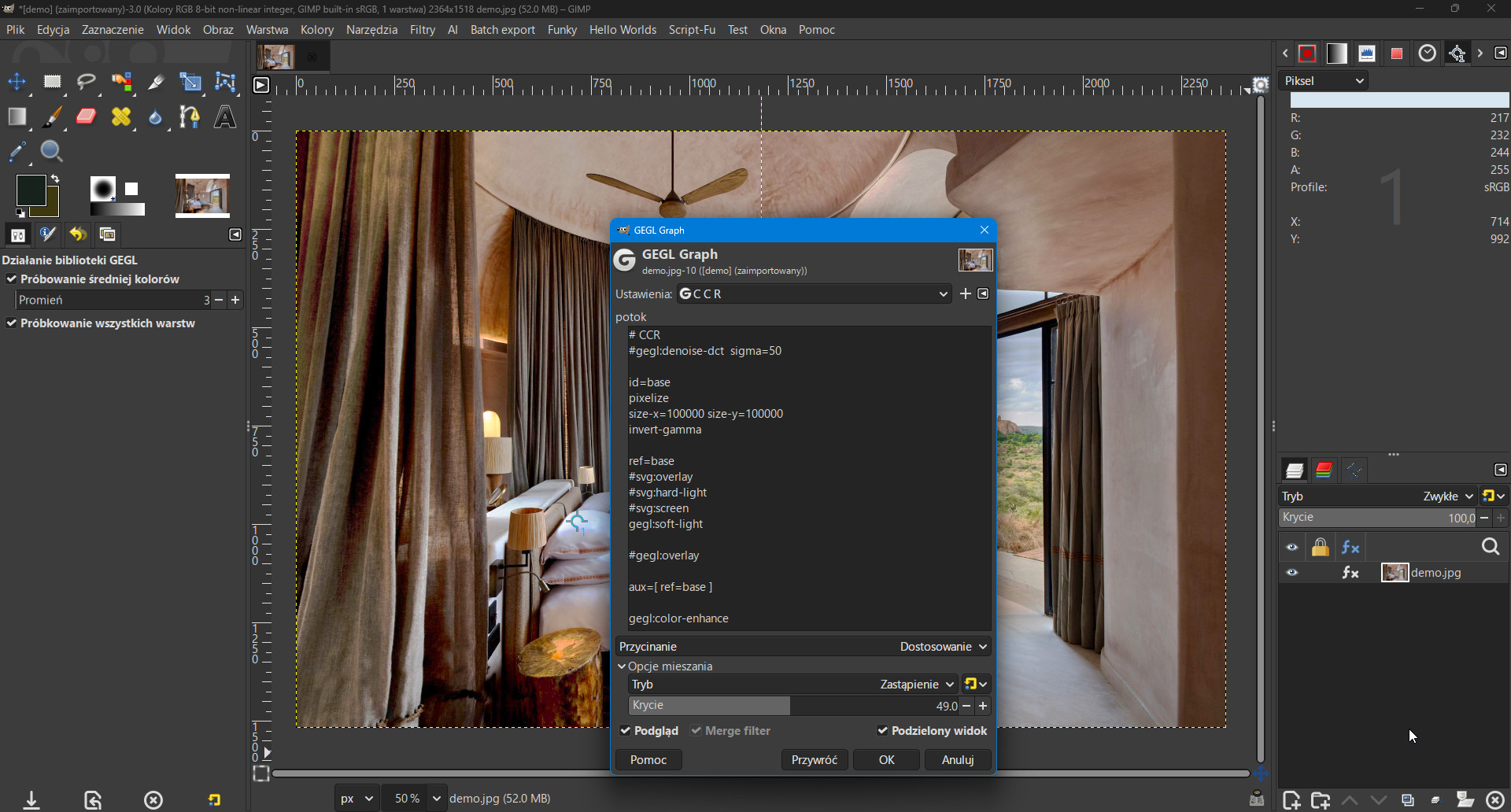
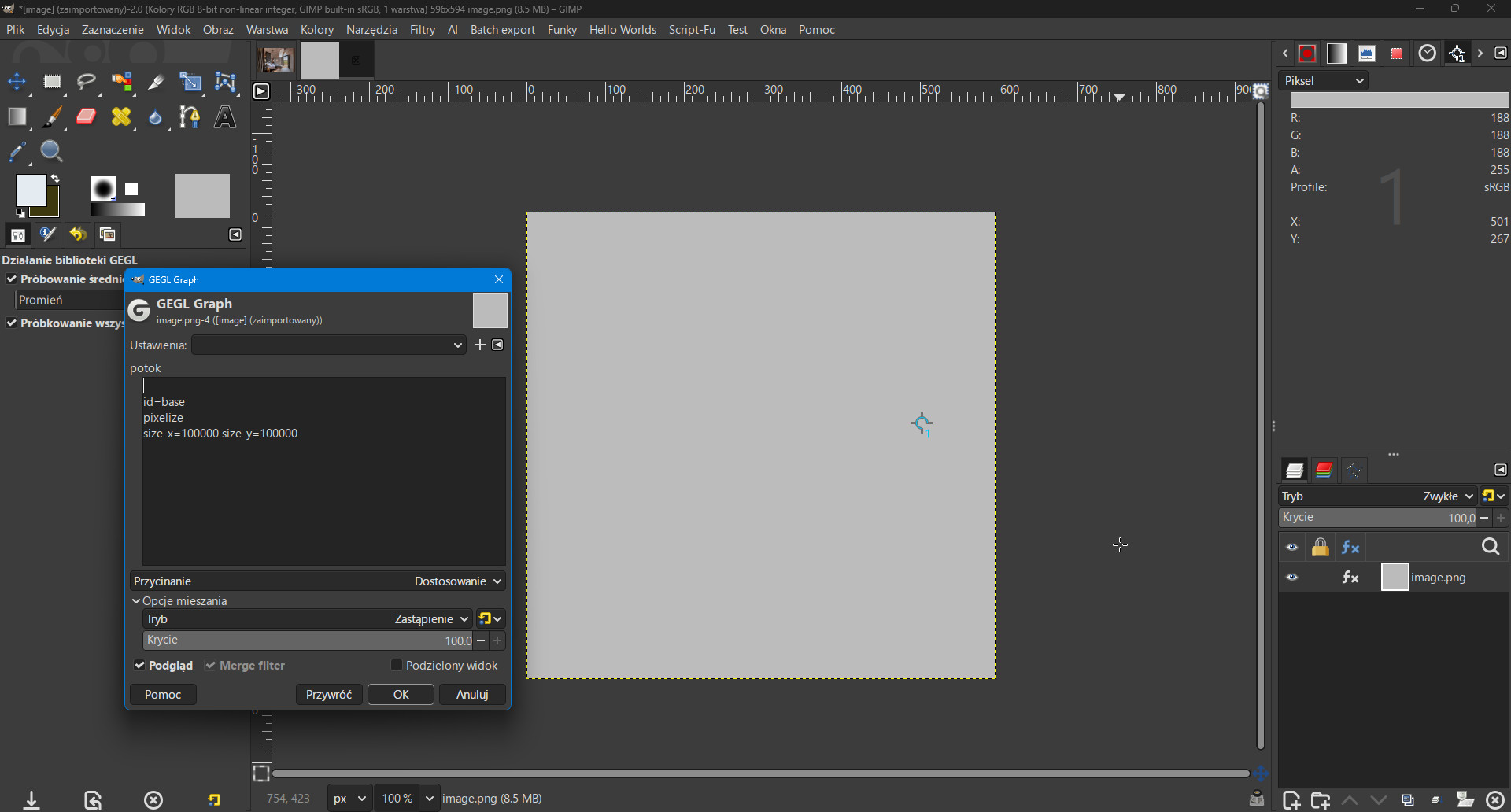
I believe that the simplest method is to use GEGL Graph.

CCR

#gegl:denoise-dct sigma=50

id=base
pixelize
size-x=10000 size-y=10000
invert-gamma

ref=base
#svg:overlay
#svg:hard-light
#svg:screen
gegl:soft-light

#gegl:overlay

aux=[ ref=base ]
gegl:color-enhance
I don’t need to write a plug-in, because I don’t know anything about it.

I have a preview, I can adjust the “power” coverage effect.

One entry and as needed, I remove some parts of it op. Ctrl+X or Ctrl+V (for example. #)

I can change the Blending Modes. I see the effects of this action all the time, followed by OK.

Attention: inclusion of “Split View” - lowers the values in “Benchmark Points.”

If necessary, we can play with lowering the noise first.

The method works in both GIMP 2.10.38 and GIMP 3.2 RC1.

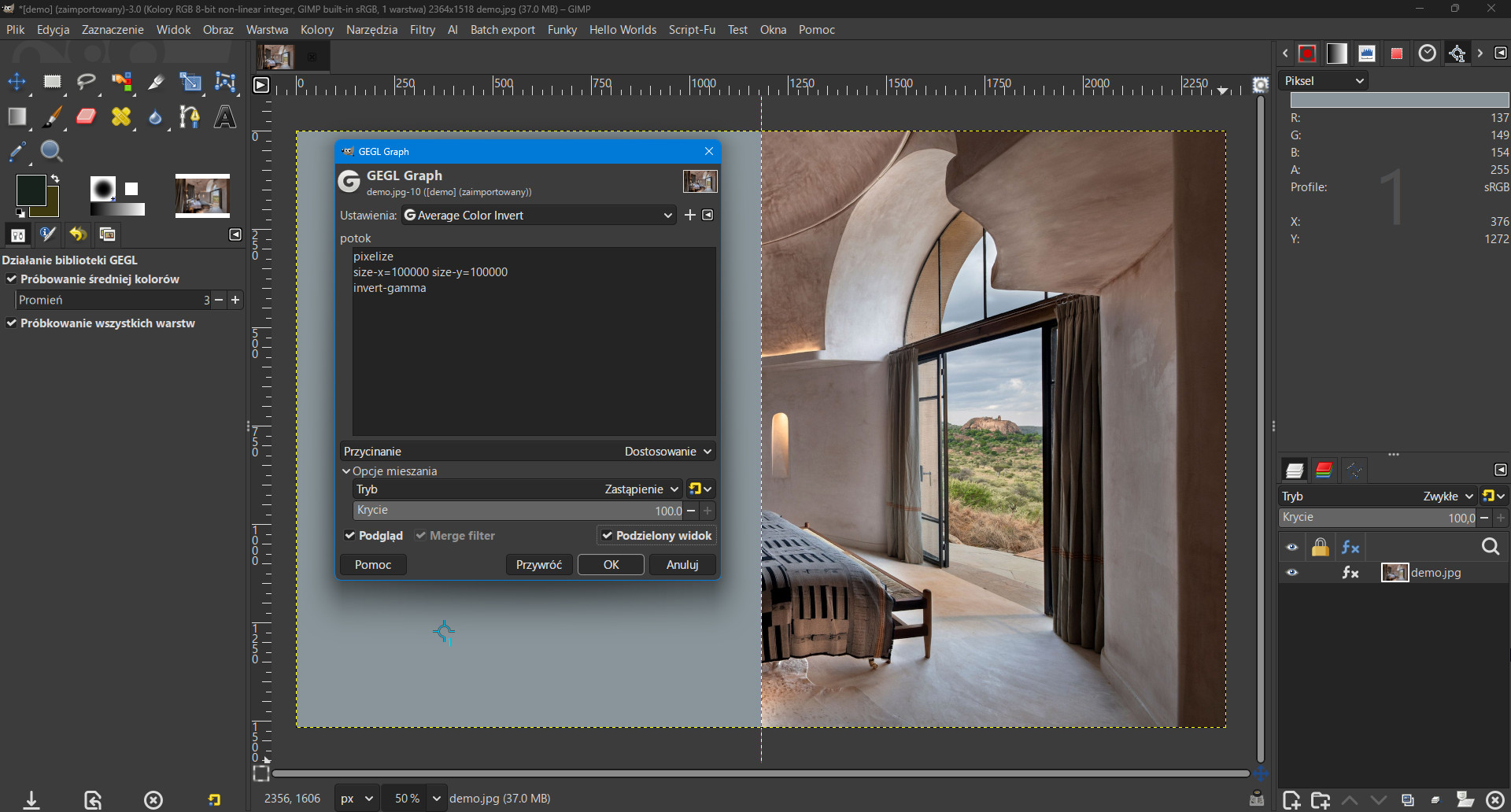
Here is what I get after pixelization to 1 pixel:


Average

Average Color Invert

Removal Color Cast

Why I use Pixelize

Using the command line tool CMD =>.

In Windows 11, press the Windows key + R.

I go to my directory type (or copy and paste):

cd “C:\Program Files\GIMP 3\bin” and click OK.

Then, to list all the operations seen by GEGL, type the command with the flag

–list-all:

gegl --list-all and click Enter again.

A full list of all available GEGL operations will be displayed.

Among which I see: gegl:average

I feed this op to GEGL Graph and a message is displayed:

No such op ‘gegl:average’

4 Likes

@Zbyma72age If that process works for you, great. But what you describe is not average colour as that term is understood by professionals.

Everyone else:

I must say, I’m shocked at the general defensiveness to my simple plugin offering.

It seems I’ve committed a thought crime by suggesting something different than the party line!

Guys, relax. It’s just a plugin. If it works for you, great. If it doesn’t, that’s fine too.

But enough with the negativity, please.

4 Likes

Hello @chuckhenrich

As far as I am concerned, I appreciate a lot your efforts :slight_smile:
Thanks a lot indeed as a GIMP user myself!

2 Likes

Thanks for sharing.
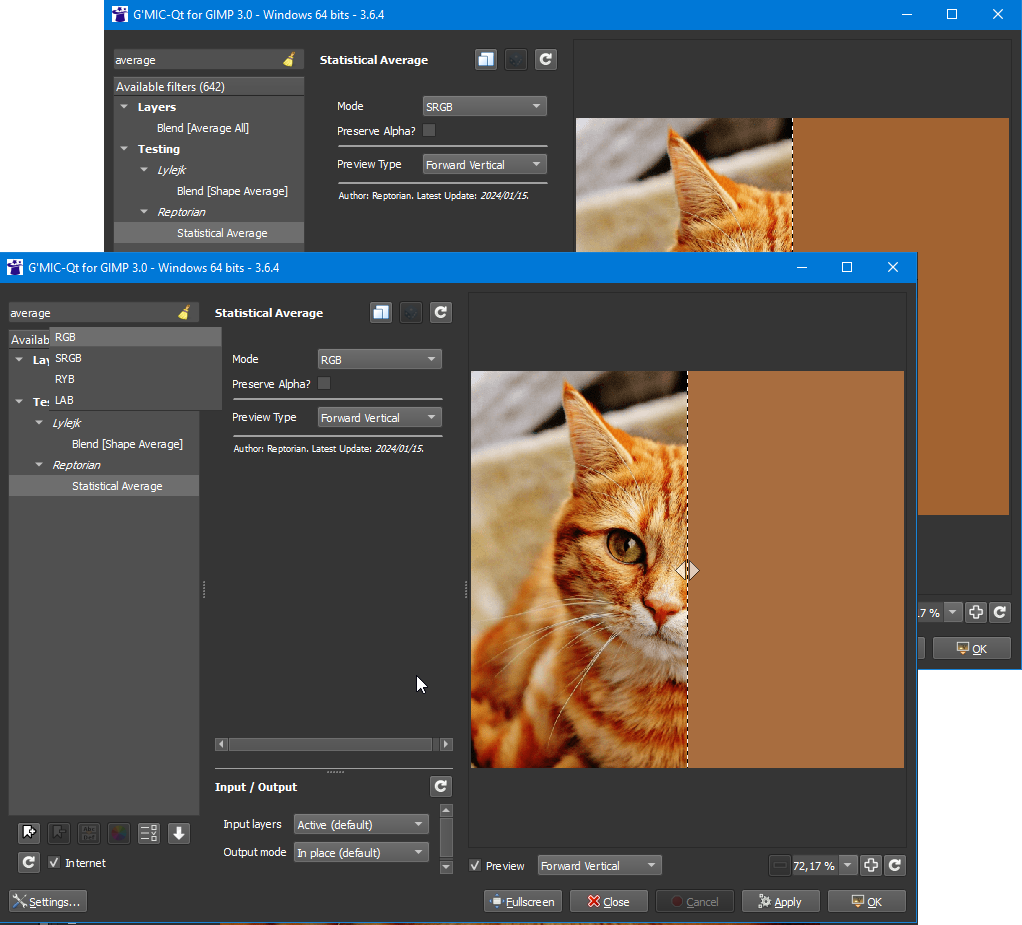
Another solution (because it doesn’t work in Gimp 3.2 RC1) and a comparison:

1 Like

I believe that there is no basis for negative feelings.

I showed that you can get the effect in both GIMP 2.10.38 and GIMP 3.2RC1

It may not be “typical color in the sense of professionals,” but the gro using GIMP are ordinary bread eaters.

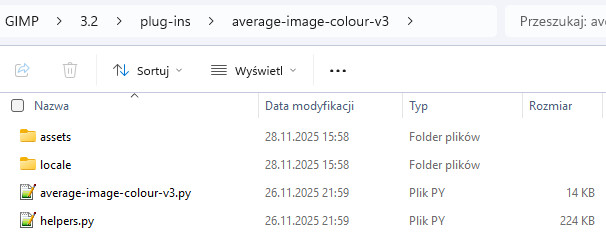
And one more thing, the plug-in I have installed:


But it does not appear in Colors GIMP 3.2RC1
If I understood the info correctly MarerQ also noticed it


Obraz Ofnuts, the original image (a very thin checkboard)

@MrQ How’s your experience with 3.2RC1 so far?

@Silvio_Grosso Thank you very much! Happy to help! :pray:

@MrQ I just downloaded 3.2 RC1 and added my plugins path to preferences. After restarting, the Average Colour plugin was listed in the Colors menu and it worked ok. Can you give me any more insight into your experience with it (why it’s not working for you)?

I mentioned this in another thread of yours.
The problem with Rsvg is also present in Gimp 3.2 RC1 on Windows.
Simply removing it (commenting out #) fixes the problem.
It appears in helpers.py on lines 49 [gi.require_version(“Rsvg”, “2.0”)] and 64 [Rsvg ], and in average-image-colour-v3.py on line 64 [from gi.repository import Rsvg].
I don’t know why this is needed or what files are missing in the development versions (or maybe unnecessary, as it works without the Rsvg dependency).
From my experience with Gimp 3.2, I’ve encountered another major issue:

1 Like

@chuckhenrich This an awesome plugin and will be really useful for me - thank you.
Not only that but you’ve been very generous and educational with the documentation on your site. Great work and looking forward to seeing what you come out with next - all your plugins for GIMP 3.0 so far have been ace!
(My vote would be for a properly configurable contact sheet plugin :yum: )

1 Like

@butlerbright Thank you so much! And it would be great to learn more about that contact sheet plugin idea. Please DM me so we can discuss it separately, OK?

1 Like

For missing rsvg on Windows and most likely other pre-packaged versions, see https://gitlab.gnome.org/GNOME/gimp/-/issues/14910

1 Like