I have a number of photoshop and paintshop image files that I’d like to convert to non-proprietary formats (and I’d also like to keep this as simple as possible!). These were used for printed books and may be again in the future. Is there any chance I can just convert them to lossless formats like .png or .tiff using GIMP, or will I be missing something by only doing that?
By “convert”, do you mean “export as …”?
1 Like
Yes, that’s right, sorry! Export to a non-proprietary format.
The only reason I save PSD files from Photoshop is to preserve layers and masks in case I have to revisit edits. If there are no layers or masks then I am unsure of any advantage of saving in PSD format. GIMP will be able to open the PSD file but if there there are specific adjustments proprietary to photoshop such as adjustment layers there may be problems. On the other hand if there are no adjustment layers then the PSD file may open fine in GIMP.
When working with GIMP I save work in progress files as XCF files to preserve layers and masks. When I have finished the editing I save as 16 bit Tiff files for archival storage.
1 Like
Is there even a format that photoshop can export that can include layers?
tiff should support layers
2 Likes
How do I export to a 16-bit tiff file? Is that different than a regular tiff?
Save as Tiff (Check the box to include layers) That should be it. (At least it was when I was last using Photoshop 8 years ago)
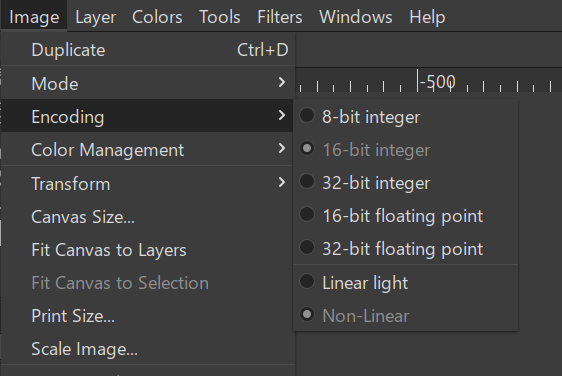
Given you have a 16 Bit Image Open. (Should be able to check with Image → Mode)
Which program are you referring to exporting from. In the export dialog you should have an option of 8 or 16 bit. But in GIMP set the image encoding to 16 bit before requesting export should do the job. 16 bit provides more shades of RGB than 8 bit which can help with future edits. This advice is given by me for archival storage. To use the image on the internet I open the 16 bit image, make no changes but export as 8 bit JPG in sRGB color space. I use these same approaches when working my RAW images in Darktable.