Color Picker RGB Values Differ from Exported Image in RawTherapee 5.1.2

a { text-decoration: none; color: #464feb; } tr th, tr td { border: 1px solid #e6e6e6; } tr th { background-color: #f5f5f5; }

Hello,

I have noticed that in RawTherapee 5.1.2, the RGB values reported by the color picker differ significantly from the RGB values measured in the exported image.

Note: In RawTherapee 5.1.1, the color picker values match the values measured in the exported image.

Settings:

  • Processing Profile: Neutral
  • Input Profile: sRGB
  • Output Profile: sRGB

RawTherapee color picker:

R=74 G=73 B=71
R=8  G=8  B=8

Exported image:

R=149 G=146 B=144
R=49  G=49  B=49

Looking at the relationship between these values, it appears that the values reported by RawTherapee may be linear RGB values, while the exported image values are gamma-encoded sRGB values.

Could you please let me know if there is a way to make the RawTherapee 5.1.2 color picker display sRGB values instead of linear RGB values?

Thank you.

Ok, I’ll ask. Why are you using such an outdated version of RawTherapee?

I have some problems with this question.

hmmm…

RawTherapee 5.1.2

5.1.1 and 5.1.2 don’t even exist. RawTherapee only releases at the minor version level, not the patch version.

RawTherapee color picker:

R=74 G=73 B=71
R=8  G=8  B=8

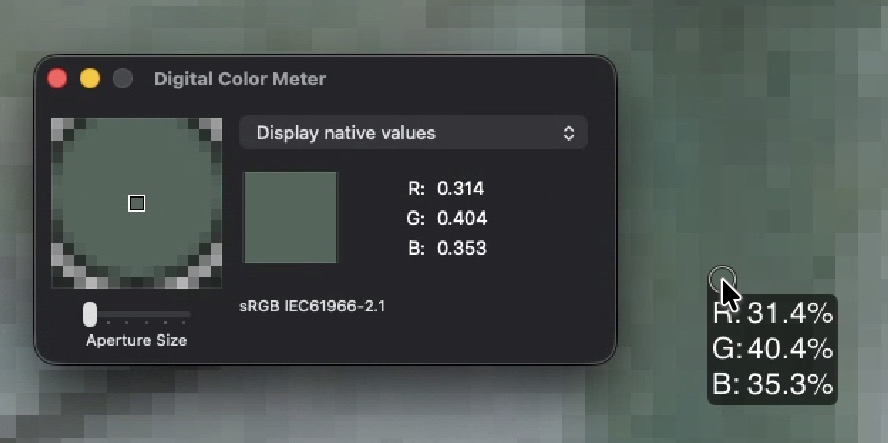
The current 5.13-rc1 RawTherapee color pickers only show one set of three percentages for the RGB values.

No screenshots.

No example RAW & export.

a { text-decoration: none; color: #464feb; } tr th, tr td { border: 1px solid #e6e6e6; } tr th { background-color: #f5f5f5; }

Hello Rick and HIRAM,

Sorry, but the version of RawTherapee I am using is 5.12.

The color picker worked correctly in version 5.11.

There is now a newer version, 5.13, available, so I will try to verify whether the issue still occurs in that version.

Thanks

I tested it with 5.13 RC1, but the values in the color picker are incorrect.

Thanks for the clarification.

What is Photoshop even reading or displaying?

On my mac, the picker seems to report consistent native values, as compared with the system color picker… which is also showing the profile it is reading thru, that is standard sRGB.

Regarding the image I attached earlier, I loaded an X-Rite color chart into RawTherapee and used the color picker to obtain the values of the gray patches. The values obtained with the color picker are 8-bit RGB values in the range of [0–255].

I then developed the image and opened it in Photoshop. The values obtained using Photoshop’s color picker are also 8-bit RGB values [0–255].

The environment is:

  • Windows 11 64-bit
  • RawTherapee 5.13 RC1

Hi, Windows 10 user here, i am sorry, i can’t reproduce the issue.

What i did:

take a pic of a colorchecker (ISO 3200 under poor light)

open in RT 5.13rc1
set profile to neutral
set colorpicker to each greypad
Pad 1: R166, G164, B161
Pad 2: R136, G136, B135
Pad 3: R109, G110, B109
Pad 4: R82, G84, B82
Pad 5: R57, G57, B57
Pad 6: R37, G37, B33
exported the neutral as a tif (jpg is not helpful here due to compressing)

open in RT 5.11
set profile to neutral
set colorpicker to each greypad
Pad 1: R166, G164, B162
Pad 2: R137, G136, B134
Pad 3: R109, G110, B109
Pad 4: R83, G84, B83
Pad 5: R59, G58, B57
Pad 6: R37, G37, B36
exported the neutral as a tif (see above)

comparing both tif-files in PaintShopPro,
no visual differences, as expected
on both files i can see identical color-picker values on the 6 greypads as listed above from RT.

Indeed your screenshot-values of RT 5.13-rc1 seem to be too low anyhow.

It may sound ridicoulos, but there is one thing you can try:
Open preferences and switch ‘language’ to ‘english’, then restart RT and check the values of colorpicker again.

I remember, in the past, some characters in the language-file which were not supported, could cause some strange behaviour in RT.

good luck

marter

1 Like


Hello marter,

Thank you for looking into this.

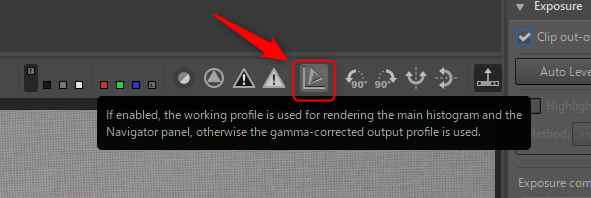
I tried changing the language as a test, but it did not resolve the issue. However, I have now found the solution!

When I unchecked the option shown in the attached image, the correct values started to be displayed.

Rick, HIRAM, and marter,

Thank you for taking the time to reply to my thread. Although I was able to solve the issue myself, I really appreciate your help in troubleshooting and working toward a solution with me.

2 Likes

No worries, I think the misplaced decimal kind of confused us. I’m glad you found the solution, though. I’ve seen that button and wondered what it might do.