I’m excited to share a project I’ve been working on: Darktable AI Rating & Tagging. This is an open-source tool designed to enhance your Darktable workflow by using AI to automatically rate and tag your photos. It’s built for photographers who want to streamline metadata management without manual effort.
What It Does
AI-Powered Rating: The tool analyzes images based on customizable criteria (e.g., expressiveness, emotional impact, composition, lighting, technical quality, etc.) and assigns star ratings (1-5 stars) directly into Darktable’s XMP files.
Automatic Keywording: It generates relevant keywords (tags) for your images, such as “cat”, “close-up”, “sleeping”, “animal portrait”, etc., making it easier to organize and search your library.
Integration with Darktable: Ratings and tags are written to XMP sidecar files, so they appear seamlessly in Darktable. No need to re-import or lose your edits.
How It Works
The tool uses local AI models (like Gemma3-27B, Qwen2.5-7B, or others via LM Studio/Ollama) for privacy-focused processing.
Why It’s Useful
If you’re like me and have thousands of photos, manually rating and tagging can be tedious. This tool helps prioritize your best shots and improves searchability in Darktable.
The script transfers the values to the XMP sidecar file, which the Darktable DB also receives and saves.
It also writes its own XMP file, “image.rate.xmp,” as a backup of the AI data.
If an image.rate.xmp already exists, you must explicitly overwrite it.
A tool for simply reading the *.rate.xmp file will be available in the next few days. It works, but I’d like to test it again.
Use LM Studio with Qwen2.5-7B-VL. After downloading and running the model, don’t forget to enable server mode, otherwise you won’t have access to the API.
Gemma3 (4B / 12B / 27B) also works well, but is slower.
No, for this to happen you need to reimport the XMP or have the option look for updated XMP files on startup on the preference ticked (which is not the default) and can be slow if you have a large library.
After the AI response is parsed (in the parse_ai_response function), the script applies the results to the image. This happens in the apply_ai_result(img, parsed, config) function. Here’s a detailed explanation based on the code – I stick strictly to the implementation and quote relevant sections.
1. Steps After Parsing
The parsed data (ratings, keywords, description) is extracted.
The script checks the GUI settings (e.g., write_rating, write_description, write_tags) to decide what gets written.
Then, the data is applied: to Darktable’s internal database (DB) and/or to a separate XMP file.
2. Where Are the Data Stored?
The script does not only store data in the separate .rate.xmp file, but also directly in Darktable’s internal database (DB). The image’s standard XMP file (e.g., image.jpg.xmp, which stores Darktable’s edits) is never overwritten – this is explicitly defined in the code and tooltips.
Darktable Database (DB): Yes, data is written here if the corresponding settings are enabled. This is the primary storage for ratings, descriptions, and tags that you see in the Darktable GUI.
Standard XMP File: No, it is not touched. Darktable uses this for edits (e.g., exposure, colors), and the script respects that.
Separate .rate.xmp File: Yes, additionally, a new file is created (e.g., image.jpg.rate.xmp), containing the AI-generated description and keywords. This is independent and serves as a backup or for external tools.
It basically works but the status output is not displayed and the UI hangs until it is finished.
I’ve tried a wide variety of things, from sleep timer, serial processing, extra loop for reading the XMP data and then writing the data to the database, the UI hangs or it’s massively slow.
Anyway; wouldn’t updating the database without updating the xmp files mean the two are no longer synchonised? I’d say that’s a bad thing… Keeping in mind that the xmp files (can) also store ratings and keywords…
AI Rating & Tagging Script for darktable (Update to V3.7)
This Lua script automates image rating and tagging in darktable by using a local AI (e.g., via LM Studio). It sends a downscaled version of selected images to a local Large Language Model for analysis. Based on a configurable prompt, the AI returns a detailed critique, a rating score, and relevant keywords, which are then applied back to the images.
Key Options & Data Destination
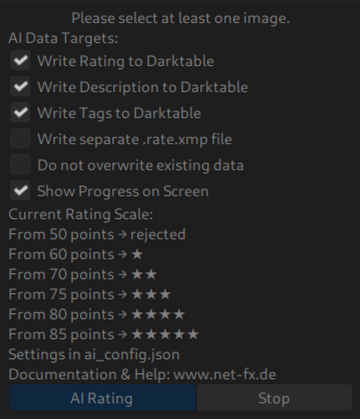
The script’s behavior is controlled by several checkboxes that determine where and how data is written:
Write Rating to Darktable: Writes the final star rating (e.g., 1-5 stars) directly into darktable. (Darktable DB & Darktable-XMP)
Write Description to Darktable: Populates the image’s metadata ‘description’ field in darktable with the full text analysis from the AI. (Darktable DB & XMP)
Write Tags to Darktable: Adds the keywords generated by the AI as new tags to the image within darktable’s tagging system. (Darktable DB & XMP)
Write separate .rate.xmp file: Creates a new .rate.xmp sidecar file next to your image file. This file contains the AI-generated description and keywords, independent of the darktable database. (Only selected options are written)
Do not overwrite existing data: A safety feature. When enabled, the script will not change a rating or description if that field already contains data, thus preserving any manual edits you have made. (You selected 20 files and 10 have already a rating only 10 ratings are written).
You have to change the DB and call the proper routine from Lua to update the XMP. On C side the routine is dt_image_synch_xmp(imgid) where imgid is (obviously) the image-id.
I think this happens automagically when you update a dt_lua_image_t object. My XMP files always match after I change image information though I’m not sure exactly when they get written.
It should already run on macOS. Download LM Studio, download Qwen2.5-7B-VL in LM-Studo. Load AI (Qwen) and activate server mode.
Copy LUA-script in your DT LUA folder. Start DT, aktivate scripts.
In my experience, mistral-small is also an excellent alternative - if anyone is experimenting with models, give it a try - especially if you want to work in languages other than English
 - especially if you want to work in languages other than English