Well that went predictably well. One of the changes to the fstab file has now killed the OS and the machine won’t boot. I’m in the process of creating a bootable USB stick so I can get access to the file and reverse the changes.
What a pain.
Prior to that little disaster, things were a bit weird. Applications like Files, text editor could see my darktable images just fine and dT could see the folders when I tried to re-import and it said that all the files were reimported but the folder was missing from the collections/folder view. Just invisible. Not sure what is going on TBH.
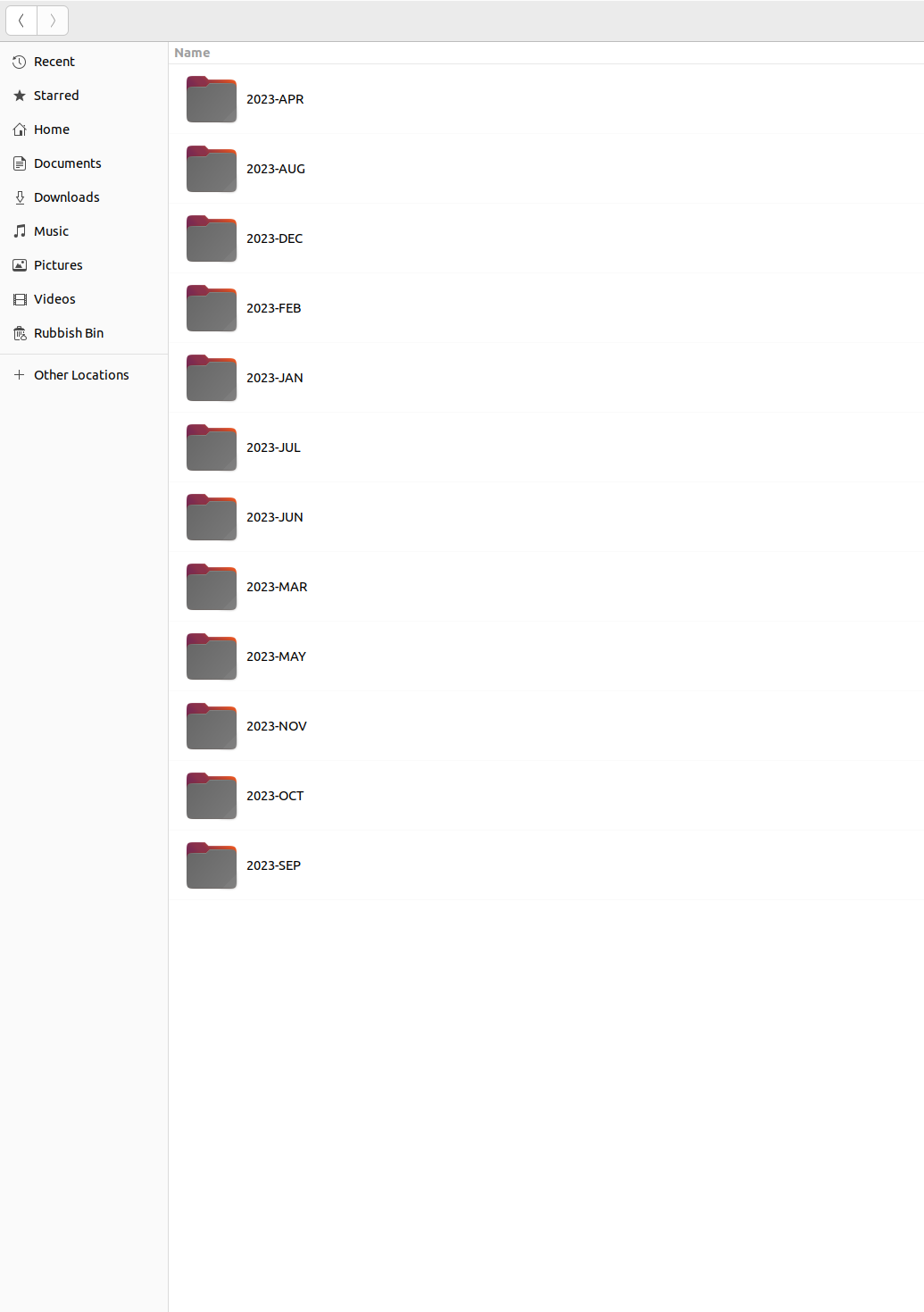
If I use the “Add to library” option I can navigate to my 2023 files and import them. And it says 1600 files imported. But when I use the collections panel to go to the 2023 folder, it’s not there. If I import 1 single file, the 2023 folder then appears in the collections (with just that one file). If I reboot, that single file now reports itself as “unavailable”. If this is a drive mount issue, why can I see the files in any other application? And why can I browse and import the files to dT, but then can’t see them or edit them?
So, what is your current status?
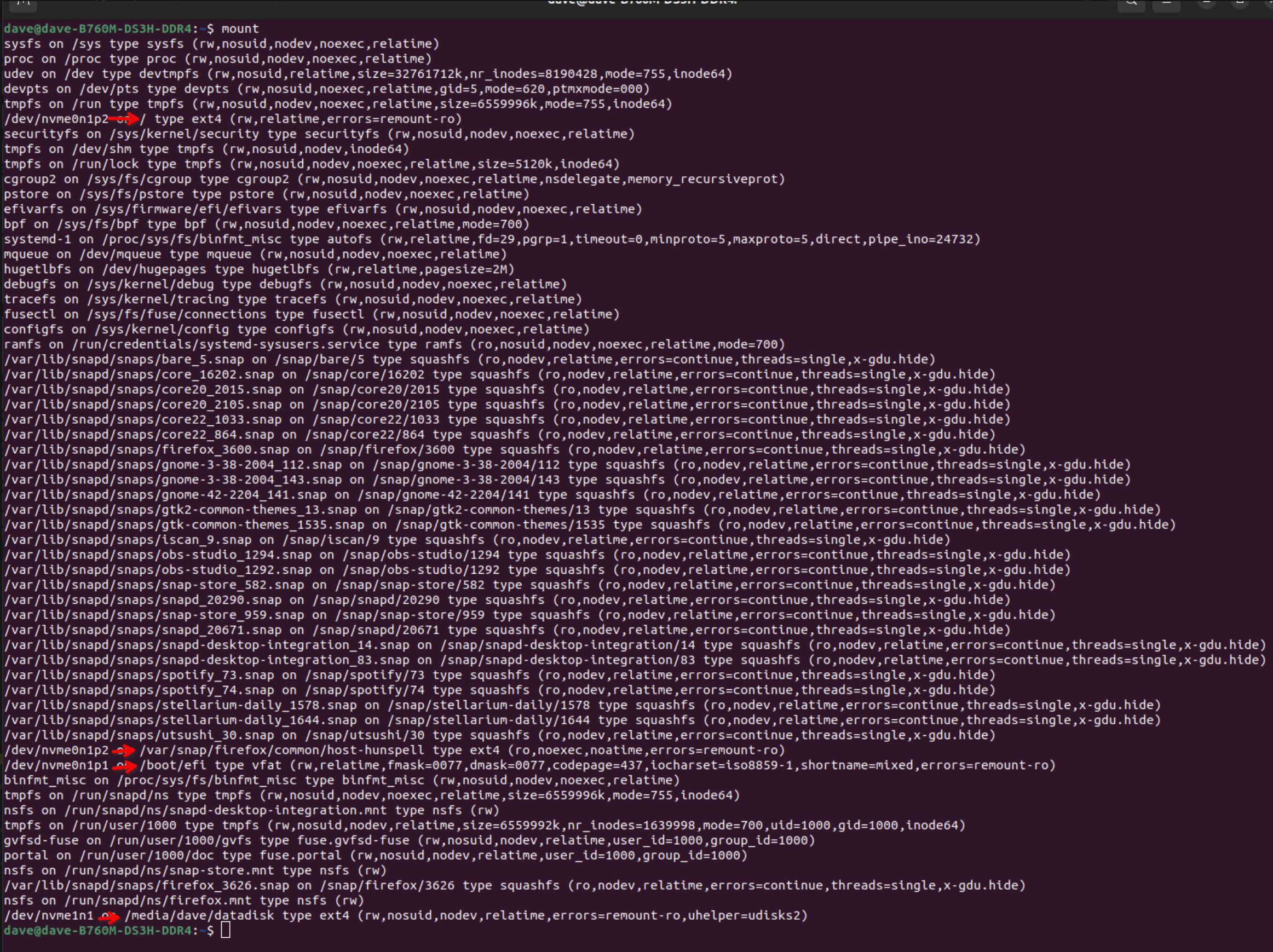
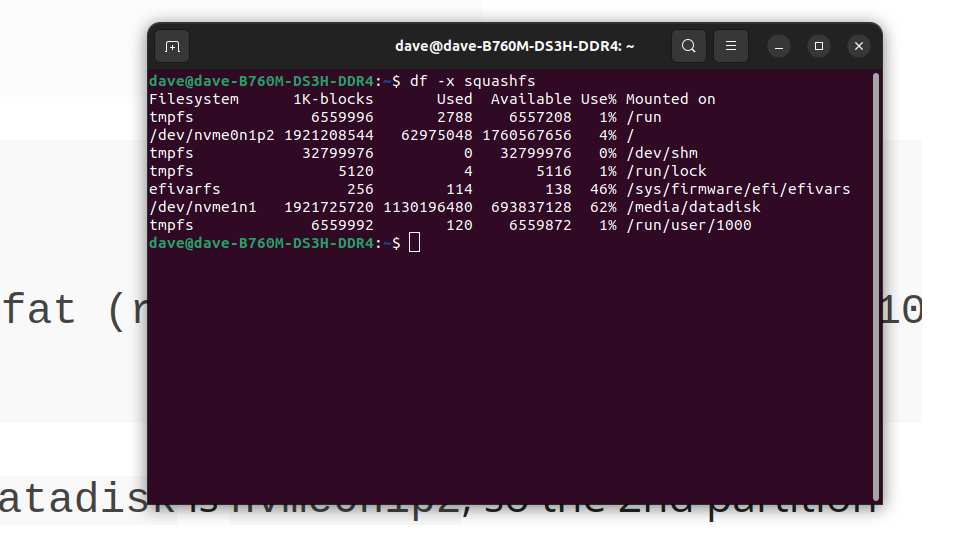
On your original mount screenshot, the following disk mounts are visible (the rest are ‘snap’ and miscellaneous system mounts):
What we still don’t know is what the Mount Options you showed are for. Those seem to be temporary devices. Are they those for the USB card reader?
Also, when you copy your files from the SD card, do you use darktable to perform the copy, or some other tool? If darktable, do you use the copy & import functionality, or only import (which leaves the files where they are)? If you use copy & import, how is your import set up? In preferences, what is your base directory naming pattern?
Not currently used alt format /dev/disk/by-uuid/a659303f-0264-47de-a4f9-18fa0d9f13d2 /media/a659303f-0264-47de-a4f9-18fa0d9f13d2 auto nosuid,nodev,nofail,x-gvfs-show 0 0
Aaarrghh… there are more screenshots to follow but the editor says I have to wait 3 hours to post because I’m new here. Sorry! More later…
p.s. While we wait…
I create new subfolders for each import and copy files from USB SD card to the new folder on my data disk using to the file manager copy/paste commands
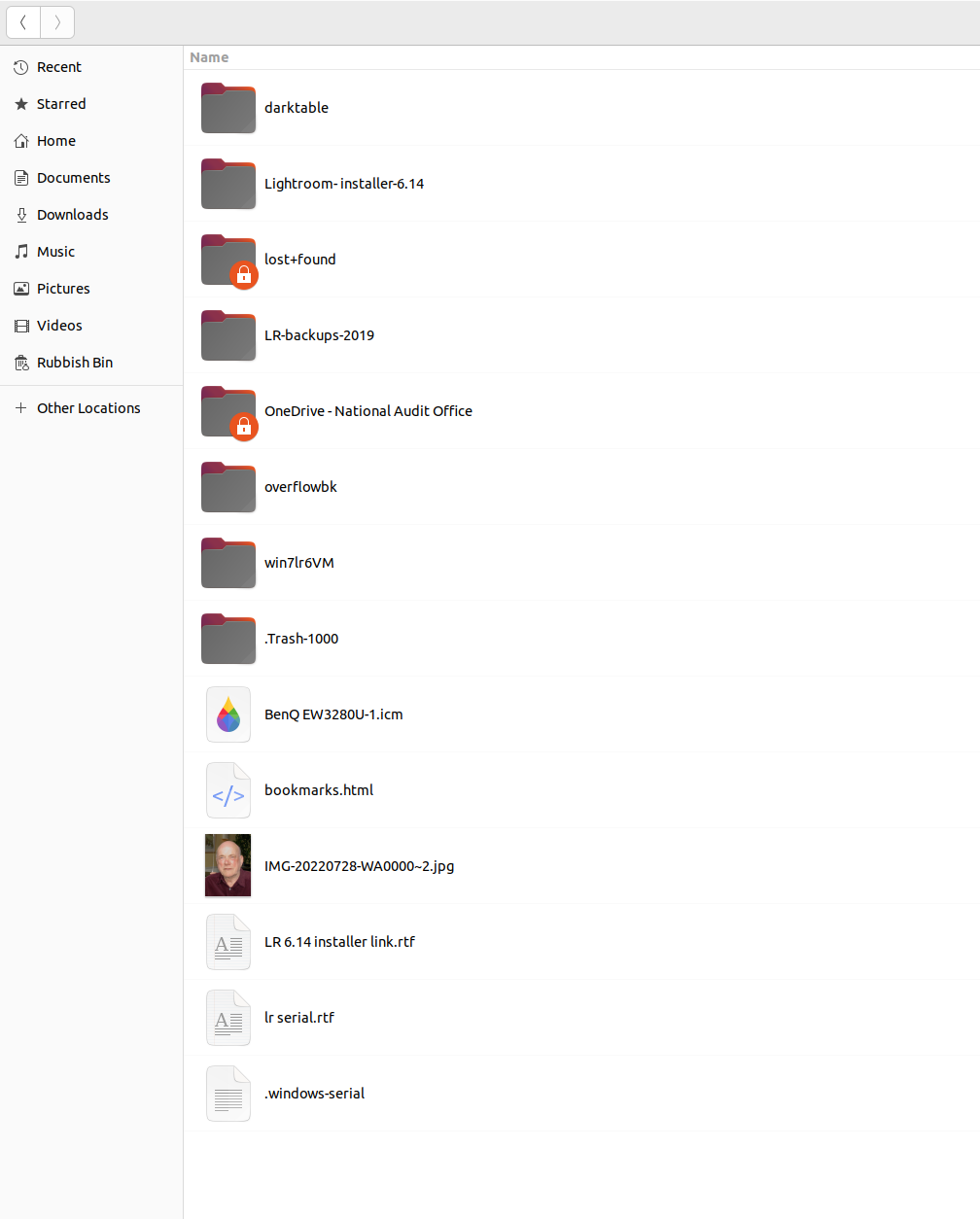
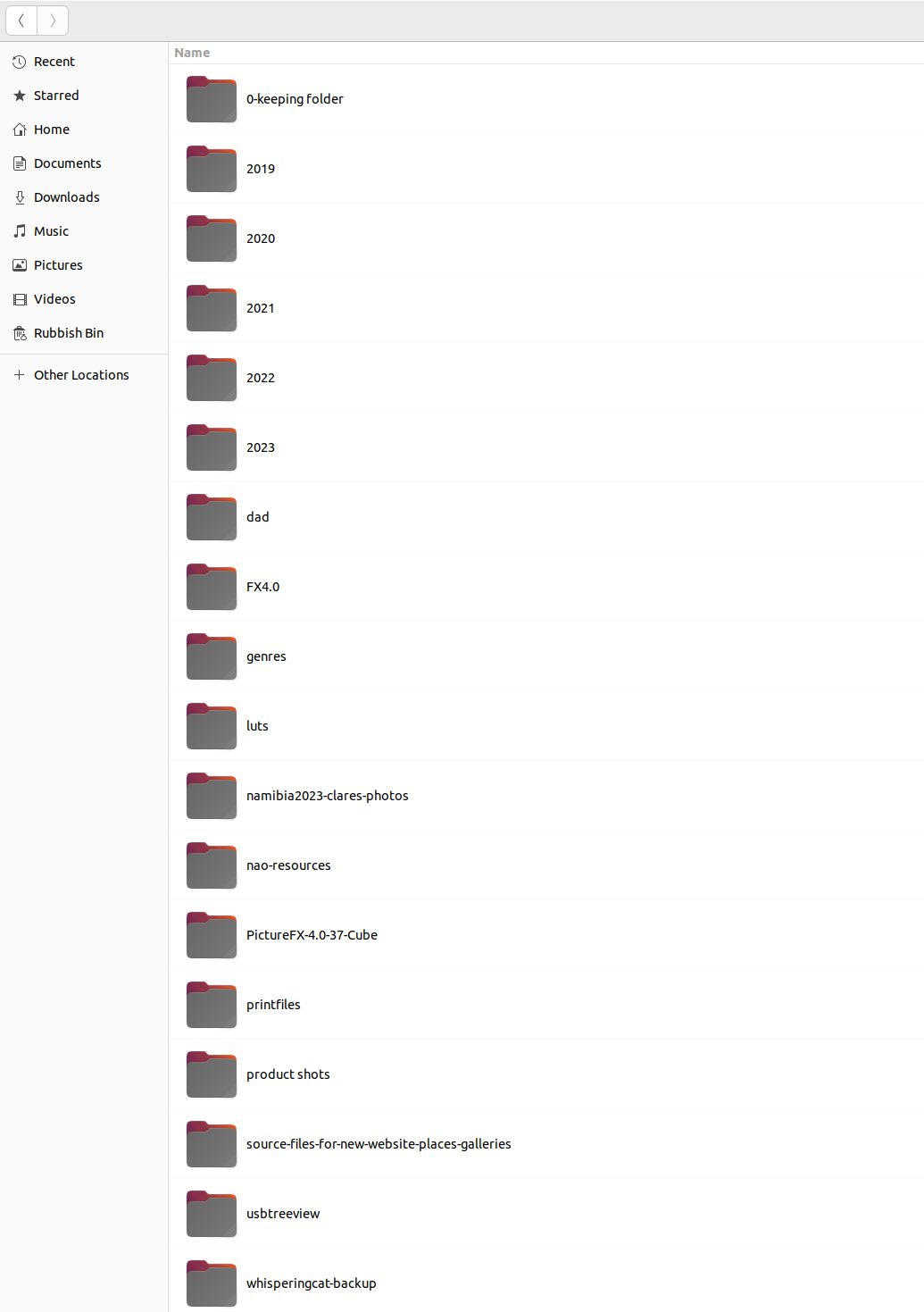
Then I open dT and use “Add to library” to import the new photos. Using the file manager I can see all the photos (as I will prove with screenshots in 3 hrs when the system lets me post again). The “add to library” function can see the new folder and all the files and import them.
On my old computer, I can then navigate to the new folder in the lighttable “folders” option and work with the files. Currently on my new computer, the newly imported folder is not visible under “folders”.
The exception is one file I imported separately in the 2023-DEC folder. That is visible under folders. Immediately after I imported this file it was fully functionable and editable. However, following a reboot , although thumbnail is available, trying to edit the file produces a “file not available” message. The path is: /media/dave/datadisk/darktable/2023/2023-DEC/10531209/A7400078.ARW.
I notice that the path shows /media/dave/datadisk not the /media/datadisk mount point I’m now using. Is this just a dT thing or does it represent a problem somewhere?
EDITED: Having to edit this post because forum won’t let me post new posts at the moment:
‘’’ text
/etc/fstab: static file system information.
Use ‘blkid’ to print the universally unique identifier for a
device; this may be used with UUID= as a more robust way to name devices
that works even if disks are added and removed. See fstab(5).
/ was on /dev/nvme0n1p2 during installation
/boot/efi was on /dev/nvme0n1p1 during installation
Not currently used alt format /dev/disk/by-uuid/a659303f-0264-47de-a4f9-18fa0d9f13d2 /media/a659303f-0264-47de-a4f9-18fa0d9f13d2 auto nosuid,nodev,nofail,x-gvfs-show 0 0
‘’’
Better? Didn’t work. British keyboard doesn’t seem to have that quote mark
Sorry, this is completely unreadable, because the # marks (comments in fstab) are interpreted as formatting by the forum.
Please post file contents, console outputs etc. enclosed between ``` like this:
```
# /etc/fstab: static file system information.
#
# Use 'blkid' to print the universally unique identifier for a
# device; this may be used with UUID= as a more robust way to name devices
# that works even if disks are added and removed. See fstab(5).
#
# <file system> <mount point>   <type>  <options>       <dump>  <pass>
# / was on /dev/sda1 during installation
UUID=b3646d97-a9f1-47e9-bb09-d6cfd8972ddd /               ext4    errors=remount-ro 0       1
# /home was on /dev/sda5 during installation
UUID=44fbed5b-641b-43f1-852c-fb89f72247a4 /home           ext4    defaults        0       2
# /oldhome was on /dev/sdc2 during installation
UUID=23acdf08-dad1-4666-9e0f-db88c2df0102 /oldhome        ext4    defaults        0       2
# /dev/sda6 swap SSD
UUID=e235e39e-3465-45d0-b332-4dcd9f9a9b34 none            swap    pri=100         0       0
# swap was on /dev/sdc1 during installation
#UUID=b87bd478-ea55-4e3a-83aa-c4951832175b none            swap    sw              0       0
# /dev/sdg1
UUID=b36c1873-2b3a-4e3d-92f8-89f1f442b5e5 /media/backup ext4 defaults
```
That will preserve the original file:
# /etc/fstab: static file system information.
#
# Use 'blkid' to print the universally unique identifier for a
# device; this may be used with UUID= as a more robust way to name devices
# that works even if disks are added and removed. See fstab(5).
#
# <file system> <mount point>   <type>  <options>       <dump>  <pass>
# / was on /dev/sda1 during installation
UUID=b3646d97-a9f1-47e9-bb09-d6cfd8972ddd /               ext4    errors=remount-ro 0       1
# /home was on /dev/sda5 during installation
UUID=44fbed5b-641b-43f1-852c-fb89f72247a4 /home           ext4    defaults        0       2
# /oldhome was on /dev/sdc2 during installation
UUID=23acdf08-dad1-4666-9e0f-db88c2df0102 /oldhome        ext4    defaults        0       2
# /dev/sda6 swap SSD
UUID=e235e39e-3465-45d0-b332-4dcd9f9a9b34 none            swap    pri=100         0       0
# swap was on /dev/sdc1 during installation
#UUID=b87bd478-ea55-4e3a-83aa-c4951832175b none            swap    sw              0       0
# /dev/sdg1
UUID=b36c1873-2b3a-4e3d-92f8-89f1f442b5e5 /media/backup ext4 defaults
(If you want to be fancy, you can use ```text on the first line, and then there is no funny hightlighting of the numbers:
```text
# /etc/fstab: static file system information.
#
# Use 'blkid' to print the universally unique identifier for a
# device; this may be used with UUID= as a more robust way to name devices
# that works even if disks are added and removed. See fstab(5).
#
# <file system> <mount point>   <type>  <options>       <dump>  <pass>
# / was on /dev/sda1 during installation
UUID=b3646d97-a9f1-47e9-bb09-d6cfd8972ddd /               ext4    errors=remount-ro 0       1
# /home was on /dev/sda5 during installation
UUID=44fbed5b-641b-43f1-852c-fb89f72247a4 /home           ext4    defaults        0       2
# /oldhome was on /dev/sdc2 during installation
UUID=23acdf08-dad1-4666-9e0f-db88c2df0102 /oldhome        ext4    defaults        0       2
# /dev/sda6 swap SSD
UUID=e235e39e-3465-45d0-b332-4dcd9f9a9b34 none            swap    pri=100         0       0
# swap was on /dev/sdc1 during installation
#UUID=b87bd478-ea55-4e3a-83aa-c4951832175b none            swap    sw              0       0
# /dev/sdg1
UUID=b36c1873-2b3a-4e3d-92f8-89f1f442b5e5 /media/backup ext4 defaults
```
appears as:
# /etc/fstab: static file system information.
#
# Use 'blkid' to print the universally unique identifier for a
# device; this may be used with UUID= as a more robust way to name devices
# that works even if disks are added and removed. See fstab(5).
#
# <file system> <mount point>   <type>  <options>       <dump>  <pass>
# / was on /dev/sda1 during installation
UUID=b3646d97-a9f1-47e9-bb09-d6cfd8972ddd /               ext4    errors=remount-ro 0       1
# /home was on /dev/sda5 during installation
UUID=44fbed5b-641b-43f1-852c-fb89f72247a4 /home           ext4    defaults        0       2
# /oldhome was on /dev/sdc2 during installation
UUID=23acdf08-dad1-4666-9e0f-db88c2df0102 /oldhome        ext4    defaults        0       2
# /dev/sda6 swap SSD
UUID=e235e39e-3465-45d0-b332-4dcd9f9a9b34 none            swap    pri=100         0       0
# swap was on /dev/sdc1 during installation
#UUID=b87bd478-ea55-4e3a-83aa-c4951832175b none            swap    sw              0       0
# /dev/sdg1
UUID=b36c1873-2b3a-4e3d-92f8-89f1f442b5e5 /media/backup ext4 defaults
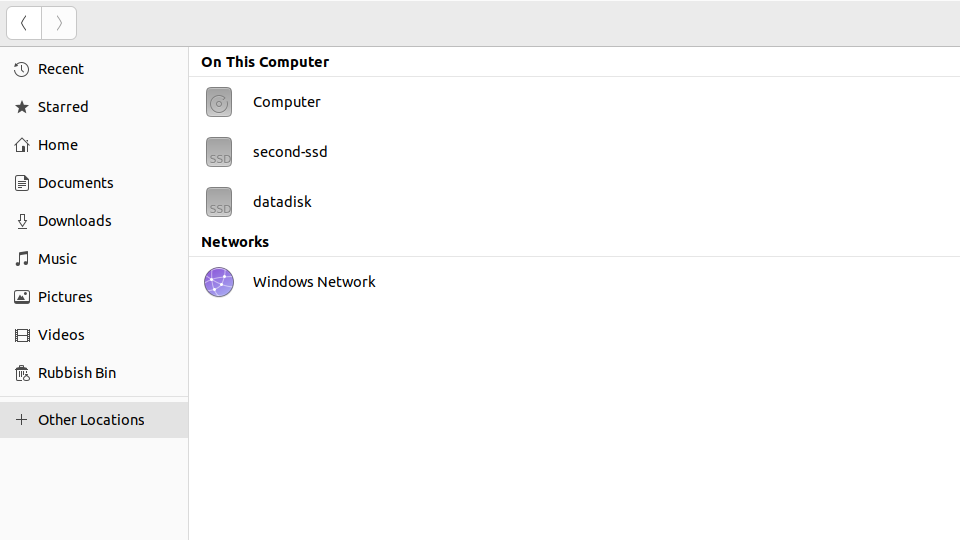
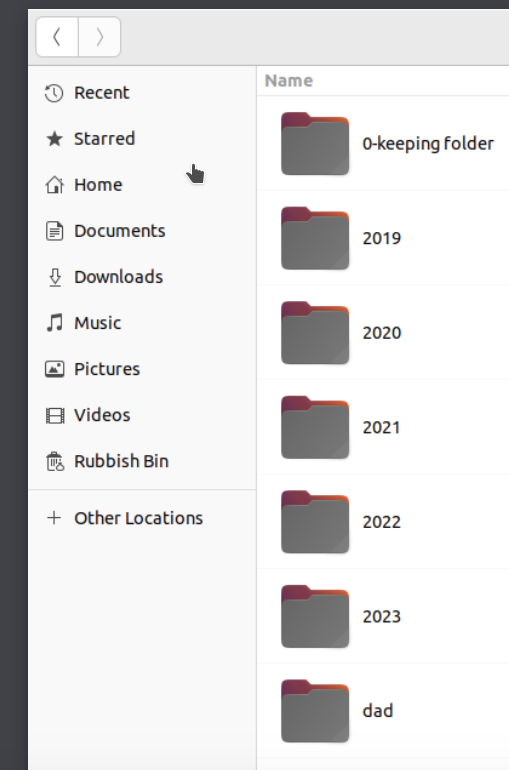
The file manager screenshots are also not too useful, as we cannot see what the path is. For example, it’s the full path of the folder (directory) containing these is not shown:
Cut and pasted the quotes from your post. Hope that works. Just been notified I have new powers to post!
# /etc/fstab: static file system information.
#
# Use 'blkid' to print the universally unique identifier for a
# device; this may be used with UUID= as a more robust way to name devices
# that works even if disks are added and removed. See fstab(5).
#
# <file system> <mount point>   <type>  <options>       <dump>  <pass>
# / was on /dev/nvme0n1p2 during installation
# /boot/efi was on /dev/nvme0n1p1 during installation
/swapfile                                 none            swap    sw              0       0
UUID=9adebe28-7207-4e70-b951-7d75ba0590e1 / ext4 errors=remount-ro,x-gvfs-show,x-gvfs-name=second-ssd 0 1
# entry above is ubuntu boot drive
# nvmessd mount points
# Entry below is nvme1n1 drive with all photo files on
UUID=a659303f-0264-47de-a4f9-18fa0d9f13d2 /media/datadisk ext4 defaults 0 0
# Not currently used alt format  /dev/disk/by-uuid/a659303f-0264-47de-a4f9-18fa0d9f13d2 /media/a659303f-0264-47de-a4f9-18fa0d9f13d2 auto nosuid,nodev,nofail,x-gvfs-show 0 0
As a test, copy some images to a folder not in that media path (your other SSD). Something like pictures in your home folder. Import, reboot and see if the link stays.
I copied a small folder of 2019 images to the documents folder of what I’m still tempted to call my C: drive but isn’t. Whatever Linux calls the place where you install Linux…
Imported fine, and editable.
Viewable in the collections panel as folders/home/dave/documents/2019/2019-OCT/Skye/X-t1 (15)
When I click on the X-T1(15) subfolder, I see 15 thumbnails. If I click a thumbnail I can edit.
Rebooted, and files are still there! I shall reboot once more to be sure…back soon
I then tried importing all the 2019 photos. The import dialogue said that it had worked, but the rest of the photos do not show up in the collections/folders panel.
So this points to what kofa shared. The mounting of that drive seems to be the issue. You mentioned in one of the post something around the bios not seeing the drive.
To me, this appears to show two properly mounted drives:
/dev/nvme0n1p2 which is my Ubuntu “c:” drive boot disk and OS
/dev/nvme1n1 which is my data disk with all the photos on it.
Analysis is slightly confused by the fact that there are two partitions on nvne0n1. I forget what I did exactly when I built this machine, but my old machine was a dual boot set up with win10 and Ubuntu 22.04. It’s possible that the nvme0n1p1 partition is actually a copy of the partition space from my old machine that could accept a dual boot copy of win10. I decided not to go dual boot with the new machine but I may have left the empty partition. It shows up in the Disk utility as a FAT 32 partition that is not mounted. I’ve decided to ignore that partition and concentrate only on nvme0n1p2 (ubuntu drive) and nvme1n1 (data disk).