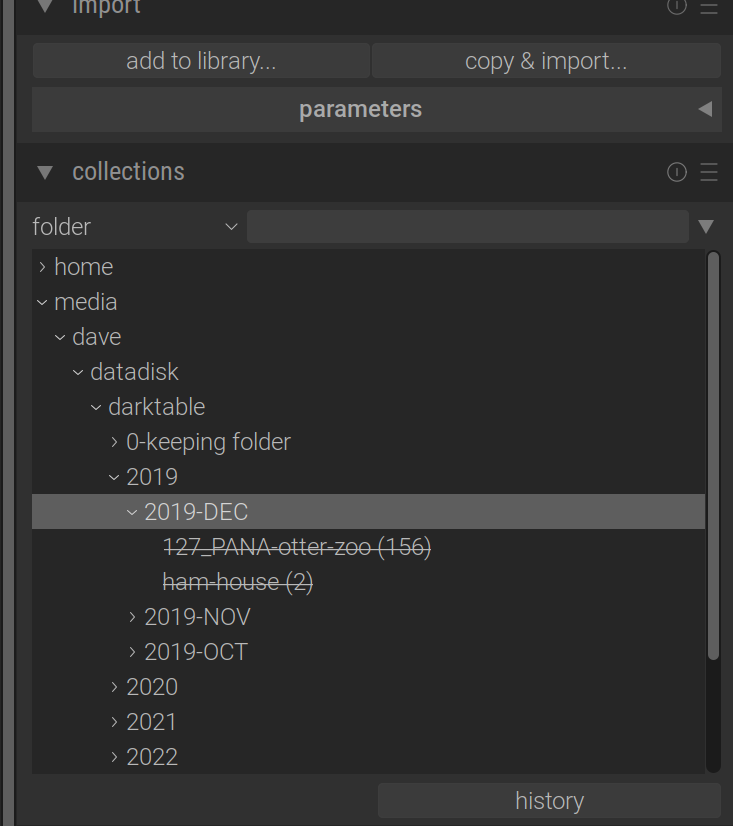
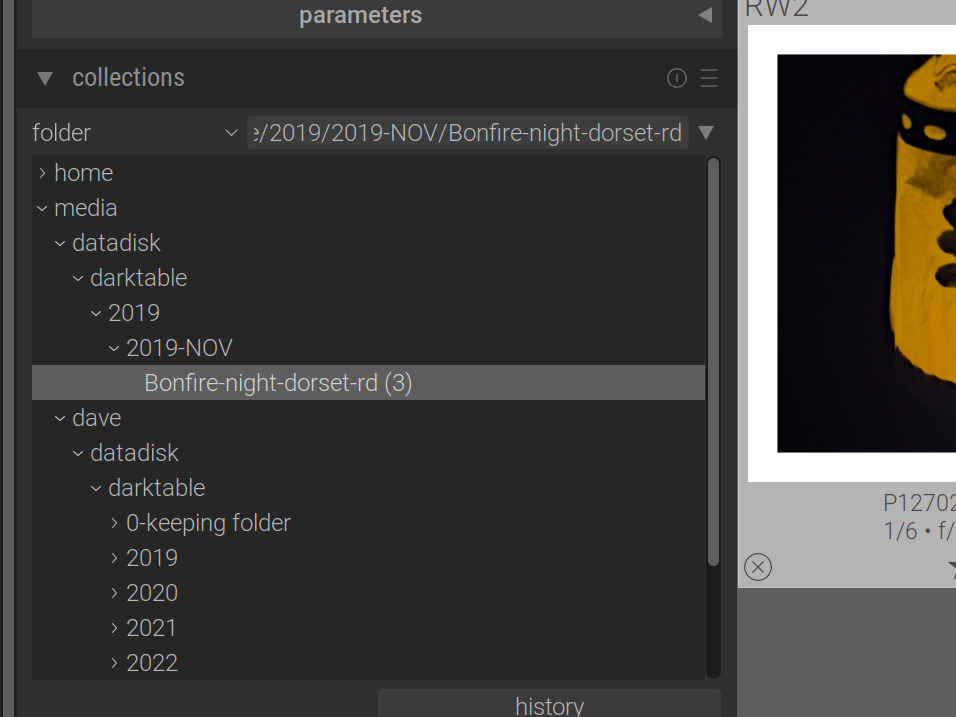
The subfolder “dave” is nowhere to be seen in the path. The question in my mind therefore is: “why does dT think there is an extra “dave” in the file path?”
At the moment I’m tempted into thinking I need to wait for the bug fix release, then “remove” my entire library and re-import the whole thing to rebuild dT’s understanding of the file structure.
In lightroom, when the catalogue loses sight of the folder (maybe because you moved it using Windows file explorer), you can right click the missing folder in LR and select “search for missing folder”, browse the file system, find the new location and re-point to it to hook everything up again.
Does dT have anything similar? It would be good if it did…
Because that is where it imported the files from. It’s a temporary mount path, normally used for pen drives and other external disks. You’ll need to set up mounting it in your fstab.
You have:
/dev/nvme0n1p2 as /
/dev/nvme0n1p1 as /boot/efi
/dev/nvme1n1, which shows up as the temporary mount /media/dave/datadisk.
Then you posted your fstab, which now looks different, it does not list /boot/efi. In there:
UUID=9adebe28-7207-4e70-b951-7d75ba0590e1 is the root /. So this is /dev/nvme0n1p2, I assume.
UUID=a659303f-0264-47de-a4f9-18fa0d9f13d2, or nvme1n1, is mounted at /media/datadisk.
If you keep it like that, it should no longer show up as /media/dave/datadisk. If it does, I do not know why. Always use it from the /media/datadisk path.
df is disk free, so shows how much space is used, how much is available.
Your / and /media/datadisk are the big partition on the 1st disk, and the entire 2nd disk, respectively. The others you can safely ignore.
UUID=9adebe28-7207-4e70-b951-7d75ba0590e1 is the root /. So this is /dev/nvme0n1p2, I assume. Correct
UUID=a659303f-0264-47de-a4f9-18fa0d9f13d2, or nvme1n1, is mounted at /media/datadisk. Correct.
Trying to understand this temporary mount thing.
When I built my new machine it was empty, of course. I copied the files from my backup drive (which is a sata ssd that I temporarily attached to a spare sata cable, copied the files off, then disconnected and put back on the shelf).
The files were copied using the file explorer, not dT, and placed in a folder on my internal datadisk. It was this folder (not the backup drive) that was the source for the import. And the path to the datadisk does not include the “dave”.
Is that extra “dave” the reason why dT can’t find my datadisk photos? If so, what do I have to do to get rid of it from the path?
If this sticks after a reboot it suggests what I need to do is re-import my entire library and it will get added to this new path structure. But because of the “recursion” bug, I have to do that subfolder by subfolder for my whole library of 20-30k photos. Or wait for the bug fix release…
Re-booting now as a confirmation…
EDIT: It stuck, yay!
So, I’m fairly convinced that re-importing all the files is what is required, but the recursion bug makes that a real pain. I can’t wait for a new release because I’m working on my LRPS Distinction panel submission which is due shortly and I need access to my files.
It looks like it is going to have to be a subfolder by subfolder manual slog, unfortunately.
UPDATE: I’ve imported 3 months of images into the new (correct) filesystem /media/datadisk and rebooted 2 or 3 times and it is sticking. I think this means I have a way forward (albeit a painful way forward until the bug fix release arrives).
Thank you very much for your patience and your efforts, I would not have found my way there without you.
As I’m new to this forum, is there a way to mark the question as answered, solved or thumbs up in some way?
p.s.
Just one last thing… (isn’t there always ). I notice when I now look in the file explorer and click on “Other locations” that I now have 3 entries:
computer
second-ssd
datadisk
If I click on the computer and second-ssd options, I get identical file listings. The contents of my Ubuntu “c:” drive equivalent. I don’t want the second-ssd duplicate, I’ll forget what it and it will confuse me in future. How do I get rid of it?
I’m having this problem with Darktable too. It used to be that it would lose imports at random from time to time if the machine crashed or otherwise rebooted without alt-f4 closing DT. It was an occasional quirk. Now, every single time, one of my external drives-always on the fixed mount point of /media/bolton/WD_BLACK1/<name of event folder? and this never changes.
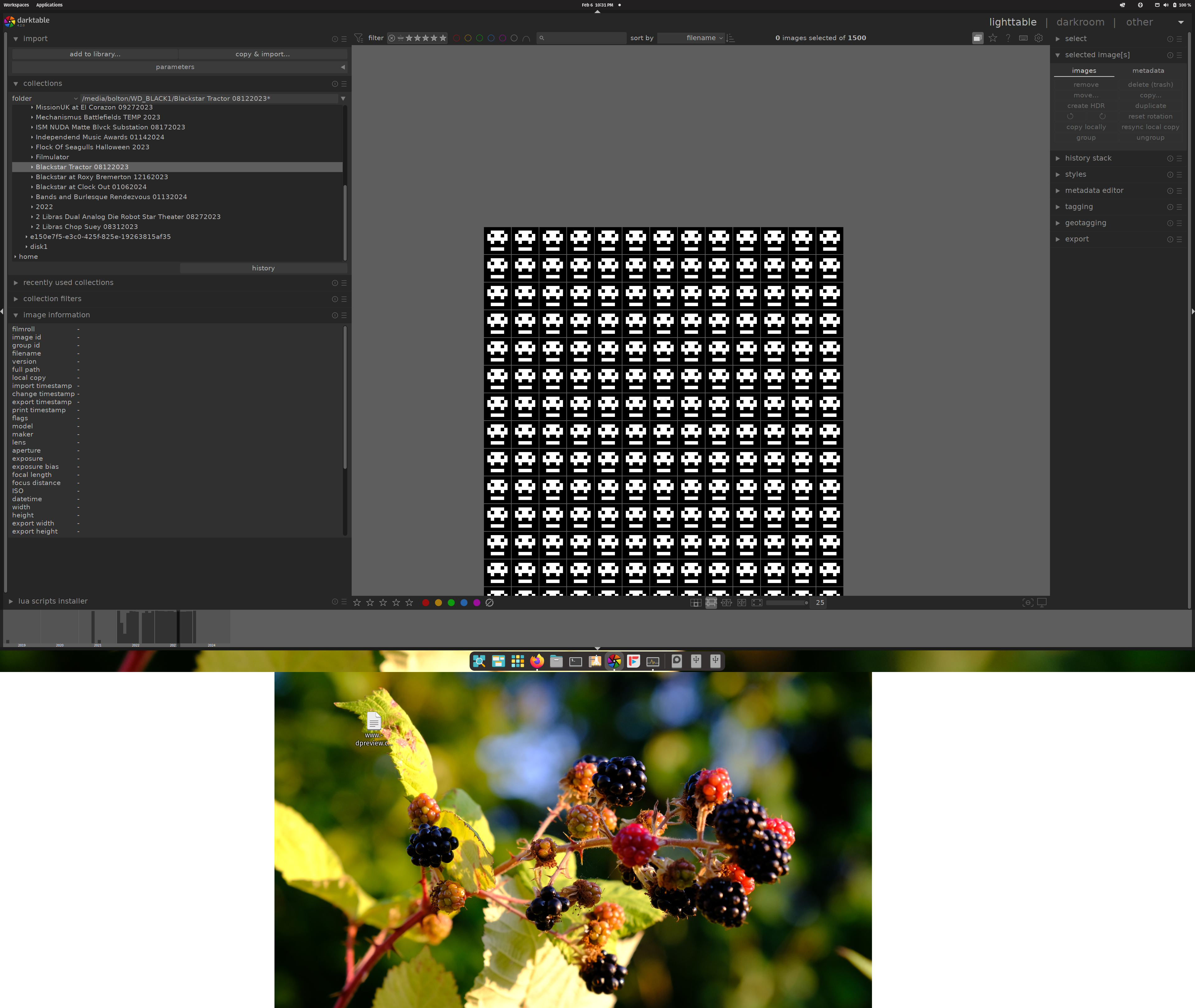
This is now what I see when I’m trying to use this to edit pictures. (Sorry about the background, I had no idea it would screenshot both my monitors, it never used to that, either, but that’s another story.)… None of my other software has any trouble finding the disks or using items contained within them. Been having a lot of stupid frustrating problems with my Linux box lately, and I’ve been using it for years. Firefox won’t upload pics without crashing (sometimes the whole machine); Chrome just produces a big white window when I launch it, so that’s right out. (As in, I can’t even access its settings to turn off hardware acceleration or whatever it is that’s causing it). And DT won’t let me process my pictures. This time, I can’t even re-import them. It won’t let me.
This is interfering with my ability to process and upload pictures of concerts I shoot for bands. Like, maybe time to get a Windows box level of interference? Can’t decide which is worse-MS, or the $200,000,000,000 untaxed hedge fund that owns Apple.
I <3 many things about Linux, including the moral highground of opensource. But I also need to edit my pictures and upload them, and this is increasingly not the easy way to do that.
Right. So it’s not only darktable that has problems, but also other software. You could have hardware problems or something else. As usual, we’d need logs and info: what Linux distro, kernel, GPU, drivers. I understand you’re annoyed and need to vent, but we can only help if we have details.
For the original poster, it was not a darktable problem, after all, but one about using temporary mounts.
I’ve had SQLite problems with other software, most notably Shotwell. It deleted forty thousand of my pictures for me without so much as a by-your-leave, one day while syncing its database. Not just un-importing them but physically deleting them. Ahh the feeling of watching your shit disappear from Shotwell, only to be seen again by hard disk recovery software… So I’m getting afraid that this will happen again, and every time I see a screen full of big black and white skulls where my photos should be, it’s not a positive type of trigger if you know what I mean.
I really feel like Darktable should be a little more robust about its database. If I turn DT on and one of the external drives happens to not be on, it just goes ahead and loses everything imported from that drive til you reimport it all. All of it, all 156 events. Like, how come it can’t have a ‘refresh’ button that causes it to go out and probe the drive you just plugged back in and say ‘Oh, here are 156 events with Darktable import data for them, let’s put all that back so the user doesn’t have to.’ I feel like Lightroom users don’t have these issues, but since I don’t have Windows I can’t really find out.
So before I waste any more of anyone else’s time, I’m going to blow this thing out and switch from PopOS 21.10 to latest Mint. I’ve become less and less enchanted with the “lifetime tech support” that I was supposed to get from System76 when I paid $1600 for this laptop in 2020. Previous to this, I was running Mint and pretty happy with that, so I’ve decided to go back to it.
We’ll see how that goes. Maybe a fresh system will set things right.
System76 Gazelle Gaze15 (pretty sure it’s a rebadged MSI gamer laptop with no Windows key)
CPU: Intel(R) Core™ i7-10750H CPU @ 2.60GHz
GFX: nVidia GTX1660Ti 6GB PCIe x16 Gen 3 drivers: 470.86
RAM: 64GB
SSD: Samsung EVO 970 500GB NVMe
OS: System76 PopOS 21.10 impish
Linux version 5.15.5-76051505-generic (jenkins@warp.pop-os.org) (gcc (Ubuntu 11.2.0-7ubuntu2) 11.2.0, GNU ld (GNU Binutils for Ubuntu) 2.37) #202111250933~1638201579~21.10~09f1aa7 SMP Mon Nov 29 16:23:13 U
Have you tried updating the folder path of moved images? I don’t use it, I don’t even think it should be needed (darktable should, I think, regenerate any missing thumbnails – I’d have to test that; it does not remove images from its DB when they are not available, that’s why you get the skulls).
“For the original poster, it was not a darktable problem, after all, but one about using temporary mounts.”
Indeedy.
Although I was fascinated to see on Bruce Williams’ Youtube channel that he said darktable on Linux was incredibly stable and had never crashed once in years. I have been using Ubuntu as my primary system since 2019 on different machines and I don’t find it particularly stable. It seems to crash more often than windows. darktable might typically crash 2 or 3 times a day (doesn’t kill the operating system thankfully). Typical things that make it crash are exporting large files (100 - 200MP files) and sometimes the import process just hangs and I have to kill the process. I also have the font size in the general tab set to 24 as I’m using a 4k monitor and the boilerplate text is too small. For some reason, darktable keeps forgetting that setting and I have to reset it quite often.
Ubuntu/darktable do have their oddities, I just put up with them for all the benefits.
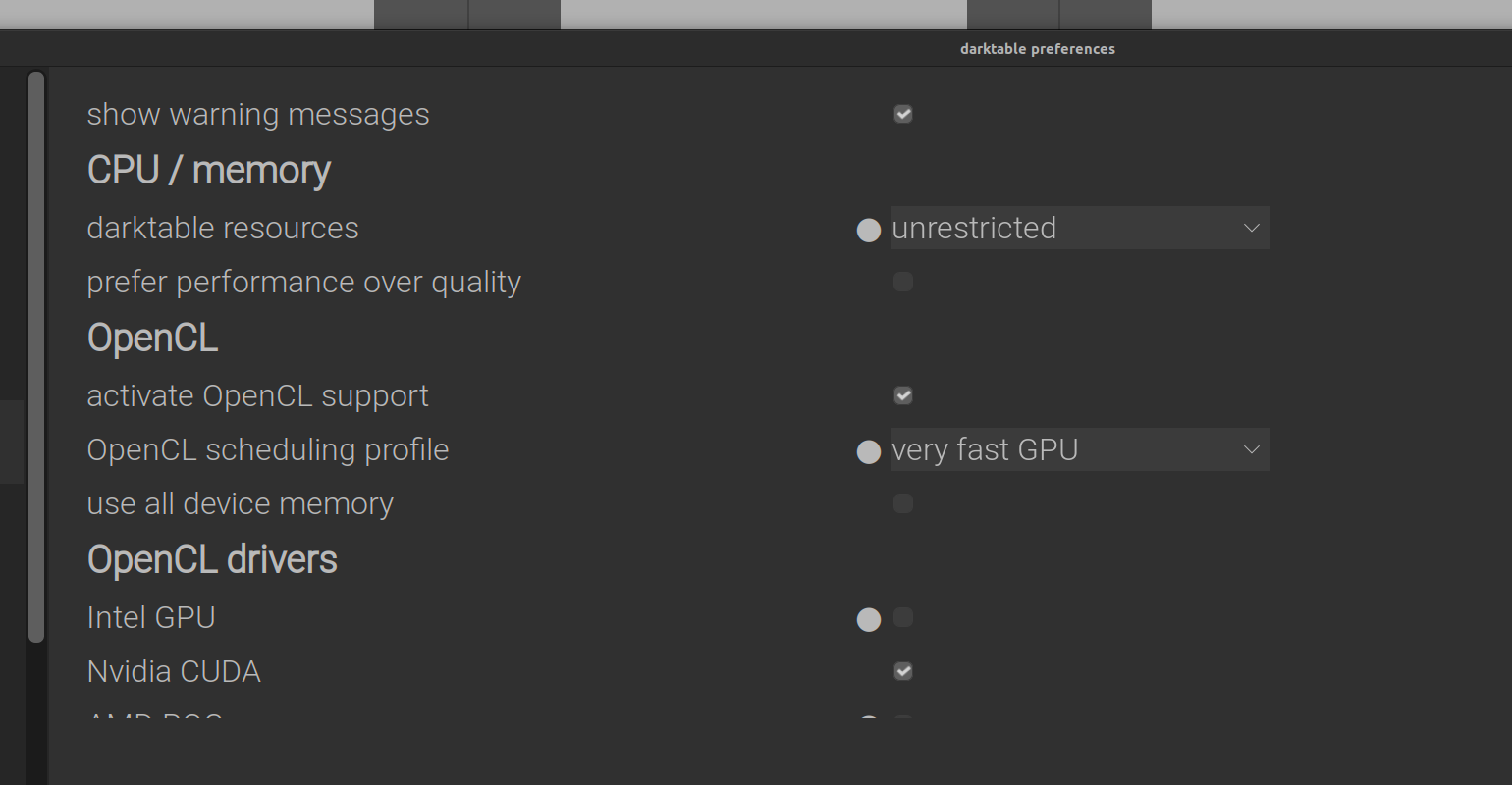
I run darktable on Linux, and the master branch, at that. I rarely see crashes. The last time it crashed was my fault, as I set resources to unlimited, and my machine’s resources, while ample, certainly have limits.
If darktable mostly crashes with such large files like you mention, checking resource settings and logs would be needed.
Fortunately (these days) it doesn’t crash in a problematic way. But it did often on my previous machine when it simply refused to export at all. I eventually found by trial and error that disabling the “high quality resampling” option in the export module solved that problem. I speculate that 16GB of ram was insufficient. I now have 64GB.
But it has always been a bit buggy and remains so on any machine I’ve used. Linux environments are so varied, it must be difficult to diagnose anything. But in general, I’ve found lots of crashing with the likes of Digikam and various video editors I’ve tried. And this can’t be down to my computer, same thing with 3 different machines and completely different builds. I envy anyone who has their linux environments and apps so perfectly set up they don’t see these issues. But as I said, it’s a problem I can live with for the benefits. It would be nice if Linux was a bit less win95 though
Disabling high quality resampling means that darktable downsizes your image as soon as possible, and performs processing on a lower-resolution version. It saves on memory. However, even with not so much memory available, if the resources settings are correct, darktable will employ ‘tiling’ (processing in smaller pieces, merging them together), and should not crash. You still have not provided info on your resources settings.
On Linux, troubleshooting is usually actually easier, because darktable is first and foremost a Linux-native application: it was created on Linux, and most developers use Linux. Windows users more often have problems creating logs, for example, because Windows hides folders, and some options simply don’t work (e.g. passing command-line switches for logging using a desktop shortcut).
The master branch is the development version, updated potentially several times per day.
As far as I know, darktable does regenerate missing thumbnails, when they are needed. But for that, it has to have access to the corresponding files. If for any reason the image files can’t be read, you get either a cached thumbnail, or a skull…
@Boltonius : If you don’t turn on an external drive, it doesn’t exist for the operating system, and so it doesn’t exist for darktable. If you then try to look at the files on that drive, you can get a thumbnail (if they are in the cache(*) ), or a skull. But seeing anything for a given file means that it is still in darktable’s database.
And in this situation, a “refresh” button wouldn’t do any good whatsoever, as there’s nothing to read the missing data from.
Changing from PopOS to Mint is not going to change that… The solution would be to mount the missing drive (and perhaps restart darktable)
For what it’s worth, I’ve never had darktable delete images from my system without my explicit say-so.
(*: one characterisic of a cache is that its contents can disappear without warning. In this case, it may be a matter of disk space limitations causing older thumbnails to be deleted)
The sentence read: ‘a ‘refresh’ button that causes it to go out and probe the drive you just plugged back in’. But yes, I’m surprised that the images remain inaccessible. Maybe another case of temporary mounts?
@Boltonius : where is your drive mounted? Under /mount/some-fixed-path (via fstab), or /mount/user/some-path (a temporary mount)? For a predictable environment, you should use mount it at the same place (under /mount/some-fixed-path). See darktable keeps losing my files forcing a re-import - #12 by kofa above.

 ). I notice when I now look in the file explorer and click on “Other locations” that I now have 3 entries: