GIMP
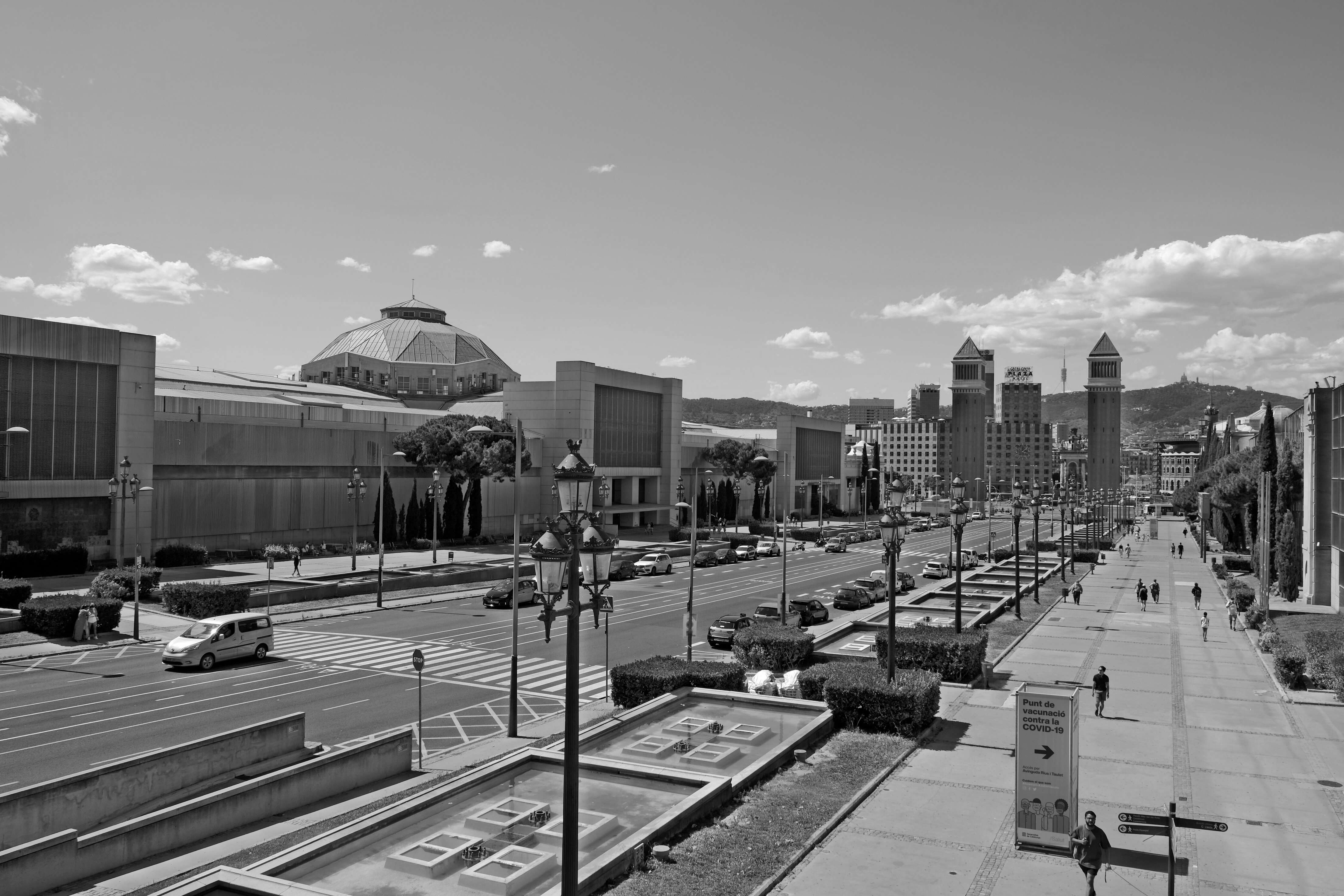
GIMP - image correction in the LAB space
-
Image > Accuracy > 32 bit (floating point) > Line light
-
Replace with LAB colors: Colors => Components => Unfold… set color mode a LAB
-
Fill layers A and B with each color neutral gray RGB 128/128/128 or 128,000055 and remove !
(The results are not too far off if we use the value of 0.500000 (128, 128, 128), but the red channel will be a little low, the green channel almost right, and the blue channel a little too high).
If we prefer a simplified, approximate version, using the removal of channels A and B
then:
- Select the Lightness (L) layer containing all the brightness and contrast information,
Brightness is very interesting because it contains all the luminance information (while in RGB and HSV some of this information is spread over other components). Very often you can see the extended tonal range and discover hidden details in the shadows by examining this component.
Sometimes we don’t like the B/W image, but you shouldn’t get upset about it, then:
- We duplicate the layer and I change the mode of the top layer to Multiply, the effect will become absolutely spectacular.
We will get a very good black/white photo. Now we can adjust the Opacity, (and sharpness Filters/Alignment/High Transition… (Sharpening Mask) as we like.
Image flattening.
Export as.
in 2023r published:
GIMP - image correction in the LAB space .pdf