[I’m branching this to a new thread to avoid off-topics]
Despite my adversity for yt videos that are often too wasteful (in terms of time) compared to the old good written words… but this could be an excellent xmas present for the community (well, for me!) → a short video showing how to setup shortcuts with the new framework and what are your recommended shortcuts.
(small aside: t’s been months that I’m struggling with keeping up with my photo library so every time I open dartkable it’s late at night, I don’t have much energy, and I feel like I waste too much time clicking around for some basic edits)
But don’t worry Bastian, I can’t ask you to make that video, this post is stimulating enough for me to go and do the work.
I too really appreciate the efforts put in by people to make great videos but my learning style is reading. I learn so much more from the written word than video. This is a recognized learning style. So you are not alone.
These two that I made all the way back in the beginning are not what you want but at least they show why my director career hasn’t taken off.
The challenge is when there’s no agreed upon set of words to describe physical actions. I could show you all the available features in a minute if you were sitting next to me, but in back-and-forth interactions via the keyboard it takes a long time before people reach the A-HA! moment. And that’s if I have the opportunity to figure out where it is that I lose them. Which is different for each user. Which makes writing a manual really challenging.
The same offer I have made to those struggling to write the manual I’ll make here to anyone who has a knack for making videos that explain concepts to laymen; if you’re not fully clear how everything works, we could organise a personal tutoring session where I share my screen in whatsapp or whatever and demonstrate all functionality and you then translate that into something with more didactic value.
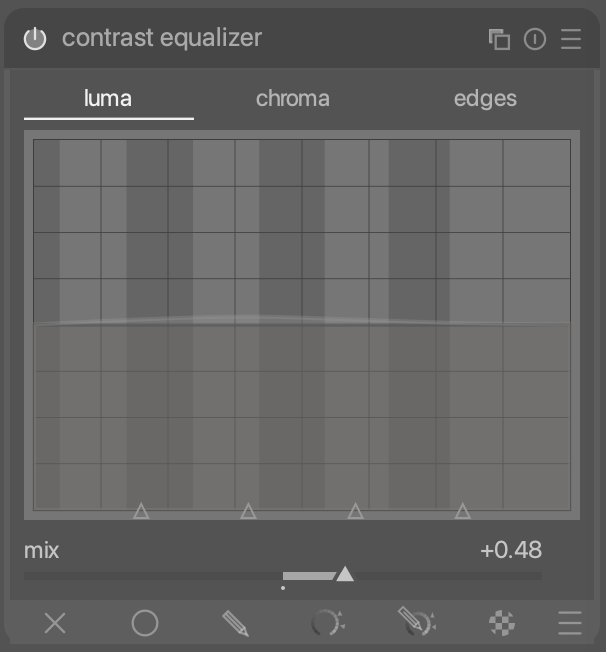
I usually preset my Contrast Equalizer with a clarity-like default preset that starts off with mix=0, so disabled. This allows me to dial in more or less clarity by just moving the mix slider.
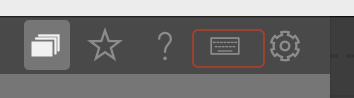
To add a shortcut to the clarity slider, click the little keyboard-icon in the top right of the main view:
This changes your mouse cursor to a little plus-and-keyboard icon. Now click the mix slider with that icon. This opens the shortcuts menu, and preselects the processing modules/contrast equalizer/mix entry:
Here you can add keyboard shortcuts. Double-click the mix slider in the action list to add a shortcut for it. Everything greys out, and darktable waits for your shortcut. Whatever you do now, will become the new shortcut. For example, if you just hit x, it will create a new shortcut for hitting x. If you double-press x, it will create a new shortcut for double-pressing x. In my case, I create, one by one, a shortcut for x, double-press x, hold x while moving the mouse vertically, and holding x and shift while moving the mouse vertically. You can see this in the table below the action list in the screenshot above.
Now you can change what happens for each of these shortcuts you created. In my case, set
single press x to edit, which opens a little popup editor for the mix slider where I can type in numbers
double press x to set with value 0.0, i.e. to reset it to zero. (For most other sliders, reset would also work, but the mix slider defaults to 1.0).
hold x and vertical mouse move to change the value of mix at speed 3.0, i.e. moving the mouse changes the mix slider (while x is held)
hold shift and x and vertical mouse move to change the value of mix at speed 1.0, i.e. the same as above, but more slowly.
And then repeat this process for all the other shortcuts you want to add.
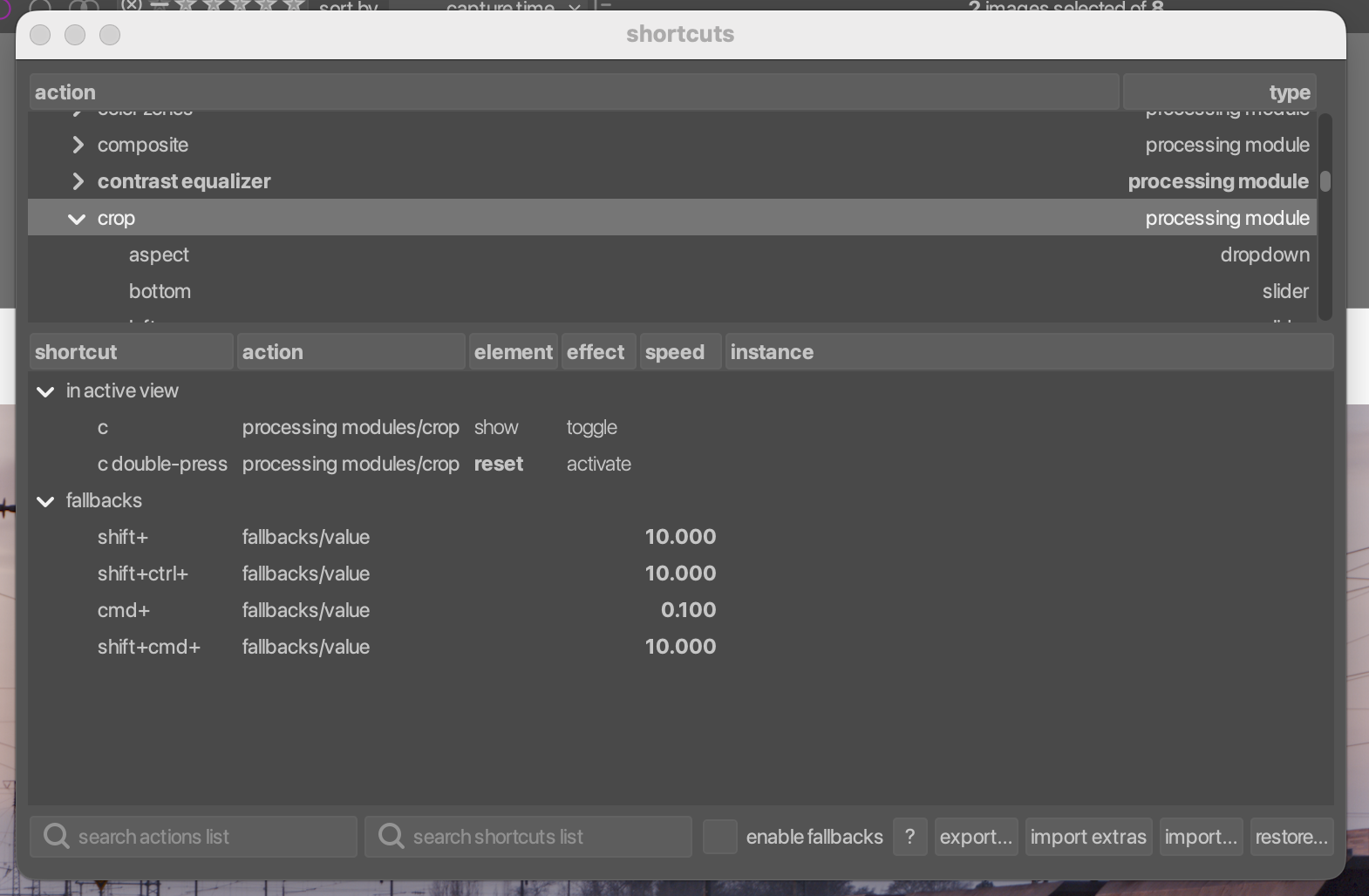
A particularly useful one is setting c to the enable/disable module icon of the crop module. This effectively activates the crop overlay whenever you press c:
He really only touches on the basics there and takes bit of time to do it, since it is also somewhat a review of a new feature. And there are specific issues with the platform he is using. Which hopefully have been resolved since then, since I’m not aware of the hickups. The cursors have also been improved since then.
Have you considered enabling fallbacks? You get a standard set of controls for each slider (which you can tailor) so that you don’t have to set them up separately for each and every one. And so that you have guaranteed consistency. And since you then don’t need to customise each individual shortcut, the visual mapping mode (without entering the shortcuts dialog) becomes more useful as well.
To be honest, I haven’t looked into them, yet. I’ve seen you mentioning them before, but since I have a working system already, I haven’t looked them up.
How would the fallbacks work in my above use case? (No need to answer if you don’t want to, I’ll probably look them up tonight)
If you’ve already set up everything exactly as you want and you don’t want to change anything, then obviously fallbacks aren’t going to do anything for you. But if you want to set up a lot of sliders with exactly the same reset and fast/slow shortcuts, then they’d be helpful. Especially if you start using double and triple presses to address different sliders. In your case, simply assigning X to the slider would have given you X+scroll for normal speed changes, X+vertical for faster changes, X+horizontal for slower (both factors can be adjusted in the fallback itself.) X+double left mouse click would reset and X+Shift+Ctrl would allow ignoring any soft limits. Especially these more exotic ones can not be worth setting up manually for each slider, but knowing you always have them anyway makes things more “intuitive”. You can redefine the fallbacks themselves to match your current vertical and vertical+shift if your want. And changing things around later is much simpler as well. Setting up a set of midi knobs is now extremely quick, rather than having to set 8x5 or so separate shortcuts.
The only thing you cannot do (by design) is add “double press” fallbacks to “single press” shortcuts. Imagine the fallbacks only kicking in after you’ve already done the single/double/triple press to select the base shortcut (or shortcuts; you can have multiple active at the same time and the moves applying to all of them simultaneously).
Using the fallbacks for shortcuts for modules can be very handy as well.
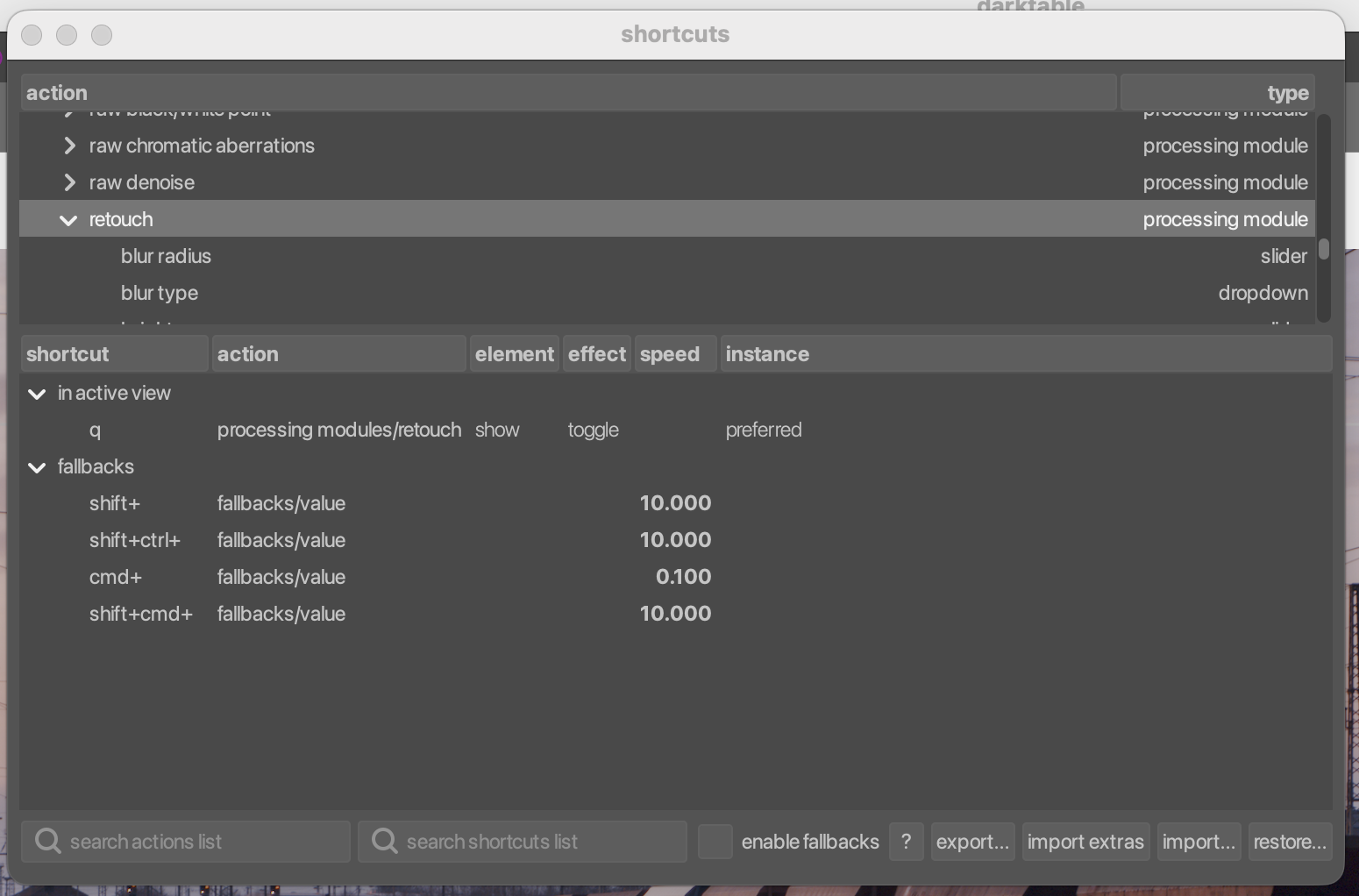
Well I’ve finally sit down with dt and experimented with setting up some shortcuts. Thank you so much! The possibilities are enormous, I need to take note of what are my most repetitive actions and make good use of some keys (also, avoid overwrite some hard coded shortcuts I set ages ago like q,w to zoom from fit window to 100%).
But again, the explanation was simple and effective and the screenshots were perfect to understand everything.
Thanks also to all the others ( thinking about fallbacks now that @dterrahe mentioned!).