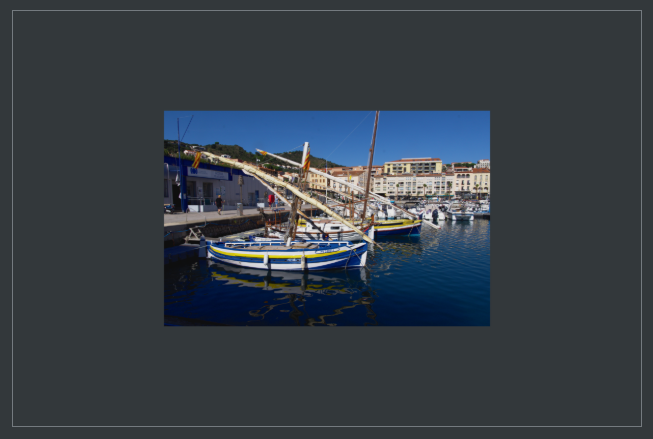
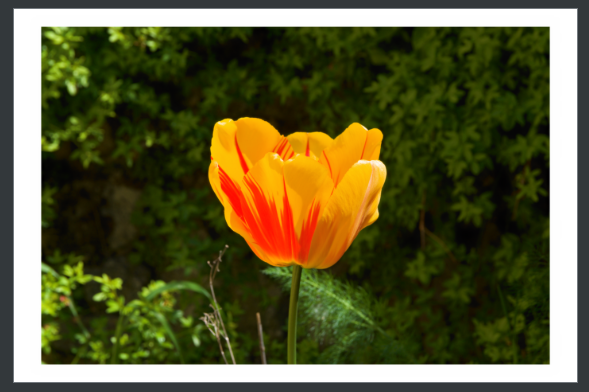
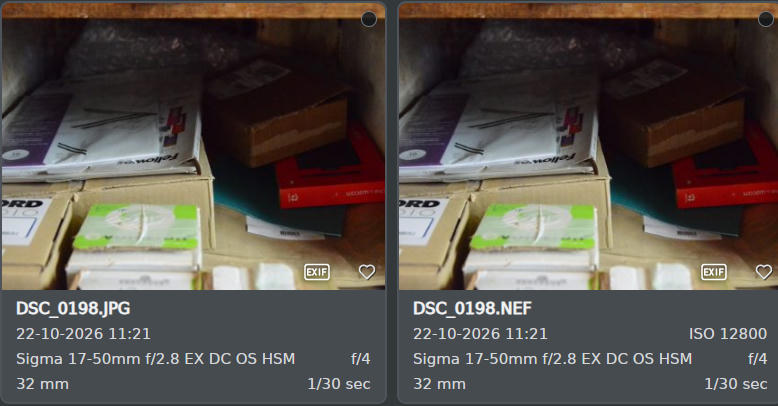
Same. Just one slider a time.
Rather fair.
Same. Just one slider a time.
Rather fair.
Just to make sure I understand: when you compare Amount, then right-click Radius, does Amount stay on its default (orange), or does it jump back to your value? If it stays, that’s how it’s meant to work, one click per slider. If it jumps back, that’s a bug I’d like to look into.
That did the trick, just hit the Comparison button! On the right I see the sharpened version, on the left the original.
Now I can right-click any of the four sharpness sliders and they go back to their default settings (0), another right-click to reactivate my settings.
So problem solved. It’s FerrumPix that behaves differently compared to other photo editors, but once you know that, it’s like having that on/off button again! 
Patrick, question about the Active button in the editor (bottom, middle). That seems to draw a frame around the image.
It cuts part of the photo on the four sides, should’t the frame be outside the photo (so enlarging the canvas)? Is there a way to make it smaller or bigger, and to change color?
The button at the bottom only switches the frame on and off. The frame itself sits on top of the photo, so yes, it covers the edges rather than adding to the canvas. That’s how it’s built at the moment: it always hugs the image edge, even after a crop.
The settings for it are in the Effects tool, the one next to Adjust, Color, Details and Filters in the editor’s toolbar. There you’ll find the Frame group with the same Active checkbox as the button, plus Size for the thickness, Margin to move it inwards, Rounding, and different frame styles (even symbols). The colour is in the Fill group right below it, along with shadow and glow if you want them. If you use the compact view for the adjustments, it’s all inside the single Adjustments tool instead. One thing to watch: the Frame group only shows up when the photo itself (or the frame) is selected in the layers list, not when another layer is selected.
If you’d like the frame outside the photo, enlarge the canvas first: Image size, then the Canvas section. Add the same amount on all sides with the anchor in the middle, pick a background colour, and click Apply canvas size. The added border already works as a simple frame in that colour. If you want a fancier one, switch on the frame with about the same size and it will sit on the new border instead of on your photo.
Hope that helps, let me know if something doesn’t behave like that.
Hi Patrick! Lens identification now works perfectly! Many thanks for your engagement!!
Hope you had a good vacation:-)
Best regards
Thomas
OK.
I’ve seen that one before indeed, works well.
Here might be a little bug. My raw file is 4948px wide. If I enlarge the canvas with one pixel, the canvas gets very big / the photo gets quite small, see screenshot.
I’m not quite following this. If I make several slider changes and hit the Comparison button, I get a comparison that takes me back to the original unedited raw file. If I right click any of the four sliders while in “Comparison”, it changes just that one slider and not all of the sliders simultaneously. Also, how would this work for something like the “Tone curve” tool?
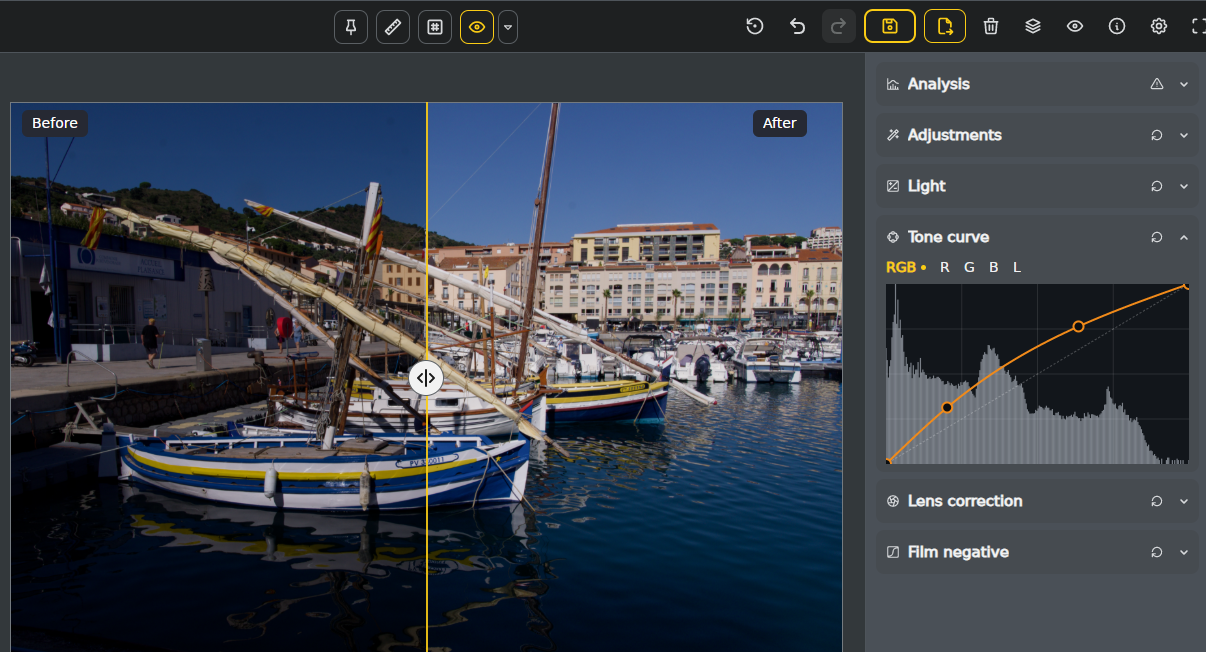
Hello, open a raw, first click Comparison (unedited raw is on the left), change tone curve (results are on the right) and you get someting like this.
Thanks Paul, that’s a real bug, and your screenshot made it easy to find. The editor works on a smaller copy of the photo for the on-screen view, and the canvas size wasn’t scaled down to match it, so the extra canvas came out far too big. The exported image is correct, only the view inside the editor is off. I’ll fix it for the next version.
There are two different things here. The Comparison button always shows the untouched original next to your full edit, so it’s before and after for everything at once. Right-clicking a slider is a separate thing: it switches just that one slider back to its default so you can see what it alone does, and a second right-click brings your value back. It never resets a whole group. The Tone curve has no such toggle at the moment, so there’s currently no way to compare just the curve on its own.
And that’s what I’ve been trying to find, a way to reset (toggle) the whole group. I realize there’s a “Reset” button for every group, but then there’s no way to retrieve the multiple slider changes you’ve made before clicking “Reset”. So that’s what I’m unaware of, a way to toggle the entire group and not just one individual slider.
wait for the next version 
Hi everyone,
FerrumPix 0.9.67 is out, with a few new editing tools and quite a few fixes.
The biggest addition is Point Color in the Color Mixer. You can pick a color directly from the photo and adjust its hue, saturation and luminance without affecting the rest of the image too much. You can define how wide the affected color range should be, use up to eight color points and display the affected areas.
There are also two new effects:
I’ve also added optional colored sliders for controls such as temperature, tint and the Color Mixer. They’re disabled by default, so the existing interface stays as it is unless you enable them.
A few other changes:
There are also fixes for RAW white balance and tint, eyedropper behaviour on layers, group resets, slider values after undo/redo, canvas resizing and TIFF/DNG reading performance, especially on network drives.
Some of these fixes came from issues discussed here, so thanks again to everyone who has been testing FerrumPix and reporting problems. I really appreciate it.
As always, feedback and bug reports are welcome.
Hi Patrick
Being able to toggle the tool off and on like that is a great addition. Also, right click toggling of an individual slider or color channel in the tone curve is a bonus that might be unique to FerrumPix. Very nice. Point Color is useful and I like the way it’s been implemented. I’ve noticed however that working with the depth fog, it sometimes doesn’t want to include the fog over the subject or foreground of the photo regardless of how I adjust the settings. I tried to upload an example image of it but I’ve been getting a “Failed to open TCP connection” error. Not sure why.
Thanks for the update!
Hi everyone,
FerrumPix 0.9.69 is out, and quite a lot has changed since the last update. Much of the work went into RAW development and image quality, but there are also new gallery features, improvements to PSD handling, collage and printing, and a long list of fixes for file operations and sidecar files.
This is probably the biggest area of change in this release.
Exposure now works directly on the RAW data before the tone curve. This makes quite a difference when recovering bright skies or opening up dark areas. Reducing exposure can bring back actual highlight detail instead of simply making clipped-looking areas grey. While dragging the slider, the preview responds immediately, followed by a full RAW rebuild shortly afterwards.
I’ve also spent quite some time reworking the tone controls:
RAW highlight recovery is now integrated into the normal highlight processing, so the separate checkbox for it is no longer needed.
Another change concerns the initial brightness of RAW files. On new installations, FerrumPix now adjusts the base brightness according to the camera model, which should prevent RAW images from opening noticeably too bright on many cameras. Existing installations keep their previous setting to avoid unexpectedly changing the appearance of already edited photos. The new behaviour can be enabled manually in the settings.
Lens distortion correction has also been improved. Previously, correcting distortion could noticeably soften fine details, particularly hair and other textures. The new processing preserves much more sharpness. The lens database has been updated as well.
There’s now a new Edited filter in the gallery.
You can show only edited or only unedited photos, select the results and then export, convert or upload them. This should be useful when working through a large collection and trying to find everything you’ve already processed.
There’s also an optional badge for edited photos, which can be enabled under Settings > Mark edited photos . In the photo wall, the badge only appears when hovering over a tile, to keep the view uncluttered.
Ratings, colour labels and keywords alone don’t count as edits.
The photo wall also shows more information when hovering over a picture, including its filename and extension. This makes it easier to distinguish, for example, a RAW file from its corresponding .fpx project.
Batch renaming has gained additional date-and-time placeholders. Name conflicts are now resolved automatically by adding _1 , _2 and so on, rather than stopping the operation. Newly generated file extensions are also written in lowercase.
PSD import and export have received quite a few fixes.
Linear Dodge and Soft Light blending now behave correctly, and files containing both painted and vector masks are handled more reliably.
There are also improvements to transparency, layer edges, text layers, shapes and smart objects. A single unreadable layer no longer causes the entire PSD to be flattened.
When opening a PSD containing layer effects such as shadows or strokes, FerrumPix now asks whether to import the layers without those effects or open the flattened image instead.
I’ve also fixed several problems with PSD previews in the gallery and viewer, including white areas, light fringes around transparency and saved selections being mistaken for transparency.
The random collage layout has been redesigned to look more like a pile of actual photo prints.
Each image sits on a white print with a soft shadow and keeps its original proportions. Prints can overlap, rotate and extend beyond the page edges. You can adjust their size, size variation, borders and margins.
Collages also support fixed aspect ratios such as 3:2 and 16:9, A4 in portrait or landscape orientation, and custom dimensions.
The collage and printing dialogs now keep the loaded image data while they’re open instead of reading everything again after each change. Their previews also make better use of the available window space.
A few more things worth mentioning:
There are also fixes for object adjustments, saved edits, folder operations, long filenames and various smaller issues throughout the application.
Thanks!
FerrumPix-0.9.69-1-x86_64.AppImage.
Hello Patrick, couple of remarks about your latest version.
On/off button in tools, that’s okay (essential in fact). When using the light gray theme, the button in the off state is hard to see though.


I noticed that when using filters/cubes, the exposure settings are not reset to 0 anymore as before, that’s a good thing.
Enlarging canvas works now as it should. I noticed however that the top/bottom margins differ from the left/right margins. Is that by design perhaps?
The L/R margins are about 50px…
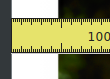
The T/B margins about 30px.

Feature request_1: would be nice to have a shortcut in the gallery to switch between Show all and Show raws only (the R key is already used).
Feature request_2. In the Info panel, add Flash used or not.
I noticed as well that the size of the AppImage grew from 77MB to 105MB for the latest version!
I think that sharpening and denoising work better than in earlier versions.
Overall, it’s a pleasure to use FerrumPix! 
Hi Paul, thanks a lot for testing 0.9.69!
I’ve gone through your feedback:
As for the file size, all packages have grown a little because the code now comes precompiled for each platform. That adds about 30 MB, but the upside is that FerrumPix starts noticeably faster since it doesn’t have to compile everything on the first launch anymore.
Thanks again for taking the time to test and share your feedback!
Great update! You obviously put a lot of work into it, especially with the tonal adjustments. Something in FerrumPix I’d like to point out, the “Vibrance” adjustment gives pretty heavy handed results, similar to the “Saturation” adjustment. As you’re likely aware, Vibrance should only target the less saturated pixels in the image and protect skin tones. I’ve attached a portrait I downloaded from the web along with the FerrumPix Vibrance and Saturation adjustments.
You might also find this interesting/useful. There’s an easy way to see only the pixels being changed when using one of FerrumPix adjustments. Here’s how you would do it for the FerrumPix Vibrance tool. The instructions are for Affinity but pretty much any pixel editor should be able to do this.
Open a raw file in FerrumPix.
Save it as a jpeg.
Add Vibrance to the image at for instance, 50%, and save that as a jpeg.
Open the jpeg in Affinity without the Vibrance adjustment.
Drag the image with 50% Vibrance from your file manager into Affinity, align it with the underlying layer and set the blend mode to “Subtract”.
Right click on the layer that is 50% Vibrance and click on “Merge Visible”
From the menu bar at the top of the Affinity interface, click on “Pixel”, “Invert” to turn all the unaffected pixels on the merged layer to white.
The colored pixels are what was affected when making the Vibrance adjustment in FerrumPix.
This technique will work with any type of adjustment and would be possible using only FerrumPix by adding the “Subtract” blend mode and the ability to “Invert” a layer.
Thanks for considering all of this, especially modifying the behavior of the “Vibrance” adjustment.