Howdy! I’m having some problems creating a frame for Instagram exports.
Output size should always be 1080×1440 for both portrait and landscape oriented photos.
Portrait oriented photos should only have #fff borders on left and right side (both the same width) and none at top and bottom. Landscape oriented photos should only have a border at the top and bottom (both the same height).
For portrait oriented photos I can set aspect ratio to 1.33 (4:3), but as the framing module doesn’t support more decimals than 1.33 I sometimes get one pixel too little (1079) on the wide side. Wouldn’t it be easier if we could set aspect ratios as 3:4, not 1.33? That would solve the decimal problem?
Fort landscape oriented photos I’m unable to use the framing module as the “smallest” aspect ratio is 1.0 (square). I get a square photo with a border at top and bottom.
If I understand correctly, the final output shall always be portrait orientation. And depending on the actual orientation, some areas are filled with black, right?
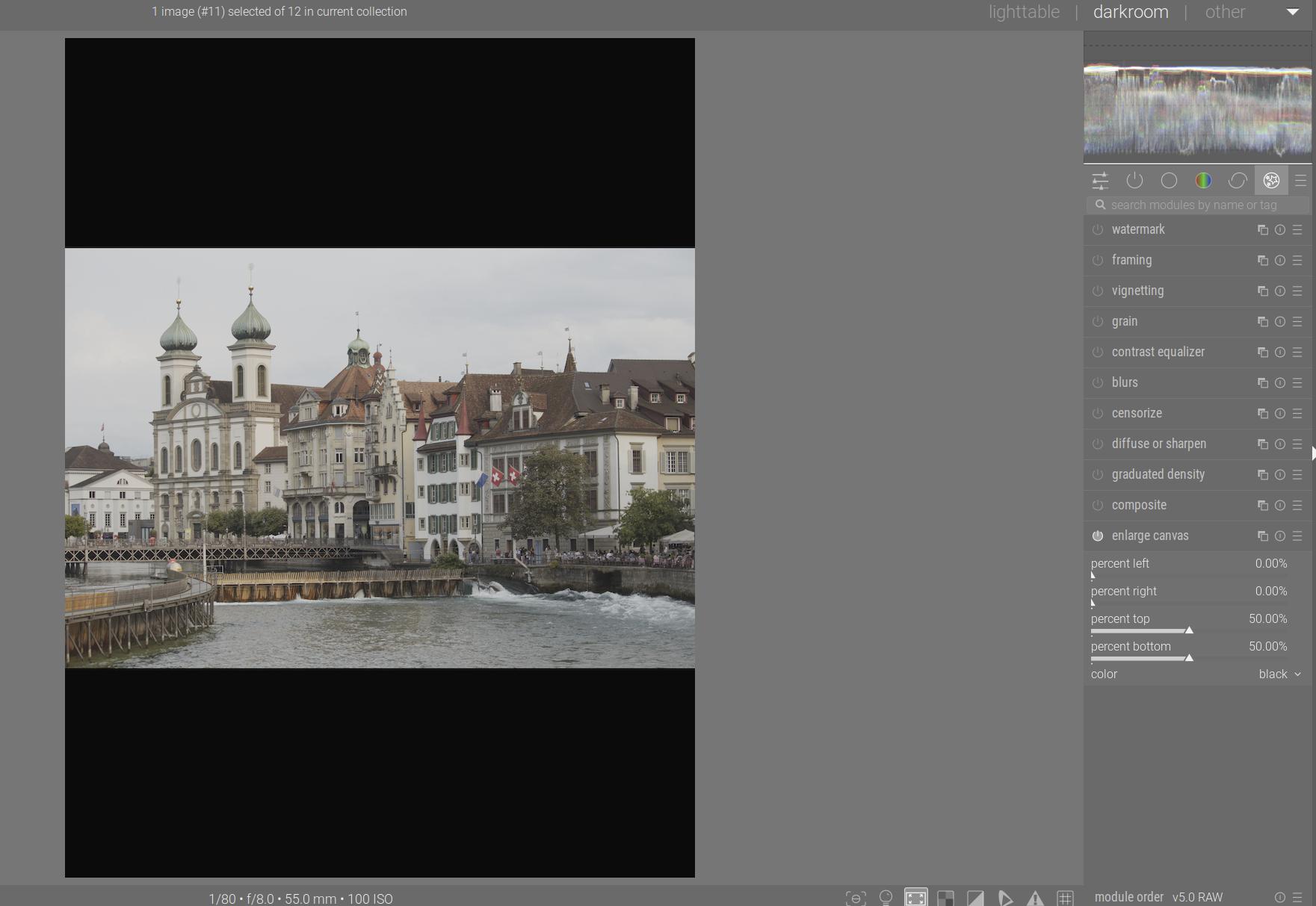
Maybe, instead of the framing module, the “enlarge canvas” module can help.
Interesting! Sadly, it seems the “white” color preset in this module is actually gray (and custom colors can’t be picked). Also, the results are not pixel perfect. Sometimes I get 1079×1440 and sometimes 1080×1339. Rounding errors I assume…
Unsolvable problem perhaps, as darktable functions now? This, to me, highlights the need for post-interpolation/scaling modules in darktable. These modules that I’m dreaming of would come after scaling up or down in the export module.
In GIMP you can crop the image to the exact dimensions you want and the save/export it to a file with those dimensions preserved.
In darktable the full resolution image always remains. The editing is a series of operations applied on the full resolution image. None of the operations are pixel exact unless you zoom in to 200% and pick pixels.
The only feasible way to get a pixel exact export is export a pixel or 2 oversize and then crop the result to the exact dimensions you need. It could probably be automated with a lua-script and maybe Imagemagick or some other external executable capable of exact pixel cropping.
I think this is not correct any more, at least i would concider this to be a bug.
If you crop the displayed dimension will be exactly the same when exporting (dimensions set to 0).
If you chose a cropping ratio (like 3:2) while cropping the cropping output will be correctly displayed (dimensions being multiples of 3 and 2) and the export will also keep that dimension correctly.
If you chose one dimension to be a multiple of the ratio (width = multiple of 3 or height = multiple of 2) you export will be exact too keeping the dimension.
What we don’t support is “stretching” to “arbitrary” ratio. So if your sensor has a not-exact ratio of 3:2 (many don’t have) you will have those rounding errors.
Thanks for chiming in @hannoschwalm! What I mean by the quote below was that it would have to be 1.333 (or perhaps even more decimals) for the outcome to be correct. Sounds right?
Downscaling an image with a frame would also make the edges of the frame somewhat blurred. Adding a border should come after down or upscaling, hence this wish:
I ended up creating a bash script with ImageMagick and ExifTool that does the job very well even if it adds an extra step I’d preferably skip.

 Thanks!