Game changer – improvements

As I mentioned in the thread under, I’m here to inform you of some changes regarding ‘Game Changer’.
How to process a Sunset

I’ve opened a pull request here, with more detailed explanations.
Pull Request

Executables

This mainly concerns three things:

  • Slightly improve CIECAM (Color Appearance & Lighting), which remains, in my opinion, the Rolls Royce of CAMs (Color Appearance models), by allowing hue rotation and saturation variation for each R, G, and B channel. Why reinvent the wheel? The latest version dates from 2020 and has very few shortcomings… The researchers’ work began in 1997. Admittedly, it might seem like a few things are missing… nothing is perfect.

  • Allow the “Primaries & illuminant” Abstract profile to vary primaries in polar coordinates, rather than linearly: it’s a bit more intuitive… but just as tricky to use… like anything related to primaries (regardless of the software). Be careful with imaginary colors and exceeding the gamut.

  • For GHS (Generalized Hyperbolic Stretch) Add two matrices to ‘Stretch Settings’. In addition to ‘none’, ‘AgX’, ‘JzAzBz’, and ‘Cat16’ (the latter three working in RGB mode), I added JzAzBz and Cat16, these 2 models in XYZ mode, which is at least theoretically more rational.

  • I also modified the default values, which are chosen either when opening a new image or after selecting ‘Neutral’.

  • I don’t see why I would keep the default AgX Matrix setting, which implies a preference. So I changed it to ‘none’, meaning GHS alone. The user can choose their preferred option from the 6 choices, based on the images.

  • Similarly, even though in ‘RGB Luminance’ mode the automatic Symmetry Point (SP) predetermination works quite well in most cases (except with LEDs), it doesn’t work in other situations.

  • Therefore, I prefer to put the system in ‘neutral’ mode, allowing the user to make the choices:

  • ‘Matrix’: one choice from the 6 available (default = none)

  • 'Symmetry point automatic’ disable (it’s very easy to enable) as ‘Auto Black point & White point’ which is disabled by default

This is more neutral, by giving the user more initiative.

Some more detailed information on these 3 changes :
Slightly improve CIECAM :

As a reminder, even though CIECAM seems complex, I think it’s one of the most sophisticated color management systems. I consider it the most comprehensive system (even if not perfect) for mastering colorimetry. It has been the subject of work by universally renowned researchers since 1997. The latest update is from 2020. It can be criticized for not being ‘perfect’ for HDR images, or those with high dynamic range, hence its position at the end of the RT pipeline, where GHS, for example, can handle the main part of controlling this dynamic range.

I’ve included a link, which is admittedly a bit old, but the fundamental principles haven’t changed much.

Ciecam02 explanations

I’m supplementing this link with a brief summary of what it is :

There are three processes.

  • The first (Scene Conditions) compresses the data for the CIECAM environment, where the user can select the white point (D50, D65, free, etc.). It takes into account a significant number of physiological aspects (accessible to the user, or calculated if possible), such as the concepts of ‘surround’ , ‘absolute luminance’, ‘Mean luminance (Yb%)'. This compression requires ‘chromatic adaptation scene’; the calculated value is displayed.

  • The second process handles information within the CIECAM environment. Six variables are considered, which vary in importance depending on the image : J=lightness, Q=brightness, C=chroma, S=saturation, M=colorfullness, h =hue rotation. To simplify things and avoid significantly increasing resources, I haven’t provided direct access to the other three variables “ac” and “bc” (equivalent to “a” and “b” in Lab*), nor to “H,” the absolute value of Hue. But of course, this data is taken into account in the internal calculations. Of course you have access to its variables, but also to other related concepts such as ‘Contrast(J)’, ‘Contrast(Q)’ and 3 types of “Tone curves”.

  • The third process (Viewing) does the reverse of the first. It decompresses the data into the working profile, taking into account viewing conditions (which many forget, but which are essential for objective comparisons), such as ‘surround’, ‘absolute luminance’, and ‘mean luminance (Yb%)’. A viewing chromatic adaptation is calculated by the system.

What I’ve changed.

In addition to cleaning up the code, some parts of which dated back to 2012, I’ve provided finer control over the ‘hue’, allowing adjustments to the rotation of Red, Green, and Blue, as well as the saturation (I chose this variable from among the three possible ones - C - M - s - for the sake of code simplicity). This allows you to easily retouch a sky, a sunset, etc., without significant risk of creating imaginary colors.

Primaries in polar coordinates

I kept this function minimal, simply because converting to polar coordinates is more intuitive than using linear mode. The CIExy graph is too small (unless the tool area in the right panel is significantly increased). I copied and slightly modified the code from another free software program. I’m limiting the use of this code to geometry (why repeat what’s already been done?).

I chose variable names (R.rot, R.sat, etc.) which are abbreviations to allow for a more compact GUI interface. It’s easy to change these abbreviations. The tooltip (in poor English) attempts to explain what is updated between the three representation systems (linear, graphical, polar). I don’t think we need to go any further with the automatic reciprocal updates.

However, it’s crucial to be very clear about the inherent risks of manipulating primaries (beyond the bizarre color effects one can create).

If you over-attenuate or over-saturation (I could have chosen other terms, like attenuation or purity…) or if you drastically alter the primary rotations, you’ll end up with either imaginary colors or color gamut violations.

The CIExy diagram lets you see what you’re doing.
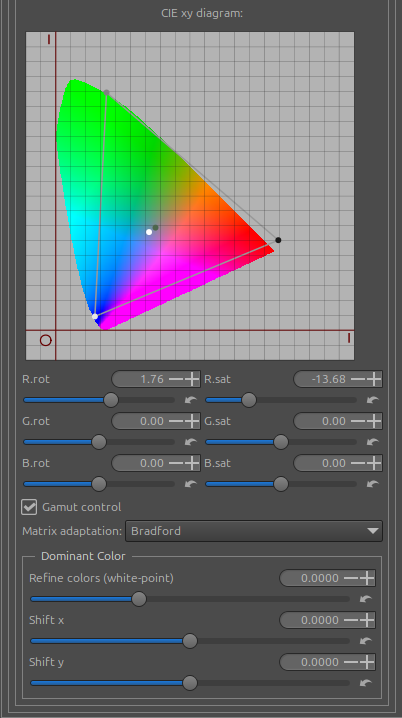
Of course, you can also change the ‘white point’ and adjust the dominant color, which hasn’t changed since the creation of Abstract Profile 5 years ago.

JzAzBz and Cat16, these two, in XYZ mode

In GHS you now have 6 possible choices as the conversion matrix before and after GHS :

  • none (Neutral) – default, only GHS with RGB datas from ‘Working profile’

  • AgX (Pleasant) - It uses an LMS conversion in RGB mode; I copied the matrix into another free software program.

  • JzAzBz (RGB High Dynamic) and Cat16 (RGB harmonious). It uses two LMS conversion matrices to JzAzBz and Cat16, in RGB mode, which is intellectually unsatisfactory. It works correctly with some images but not others. Note that I use the term “matrices” and not algorithms like CIECAM or JzAzBz, which carry out a complete (and complex) process.

  • JzAzBz (XYZ High Dynamic) and Cat16 (XYZ harmonious), the same remarks apply to matrices and processes as above. However, the approach using XYZ instead of RGB is more respectful of colorimetric rules.

A reminder of the principles of Game Changer

(only for colorimetry)

These are principled choices; you may not need them in some images. This is a summary of previous tutorials. Refer to them and note the lack of documentation.

  • set to Neutral.

  • Raw tab – Raw black point – enable Dehaze

  • Exposure tab : Color Propagation - disabled Clip out-of-gamuts colors

  • Color tab : White Balance Auto – temperature correlation (not for LEDS …)

  • Color tab – Gamut Compression

  • Selective Editing tab – GHS (one or more RT-Spot – at least the first in Global mode) : a) choose the matrix ; b) Enable auto Symmetry point (SP) c) Enable ‘Auto Black point & White point’ - Manually increase the ‘White point’ value if necessary, especially if it is less than 1, to give the system more flexibility by avoiding possible gamut overflows due to GHS or subsequent adjustments ; d) adjust ‘Stretch factor (D)’, ‘Local intensity (b)’, as well as the other settings

  • Color tab – Abstract profile a) Adjust primarily gamma and slope ; b) Enable Contrast enhancement ; c) Retouch primaries and illuminants only if strictly necessary, for example, with LED highlights. Of course, you can retouch outside of these conditions, but be careful.

  • Advanced tab – Color Appearance & Lighting – a) Adjust the viewing conditions; everything else, except the Illuminant, is done automatically b) Adjust the colorimetry with the CAM settings (Image adjustments), such as Brightness, Saturation, and the new hue settings per RGB channel.

Conclusion
I hope that’s clear… If you have any comments on the labels, tooltips, and of course on what I’ve done, no problem, I’m all ears.
5 Likes

I’ve made a few improvements.
Specifically, I’ve moved some tooltips that were ‘intrusive’ because they were assigned to a frame, for the primaries in icmpanel.cc (Color Management) and for the hue modifications (red, green, blue) in ColorAppearance.cc (Color Appearance & Lighting).

I’ve cleaned up the code and removed the white space and old comments (parts of the code were 5 to 12 years old!).

I added 3 small fixed dots in Labgrid , which represent the Rec2020 primary values ​​(default)). This allows the user to see what they are doing.

Jacques

3 Likes

Hello Jacques, I suppose you mean the Local Editing tab here?

Well, clear… Donno.

I played around with a shot, following your suggested workflow above. (I put most of your instructions in a pp3 file, to have a quick start).

The processed image looked OK, although a bit over saturated, but that’s due to my processing.

Then I opened the same image with neutral profile, applied just the Auto-curve and saved it. Third one: Auto-curve with Temperature correlation choosen, instead of Camera (default).

When i compare them, the auto-curve is a bit cool, the Temp.Corr is already better (a bit more saturated, acceptable edit), while the image processed with your instructions is even more saturated (due to my processing).

Now a question. Am I right in understanding that your processed workflow is meant to optimize the CIECAM part and produce colors that are close to human perception?

Thanks, Paul.

@paulmatth

Salut Paul
Merci pour cette (rare) évaluation :grin:

Donc, en réalité, ce n’est pas clair… Je vais continuer en anglais avec le traducteur.

When I talk about CIECAM (Color Appearance & Lighting) - advance tab, it’s not “Local editing” (even though I made small modifications for consistency).The main modification concerns the possibility of modifying the Red, Green, Blue channels by rotation and modification of saturation (in the Ciecam sense of the term), without going through the primary settings.

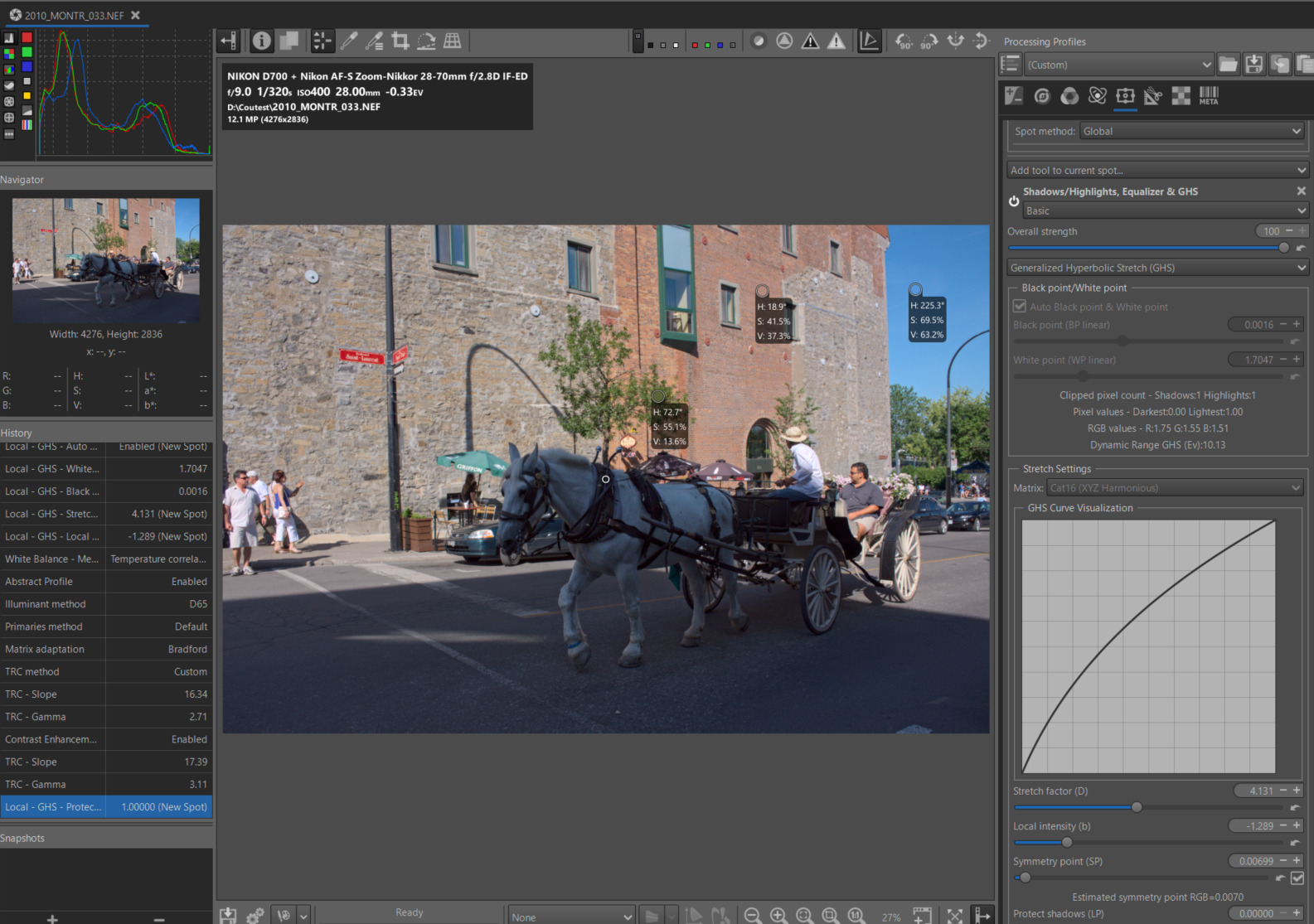
I’ve attached a screenshot where, starting from ‘neutral’, I’ve only applied CIECAM (advanced tab), not to make it look pretty, but simply to ensure I’m showing the correct thing. You can see the addition in the bottom right corner. This (apart from entering some code) was very easy to implement.

I’ll briefly recap what I had planned in this Pull Request:

  • clean CIECAM (Colorappearance & lighting - Advance Tab) GUI and engine code (and a few minor adjustments to Selective Editing CAM16 for consistency) . This process handles possible hue variations (Red, Green, Blue) through rotation and saturation, without using primaries. It operates within the second CIECAM process. Physiological effects are addressed by CIECAM processes 1 (Scene) and 3 (Viewing). I still think (but maybe I’m just a silly old man) that CIECAM (CAM16) is a safe, proven solution, developed by leading researchers over the last 30 years or so. Perhaps I’m being a bit provocative, but the physiological aspect - what our eye/brain system perceives - are not related to new technologies (nor to AI - unless we’re assuming brain implants…). The current version is based on the researchers’ version from 2020.

  • Bringing rigor to the conversion matrices before and after GHS (in Selective Editing). Using a matrix on RGB data is, to say the least, “curious”… So I added something more conventional (but it’s not CIECAM algorithms, nor Selective Editing JzCzHz), using XYZ. I’ve attached a screenshot. I used here “Cat16 (XYZ Harmonious)”.

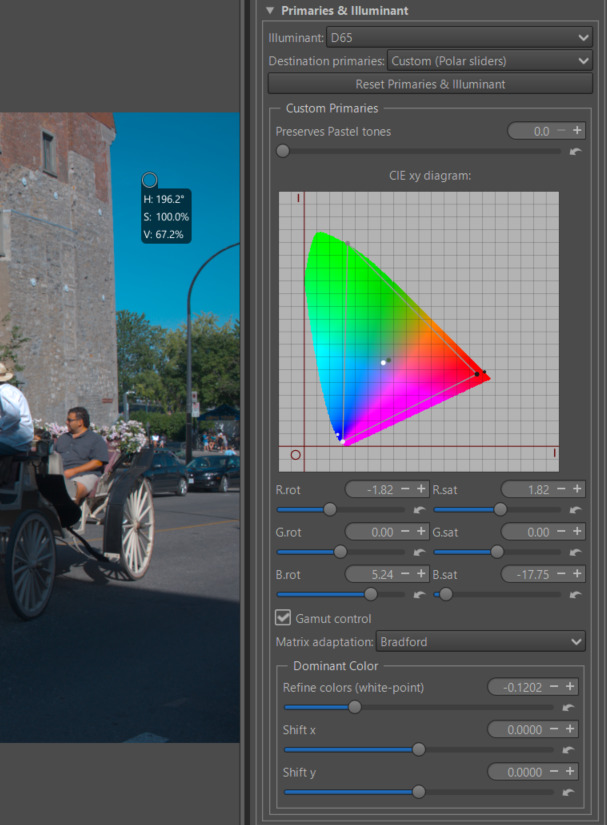
  • Add a third option for modifying primaries in ‘Abstract Profile’, offering, as other software does (ART, Darktable, etc.), rotation and modification of the distance between the primary and the white point. Adding Rec2020 markers and viewing the changes on the CIExy diagram allows you to see what you’re doing. You have to be very careful not to go outside the CIExy diagram…or conversely (unless it’s intentional) not to force the gamut. This generates strong imaginary colors that you can’t control. From my point of view, modifying the primaries must be perfectly understood by the user. I’ve attached a screenshot.I’ve enlarged the right-hand panel so you can better see how to control imaginary colors. The settings are for educational purposes only.

It’s clear that what I’m proposing isn’t “THE” miracle solution. Everything depends on each image and the user’s mastery of the processes. I admit that GHS is unconventional, but in practice, it’s no more difficult than other processes. CIECAM remains unknown or even feared by some users. RawTherapee is probably one of the only programs that offers it. When I see other software developing (even if it doesn’t seem identical) features that use similar concepts, I’m surprised by the acceptance of such significant complexity.

What always surprises me a little is the limited audience for these innovations. When I compare them (GHS, Abstract Profile, CIECAM…) to what’s being done on ART with CTLs, LUTs, or DT with AgX (or Sigmoid…), I feel like I’m comparing the foot traffic of a small neighborhood grocery store to that of a supermarket. It must be admitted that RT’s documentation is problematic; videos are scarce…

Thank you again

I have update binaries - just ‘best’ code
ciecam-ghs

Jacques

3 Likes

Hello Jacques,
I have been testing your game changer flow with GHS the last few weeks and like the results. I find that I get a better distribution from the dark to the bright. Previously I relied a lot on the tone curve but but I tend to find that I always get a good mid tone contrast but to the cost of crushed shadows and compressed highlights.

Is there some information on what the different matrixes in GHS do in layman’sterms. What is for instance the difference between none and AGX?

Thanks for the great work
Viktor

@Viktor_H

Thank you for this review, it’s much appreciated.

To explain the differences in GHS between “none”, “AgX”, and the other matrices, I’ll attempt a somewhat bold (and completely inaccurate) comparison, but one that helps to illustrate the point. When you apply an ICC or DCP profile, you modify the colorimetry, the ratio between the RGB channels, thus influencing luminance and color differently. It’s a similar situation here. The key difference is that this matrix’s action only concerns the modifications made by GHS, and that it’s not a profile.

Three of the matrices act directly on the RGB channels (AgX, JzAzBz RGB, Cat16 RGB), which isn’t very “conventional” (or common), hence the inclusion of the XYZ matrices.

Thank you again :grinning:

I added a feature for informational purposes.
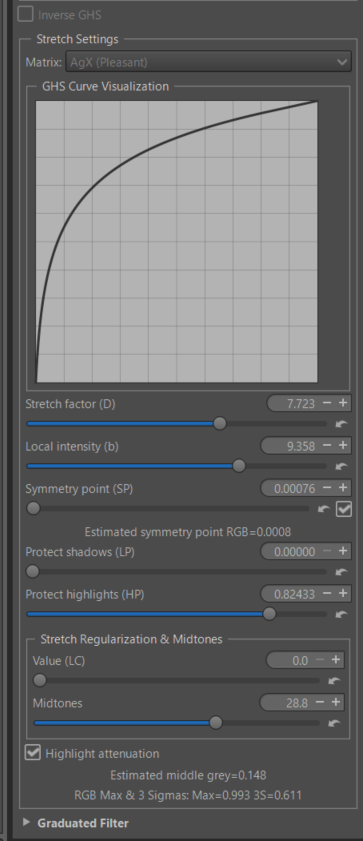
I’ve attached the text of the tooltip (in my English).
In the screenshot it’s at the bottom:
'Estimated middle grey = 0.xxx"
‘RGB Max & 3 Sigmas: Max=yyy 3S=zzz’

==
This allows you to preview the changes you make. The main settings that have an effect are ‘Stretch factor (D)’ and ‘Local intensity (b)’.

Try to obtain a value close to or lower (to your liking) than 0.18 for ‘Estimated middle grey’, although this isn’t mandatory as there are other processing steps afterward.
RGB max corresponds to the maximum value of the data; it may only affect a few pixels. 3 Sigmas corresponds to the maximum of slightly more than 99% of the data. You can adjust all GHS settings, but particularly ‘Protect Highlights (HP)’ and ‘Highlight attenuation’, in order to avoid, if possible, them exceeding the value of 1.

The purpose of GHS is not to produce a perfect image, but to prepare the image - while keeping some room for maneuver - for further processing.

==

Of course, I can provide other explanations, no problem. It’s true that the approach I’m proposing is unconventional. This doesn’t mean that what others are doing is bad, or inferior.

  • From my perspective, GHS is a mathematically excellent tool (the authors could perhaps have chosen a less exotic name). It’s simultaneously a super Sigmoid, a (partial) log coding, and a manipulation of toe and shoulder axes and a pivot point, which are all completely different. I’m using the terminology of other tools solely for the sake of similarity, even though the two are largely unrelated. Its purpose here isn’t to process the image from A to Z, but to allow other tools to work effectively.
  • Abstract Profile is a tool that was heavily criticized a few years ago… Perhaps for its principle, or its name (I personally think it’s very good). But when I see other software using terms like slope, gamma, primaries, etc., I realize it’s not as innovative as it seems. However, the additions I’ve made serve as a warning regarding the use of primaries, not that they shouldn’t be used, but mastering the system is complex.
  • When I first encountered CIECAM 14 years ago, I was considered a bit of a madman. It’s a tool unknown to the general public, but well-known to researchers. It’s the Rolls-Royce of colorimetry, and not as difficult to use as one might think.

Jacques

1 Like

Hello
I just merge this Pull Request in Dev

Jacques

1 Like

On the RT automated dev build site I don’t see any recent builds for win64 x86 processors, just builds for MAC, Appimage, and arm64. Have I missed something?

@fasteddie

Indeed, there is no Windows version. Not that it doesn’t work. I always try it on both Windows 11 and Ubuntu 24.04 before publishing a change, and on my machine (with the latest Msys64) everything works.
It seems to be a problem with GitHub, which says “lensfun” is missing. I don’t know how to solve it, but perhaps @Lawrence37 (or others) knows how - or where to intervene ?

I’d like to take this opportunity to say that I am (still following the same processes) improving ‘Abstract profile’ with two things:

  • to provide information on whether or not the RGB values ​​are exceeded (default on Rec2020), which does not mean that we are not out of gamut, but sure if there is an exceedance we are.
  • Ensuring gamut compression at the output is much simpler than at the beginning of the process, because a priori, unless the user has gone overboard, the gamut is already close. The simpler interface allows compression to, for example, sRGB or DCI-P3. This includes any processing performed by CIECAM (Color Appearance & Lighting).
  • I hope, although nothing has been done yet, to improve CIECAM for the part dedicated to the 3 colors R, G, B which currently “only controls” saturation and hue (both in the CIECAM sense of the term).

For those who are impatient, it’s on the branch “apmaxdata”

Jacques