GPU acceleration for AI features in Darktable - help needed testing install scripts

PR #20676 adds a streamlined way to install GPU-accelerated ONNX Runtime for darktable’s AI features (object masks, neural denoise, upscale). I need help from the community testing this on different hardware and platforms.

What darktable bundles

darktable ships with a CPU-only ONNX Runtime that works out of the box – no extra install needed. On macOS (Apple Silicon), CoreML acceleration is also bundled by default. On Windows, DirectML GPU acceleration is bundled and works with any DirectX 12 GPU.

Linux users who want GPU acceleration currently need to manually download the right ONNX Runtime build and point darktable to it via preferences. This PR aims to simplify that.

What this PR adds

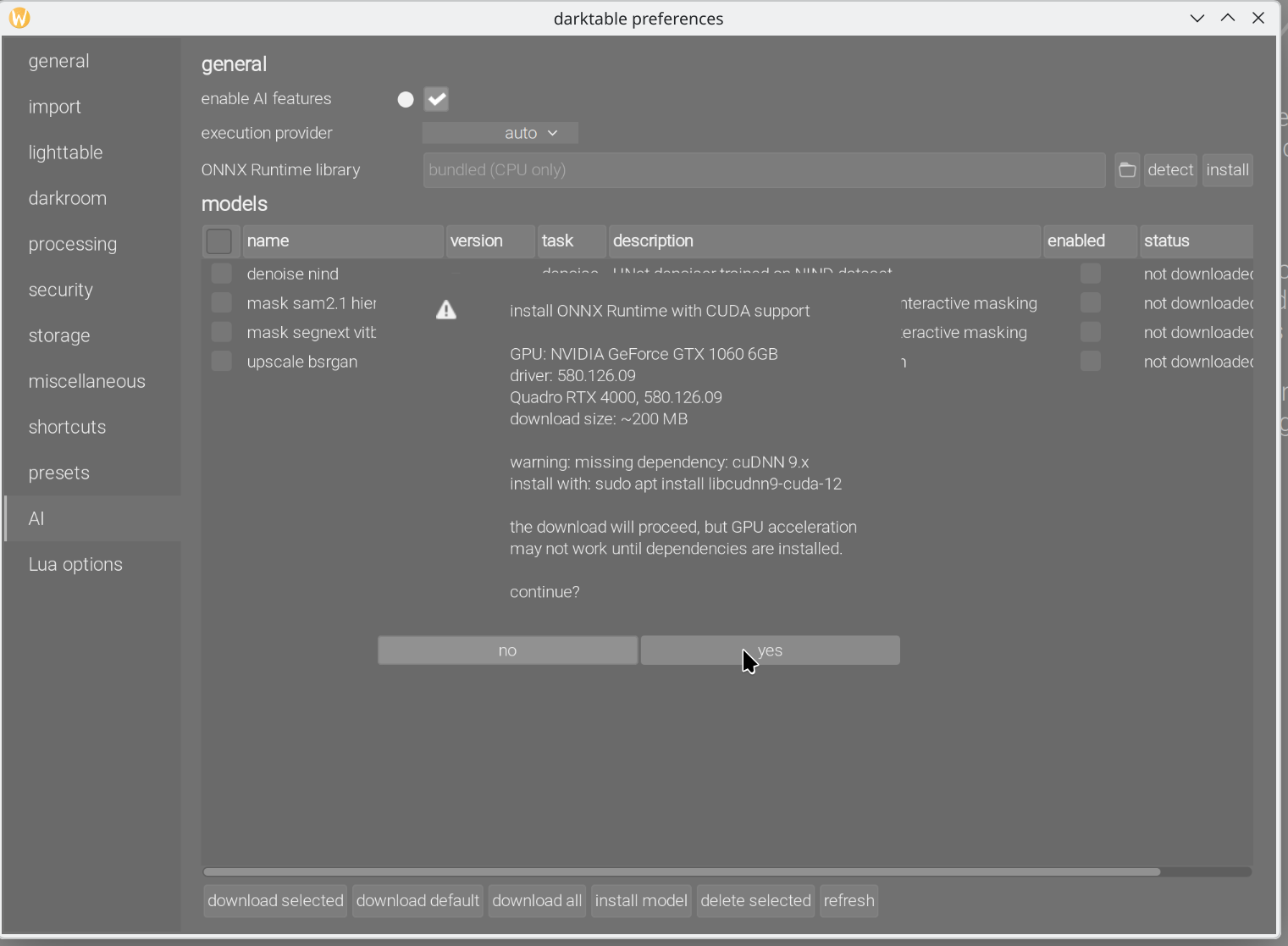
  1. Install button in preferences → processing → AI – detects your GPU (NVIDIA/AMD/Intel), checks if the required drivers and runtime are installed, and downloads the matching GPU-enabled ONNX Runtime package automatically.

  2. Install scripts (tools/ai/) – shell scripts that can be run standalone to download and set up GPU-accelerated ONNX Runtime:

  • NVIDIA (CUDA): requires CUDA Toolkit 12.x and cuDNN 9.x

  • AMD (ROCm): requires ROCm 6.x and MIGraphX (apt install migraphx migraphx-dev on Ubuntu)

  • Intel (OpenVINO): on Linux, included in the ONNX Runtime OpenVINO package. On Windows, requires OpenVINO Toolkit installation

  1. Auto-detection – the install dialog probes your system for available GPUs, checks driver versions, and tells you what’s missing before downloading.

How it works

The script installs the GPU-enabled ONNX Runtime into user space (~/.local/lib/ on Linux). After that, darktable can detect it automatically from the AI preferences tab, or the user can manually browse to the library. On next startup, darktable loads the GPU library instead of the bundled CPU version and auto-detects the best execution provider (CUDA, MIGraphX, OpenVINO, etc.). You can verify it’s working by running darktable with -d ai:


[darktable_ai] loaded ONNX Runtime 1.24.4 (/path/to/libonnxruntime.so)

[darktable_ai] execution provider: CUDA

Help needed

I’d really appreciate testing on different setups. If you have a Linux or Windows machine with a dedicated GPU, please try the PR and report:

  • Does the install button detect your GPU correctly?

  • Does the download and setup complete successfully?

  • Does AI inference actually run on GPU after the install? (check with -d ai)

  • Any issues with the standalone install scripts in tools/ai/?

Particularly looking for feedback from:

  • Linux NVIDIA users (different GPU generations, driver versions, distros)

  • Linux AMD users (RDNA2/CDNA, different ROCm versions)

  • Linux Intel Arc users

  • Windows NVIDIA users (CUDA)

  • Windows Intel Arc users (OpenVINO)

  • Different Linux distros (Ubuntu, Fedora, Arch, openSUSE, etc.)

You can also test the install scripts standalone without building from source – just download the script and the manifest from the PR:


# Linux

curl -O https://raw.githubusercontent.com/andriiryzhkov/darktable/ort_scripts/tools/ai/install-ort-gpu.sh

curl -O https://raw.githubusercontent.com/andriiryzhkov/darktable/ort_scripts/data/ort_gpu.json

chmod +x install-ort-gpu.sh

./install-ort-gpu.sh --manifest ort_gpu.json


# Windows (PowerShell)

Invoke-WebRequest -Uri "https://raw.githubusercontent.com/andriiryzhkov/darktable/ort_scripts/tools/ai/install-ort-gpu.ps1" -OutFile install-ort-gpu.ps1

Invoke-WebRequest -Uri "https://raw.githubusercontent.com/andriiryzhkov/darktable/ort_scripts/data/ort_gpu.json" -OutFile ort_gpu.json

.\install-ort-gpu.ps1 -Manifest ort_gpu.json

On macOS (Apple Silicon) CoreML and on Windows DirectML acceleration are bundled and work automatically – no testing needed for those.

Thanks for any help!
5 Likes

I just tried your Linux script on desktop with Mint 22.3 and nvidia graphics card. First attempt had following error message:

Error: jq is required to parse the manifest.
Install with: sudo apt install jq

Once jq was installed the script ran without any issues.

I was then able to install the latest nightly build of darktable. Denoise and masking work perfectly - haven’t tried upscale but have no reason to think it won’t work.

Thanks very much for your efforts.

1 Like

Thank you for feedback! And you used CUDA execution provider?

1 Like

Yes - there was no problem identifying my card (RTX 3060).

edit - just want to be clear that this was using your standalone install script

1 Like

what i get

PS C:\Users\user\Desktop> cd .\darktable_test
PS C:\Users\user\Desktop\darktable_test> Invoke-WebRequest -Uri “https://raw.githubusercontent.com/andriiryzhkov/darktable/ort_scripts/tools/ai/install-ort-gpu.ps1” -OutFile install-ort-gpu.ps1
PS C:\Users\user\Desktop\darktable_test> Invoke-WebRequest -Uri “https://raw.githubusercontent.com/andriiryzhkov/darktable/ort_scripts/data/ort_gpu.json” -OutFile ort_gpu.json
PS C:\Users\user\Desktop\darktable_test> .\install-ort-gpu.ps1 -Manifest ort_gpu.json

ONNX Runtime 1.24.4 - GPU acceleration installer

GPU: NVIDIA GeForce GTX 1660 SUPER
Driver: 591.86
ORT version: 1.24.4
Download size: ~200 MB
Install to: C:\Users\user\AppData\Local\onnxruntime-cuda
Requirements: NVIDIA driver 525+, CUDA 12.x, cuDNN 9.x

Warning: CUDA toolkit not found.
Download from: CUDA Toolkit 13.2 Downloads | NVIDIA Developer

Warning: cuDNN not found.
Download from: cuDNN 9.20.0 Downloads | NVIDIA Developer

Continue? [y/N]: y

Downloading…
Verifying checksum…
Checksum OK.
Extracting…
Expand-Archive : is not a supported archive file format. .zip is the only supported archive file format.
At C:\Users\user\Desktop\darktable_test\install-ort-gpu.ps1:233 char:9

  •     Expand-Archive -Path $ArchivePath -DestinationPath $ExtractDi ...
    
  •     ~~~~~~~~~~~~~~~~~~~~~~~~~~~~~~~~~~~~~~~~~~~~~~~~~~~~~~~~~~~~~
    
    • CategoryInfo : InvalidArgument: (:String) [Expand-Archive], IOException
    • FullyQualifiedErrorId : NotSupportedArchiveFileExtension,Expand-Archive

PS C:\Users\user\Desktop\darktable_test>

changing it to at line 231-239 seems to work for me

switch ($Package.format) {
    # "zip" {
    #     Expand-Archive -Path $ArchivePath -DestinationPath $ExtractDir -Force
    # }
    "zip" {
        # wheels are zip files
        Rename-Item $ArchivePath "$ArchivePath.zip"
        Expand-Archive -Path "$ArchivePath.zip" -DestinationPath $ExtractDir -Force
    }

idk if it really worked just that that makes it say that it worked

1 Like

I got this trying your instructions for windows…but I might have not followed the proper sequence…

.\install-ort-gpu.ps1 : File C:\Users\xxxxxxx\install-ort-gpu.ps1 cannot be loaded because running scripts is disabled
on this system. For more information, see about_Execution_Policies at https:/go.microsoft.com/fwlink/?LinkID=135170.
At line:1 char:1

  • .\install-ort-gpu.ps1 -Manifest ort_gpu.json
  •   + CategoryInfo          : SecurityError: (:) [], PSSecurityException
      + FullyQualifiedErrorId : UnauthorizedAccess

I had some troubles installing the cuda runtime due to some conflicting packages which were already installed on my system (Ubuntu 24.04 with nVidia RTX 3060, nVidia-Driver 580.x) but after I uninstalled everything and re-executed the installation script everything was successful.

     5.6664 [darktable_ai] dt_ai_env_init start.
     5.6665 [darktable_ai] discovered: mask sam2.1 hiera base plus (mask-object-sam21-base-plus, backend=onnx)
     5.6666 [darktable_ai] discovered: upscale bsrgan (upscale-bsrgan, backend=onnx)
     5.6666 [darktable_ai] discovered: mask segnext vitb-sax2 hq (mask-object-segnext-b2hq, backend=onnx)
     5.6666 [darktable_ai] discovered: mask sam2.1 hiera small (mask-object-sam21-small, backend=onnx)
     5.6666 [darktable_ai] discovered: denoise nind (denoise-nind, backend=onnx)
     5.6667 [darktable_ai] discovered: embed openclip vitb32 (embed-openclip-vitb32, backend=onnx)
    51.0890 [darktable_ai] loaded ORT 1.24.4 from '/home/ds/.local/lib/onnxruntime-cuda/libonnxruntime.so.1.24.4'
    51.0890 [darktable_ai] execution provider: CUDA
    51.1020 [darktable_ai] loading: /home/ds/.local/share/darktable/models/denoise-nind/model.onnx
    51.1020 [darktable_ai] attempting to enable NVIDIA CUDA...
    51.2546 [darktable_ai] NVIDIA CUDA enabled successfully.
    51.3357 [darktable_ai] output[0] has dynamic dims — using ORT-allocated outputs
    51.3416 [darktable_ai] auto-converting input[0] float32 -> float16
    51.6485 [darktable_ai] auto-converting input[0] float32 -> float16
    80.7199 [preferences_ai] refreshing model list, count=6
    80.7199 [preferences_ai] adding model: mask-object-sam21-small
    80.7200 [preferences_ai] adding model: mask-object-segnext-b2hq
    80.7200 [preferences_ai] adding model: denoise-nind
    80.7200 [preferences_ai] adding model: upscale-bsrgan
    80.7200 [preferences_ai] adding model: mask-object-sam21-base-plus
    80.7200 [preferences_ai] adding model: embed-openclip-vitb32
   115.4277 [darktable_ai] attempting to enable NVIDIA CUDA...
   115.4279 [darktable_ai] NVIDIA CUDA enabled successfully.
1 Like

Update:

The Windows install script has been fixed - Expand-Archive was failing because the downloaded file had no .zip extension. This is now resolved.

If you get the “running scripts is disabled on this system” error, run the script with:

powershell -ExecutionPolicy Bypass -File .\install-ort-gpu.ps1

This bypasses the execution policy for that single run without changing your system settings.

1 Like

Please follow the instruction above on how to bypass the execution policy.

2 Likes

Thank you for reporting the issue! I updated the script. Can you get the updated version and try once again?

1 Like

But there’s no such package (I’m on Ubuntu 24.10). What I do have is (it’s installed):
nvidia-cudnn/questing,now 9.0.0.312~cuda12

1 Like

You can try to proceed. It will install library anyway. And check if it works. If not, some dependencies are missing.

1 Like

It works, thanks.

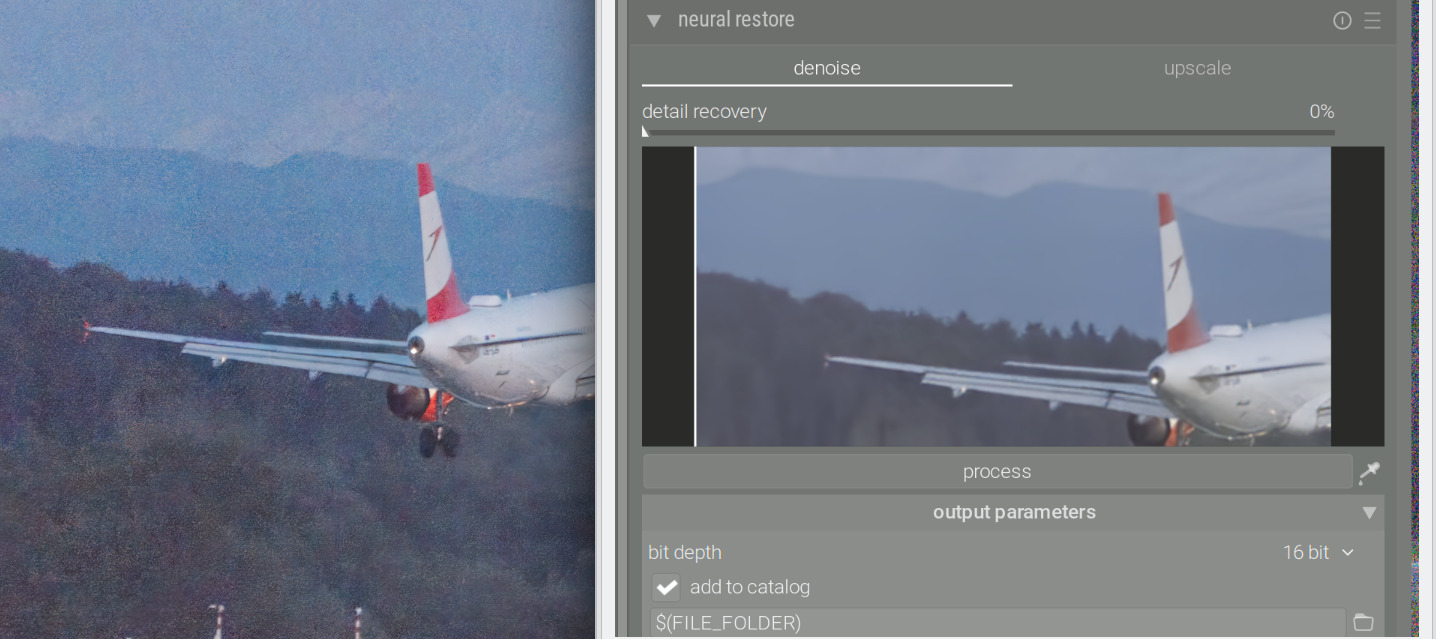
However, the preview is not really representative: it is way smoother than the processed image:

Left: denoised tif in darktable; right: screenshot of the preview window.

2 Likes

Yes, preview works on downscaled image. I will check what we can do with this.

1 Like

seems to work (still only tried in powershell)

1 Like

Linux Mint 21.3, NVIDIA GeForce RTX 3070
Driver Version: 570.211.01 CUDA Version: 12.8

The script ran without error and recognized the card correctly. The onnxruntime was downloaded and found in darktable.
I then installed the CUDA Toolkit 12.x and cuDNN.9 from the links you provided. (The current version of Toolkit is 13.x, so it seems you have to explicitly install version 12, because with version 13, I got an error message: libcublasLt.so.12: cannot open shared object file: No such file or directory).

Now,click on the preview generation in “neural restore” I get the following log output:

12.8709 [darktable_ai] attempting to enable NVIDIA CUDA...
13.0520 [darktable_ai] NVIDIA CUDA enabled successfully.

[...]

13.1634 [darktable_ai] session failed: Exception during initialization: /onnxruntime_src/onnxruntime/core/providers/cuda/cuda_call.cc:129 std::conditional_t<THRW, void, onnxruntime::common::Status> onnxruntime::CudaCall(ERRTYPE, const char*, const char*, SUCCTYPE, const char*, const char*, int) [with ERRTYPE = cudnnStatus_t; bool THRW = true; SUCCTYPE = cudnnStatus_t; std::conditional_t<THRW, void, common::Status> = void] /onnxruntime_src/onnxruntime/core/providers/cuda/cuda_call.cc:121 std::conditional_t<THRW, void, onnxruntime::common::Status> onnxruntime::CudaCall(ERRTYPE, const char*, const char*, SUCCTYPE, const char*, const char*, int) [with ERRTYPE = cudnnStatus_t; bool THRW = true; SUCCTYPE = cudnnStatus_t; std::conditional_t<THRW, void, common::Status> = void] CUDNN failure 1001: CUDNN_STATUS_NOT_INITIALIZED ; GPU=0 ; hostname=graphics-ws ; file=/onnxruntime_src/onnxruntime/core/providers/cuda/cuda_execution_provider.cc ; line=232 ; expr=cudnnCreate(&cudnn_handle_); 

[ ...]

 - retrying with CPU + full opt
    13.4948 [darktable_ai] output[0] has dynamic dims — using ORT-allocated outputs
    13.4949 [restore] tile size 1024 (scale=1, need 1224MB, budget 1986MB)
    13.4949 [neural_restore] preview: tiled inference 349x311, tile=349
    13.4949 [restore] tiling 349x311 (scale=1) -> 349x311, 2x2 grid (4 tiles, T=349)

Neural restore module has fallback mechanism for selecting tile size on GPU. If bigger tile size fails, module sets smaller one and tries again. You will see ONNX Runtime initialization errors during this.

But it falls back to CPU. So something is wrong with CUDA + cuDNN installation.

1 Like

Thanks for the hint. I uninstalled CUDA Toolkit and cuDNN and re-installed them, and the error messages are gone.
Works like a charm!
Maybe this is obvious to many, but if you follow the link for the CUDA toolkit in the OP, it points to the installation of version 13.2, and I think you have to go to the archive of previous versions to get 12.x.

2 Likes

Reporting a failure on Intel Arc A770. CPU works perfectly and quickly. Instantiation brings the following:

2026-04-03 11:25:04.392754342 [E:onnxruntime:DarktableAI, provider_bridge_ort.cc:2310 Create] /onnxruntime/onnxruntime/core/session/provider_bridge_ort.cc:1957 onnxruntime::Provider& onnxruntime::ProviderLibrary::Get() [ONNXRuntimeError] : 1 : FAIL : Failed to load library /home/jb/.local/lib/onnxruntime-openvino/libonnxruntime_providers_openvino.so with error: libopenvino_onnx_frontend.so.2541: cannot open shared object file: No such file or directory

Not sure if this is a versioning error fixable by symbolic link or if it is a Python unpacking problem.

What I see now is incorrect library path. Should be something like this:

/home/jb/.local/lib/onnxruntime-openvino/libonnxruntime.so.1.24.1