I’ve found conflicting information when searching the web on how to achieve this.
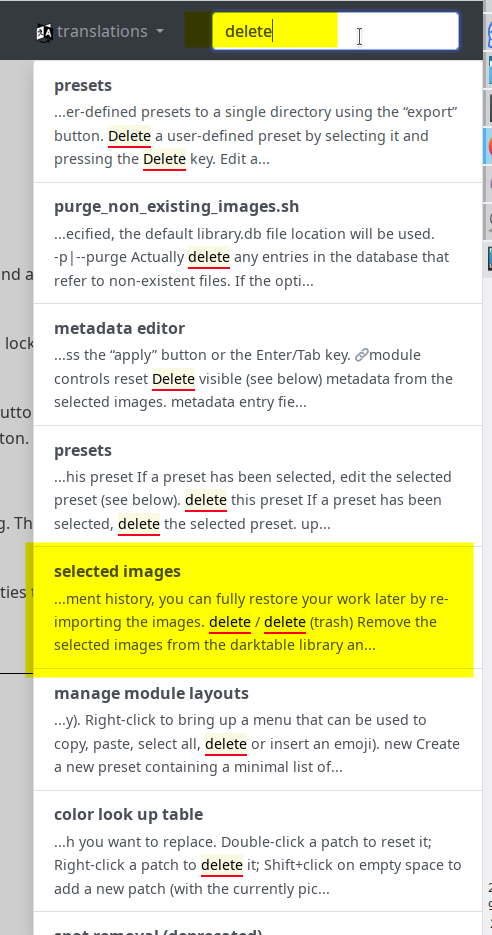
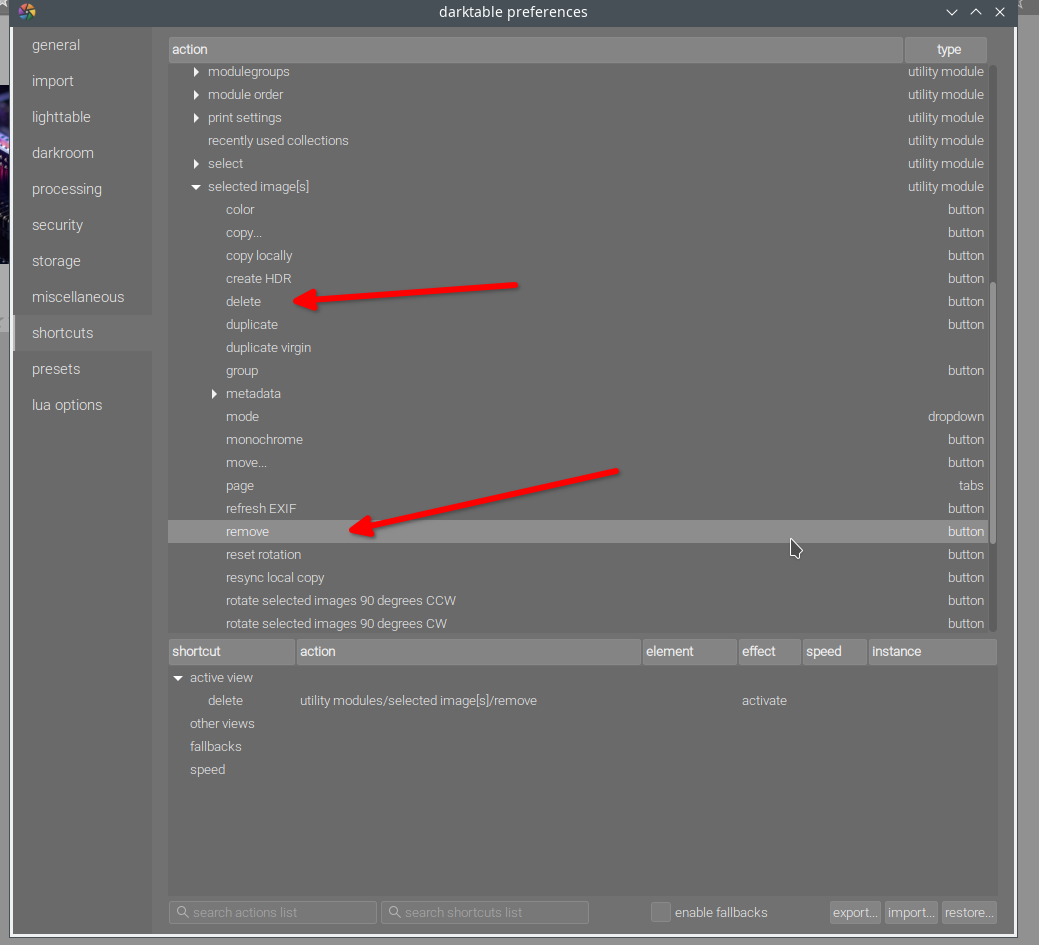
First, answers for older versions state that you do this in the shortcuts, but I could not figure out how, even though I found the del shortcut.
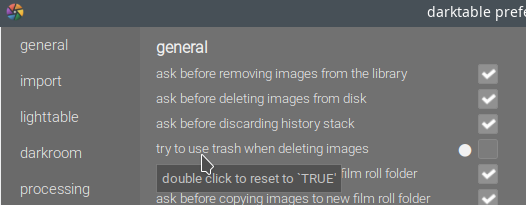
Second, some answers for newer versions state that you do this in the preferences, that there’s an option to enable file deletion exposed, but I can’t find that one either in 4.2.1.
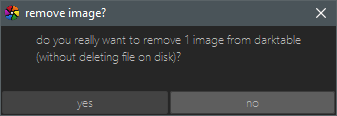
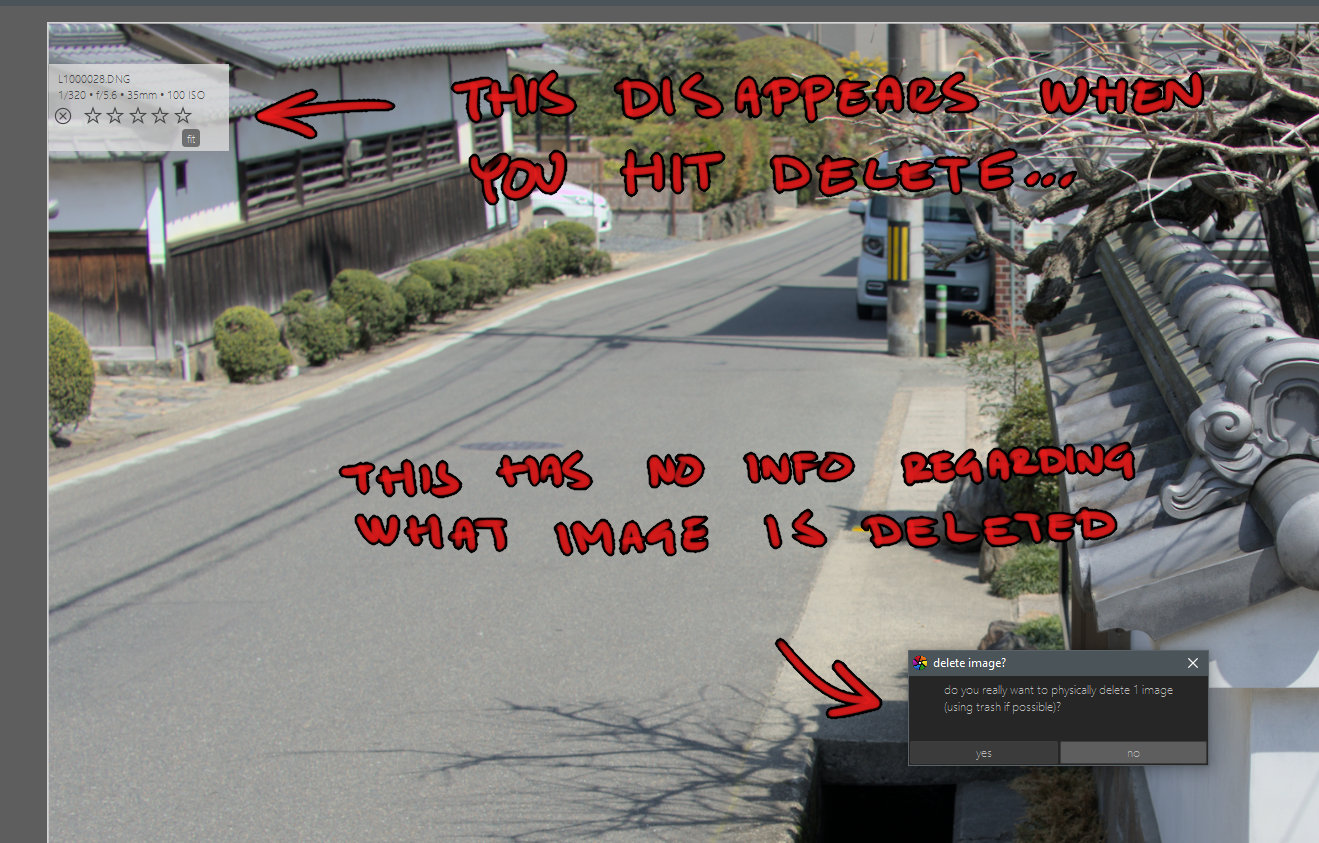
When I hit “del” in Lighttable I only get this, with no visible option for “delete from disk”:
I still had to step through every preference panel and compare the first option in your screenshot to find the setting (it did not click for me that it was located in “security”). However, it was apparently already enabled, but the del key behavior did not change.
Also, despite the red arrows, I still don’t understand that screen, or how to change a shortcut (and no, the manual does not help because the double clicking doesn’t prompt me for anything like it says). I’m going to try to have to find a video tutorial on how to change the shortcut…
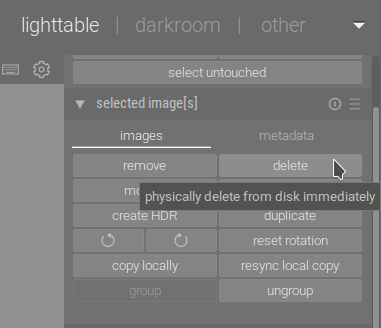
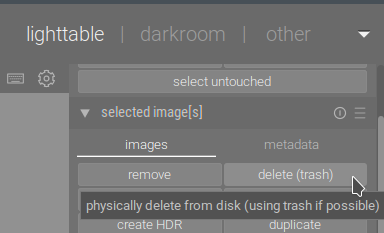
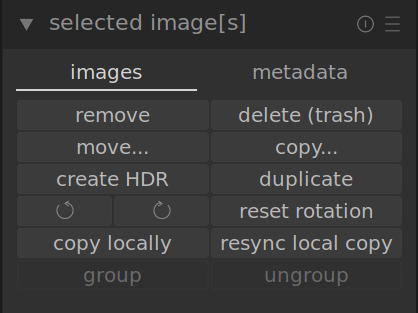
Also, that side panel with the Delete (trash) button is nice, but I didn’t see that either initially because I would have expected that button to be placed in an overlay on the image thumbnail itself. Also, I use f to go fullscreen to see which image I really want to delete, and I just noticed that when I press f to go back to Lighttable, it switches back to the last selected image instead of the last fullscreen viewed image…
As a beginner, my experience so far in Darktable is still overwhelming. The UX is not intuitive nor user friendly, but then again, that’s part for the course with open source software (not a complaint, just a fact… they almost never have dedicated designers).
The Del key is, by default, mapped to the remove action. Changing a preference related to the delete / delete (trash) option does not change the key binding that belongs to a different function, remove.
You’ll get the hang of the interface soon enough. For me, it’s absolutely logical that the actions in the selected images group work on the selected images.
The naming of the security preferences group is something I’m not a fan of, though (deleting to ‘trash’ sounds like a safety measure to me). But that’s how it’s called, and I’m used to it by now.
With respect try searching the user guide and not the web for information about DT and that will improve your UX. I have bookmarked the user guide in my browser and make the point of reading the detailed information about the modules that interest me. If you select an image or images in lighttable view then you have the following well explained options of what to do with the selected images. Hovering the mouse over the relevant button gives clear details of the function.
Yes DT can feel overwhelming in the beginning because it is a very advanced and creative program. It takes time to learn and that means reading the manual. A sports car is more complex to drive than an automatic family sedan and that is what you have with DT. A complex sports car. While programs like Lightroom have a few simple sliders and while initially quick to learn give little creative control compared to DT. Good luck with learning the program. It is worth the effort.
Many things are by default in DT there to support the notion of non-destructive… so it is with del in a way as it only removed the image registration in the database and does not touch the image…
There is a way to do almost anything and you can basically reassign almost any key…
Also a quick tip is the h key brings up all the standard shortcuts if you forget any
This is a good channel if you don’t frequent it… good mix of theory and demonstation…
I clicked in the top list on “remove”… noticed how it said “delete” in the bottom list under “active view”. Clicked on that line, and hit the delete key to remove the shortcut (there’s no buttons that I saw to do this).
Now do add the shortcut key to the “delete”, I clicked in the top list and again looked under “active view” in the bottom list, and attempted to double click to add a shortcut key. But nothing. What I needed to do was double click in the top list, and then the new key automatically got added to the “active view” in the bottom list (in other words, not consistent with my previous interaction).
Not sure if a developer is looking here, but I hope you understand how this can be terribly confusing to a beginner. In fact, I can’t recall when I last saw such a confusing shortcut interface.
EDIT: Also noticed how Darktable isn’t really made for deletion the way I want it… which I guess it natural, but again, the way that the mouse hover can decide a selection and switching images in full screen doesn’t update the selection makes deleting a single file feeling incredibly error prone!
Not totally sure, but I think there was a change in behaviour somewhere between 4.0 and 4.2:
When deleting a version of an image (not the master) it used to delete the xmp file from the disk. Now it removes it from the database but keeps the xmp around - which can result in loads of unwanted and unexpected versions.
For me the old behaviour was more consistent. Delete a version for good, but remove the master - don’t mess with the image, only with the settings.
Or is there some option I missed when I upgraded to 4.2 and dutyfully went through every single setting of the preferences?
For visual widgets (buttons, sliders) the shortcut will also be shown in the tooltip that appears when hovering over it.
To avoid that, there is an easier way to assign simple shortcuts to widgets/buttons. Switch to shortcut mapping mode (the button to the left of preferences) hover over the button and press your desired shortcut key.
The reason the advanced shortcuts dialog/top is convoluted, is that it offers extra configuration options. You can for example have multiple shortcuts to the same dropdown, each selecting a different option. Or shortcuts to the same slider with different speeds, to reset it or to activate its color picker. Or a keyboard and a midi encoder linked to the same slider. Putting that all in one list would also be confusing. And hard to find which keys have already been used; the bottom list is sorted by key to help with that.
The frankly astonishingly beginner hostile UX around this feature continues:
When you click to select an image in lighttable and then move the mouse cursor away and hover over another image and press delete, it’s the hovered image that gets deleted and not the selected one!
I mean…
In the 30 years of me using WIMP software, I don’t think I’ve ever seen this that I can recall.
I’ve had to pay for the Disk Drill recovery software because I hadn’t used Darktable for a while and it took me a moment to notice what was going on when I was in a hurry (I had many, many very similar images).
This is similar to Blender which insisted on right-click select for the longest time. It’s the curse of much open source software. When you don’t have to sell anything you don’t have to appeal to anyone and of course, no open source software has the resources to hire UX designers so you end up with a bad reputation (and yes, Darktable has one, make no mistake… it’s very capable, but also abrasive as hell to use so many don’t bother).
Looks like mixing two paradigms isn’t a good idea:
either use mouse to point and keyboard to act (hoover and hit delete)
or use mouse only: click to select image(s), click delete
Whether that’s poor design or poor use of the interface, you decide (apparently some have decided already)
(In addition, in the settings dialog there are quite a few items to protect against unwanted deletions, under “security”, like “try to use trash when deleting images”)