ok i understand 
Tried with my 6D. No problem after ejecting in Ubuntu. Couldn’t eject at all in Windows in a VirtualBox, so I got the same problem as you there.
I will later this week check this out windows - Remove USB device from command line - Super User
 Thank you really much, but I don’t understand a word of it. But I am glad to know som IT specialists who probably can help me to translate that to an analphabatic. I speak englisch, german, dutch, norwegian and a litle bit french. But I have to accept that it isn’t enough. But i realy appreciate all the help I get from people around the world. Its magic!
Isn’t it this simple?
After clicking ‘add to library’ or ‘copy & import’:
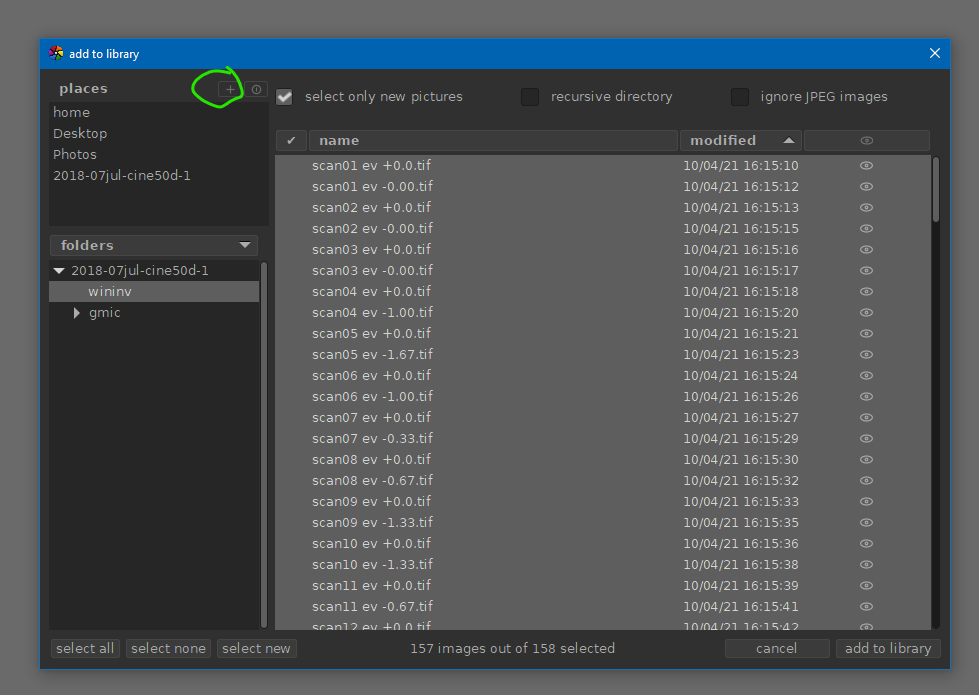
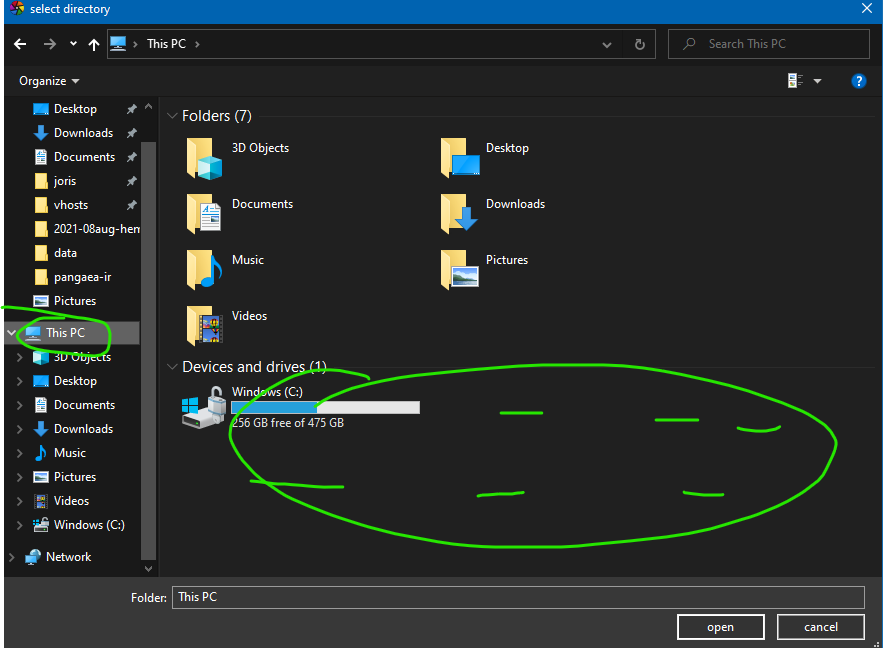
You have to click the little ‘+’ sign next to ‘places’ to add a drive letter / folder. Select the drive-letter and/or folder from your camera when it is connected. After adding this ‘as a place’, you can select it and navigate the folder structure in the section under it.
If your camera doesn’t show up, you have a weird one. Maybe it is in ‘MTP’ mode or something? That requires special software to work with it to access the pictures on it, almost 99% of camera’s and users have it set to ‘mass storage’ mode (and it will be by default I guess) so that the camera shows up as a drive when it is connected through USB to a computer.
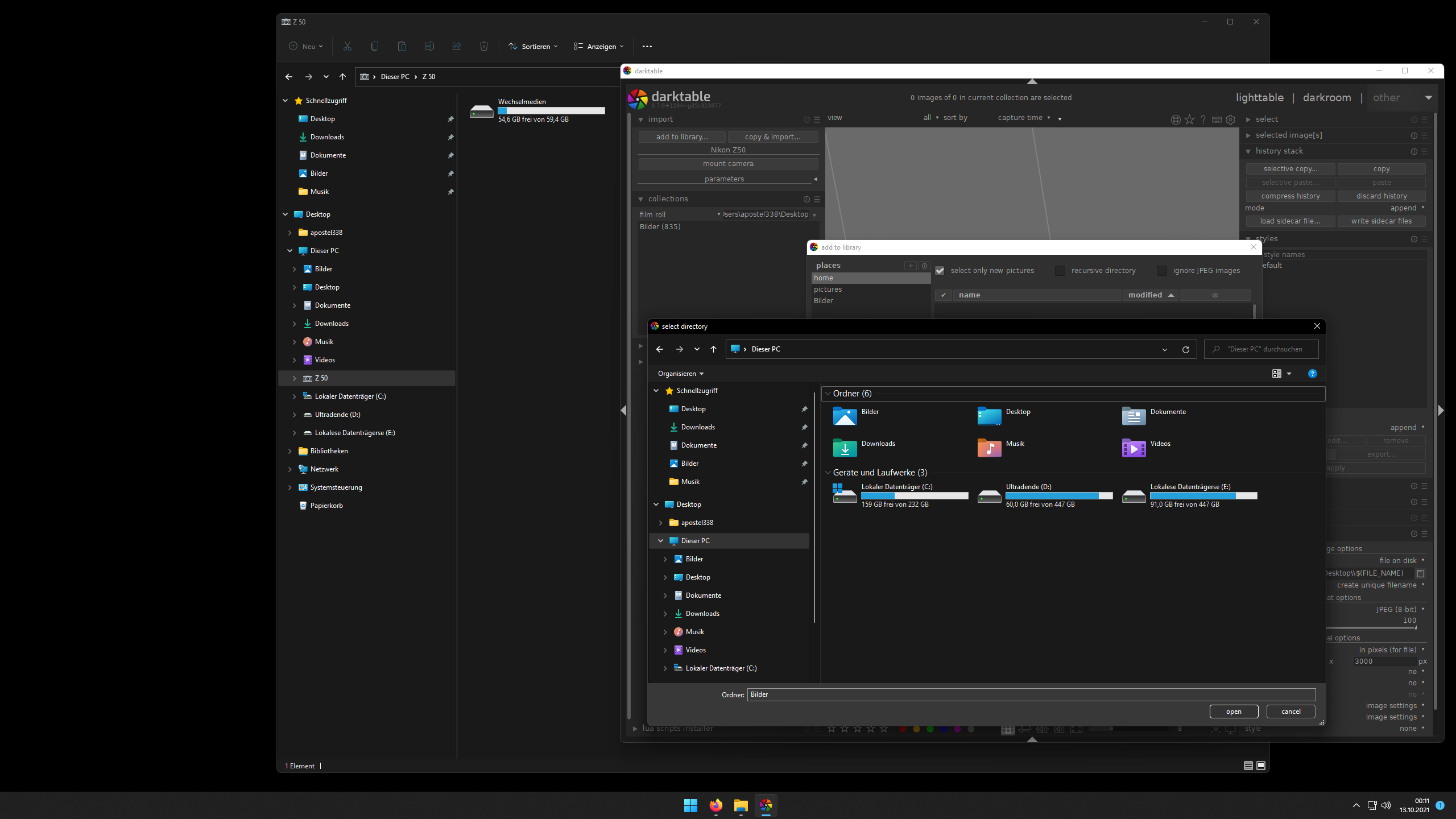
I just provided where the link comes from for context…you don’t need to build it…just use the first link to the usb driver to give that a try…
In your case do you have the Nikon software set to auto upload when the camera connects…not sure but I was wondering if the OP had something like that going on with the Canon software…
Nothing like that. I manually copy in Windows Explorer.
Couldn’t find 6D to eject…
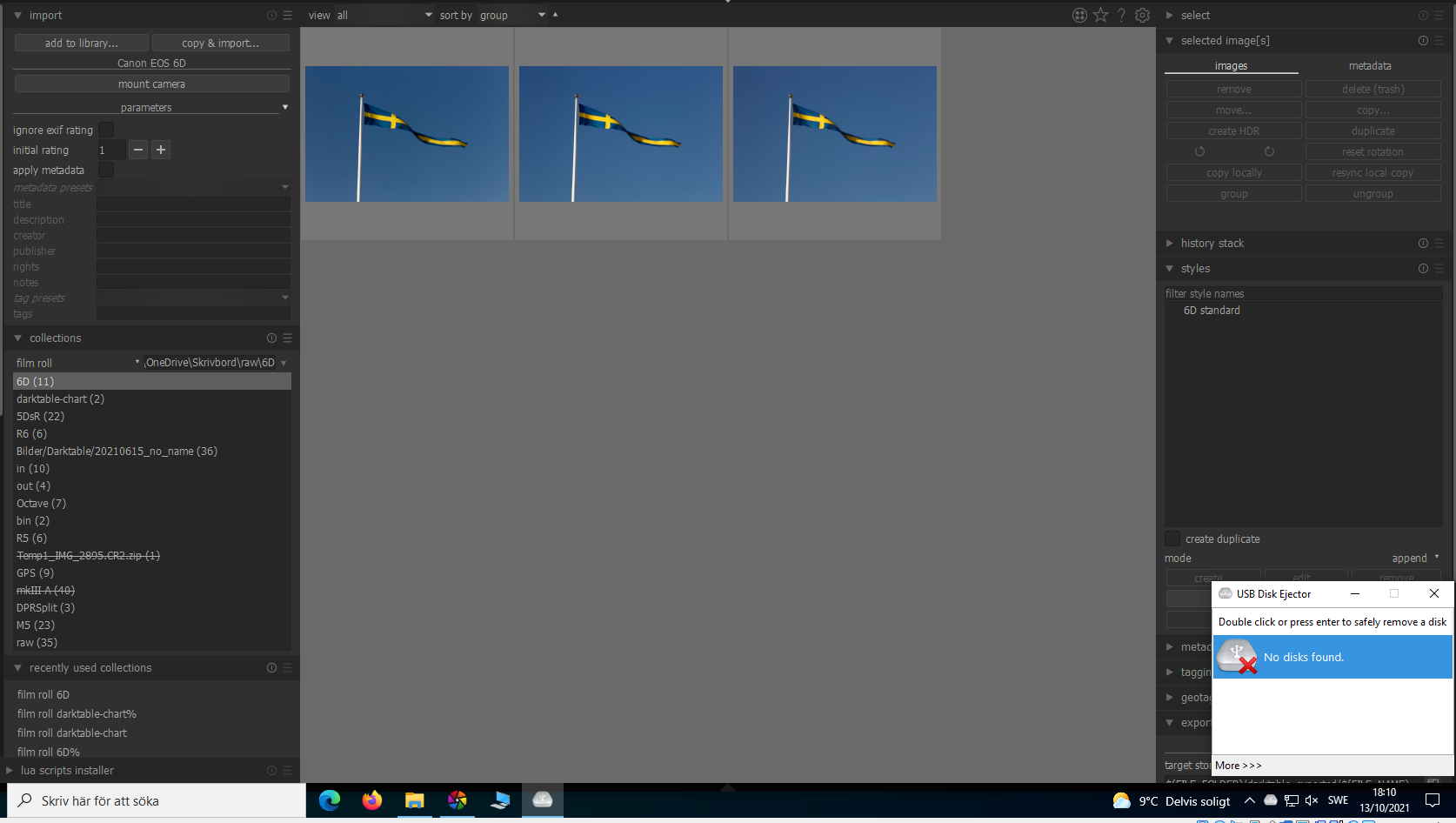
To copy in Windows Explorer like apostel338 wrote seems to be the easiest workaround.
Connections via MTP can’t be ejected.
1 Like