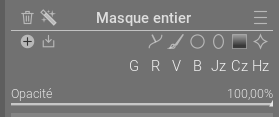
Seen 100% is the opacity slider, quite visible and easy to check opacity.
But then you are talking about “mask”, not sure I understand since the “yellow wall” is only displayed when there is no mask. So maybe we are not talking about the same thing?
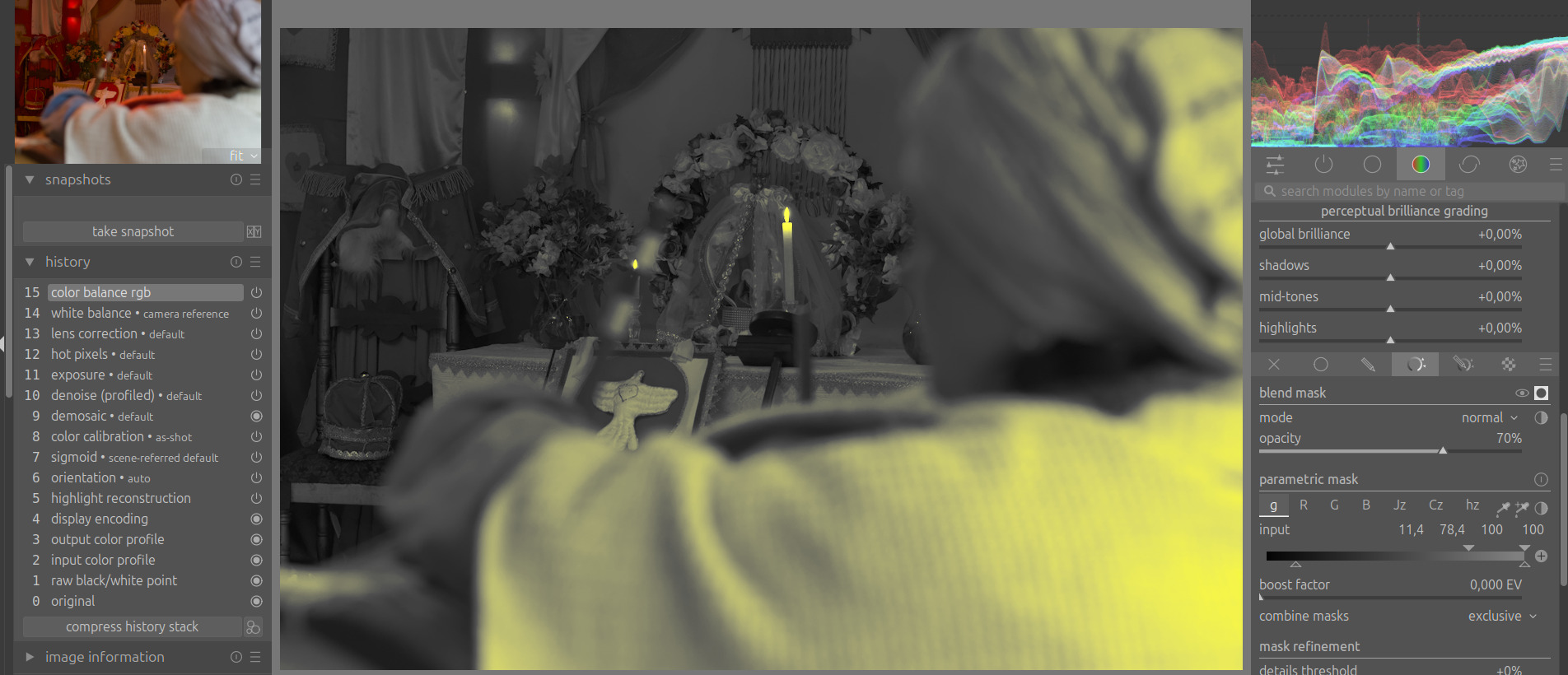
In the stable build, what you call “yellow wall” appears only when I click a square icon with a circle in the middle. Experience told me this shows how dense the mask is based on the opacity of it. If I now turn down the opacity, the yellow wall gets thinner and thinner, so I can gauge how much the mask will affect my photo. In a parametric mask, I can then move the input slider to select areas based on light. When I get the area I want my mask to work on, I then click the square icon again, to hide the yellow wall and see the results of my selection.
Sure and this has not been changed at all.
What we call the “yellow wall” is when there is not mask and that you click on the “show mask” icon (square with a circle in the middle).
On the screen shot you have a mask, so it works as before.
On that screenshot, I am using the stable build, because I cannot easily turn this feature on in the last nightly build.
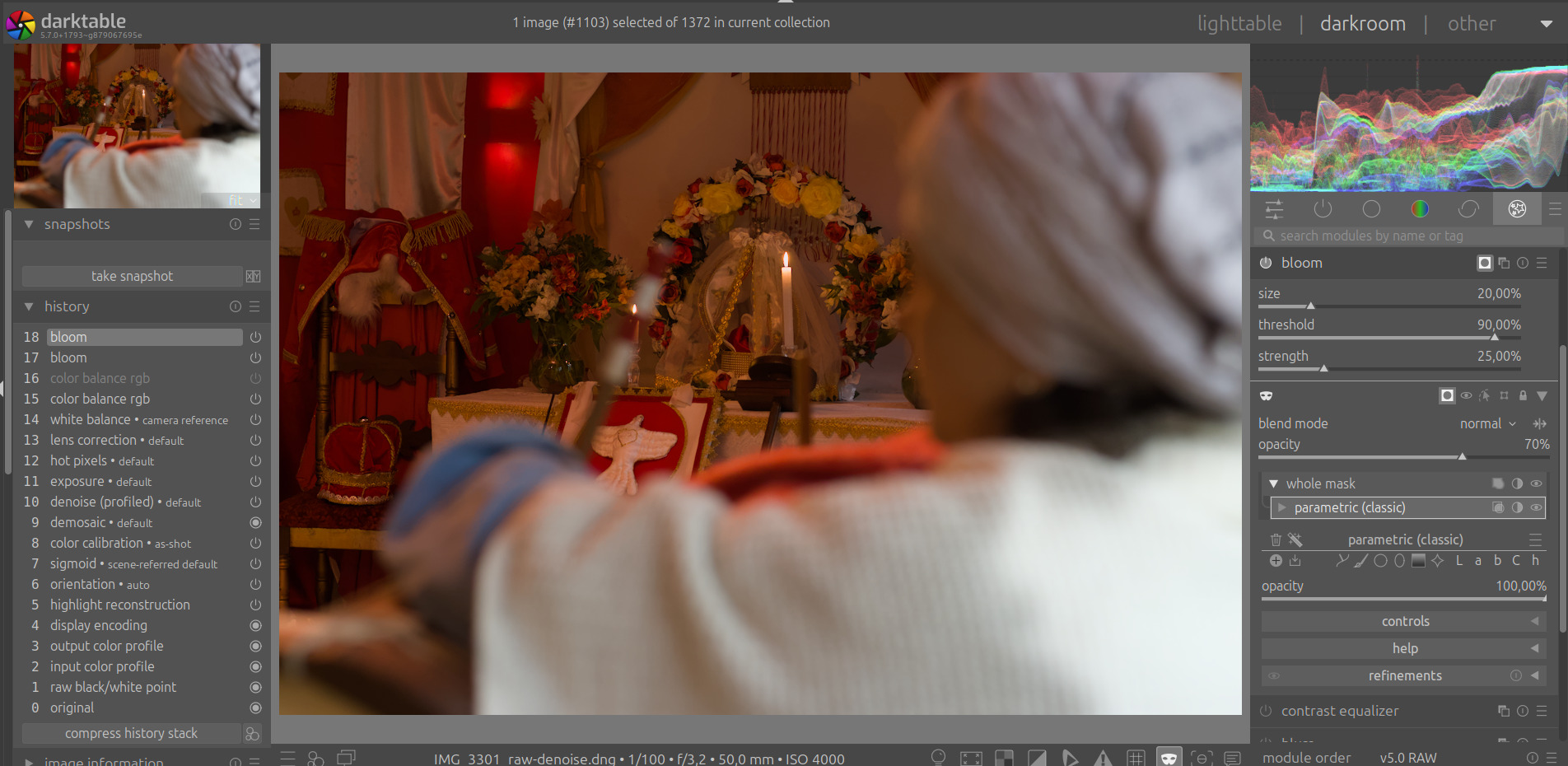
Here I am using the nightly build. I selected a parametric mask, end then clicked the “show mask” button, but the yellow wall did not show up.
What’s your mask on the last screenshoot?
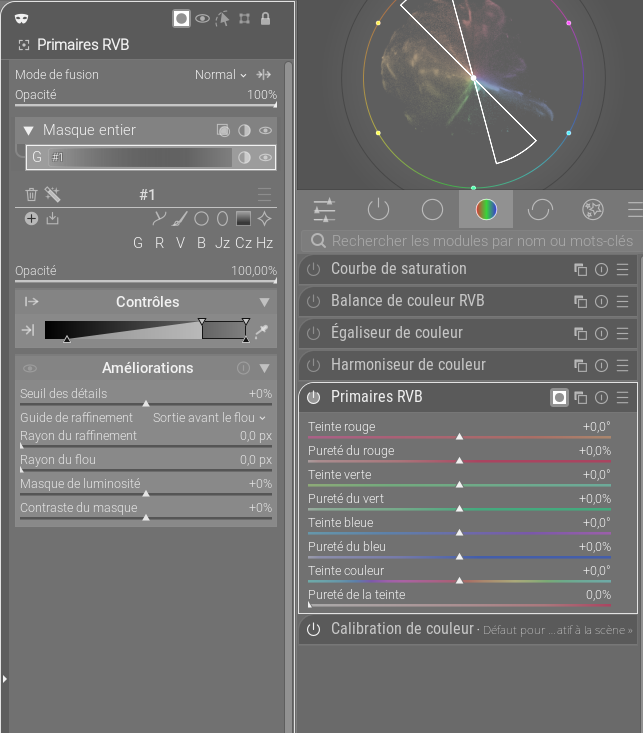
I have create a parametric mask as in your screenshot with the stable build. (G channel):
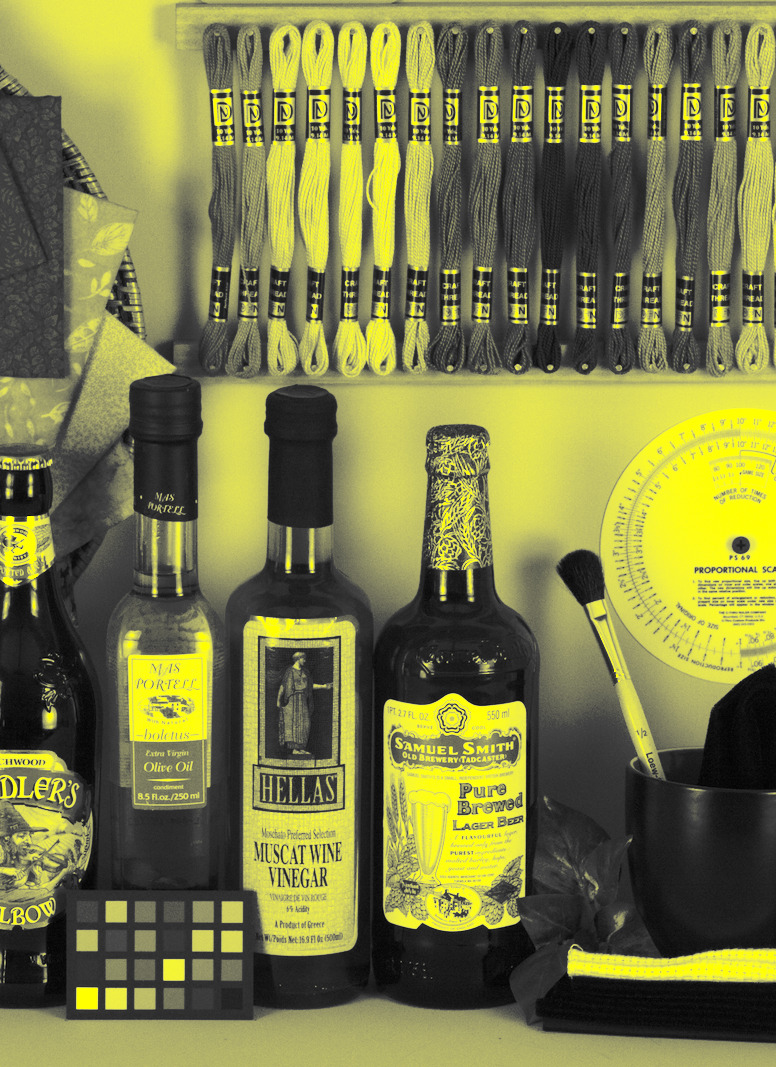
If I display the mask I get:
So all work good for me.
Looking at the screenshot it seems you have a “group” named “parametric (classic)” but no mask at all. You really need to look at the current documentation for Flexi mask that has been proposed by @Masterpiga on pixls.us.
How did you make the parametric slider appear? I selected parametric mask in the menu, but the controls accordion is closed, and when I click the icon to open it, it doesn’t. I know I did make it appear once yesterday, but I don’t understand exactly how.
You just need to press the corresponding parametric mask button (next to or below from the drawn mask).
Here you just press the G (Grey channel as in your screenshot):
A single click as promised 
I probably missed something completely. The AI masking seems to be a lot faster now, but is there still a way to convert the AI raster mask to a path? I couldn’t figure it out on yesterday’s nightly
basically I click the AI mask icon, right click and I get an AI mask object. In some cases I want that to be a path mask as in 5.6
I agree with this. Every issue I have had with the new layout just required me to rewire my brain’s expectation. I have not a single complaint yet, just a couple of stumbles along the way. So keep up the good work.
Its not for me…it was maybe if you set workflow to none or legacy I think but I get the scene-referred blend modes for scene-referred modules and lab for those using lab in their processing???
Following up on what Pascal mentioned, ie just one click, the elements are all free single mask items or components (no drawn or parametric modes…) and they can all now interact with one another, so you could have 2 hue channels for example in the mask etc…So now you build the overall mask from the individual elements and you only need to group them for the most part when you want to (need to) introduce some specific interactions between and within groups of these elements.
The menu item you selected is just there if you want to organize and have a group called parametric and it is set by default to have channels that you add act as they did in the old module but as noted by Pascal if you don’t add any items its just a group name…and you can create your parametric mask in many cases by just starting to add channels to the “whole mask”.
The thing to keep in mind now though is you are work a bit like you do with modules in the pipeline and processing the math from the bottom up in a group and between groups in the overall mask. You can drag elements if you land in the wrong spot just like you can move modules in the pipeline…
There is a tone of flexibility and power but most users will never need this level of complexity, its just there if you do and its pretty logically laid out…
As others have said give it some time I think you will get familiar quite quickly once you get the concept and also understand what the math operators do…everything has extensive tool tips which are over the top but necessary at the start and then in preferences you can turn them off…
To be very clear, this feature has been removed. @Jorge_Alberto when you are applying opacity without setting an explicit mask, does the density of the yellow wall tell you more than looking at the resulting image or just considering the percent? I suspect there is room for negotiation on this… but if it’s not a common use case or isn’t extremely useful, we will just suggest the workaround of adding a parametric mask that selects everything.
Also, I second everyone’s opinion that you’re describing the quirks of the old interface as intuitive because you got used to them. For example “drawn and parametric mask” is a silly restriction compared to adding the masks you need, which may happen to be drawn and parametric (but may not). The old system didn’t even support parametric+drawn-drawn.
A suggestion that came to me yesterday: the boolean operators would be easier discovered if the yellow preview would activate on hover over the different options. Either when the preview ist enabled only or independently of that (the latter makes more sense IMHO).
With scene-referred modules, I use the ‘boost factor’ all the time, but it is now hidden by default. It is only visible if ‘show the output slider and the boost factor’ is enabled. I hardly ever use the output slider, and now there’s one more click to do to reach the boost factor slider. I’d like to have it always shown for scene-referred parametric masks, as it was before the change.
Happy to show the boost factor by default and only hide the output slider behind a click, or to show all of them. This could be another preference option. The panel is meant to adapt to different workflows, so in general I see configuration options as a value.
@Masterpiga … does look like a proper solution , at the moment ?!
THX for coming back so quick with this .
Andreas