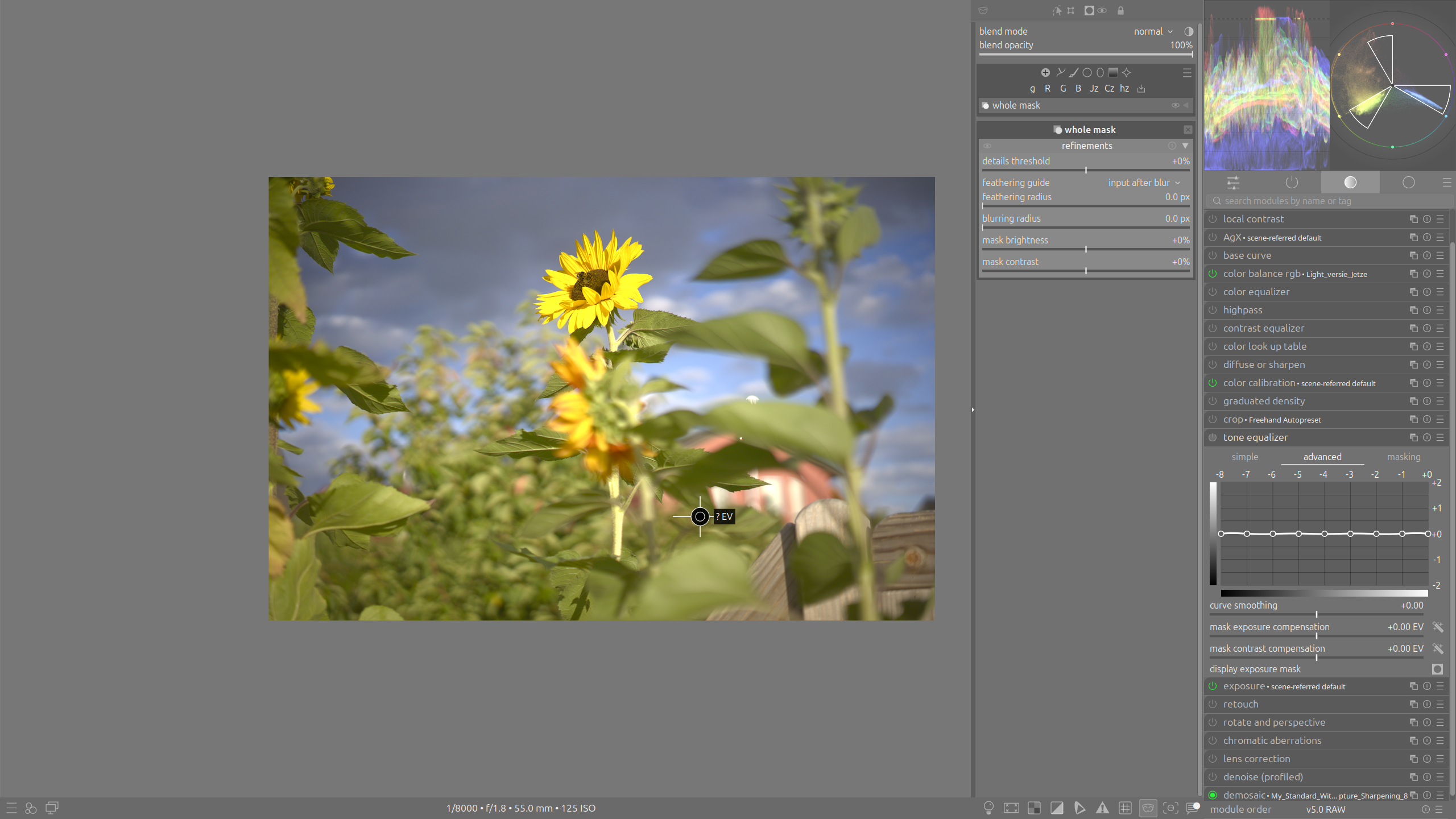
After the new masking panel has been pushed to master, a lot of users who had not followed the development found themselves in the difficult position of having to get used to a new masking system (both the model and the UI) without any kind of documentation other than tooltips (when enabled!).
While full documentation will be released only around the time that 5.8 is ready, so that it can include concrete references to the UI that we will sheeip ( vs. ) , I wanted to share some early docs to make it easier to navigate the novelty. I will try to keep them as up-to-date as possible with the development.
Note that the model will not change at this point (at least, not noticeably). On the other hand, the UI has still a considerable margin for improvement, and as a matter of fact I am in the process of opening a PR for a major-ish revamp that addresses many of the main pain points that have been brought to my attention.
So, while the reasoning behind building a mask will not change, the actual UI patterns to do this or that operation are still open to change.
This is a very general document explaining how to think about masks in terms of groups and operators. If you understand this, you are 90% there. The rest is just a matter of getting used to the UI.
This is an overview of the UI functionalities, and reflects the latest “major” UI version that you will find in the nightly builds. I will not update it following every little change, but if there are significant changes I will make sure that they are reflected here. It does not contain screenshots, because as I said the UI is not final, but it contains a reference of all the available options, including some that currently are less discoverable.
Hope you find it helpful, and thanks for your patience!
Now this is the authenticity I seek to make sure posts are not AI generated It’s a joke of course, as a non native english speaker I often make the same mistakes
Right, moved to 5.7.0-1496 for this, tried it and red the doc’s - wow!
What a great job! Makes me very happy.
Disclaimer: not yet done much with it finding my way through the interface and doc’s mainly some elliptical masks.
Made some notes where possibly the doc’s can be slightly improved (according to my humble and possibly limited understandings). When usable I’m glad to have contributed a little bit.
Generally I believe this new masking panel is very well matured and implemented!
Kudos for that!
I did use a lot of masking and masking manager before and this gives us new possibilities, mostly because of the concept of groups. Some things are not yet fully clear to me but will get so soon i believe: f.i. ‘element clusters’, do they apply to multiple brush strokes? Will find out soon.
Love the settings pop-up panel specially the ‘sticky opacity’ setting…
So far for now. Have to prepare some meals and start playing for real after that.
My notes are about:
Header Controls
• When the flexi panel is un-docked a click in the header tab makes it disappear, it reappears when clicking on the domino icon or arrow or highlighted area after hovering the mouse over the edge of side of the modules bar.
• Lock Mask: needs further exploration for me, probably mean that f.i. switching a ‘color calibration’ instance from no preset to ‘monochrome’ keeps the masking, most appreciated!
Blending Settings
• Blend Parameter slider: Contextual slider for blend modes that accept an adjustable parameter.
As far as I understand it is on screen called ‘fulcrum’.
Adding Elements: The Toolbar
• I think it might be clearer when there will be a visible difference between ‘The Toolbar’ and the ‘Mask Layout List’. Now they look as if part of the same system, which they aren’t…
• Add group button: maybe - and only maybe - separate this a bit from the shapes icons as it performs something different.
• Parametric Channels (parametric icon): The icon is - as far as I could see - no longer present in the userinterface so maybe omit it in the doc’s.
The Mask Layout (The Member Tree)
• Info Note Icon (I): maybe add a bullet describing that this icon is not visible when switched off in the ‘Blend mask panel settings’ sub. ‘Default group layout’ - ‘Show preset notes’
• Shift+click: Toggles the element’s expanded controls (when inline properties are enabled). In the setting popup it’s called ‘element properties’.
• ‘Right-click on Element Row: Opens the Element Actions Context Menu’ sub ‘Mask Operations Section’ two possibilities not documented (‘invert all elements’, ‘simplify’)
Member Properties Sub-Panel
• ‘fade out border’ maxes out at 100% while shift mouse wheel allows for more
• scroll wheel on ‘opacity’ - nor other controls - does nothing contrary to doc’s
Thanks a lot, @jetze, I really appreciate your feedback on the docs!
However, as I mentioned in the OP these docs are very temporary, as the UI is still in flux. In fact, I already have a pending CL for a major-ish revamp (UI only, no significant functionality change). So it makes me feel bad that you spent your time editing them
I will very gladly incorporate your feedback to the next version of the docs (what still applies, at least), and even more gladly I would very much appreciate your help when the time to write the docs for the actual release comes.
No problem, I just took notes and did not try to change doc’s.
Besides that I’m very aware of your work being a work in progress.
I would like to co-operate on writing the doc’s though - just as I believe you are - not being a native speaker.
After cooking - and eating - I do hope to use the new mask panel for a bit more complicated work and see how it turns out. Will report back when needed.
One more thing that I think is strange is the use of the same icon in the panel and down in the lower toolbar area for the mask panel… In the lower panel it toggles the panel and you can right click for the options. In the panel it toggles the mask off and on but but also toggles the icon off in the toolbar but the panel does not collapse so the toolbar icon displays 2 different states.
So they share 2 functions and an identical icon but in one case clicking it toggles the panel and in the other case it toggles the mask.
This maybe should be unified and or use a different icon in the panel to indicate mask deactivation vs hiding of the panel…
I think it’s too many things and overly complicated…but I guess people will figure it out… I feel like 2 states is normal and indicates a toggle…but maybe more time in the saddle…
There is a tension there, because in some cases you do not a have visual clue if the focused moduled is masked or not. The icon in the toolbar tries to do that, giving a visual clue of the on/off state of the mask, while also functioning as an expand toggle for the on canvas panel. But I agree that this can be revised and improved, since with the halo overlay there is not really a good reason to reach for the icon in the toolbar to expand the panel.
Maybe the toolbar button should just be an indicator of the on/off state, and click should toggle the mask on/off (same as on the mask panel), whereas shift+click could be used to locate and expand the panel on screen.
I’m puzzling a bit about what is most sensible to do now. I mean in trying to get known to and use the new masking panel in respect to changes you are apparently still making.
I intended to start intensively using the panel thinking it to be well underway to its final shape. But when you stated a mayor UI change is underway I started hesitating.
I so far used it to develop two play-raw pictures and kept a couple of notes on my experiences on the second.
Would love to hear your advice on this.
What do you think is best: continue using the interface as is now and report or wait for your upgrade and then start using and commenting?
@Jetze I don’t expect major changes at this point, some UI element might change a bit and some functions might be added, but the mechanics should not change significantly. I would recommend that you experiment
Off the cuff I would have the icon used in the mask panel be used to turn it off and on, ie not collapse but disable the mask…though the nuance of the eye icon for a similar thing is also confusing potentially. If I understand it that only toggles the mask off but for that moment. If you exit the module and come back the mask is still in effect. For the tool bar it could be a setting to keep the panel activated and open and toggling it would close the panel…so have it be the control to show and hide the mask option interface. I this case in the panel I would go back to the power button icon used to show active and inactive state of modules for that same feature in the mask…This is what would make sense to me. Can we not rely on the mask icon in the module header to give us mask status on a module to module basis as we have been doing…mIm just typing on my phone not in front of my computer so I could be overlooking something… I’ll take a run at it later tonight…
Is that not what it does now…ie the little mask icon in the panel enable and disabled the mask does it not…again not at my computer… And uesy deciding on toolbar one is the issue to bf resolved but for me I would use the same glyph icon whatever you call it if it doesn’t do the same thing…That’s why I suggested to change it on the panel… I guess I need to go back and look at it again
Right, I created a test installation of dt 5.7.0-1496.
Imported some pictures from play-raw and played.
Here are some notes, some probably due to misunderstanding or lack of experience.
Please ask when needed for clarification and I’ll do my best to answer.
Hope it helps…
• Is there a way to have the mask panel always open, even when activating/entering another module having no masks - yet?
• It happened multiple times that the dominobutton & halobar refused to appear when hovering over them. Go to lighttable and return to darkroom helps. New button at bottom bar helps too? May have to do with no module in focus? Need more experience here to see.
• When wider - the mask panel when set to having a ‘seperate panel’ overlaps the image and there is no way to undo this except for shrinking the image.
I would like to see the image automagically centering/maximizing (alt-3 key) further to the left instead when I widen the panel to work with it and have the image as large as possible - see picture 01. Or I would like to have the right modules column and the mask panel on my second monitor… The way it is organized now leads to extra actions to be taken or parts of the picture not being accessible for (drawing/evaluating) masks.
• Would like the mask panel to remember/keep active the mask-group I’m working in until I select another groep or create a new one.
• I thought to be happy with the sticky opacity setting. And maybe I still am. Except that I do want in to be sticky, but only in the process of painting… and possibly other shapes applied using the ctrl-control key. No idea how to handle that.
• All kind of keyboard shortcuts have changed.
Darkroom: I wanted to look at a channel with c but got crop module. Need now shift-click on channel.
Lighttable: shift-W doesn’t function anymore. The ‘d’-key should start developing a picture from the lighttable, not anymore.
• How to add a new point to a drawn path? Used to be ctrl-click on a segment. Whilst ctrl-click on an existing element still toggles the style.
• I find it confusing that when set to sticky opacity the mask get’s the last used opacity too, in my view the mask should always default to 100% opacity.
• How to add brushstrokes to a existing mask?
• I miss the ctrl button when color picking in a parametric ‘hz’ mask.
• I’m not convinced that when performing a refinement on a group of brushes the refinement is applied to all brushes except for one or a few.
• Haven’t yet found how to edit an AI generated mask, can’t see its path and nodes to edit.
 vs.
 ) , I wanted to share some early docs to make it easier to navigate the novelty. I will try to keep them as up-to-date as possible with the development.
 It’s a joke of course, as a non native english speaker I often make the same mistakes
 What is it?