Yes but its necessary as there is a straightline flow of data through the modules. The active tab will always show you the pipeline from bottom to the top so you know if you can use a mask…Exposure is early so that is why people will often create a mask there in a no-op condition so it can be reused…parmetric masks are going to get modified by any changes down stream and that could invalidate them. A second click on the active tab will show you the entire list of modules in their pipeline order so you can plan and see what masks you could reuse… of course this changes if you manually move things…
I wonder if, and maybe its too much hand holding but, the masking changes are pretty massive…could we add a step to the onboarding screen that has a quick blurb about the inclusion of the new masking system and a download link or the option to download your basic how to guide for now…this could later be dropped or modified to point to a manual section for official documents until such time as people got accustomed and up to speed… I was just thinking if we need a step just to sort people out with tonemapper workflows we might equally need some help here at least initially…its just a thought…esp because it is a nice little summary that you put together…
2 Likes
When this lands in 5.8 it will be fully documented. The welcome blurb seems unnecessary, it will be difficult to overlook the change 
1 Like
Ya I was just trying to think of a way to make your cheat sheet bloody obvious so that you might have less comments and less reposting of that link… 
1 Like
I finally start to get it. Thanks for explanations
I recently discovered that this is not true anymore, (running v. 5.6.2 default on Linux Mint). I’ve not noted in which version this changed, but a second click on a tab in the module groups header will now only make a switch to the active modules tab.
To see the whole list of modules in their pipeline order, one now has to right-click a tab (which will basically give a list of all modules categorized as to fit under the specific tag), and let the cursor hover over the alternative All available modules at the bottom of this list.
(I think this change is very good as it eliminates the confusion that previously could arise in beginners who accidentally made a second click on a tab.)
(post deleted by author)
This has nothing to do with the mask panel. It’s because there are two types of AI masks: raster and vectorized. By default, you get a raster mask, which is more precise. If you want vectorized, you have to toggle “apply as paths” at creation time. See post above:
A very simple question? How do I invert a mask/mask output? The option shown in the image below does not work (for me) if it is the solution.
Using the latest Nightly Build on Kubuntu 26.10.
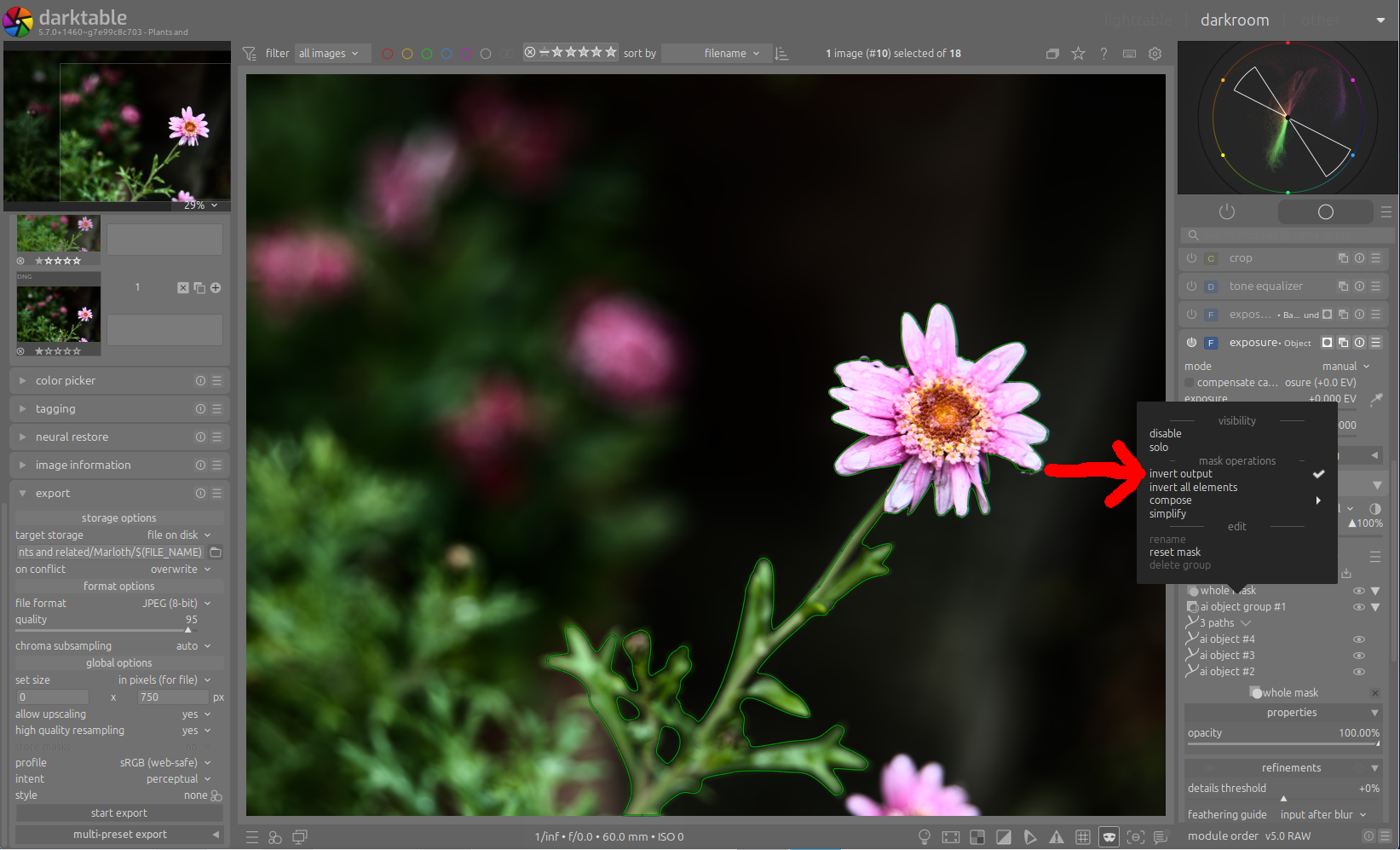
I’m new to the changed masking panel and must confess I am struggling as a lot of information is “hidden” in the discussions on the forum. I’m all for the changes. It is just a significant (amount) of change in one go and it’s not that easy to figure out unless one reads through the discussions.
If you want to invert the whole mask, right click on the “whole mask” row and select “invert output”. Alternatively, option/alt+click on the lead icon of the whole mask.
In the same way you can also invert each group or element individually, depending on what you are trying to do.
Thanks for responding, I managed to get it working.
Now my struggle is the appropriate blend mode to get the difference between two masks. I’m currently just learning and experimenting. It appears from the discussions above that the blend mode is to be adjusted for a mask. Again I can find only one blend mode that appears to be applicable to the whole mask. Where do I find the blend mode adjustment to either apply the difference or subtract the top mask from the bottom mask?
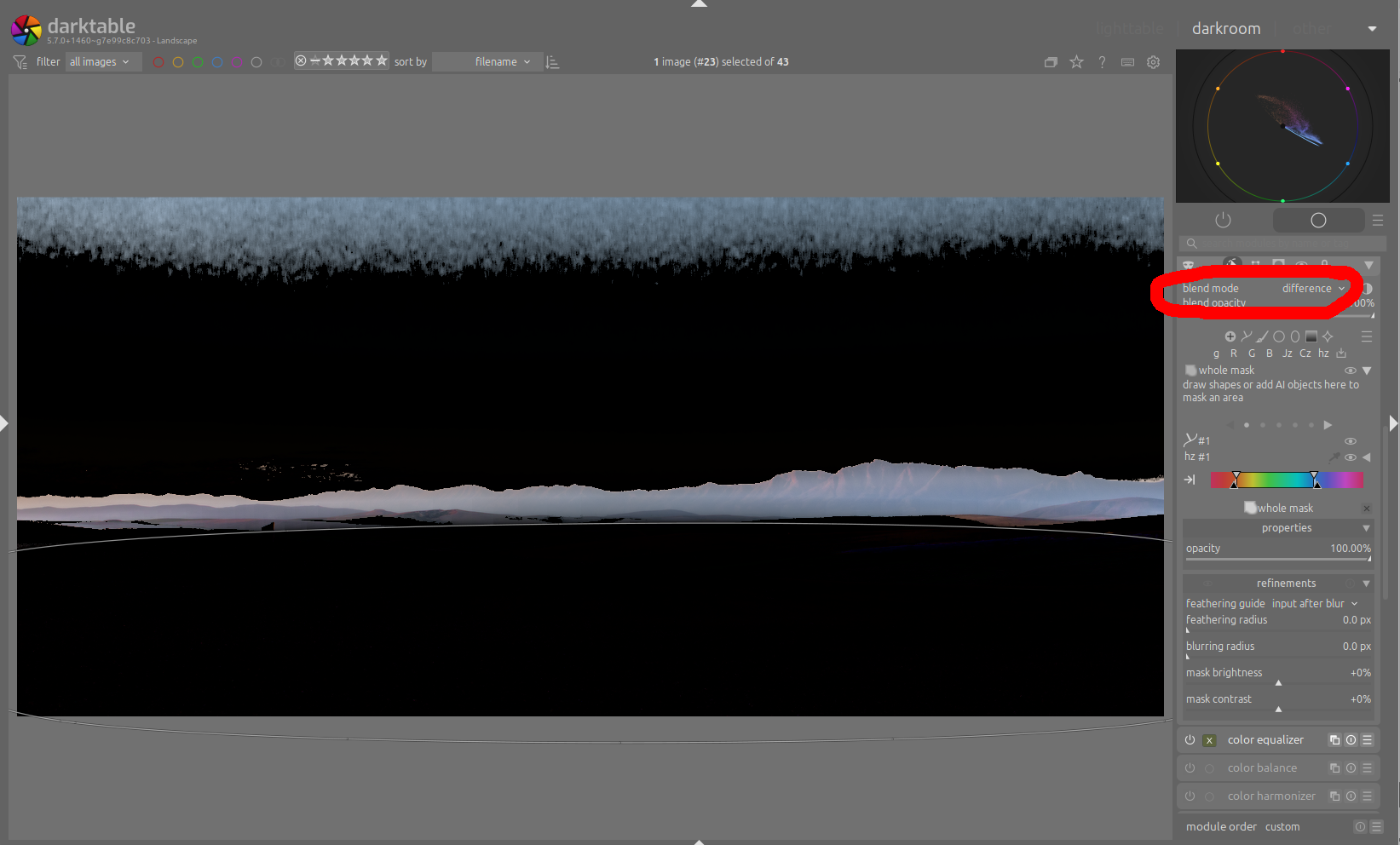
You have to change the operator used by the “whole mask” group, not the blend mode. You can do that by clicking on the lead icon of the “whole mask” group, and setting it to “difference”.
I am aware that it is not obvious that lead icons can be clicked (the flat theme is not good to differentiate between “action” icons and “informative” icons), I am working on a change to address that.
The blend mode has nothing to do with how masks are composed. See my reply above:
Thanks again, after going through some earlier comments, I actually found it.
Slowly but surely I’ll get there.
1 Like
I am revamping the UI, so don’t get too attached to it but it’s good that you familiarize yourself with the model and the concepts in the meantime, that won’t change.
By the way, @Eddie_Lambrechts, which theme are you using? It looks especially flat, it is very difficult to read the panel like that.
Found the same in 5.6.1 and 5.6.2 but last time I tried master it was ‘fixed,’ back to displaying all the module preset’s modules.
Sorry, this is a basic question. How do I shrink a path mask?
Did you just casually sneak in a way to have the ai masks more precise (less jagged edges introduced by a path with nodes) as a byproduct of the masking revamp!?
1 Like
If it’s a path, you just scroll on it, or use the “shrink / grow” control from the properties panel:
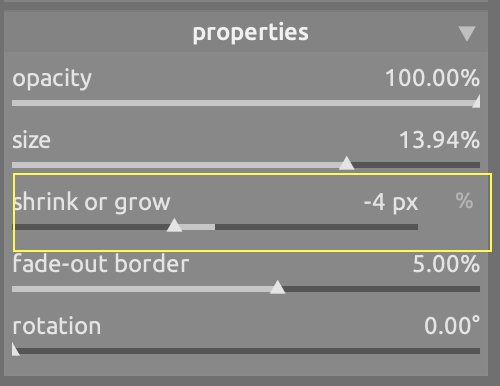
If it’s a raster AI mask (i.e., non vectorized) then you cannot do that.
No, I didn’t. In parallel @anry has been working on refining AI masks.
Raster based AI object mask is already in master. And it is default mode right now. Vector conversion to path shapes still available as an option.
Edge detection did not change, but with raster based mask you don’t have issues from tracing to vector path.