For bugs and feature requests, as mentioned above, it would be great if they were filed as issues on github and assigned to me:
But yes, it would be nice to start a new thread where users showcase the incredible masks that they build 
For bugs and feature requests, as mentioned above, it would be great if they were filed as issues on github and assigned to me:
But yes, it would be nice to start a new thread where users showcase the incredible masks that they build
Is there any documentation prepared yet? Or just what I can glean from this very long thread. Thanks for working on this and I am sure it will prove good once I get my head around it.
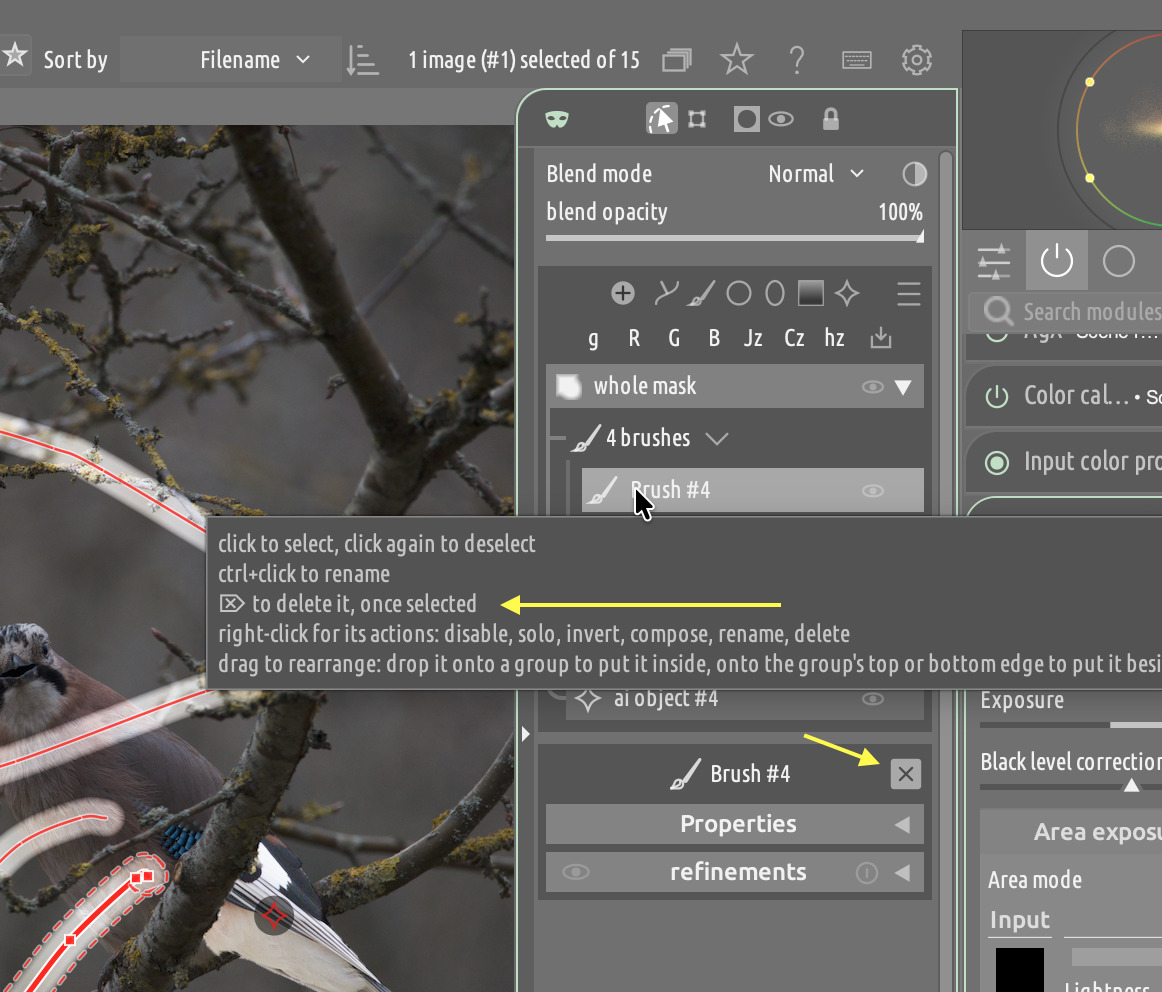
@MStraeten This PR adds more delete allowances (delete on selected row, plus dedicated icon on selected element header):
@Terry for now there is this primer:
Full docs will be available when the UI settles a bit more.
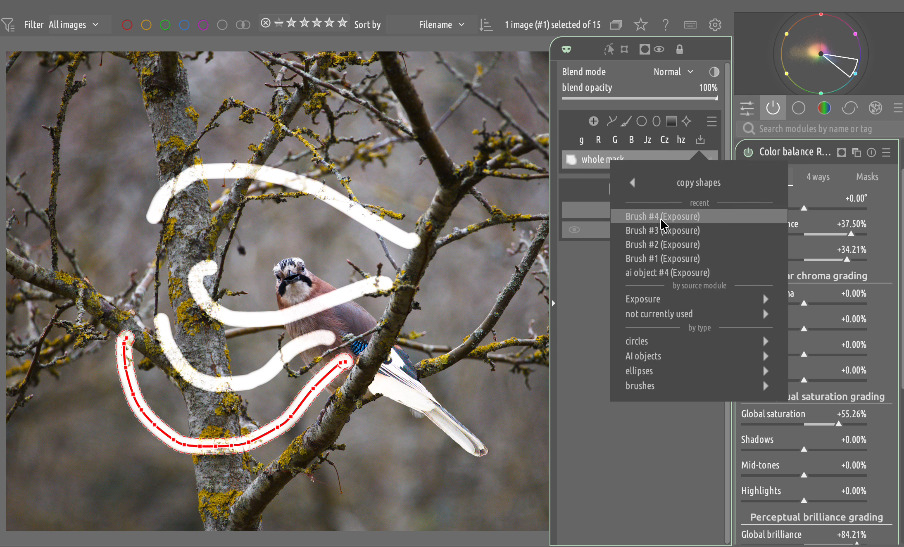
@Peter3 reduced nesting in import menu (and preview of the outline of the shape to be imported):
I am not sure if anyone mentioned it but I found a problem with drawn elements and the expanded panel. It blocks part of the image rather than shrink it so if you want your path to extend into the hidden region you have to close the panel and closing the panel deletes the path as it is not completed…another issue is say for a gradient mask that extends under the panel …again if you want to adjust that by rotating or curving it and you want to see the impact on the hidden portion and close the panel the gradient is deleted… I guess I could use the option for the left side but that sort of removes some of the utility of the expanded panel…
I’m not at a machine with DT but I can try to make a little video to show this…off the top of my head perhaps opening and closing the expanded panel should not cancel or interrupt the process of any masking and they should be terminated by right clicks or escaping out of it…
I feel overwhelmed as well. I’m used to “difficult” and alpha stage software, but I had a hard time to figure out how to subtract a simple circle from a parametric mask (it is probably very logical, just not if you see it for the first time.)
Icons are really small on a laptop.
another thing I found confusing, although logical, is the message
"module 'contrast & textture' can't get raster mask from module 'exposure' as that is processed later in the pixel pipeline" (or any other combi)
Simply selecting a mask from the left panel to a module wherever in the pipeline seemed easier to me.
I will probably get used to it, but my impression is that i need more clicks and drags to get things done
Done.
You might have learned how to do this in classic before, but I would argue that it can hardly get any simpler.
Maybe you wanted to intersect multiple parametric channels before subtracting?
Done.
Ah, wait, you actually wanted the “union” of the parametric channels, not the intersection?
Done.
Oh, wait, you want to subtract more than one shape instead? Should the shapes be intersected with soft blending?
Done.
Oh, no, you want the union of all the shapes?
Done.
You see where I am going. You can do anything, it takes two clicks to make a simple mask and just a few more to make a more complicated one. Of course, you have to understand the underlying model first.
Note that the new model is much simpler than the previous one, while being more expressive. It seems more difficult because your are used to the old one.
Were icons in the mask manager any larger?
I am not sure what you mean with this. The way that raster masks are used has not changed a lot. (In the new panel you can do much more with them, but the way that you use them in a mask is not very different.)
In classic you would select the “raster” mode, then select the source module from a dropdown. Now you right click, select “use/add mask of” and select the source module.
Thanks, @priort. You have the same problem if you are zoomed in and you want to add a point outside the zoomed area (i.e., unrelated to the docked panel). The solution is already there: while editing a shape, hold down a and then click and drag the canvas to reposition where you want, then release a and click to place a new point:
as said, not necessarily the exposure module, but also if you have the contrast & texture module and want to use a shape from lets say color balance rgb. or if you have a mask in cbrgb and want to use it in a second instance of exposure. Its confusing
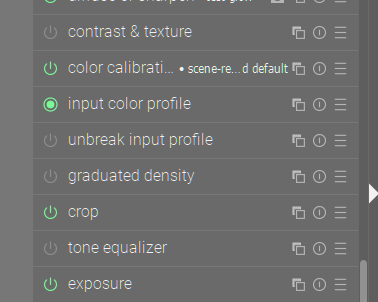
I will ask again. What is confusing now with respect to using a raster mask that was not confusing before? Also with the classic masking panel you could not use a raster mask published by a later module in the pipeline. This has nothing to do with the masking UI, it’s about how the pixelpipe works.
well, maybe its just me trying to wrap around the logic
This is addressed in this PR. It adds shift+click on a parametric channel icon to make the overlay sticky:
I do not understand why you would want the overlay on while you are adjusting the range (given that if you see the channel overlay you cannot see what is being masked), but this is still useful to enable other user cases, e.g., move around and edit the shapes on canvas while the overlay is on, and easily compare channels (shift+click on one, and hover the others).
Since I often forget what the shortcut is, (a), I rather drag the image in the little Navigator window to be able to see what I need to complete the drawing of a shape. Such moving outside the main area doesn’t impact on the current shape drawing.
(I hope this functionality still works with flexi-masks.)
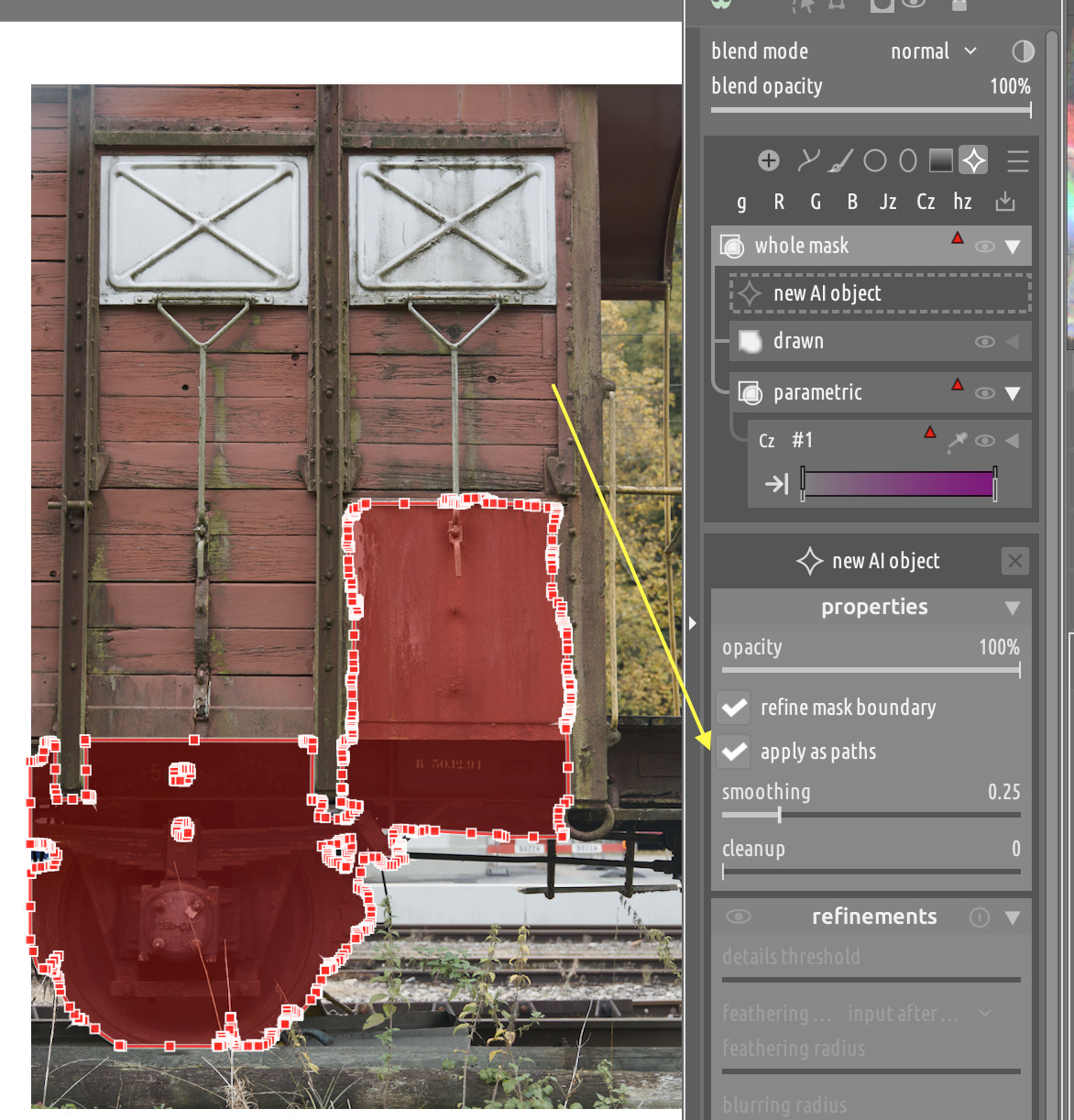
Thankyou for your work on masking @Masterpiga. I very much appreciate it. Earlier this month I was looking for was to shrink AI object masks and came across your work on this… What I had been wanting since I first engaged with AI masking. Today I spent hours looking for developments on it after the Oct 8 AppImage you put up but could find nothing more. I can’t seem to trigger AI mask shrinking in the nightlies. Has this been dropped, or an I not doing it right?
Now AI masks can be saved as raster (i.e., pixel) or path objects (the old behavior). Shrinking works only on paths, so if you want to be able to shrink you must select “apply as paths” when you create the AI mask:
Hey, sorry if this is a stupid question, but - how does the external raster masks module interact with the new masking interface? Or am I missing something (which is very possible).
(I think I found it just as I sent the question. Anyway that is properly hidden  )
)
Thankyou for the instruction, @Masterpiga!
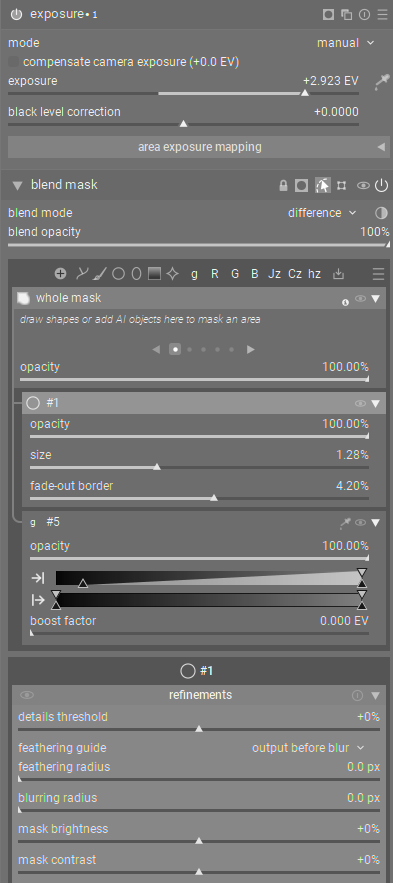
I think this should subtract a circle from the gray parametric mask:
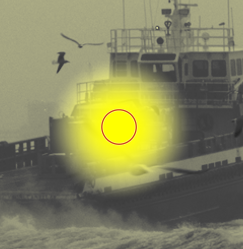
I get this:
If I am subtracting the circle, I think it should be a clear area. Instead it seems to apply the increased exposure.
???
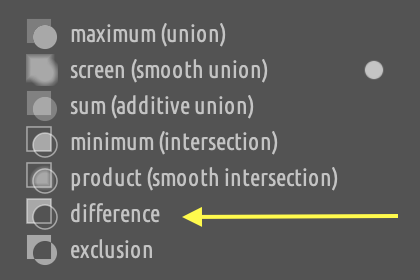
Based on the icon, the “whole mask” operator is “screen”, not “difference”. Click on it and change it to “difference”.
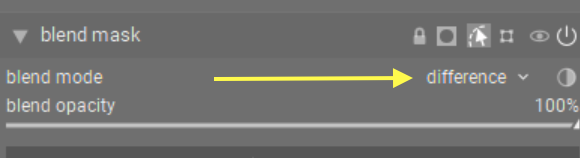
EDIT: I understand what is the source of the confusion. I see that you set the “blend mode” of the mask to difference:
That is a completely different dimension. The “blend mode” is the operator used to combine the output of the module with its input to produce the input for the next module in the pipe. It has no relation with how the mask is composed. And for the record, this is not a distinction introduced by the new masking panel, the blend mode has always been there, exactly in that position.
Yes, that is the only place I could find the word “difference.” I didn’t know what the whole mask operator was. Thanks for clarifying that for me.
I think there is also a themeing issue here. The flat style looks modern-ish and all, but it makes it difficult to differentiate icons that are purely descriptive of what something is from icons on buttons/toggles. It is not obvious that you can click the group icon to change it’s operator. UX-wise, buttons that look like buttons are much better.
@Underexposed I suggest reading this, if you haven’t:
I repost because the thread is huge and it’s easy to miss it.