Hi, I’m new.
I use Corel Draw to make my pictures and Gimp to convert them. Now I’m on in making new Icons for my Windows (*.PNG to *.ICO). Corel is very poor with the .ico export filter. Now I get known I could make / export multi-layer Icons in gimp, but I don’t understand how.
I know about layers from Corel draw to better access objects that are one over the other, to make parts of the graphic invisible or unselectible, but in the final image they all melt to one whole picture.
So, is it really the right why to export multi-layer icons? I don’t understand how it should works.
Thanks for attention
Katrin
Hi! Have you tried making an image with multiple layers in GIMP, and then exporting as .ico? It should just do it (provided each layer is a different size, like 32x32 for one layer and 64x64 for a larger icon).
I tried, it works, but I still don’t understand.
I couldn’t find a way to import images, so I opened all three and then I copied and insert two smaller ones to the biggest.
If I just insert (ctrl+c and ctrl+v) it the smaller picture will position in the middle of the big one in a new layer. If I create a layer before, it will position in the upper left corner, but ignore the created layer and create an own new layer. Do I have to understand it?
But, yes it works. It seems tricky for me, because I still don’t understand how it works. I even was surprised, I could create layers in different sizes!
Going back some time, there was a script (Gimp 2.8 I think) to generate a multi-layer icon file.
Never going to work with Gimp 3 but try the gimp_gmic_qt plugin www.gmic.eu which has the multi-scale filter. Starting with a 256x256 icon you can get 128 / 96 / 64 sizes.
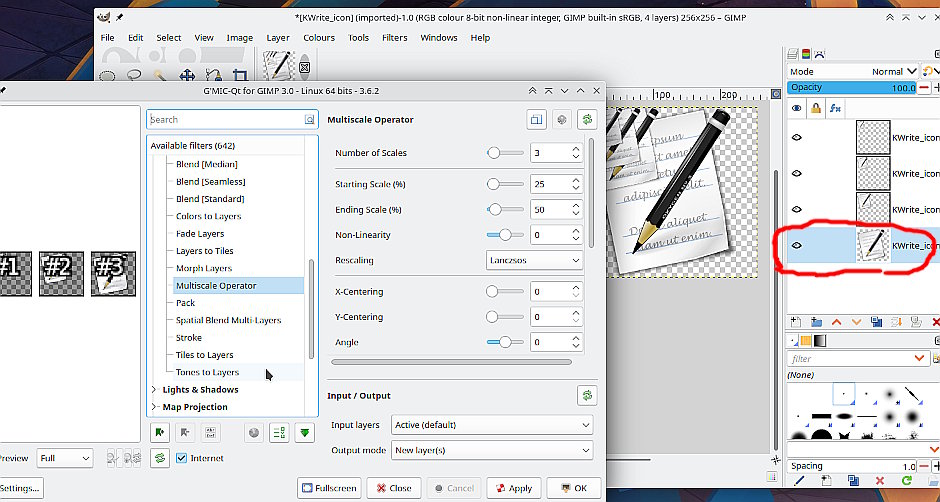
This for your other post, across at g-f not Gimp but a python script to add a hot spot to a cursor. Generate .ani and .cur You might get it to work.
rich2005: GIMP 3.0+ now lets you set the hotspot for both .cur and .ani files on export (this was actually one of my first big submission to GIMP!)
Katrin: Glad you got it working! You can go to File → Open as Layers to open multiple files as individual layers in the same image.