I think I’ve finally got the user-experienced ironed out to the point it merits it’s own post.
Based on the academic works of @trougnouf, and the scripting pioneered by @sillyxone, this is a modern denoiser that rivals the best commerical offerings. I actually think its better, but I’ll let you be the judge.
It’s not completely integrated into darktable - but it’s about as close as I could get it. You’ll have to download a single file. Everything else is done in Darktable itself, and the installation beyond that one file is completely automated. Details in the readme.
Fingers crossed that it works. I don’t have a Mac, or and AMD gpu, or plenty of other variations of hardware/software - so: if you run into trouble, please let me know by creating an issue, or opening a seperate thread. I’d like to avoid having this thread from getting consumed by tech support.
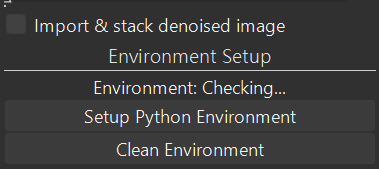
I am on a Windows 11 computer. I installed the Lua script into the lua folder and started it in the script manager. It appeared as an export option which I selected. When I click on the setup python environment option I get an error message saying “Error: please set nind-denoise directory first”. Sorry to ask, but how do I do that?
Thanks all for the reports! In case it wasn’t obvious I’m primarily a Linux user - anyway I’ll take a look at the windows/mac issues and post back here when they’re resolve.
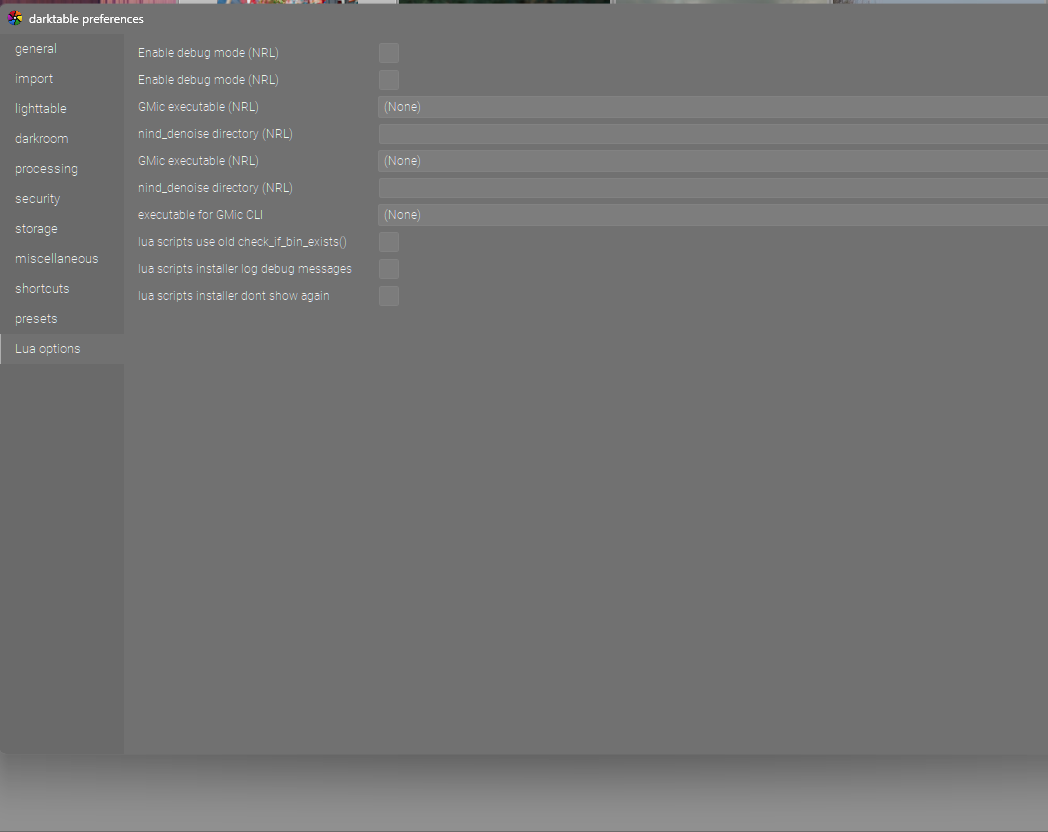
When I tried to start it it did not start…shows as stopped but it also seems to have added multiple config steps to my lua preferences and it disabled the 3 or 4 lua scripts that I had running by default…
I am trying to install on linux (Mint) and have the same issue as @priort - there are multiple config setups in lua preferences. This is with the nightly build (689b709) of darktable.
This problem can be solved by closing darktable removing the nind_denoise_rl.lua file from the lua contrib folder (just put it on your desktop) then restarting darktable. nind_denoise will be missing from the lua scripts. Close darktable and move the nind_denoise_rl.lua file back to where it belongs and restart darktable.
83c83
<   if success then
---
>   if success and value ~= nil and value ~= "" then
These lines change in nind_denoise_rl.lua will help in fixing the loading error
The complete changes for this to work in Macos
(base) ➜  darktable diff nind_denoise_rl.lua lua/contrib/nind_denoise_rl.lua | more
83c83
<   if success then
---
>   if success and value ~= nil and value ~= "" then
92a93,98
>   local gmic_path = df.check_if_bin_exists("gmic")
>   if gmic_path then
>     return gmic_path
>   end
>
>   -- Fallback paths
101,103c107
<     local f = io.open(path, "r")
<     if f then
<       f:close()
---
>     if df.check_if_file_exists(path) then
733a738,739
>
>     local darktable_path = df.check_if_bin_exists("darktable-cli")
740c746,747
<                        " --quality "..extra.jpg_quality_str
---
>                        " --quality "..extra.jpg_quality_str..
>                        " --dt "..escape_fn(darktable_path)
Though in macos, I am getting tiff error
2.8574 [tiff_open] error: TIFFFillStrip: Read error on strip 0; got 18446744072894649248 bytes, expected 31516
     2.9009 [rawspeed] Canon7dii_s1_denoised.tiff corrupt: rawspeed::RawImage rawspeed::RawDecoder::decodeRaw(), line 334: const TiffIFD *rawspeed::TiffIFD::getIFDWithTag(TiffTag, uint32_t) const, line 242: failed to find 1 ifd with tag 0x828e
Magick: Read error at scanline 4294967295; got 0 bytes, expected 31516. (TIFFFillStrip).
     2.9027 [GraphicsMagick_open] ReadImage failed for 'Canon7dii_s1_denoised.tiff'
     2.9067 [imageio_storage_disk] could not export to file: `Canon7dii.jpg'!
I had to change the activate command from activate_cmd = "source \"" .. extra.denoise_dir .. "/.venv/bin/activate\" && "
to activate_cmd = ". \"" .. extra.denoise_dir .. "/.venv/bin/activate\" && "
to get the export starting.
Nevertheless I still get an error in line 227 of the nind-denoise/src/nind_denoise/denoise_image.py script
Edit: I am getting the same errors also when calling the script from the command line
Edit2: It was missing the model. After downloading it and placing it in the correct directory it looks like it’s working now.
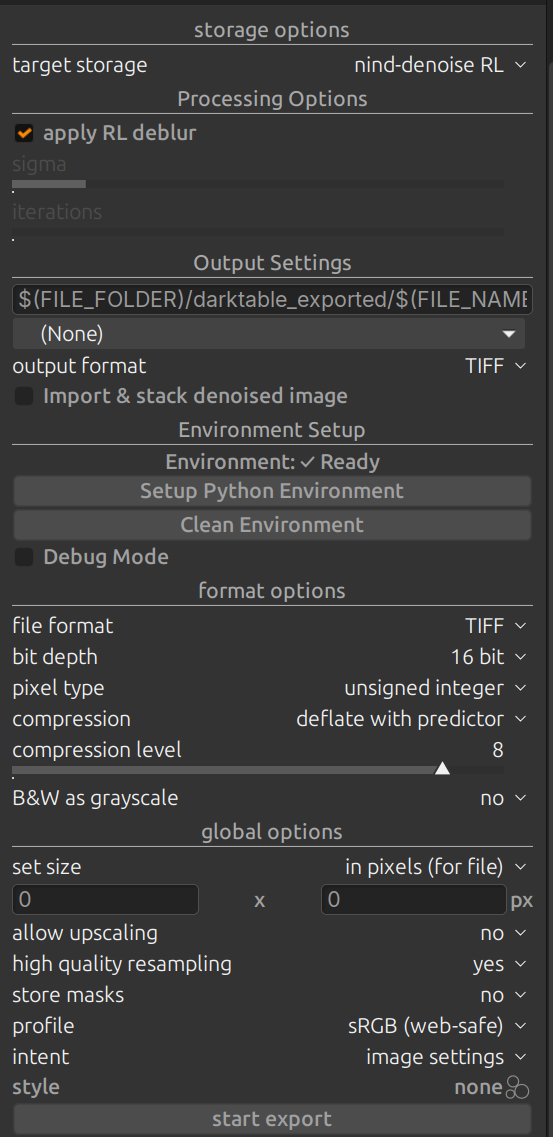
I have included a screen grab of the settings that I am using - if anybody has any suggestions I would appreciate their input.
The only thing obvious to me is that I cannot input settings for the RL deblur. I have put a copy of the GMIC executable in the nind_denoise folder and pointed to that location in my LUA script settings - not sure if that is the way things should be done.
Based on the comments in this thread, it sounds like a few issues need to be sorted out and a new release made, but just wanted to say well done for getting it to this point, and I look forward to trying it out soon.
Had the same problem. If I can get this to work I can finally say goodbye to Lightroom because after years I got a preset I’m happy with (thanks to AGX, darktable has this washed out greyish can’t explain look without it).
For the more technical people: my graphics card is older (AMD 5700 XT which has gfx1010), but apparently ROCm works with 1010 but I need to do some hack/tweak. Will test later.
Hi, I am new here and hope it is ok, if I leave a comment.
First I want to thank you and @trougnouf and @sillyxone for the development of this great denoising tool.
Although the plugin did not work just by clicking the Setup-Button, I finally got it to work with some debugging. Had problems with the PATH for python and the dependencies of all the packages (eg wrong torch version), so I did the manual environment setup and followed some other hints here.
(Use Linux Mint 22.2 and DT 4.6.1 and Nvidia GPU).
If I use it on cropped images the result is still double cropped, I think the xmp is applied to every step somewhere in the python scripts and I do not know if it is possible just to exclude the 2nd crop.
So I use it on uncropped Images, create the tif (not a jpeg) and use this for further development. I changed the defaults, so I do not have to apply my settings every time.
The results are really impressive. In my opinion not worse than Lightroom would do this. Your plugin makes it easy to use for me and that is great