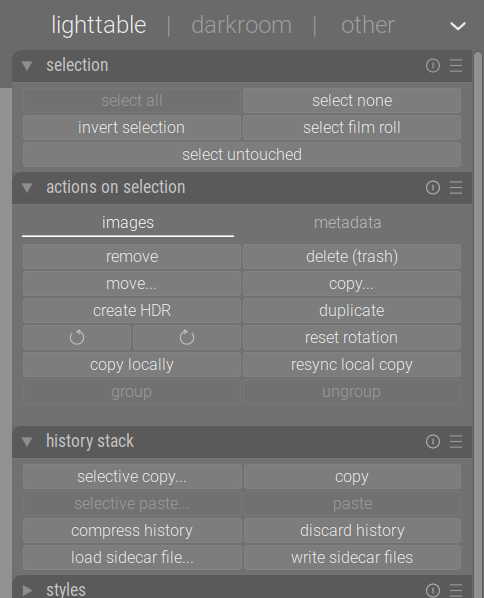
Please help me. What is the correct way to apply edit settings to multiple images? When I copy the history stack from the developed image and paste it to the remaining images, it messes up my white balance.
Issue #1 – Pasting all settings from one image to another causes a “White balance applied twice” error. This happens because the White Balance module somehow changes its setting from “As shot as reference” to “User modified.” As a result, I have to go to every image where I pasted the history and manually fix this setting.
Issue #2 – Pasting settings with White Balance excluded changes the Color Calibration values. I have to go to each image and click the “Set white balance by detecting from area” icon to correct the image.
I think you may resolve this by applying your copied stack by pressing ctrl shift v when pasting on other images and deactivate white balance and color calibration. I experienced this also in the past, I’m running on master and I think this has been solved at some version.
Which version of darktable are you using and on which platform?
I think you might want to experiment with ‘selective copy’ and ‘selective paste’. And do the paste action with ‘append’. See the options in the ‘history stack’
Thank you for answers. I’m using DT 5.2.1 on MacOS Sequoia.
Wow, I wasn’t aware of the Append/Overwrite mode. Switch from Append to Overwrite seems to resolve the first issue Lesson learned.
The second issue remains, however. Skipping the automatic application of the Color calibration module makes working with large sets of images very tedious. If I have a group of similar shots taken under the same lighting conditions, I expect that pasting values from one image to another will give me correct results, right?
I am probably missing something about the Color Calibration module.
I am not sure if I understand you correctly. You want to set color calibration on one picture and copy it’s settings over to the other pictures taken under the same circumstances. Right?
What is exactly the problem you are facing there? It is perfectly possible to change the color calibration settings in the first picture and selective copy/paste this to the others. In append mode you’ll be even able to revert to the ‘old/original’ settings by using the history stack to your advantage.
My bad, it works now. The issue was that even though the original image had its “Color calibration” set to something like “CCT: 3675K,” that value would change after copying the settings to another image.
I think I messed something up earlier. After I cleared the history for all my images, everything is now working as expected.
Sometimes, just talking things over with someone can make your problems work themselves out
I know this behaviour from selective copy well. The issue lies with the module “white balance” being copied: The specific numeric values for temperature and tint are copied, not the mode (as shot to reference). For reasons I don’t understand, the values for temperature and tint sometimes vary from photo to photo - leading to this behaviour. Might be worth opening an issue on github.
My workaround is to avoid using selective copy in “all” mode or deselecting the white balance module.
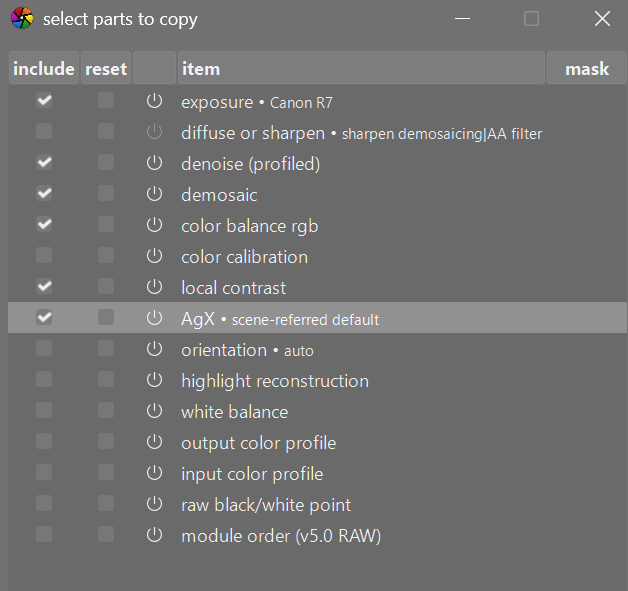
I normally exclude white balance and color calibration modules from my copy and paste routine as you are may end asking DT to apply the applicable WB from one image to all the rest and this may be inappropriate. I only copy the minimum number of modules need as many are auto filled from the image data anyway.
Here is an example of what I copy between images from the same shoot.
EDIT: I didn’t copy diffuse or sharpen because it is disabled and I copied demosaic module because I am using DT 5.3 with Capture sharpening enabled in the demosaic module. In DT 5.2 I would not have selected demosaic module.
white balance, input color profile and color calibration play a pretty complex game. Unfortunately, there are some hard-coded points, and that can make copy-pasting white balance incorrect. I’m still digging into this – will take some time. I’ll get back to you.