Hi,
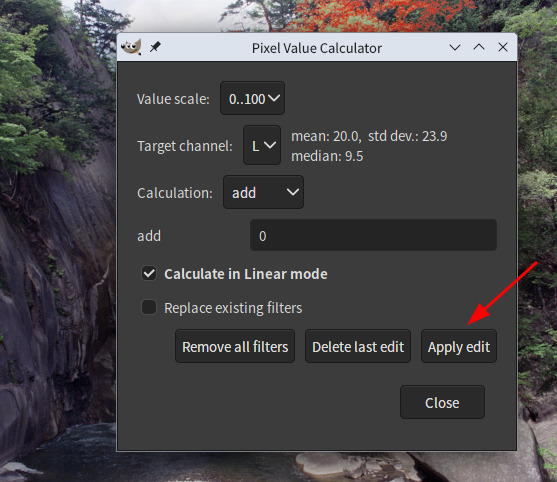
I have wrote a new plug-in named Pixel Value Calculator. This plug-in enables you to change pixel value with number. The calculation methods which it supports are add, subtract, multiply, divide, gamma correction, mean and median. It changes pixel value globally with non-destructive layer effects filter(s) newly introduced in GIMP 3.2, however using mask you can apply changes to image locally.
The main motivation of writing this plug-in is restoration of faded color films scanned images adjusting color channel levels with using numbers instead of using curves.
After installation this plug-in, you can find the item “Calculate pixel values…” under “colors” menu, which starts this plug-in.
In its dialog, you may find following widgets.
Value scale, Target channel, Calculation (method), numeric input field, Linear mode check box and Replacing existing filters check box.
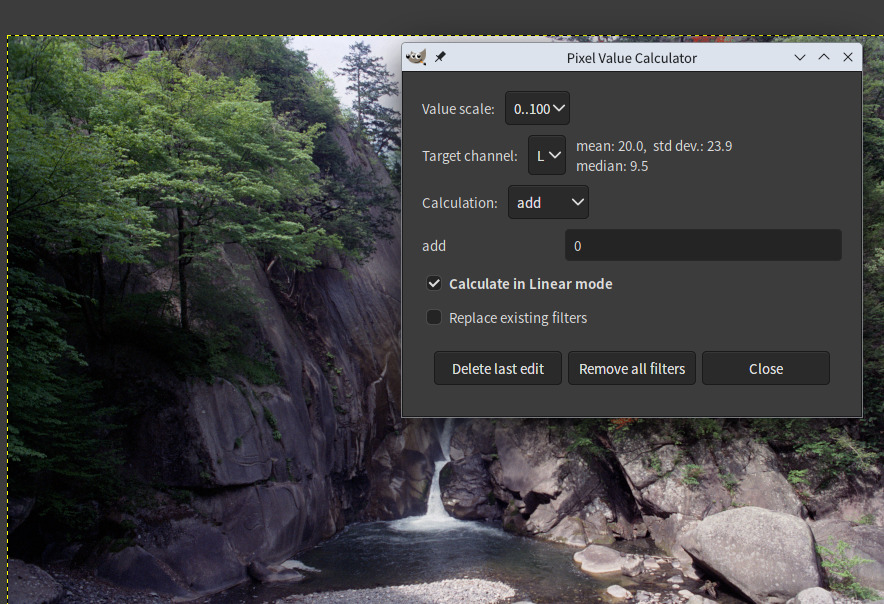
In “Value scale”, you can select “0…100” or “0…255” which effects input value in “add” or “subtract”.
In “Target channel”, you can select editing target channel (L, R, G or B).
In “Calculation”, you can select calculation method and you can input calculation value in numeric field under the item. For example, if you select “add” as “Calculation”and input 4 in the numeric field, all pixel values will be present value + 4, using non-destructive layer effects filter. The numeric field can accept simple equation like “1 / 2.2” or “5 * 2”. After edit you can delete the edit effect deleting the filter. If you select “mean” or “median”, all pixel values in the target channel will have same mean or median value. If the target channel is L, all pixel values will become same neutral mean or median values. When you select “mean” or “median” you can specify calculation value range in the numeric field. Its default value is 0, which means all value range (0 to 100) will be used to calculate the mean or median value. If you specify the value 1, it means top and bottom 1% value range will be excluded (that means value range 1 to 99 is used) in the calculation. This function is useful to exclude exceptional values, like clipped white point or black point value.
“Calculate in Linear mode” check box is to specify value calculation color space. Default value is using linear color space. If you uncheck the box, perceptual color space will be used in calculation (legacy mode).
"Replace existing filters” check box is to specify whether this edit will replace all the existing effects filters or add new filters. Default value is not to replace filters. If you check this box, the filter number is always one, and new edits replace succeeded effects. If you uncheck it, filter will be added whenever you change parameters.
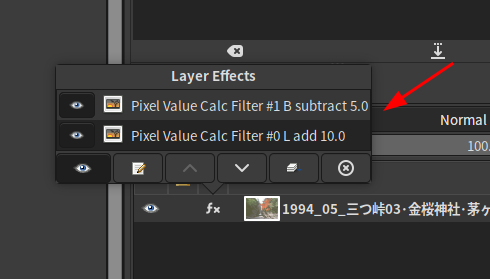
In the bottom of the dialog, there are 3 buttons to close the dialog. The leftest button is “delete last edit” which closes the dialog deleting the last edit. The mid buttons is “Remove all filters” which deletes the all effects. “close” button is simply to close the dialog and end the session.