Python plug-in for GIMP3: ART editing plug-in

Hi,

I have written new Python plug-in for GIMP3. This is “ART editing plug-in for GIMP3”. It is a plug-in, like G’MIC-Qt, using raw processor ART as external editor of GIMP.

Generally, when using GIMP and Raw Processor together, it is common to process the image in Raw Processor first, and then perform edits that cannot be done in Raw Processor. However, when restoring and editing severely faded negative film images, I often use ImageJ and GIMP first to perform rough image restoration, and then use ART for the final edits. I developed this plugin for this workflow.

Also, this plugin enables you to use ART’s excellent features on GIMP without changing applications.

Of course, if you haven’t installed ART on your system yet, you’ll need to install it before installing this plug-in.

In installation this plug-in, you should edit config.ini in the installation directory to be appropriate to your environment. The default values are as follows.

[ART path on Windows]
COMMAND_NT;C:\\Program Files\\ART\\1.26.1\\ART

[ART path on Linux]
COMMAND_LINUX;/home/username/Programs/ART/ART

[ART path on Mac OS]
COMMAND_DARWIN;/Applications/ART.app/Contents/MacOS/ART

[Temp file bit depth]
TMP_FILE_BITDEPTH;16
# TMP_FILE_BITDEPTH specify temp file bit depth.
# The value of TMP_FILE_BITDEPTH must be 8, 16 or 32

[ART edited result pasted as layer]
IMPORT_AS_LAYER;False
# The value of IMPORT_AS_LAYER must be True or False

[Delete ART sidecar files]
DELETE_ARPS;False
# The value of DELETE_ARPS must be True or False

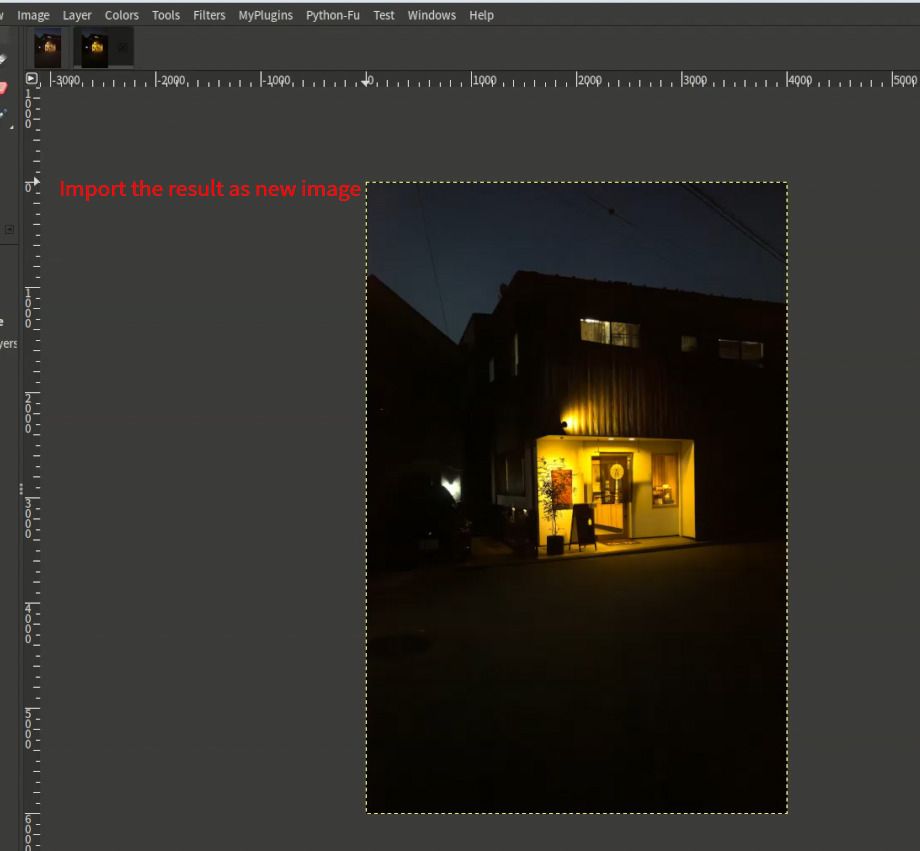
With IMPORT_AS_LAYER parameter, you can select importing ART edited result as new image or new layer of existing image. Default value is False (importing as new image).

With DELETE_APRS parameter, you can select keeping or deleting edited sidecar files. Default value is False (keeping sidecar files). Side car files will be made in the same directory of original image file.

After installation of this plug-in, you can start it from menu [Filters] > [ART Editing Plug-in…].
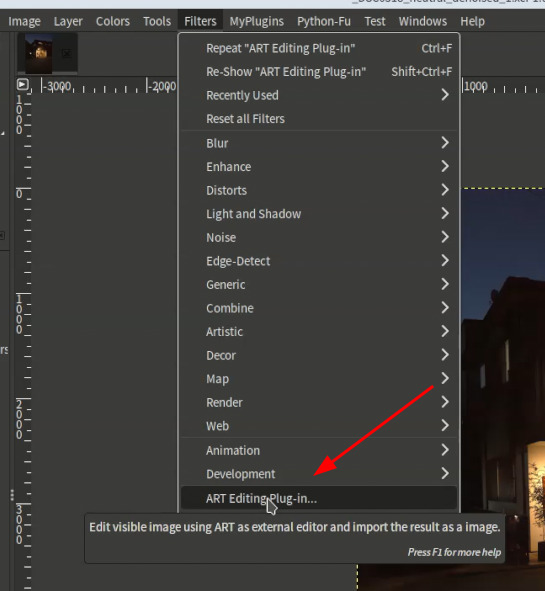
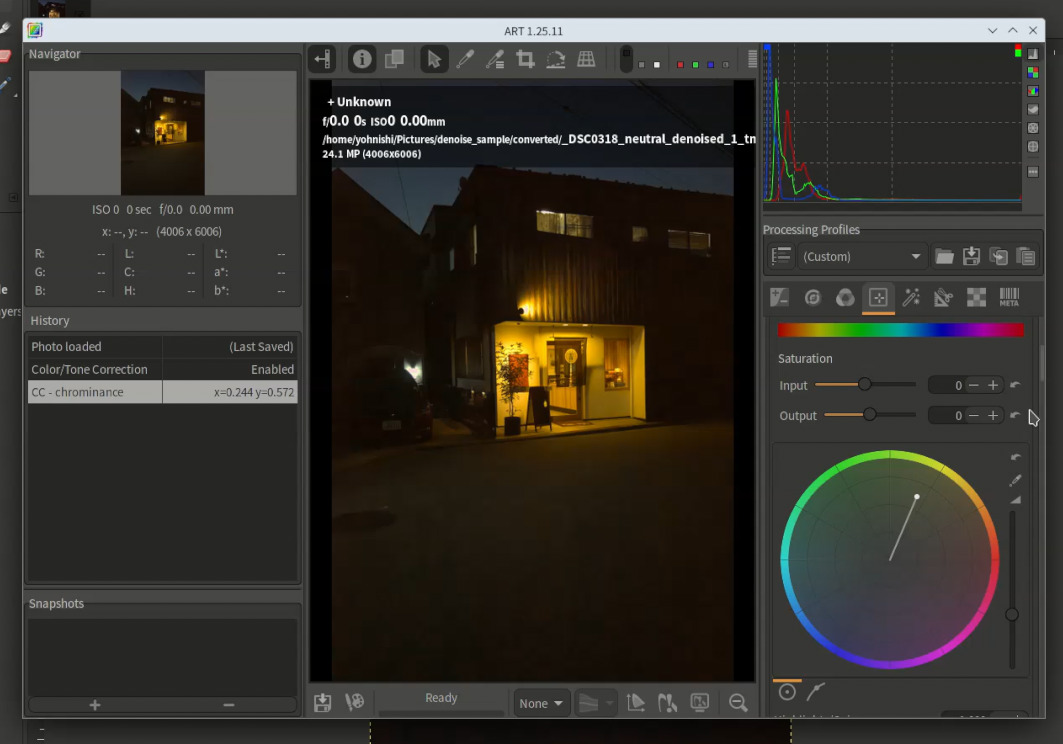
And it shows ART editing dialog.
After your editing, close the ART dialog and it will make edited image and import the image into GIMP as you specified in config.ini.
If you use it on GIMP3 flatpak version, you should start GIMP with “—socket=session-bus” option, and ART must be non-flatpak version, as flatpak does not support cli utilities.
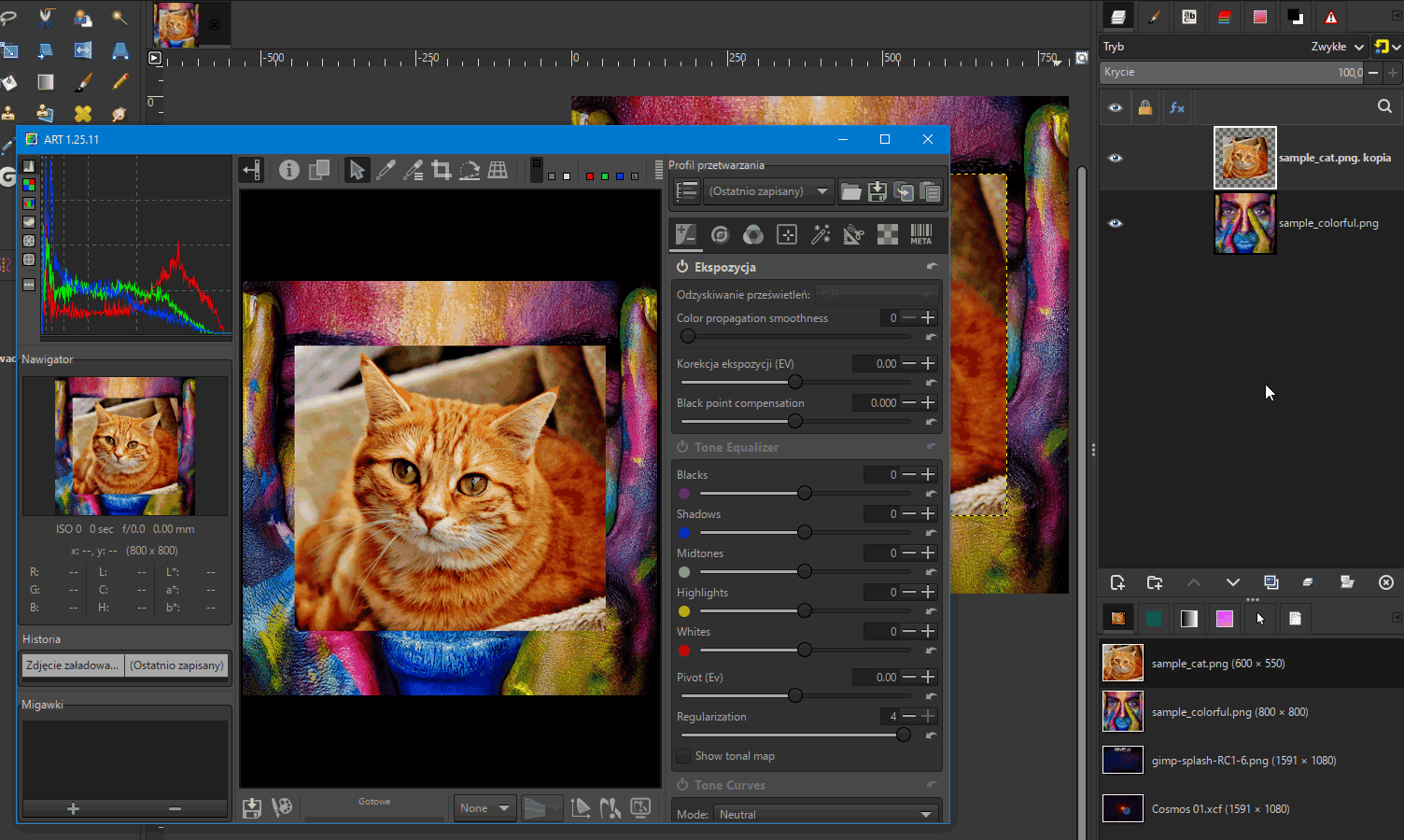
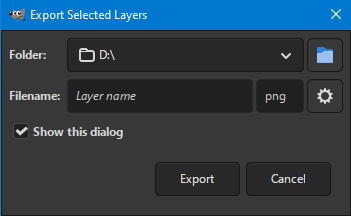
Thanks for another great plugin.

A quick note:

In ART, it opens not only the active layer, but also what’s visible.

A solution to this issue would be interesting (as it relates to how Gimp saves multi-layered images) and applies to all external editors I know of (e.g., Nik Collection https://github.com/iiey/nikgimp). Theoretically, various solutions are possible:

  1. Open the active layer as a new image, which will be saved for use by the external editor.
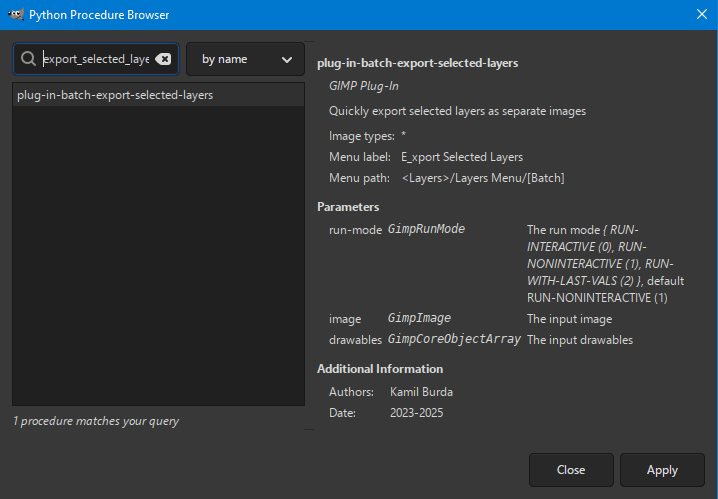
  2. Use the code from Kamil Burda’s Batcher ( GitHub - kamilburda/batcher: Batch Processing Plug-in for GIMP 3 ) ‘Export Selected Layer’:

Thank you for your advice. The operation of this plug-in is intended. As I thought if user would like to import selected one layer, user may make only one layer visible to do it. However, in next version, I would like to modify this plug-in to allow user to select importing visual image or selected one layer with config.ini.

Here is updated version of this plug-in.

In this version I added the option of importing selected layer(s) to ART. Users can specify the option selection with [Selected layers import mode] parameter in config.ini .

[ART path on Windows]
COMMAND_NT;C:\\Program Files\\ART\\1.26.1\\ART

[ART path on Linux]
COMMAND_LINUX;/home/username/programs/ART/ART

[ART path on Mac OS]
COMMAND_DARWIN;/Applications/ART.app/Contents/MacOS/ART

[Temp file bit depth]
TMP_FILE_BITDEPTH;16
# TMP_FILE_BITDEPTH specify temp file bit depth.
# The value of TMP_FILE_BITDEPTH must be 8, 16 or 32

[ART edited result pasted as layer]
IMPORT_AS_LAYER;False
# The value of IMPORT_AS_LAYER must be True or False
# Default is False (import as a new image)

[Delete ART sidecar files]
DELETE_ARPS;False
# The value of DELETE_ARPS must be True or False
# Default is False (keep sidecar files)

[Selected layers import mode]
IMP_SEL_LAYERS;False
# The value of IMP_SEL_LAYERS must be True or False
# Default is False (import visible image to ART)

However if you select multiple layers before starting this plug-in, visible image between them will be imported in ART and if you select all layers it is same as visible image import mode (default mode).

Many thanks for solving the problem that interests me. :grinning:

1 Like

Really great idea! Reminds me of the Photoshop Camera Raw Filter.

I have ART installed as a Flatpak. I’ve updated the config file to use the command that opens ART on my system, but the plugin doesn’t launch ART.

Any ideas why?

[ART path on Windows]
COMMAND_NT;C:\\Program Files\\ART\\1.26.1\\ART

[ART path on Linux]
COMMAND_LINUX;/usr/bin/flatpak run --branch=stable --arch=x86_64 --command=ART --file-forwarding us.pixls.art.ART @@ %f @@

[ART path on Mac OS]
COMMAND_DARWIN;/Applications/ART.app/Contents/MacOS/ART

[Temp file bit depth]
TMP_FILE_BITDEPTH;16
# TMP_FILE_BITDEPTH specify temp file bit depth.
# The value of TMP_FILE_BITDEPTH must be 8, 16 or 32

[ART edited result pasted as layer]
IMPORT_AS_LAYER;False
# The value of IMPORT_AS_LAYER must be True or False
# Default is False (import as a new image)

[Delete ART sidecar files]
DELETE_ARPS;False
# The value of DELETE_ARPS must be True or False
# Default is False (keep sidecar files)

[Selected layers import mode]
IMP_SEL_LAYERS;False
# The value of IMP_SNGL_LAYER must be True or False
# Default is False (import visible image to ART)

Hi, Chuck
To operate this plug-in, it is needed to ART non-flatpak version, Because Flatpak does not officially support cli utilities, and this plug-in uses ART-cli. It is recommended to use official binary. Its installation is very easy like appImage. GIMP flatpak version is OK however launch it using ‘–socket=session-bus’ option.

See following site.

1 Like

Thanks @yasuo, this is really great!

1 Like

Hi,
I have updated this plug-in that allows users to use ART Flatpak version as client program as I have found the method to control flatpak app and cli utilities from GIMP plug-in.

To use ART Flatpak version as client program, you need to modify the description in config.ini file as below.

[ART directory path on Linux]
COMMAND_LINUX;flatpak run us.pixls.art.ART

Good to know. Are there any other changes aside from Flatpak support?

Hi,
Only Flatpak support was added. Thanks!