Hi,
I wrote a GIMP3 plug-in using darktable as raw importer. This plug-in has basically same function with built-in darktable Raw loader in GIMP. However if you use GIMP Flatpak version or darktable Flatpak version, GIMP cannot recognize the darktable path because of its sand box and you cannot use built-in darktable Raw loader. So I wrote this plug-in to import Raw files with darktable even in GIMP Flatpak version.
And this plug-in can decode Nikon HE compressed NEF files with which darktable is not compatible and it allows you to handle these files with darktable. To use this function, you have to install exiftool and Adobe DNG Converter as helper programs. If you are Linux user, install DNG Converter with Wine.
Installation Steps:
-
Download this plug-in, and install it in plug-in directory in GIMP personal profile directory.
-
Edit config.ini file in import_raw_through_ART_g3 directory adaptive to your environment. Default value of config.ini is as below. “#” is comment out sign.
[darktable directory path on Linux]
# non-flatpak darktable:
COMMAND_LINUX;/usr/bin/darktable
# Flatpak darktable:
#COMMAND_LINUX;flatpak run org.darktable.Darktable

[darktable directory path on Windows]
COMMAND_NT;C:\Program Files\darktable\bin\darktable
# Do not add ".exe" for COMMAND_NT

[darktable directory path on Mac OS]
COMMAND_DARWIN;/Applications/darktable.app/Contents/MacOS

[Temp file format]
TMP_FILE_FORMAT;tiff
# The value of TMP_FILE_FORMAT must be tiff or png
# and it must match the export settings in darktable

[Acceptable file extensions]
EXTENSIONS;.dng .DNG .cr .CR .nef .NEF .nrf .NRF .arw .ARW .sr .SR .raf .RAF .orf .ORF .rw2 .RW2 .rwl .RWL .pef .PEF .x3f .X3F .tif .TIF .png .PNG

[Use Nikon HE Raw compressed NEF]
NIKON_HE;True
# The value of NIKON_HE must be True or False
# Following parameters are needed if only NIKON_HE=True

[Exiftool path]
# Linux
EXIFPATH;/usr/bin/exiftool
# Windows
#EXIFPATH;C:\Program Files\exiftool.exe
# Mac OS
#EXIFPATH;/opt/homebrew/bin/exiftool

[DNG Converter path on Linux]
DNG_LINUX;/home/username/.wine/drive_c/Program Files/Adobe/Adobe DNG Converter/Adobe DNG Converter.exe

[DNG Converter path on Windows]
DNG_NT;C:\\Program Files\\Adobe\\Adobe DNG Converter\\Adobe DNG Converter.exe

[DNG Converter path on Mac OS]
DNG_DARWIN;/Applications/Adobe DNG Converter.app/Contents/MacOS/Adobe DNG Converter

[temp. dng file delete]
DELETE_DNG;False

# The value of DELETE_DNG must be True or False
In this file, specify the darktable path in your system or Flatpak version darktable start command.
[temp file format] parameter must be match the export settings on darktable to control the bit depth of exported image, otherwise the exported image bit depth will be always 8bit. And the bit depth must be specified in the export settings on darktable.
If you want to use Nikon HE decoding function, set [Use Nikon HE Raw compressed NEF] parameter True, and specify Exiftool and DNG Converter path on your system.
How to use it:
-
Start GIMP3.x. If you use GIMP Flatpak version, start it with ‘–socket=session-bus’ option to make it communicate with darktable or other helper programs.
-
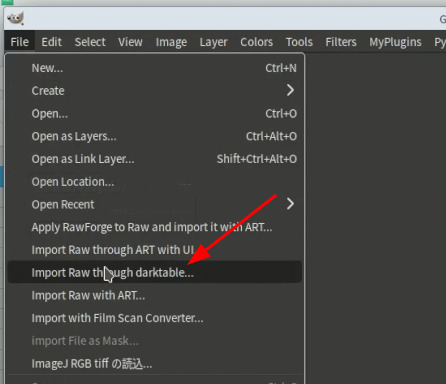
You can start this plug-in from [File] > [import Raw with darktable…] in menu.
-
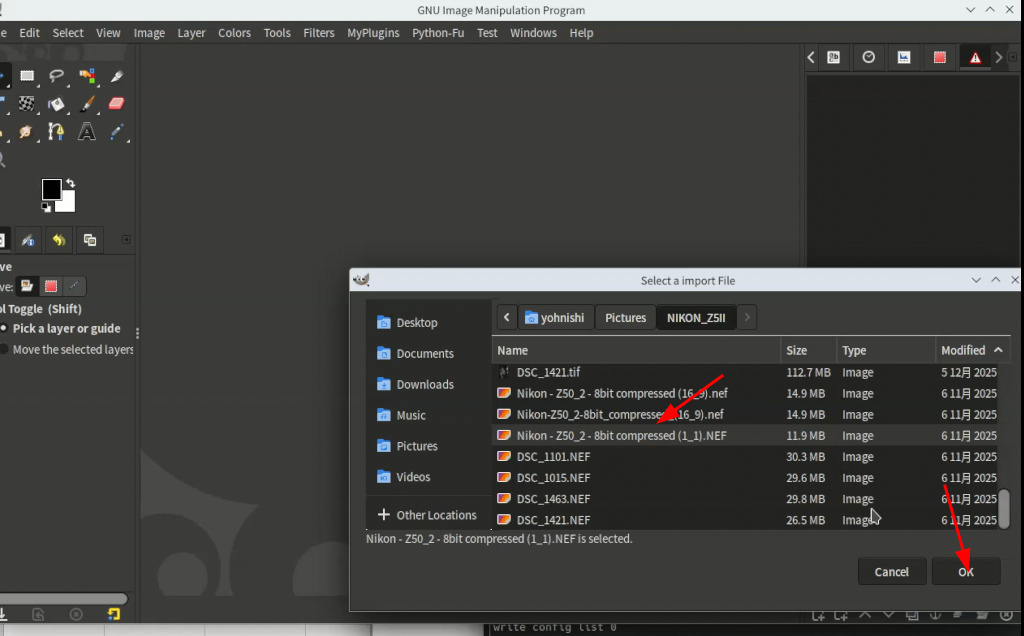
Select the file you want to import.
-
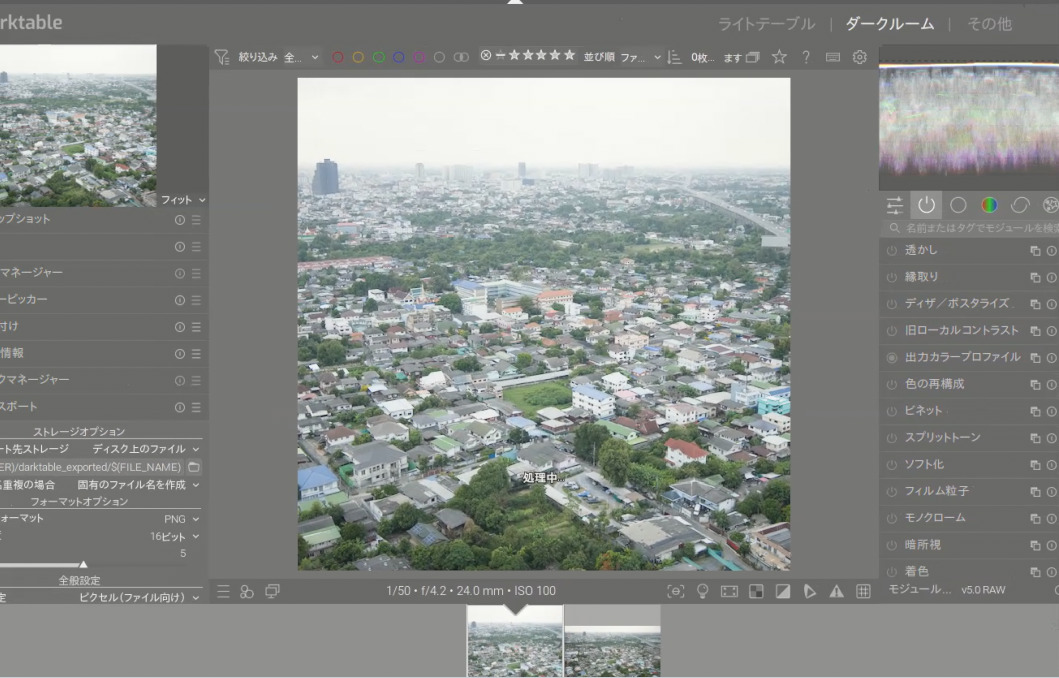
After that darktable will start and edit the image.
-
Specify export image format (tiff or png) and bit depth in export settings on darktable.
-
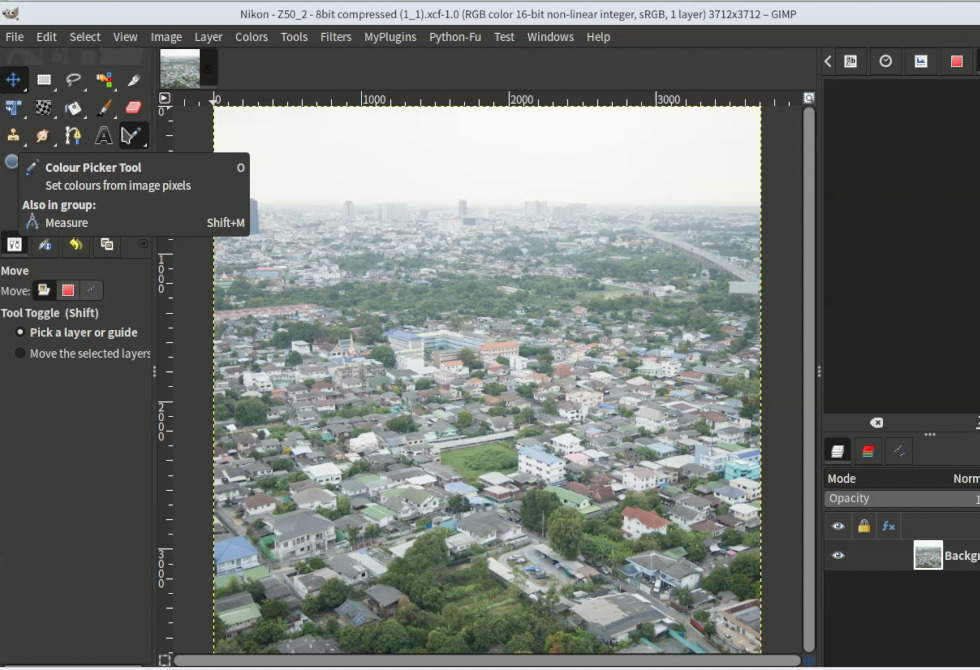
Close darktable and the edited image will be loaded in GIMP.