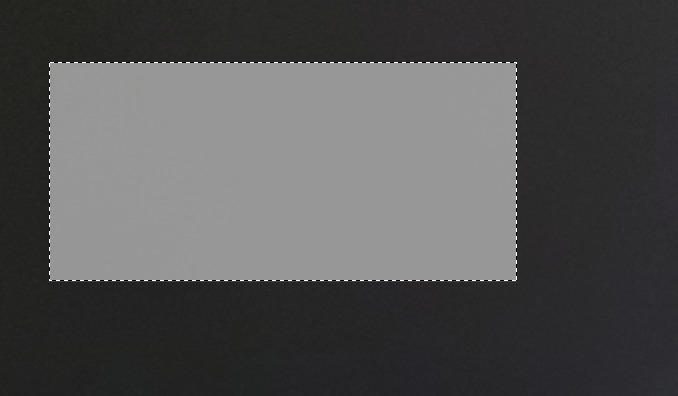
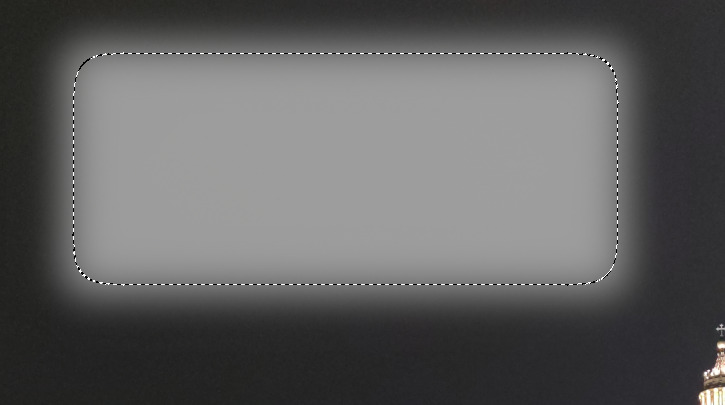
Whatever I try, I can’t get this simple task done with Gimp3:
Open image
Select something using the selection tool of your choice
Toggle Quick Mask
Filters → Blur → Gaussian Blur (Size 100 or bigger to actually see anything)
Toggle Quick Mask
Use Colors → Curves to make the selected area brighter
With Gimp2, the above created a ‘blurred’ selection, means when you make the selection brighter (or whatever else you’d like to do) the processing doesn’t have ‘hard’ borders but a smooth gradient like change.
For whatever reason this doesn’t work in Gimp3, neither on Linux nor Windows.
Gimp2 is the latest available version, Gimp3 is version 3.0.6 (revision 1).
Any help or references to help or documentation are very welcome!
It is probably the active layer losing focus when the quick mask is toggled on/off. Making the layer active and the curves tool should work. I think (not sure) this has been reported as a bug. A large blur and the selection (crawling ants) might be larger than the canvas.
This 50 second example select - Sendvid I put the selection editor (something I vary rarely use) up to see what exactly happens.
Yes, it drove me crazy.
But I found a solution in your short video (thanks for that ): When I activate the “Merge Filters” option under “Gaussian Blur”, everything works as expected.
I have no idea why I never had to do that in Gimp2.
Thanks a ton, Rich
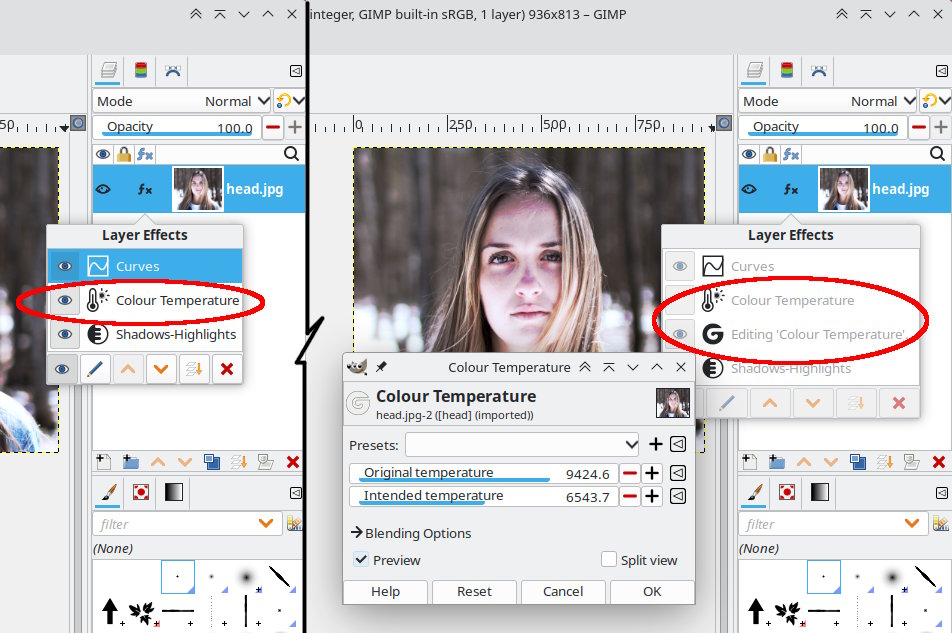
I don’t use GIMP much anymore but when I do the merge filter option often catches me out as this seems relatively new. It is probably a good feature once you get used to it.
But in pictures, you can apply a sequence of filters and if they are in that (fx) in the layers dock, go back and change the settings. There are also icons there to apply / delete if you forget the tick box in the filter.