To the Question - I ask for help... | And Gratitude

Greetings, the greatest minds of our time. I’ve been thinking about the wording of the question for a long time and it still doesn’t work out.
I decided to print it as it is, I can’t put it off any longer. I am writing through a translator, so there may be errors.

But first, I want to express my gratitude to the entire team and those involved in raising the level of human culture!
Thank you! I’ve upgraded to the new Dt from 4.20.
I’m thrilled, the new modules are amazing, especially Agx. This is exactly what I was trying to achieve by enabling options in Filmik.
Thanks again, I can feel the speed improvements after the upgrade.

To the Question - I ask for help…

I’m not a new user, but I’m not an old one either… =№
I understand how modules are arranged and how to move them. Moreover, I understand why the default order is the way it is.

I understand that there are special profiles inside for a stack of modules, one for RAW and another for JPEG (roughly speaking)…

Here’s something I constantly encounter… When I transfer new photos from Camera. I process one and then transfer the same stack to other modules.

For some reason, the modules are always transferred out of the order they were in the previous image. The same thing happens in JPEG, for example, when I want to do something creative. I also noticed that if I have a couple of Agx modules open, they don’t transfer. I know this profile is used only once, but my photos allow for creative editing, and I only care about how the image looks.
And sometimes they transfer fine, but the new image contains another standard Agx module.
I think this is due to the profile settings and the Agx module’s Default setting.

Help me disable. Or at least minimize it.

Thank you for your attention. Please let me know if my text is inaccurate or mistranslated.

I’m very interested in this as well. I would summarize your questions as:

  1. What’s the most correct way to copy an edit history or module stack from one image to another or several?
  2. If the source image has multiple copies of a module, can I keep them in the transfer?
  3. Can I overwrite or suppress the default presets (both the tone mapper and color calibration that darktable creates in the modern workflow, and automatic presets I’ve applied)? The modules I’m copying explicitly should take precedence over the presets.

I haven’t managed to get this right yet. Though I can copy one module at a time with ctrl+x (from the darkroom view) while selecting the destination images on the filmstrip. But I don’t think that will let me copy duplicated modules.

3 Likes

Hello! This is very close.

The main point I want to make is:

The problem isn’t with selective copying (only individual modules), but rather that the processing order isn’t preserved, and the stack becomes meaningless.

1 Like

You need to keep in mind that there are two paste modes ‚append‘ an ‚overwrite‘ which are set in lighttable history stack module.
These also controls the paste behaviour in darkroom.
Additionally if you want to keep the module order you need to select it when doing a selective copy.

6 Likes

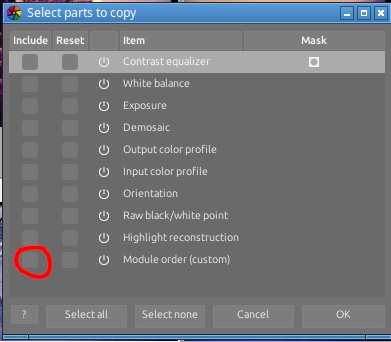
When I want to copy the editing choices from one image to the next I first compress the history stack to tidy it up. I then on a Windows install use CTRL+Shift+C to select which parts to copy.

In the example here I only select those parts which are not automatically applied by default. If I have more than one instance of a module the are all selected and applied. In this sample I have two instances of denoise and they are both applied. I have also selected demosaic module because I turned on capture sharpening. I have not turned on exposure because it was only at the default values. In fact everything from orientation and below is default values so I have not selected them.

The module order can be selected if I have changed the order.

3 Likes

Hello,

I’m just a user, not an expert or dev.

Are you looking at the history stack (on the left), or the pixelpipe - order of operations (on the right side, “active modules” reading from the bottom up)?

You can clean up the history stack by selecting the topmost module, then scrolling down to select “compress history stack”).

Generally speaking, you could edit modules in any order and the pixelpipe keeps the proper order of operations. I’m not saying that is “best practice” to edit this way; I’m just saying that you can.

1 Like

Keep in mind that the processing order of the different modules has nothing to do with the order in the history stack. The latter just shows the order in which modules were activated/modified.

The only time the order in the history stack is important is when you have 2 copies of a module there with the same name: that indicates you modified the parameters of the module after activating it and using another module. So to avoid any ambiguity, it is a good idea to compress the history stack before copying it (as @Terry suggested).

3 Likes

I had this same issue when I first started, until I realized that style application has two modes, just like @MStraeten points out.

In general, use “append”, and only copy and paste over the modules you changed to get the look you wanted. I have bolded the important steps that you might be ommitting (i.e. they might be the source of your problem).

For example, this is my workflow:

  • Import a group of images.
  • Cull them.
  • Go through and correct exposure, white balance (color calibration module), and cropping.
  • Fully Edit the “hero” image (the image that is the main standout image).
  • Compress the history stack on my hero image after the edit is done.
  • cntrl+shift+c to selectively copy from the history stack. In the pop-up dialog, I select all my changes used to get the look for that image. Usually it looks like: color balance rgb, color equalizer, rgb primaries, diffuse or sharpen, AgX, etc.
  • Select the rest of the images in the lighttable view and cntrl+shift+v (selective paste). This allows me to double check that I am only pasting the changes I really want to.
4 Likes

Thanks!

That’s right, friends, apparently the translator couldn’t handle this, but I touched on all of these things in my post and question.
You’re talking about the basics.

I’ll give you an example.

I’m installing the tone equalizer module after Agx. (Drag and drop.)
I’m moving the history stack to a new image…
Tone equalizer before the input profile…

When you copy the history stack, you need to copy the module order one too.

2 Likes

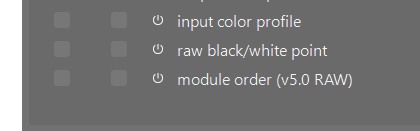
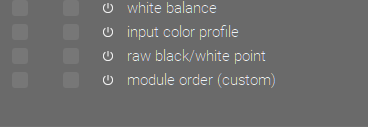
I’d have to check but instead of raw shown here it likely says custom if you have moved things be sure to include that…

Before a shuffle…

After a shuffle…

3 Likes

I think there’s a select all button nearby? I usually click it, sometimes I copy it.

Oh, that’s interesting, tell me more about it.
I also noticed that if I save the processing style (module order and values),
When I apply it to a JPG, the order also changes.

What does the option “reset” next to “include” do?

Selective copy :

2 Likes

JPG and raw have a slightly different order and some modules make no sense for JPG so likely aren’t applied…If I understand you to be saying that you creat styles potentially on raw files and try to paste them to jpg?? Ignore me if I miss understood you.

1 Like

As I understand it, in copy/paste and in styles, it copies the module but resets its parameters. You would use this where you need a module to recalculate according to the target picture.

But “understand” is an overstatement: I hope to hear from someone who knows better.

1 Like

Hi! Thank you… I usually compress the history, and later I click select all.
I’ll check it out!

That’s right, and it happens.
(I’m not looking for a demosaic module in jpg )

1 Like

You’re right, it’s a good explanation. This also applies to masks.

1 Like