Greetings and thanks for the help!
My camera has a 20 mp sensor.
I am trying to figure out why some images processed from RAW are considerably smaller than 20mp, in one case the export is 3mp.
I’m sure this is user error.
My DT export settings:
Format options
file format JPEG (8bit)
quality 94
Chroma subsampling auto
global options
set size in pixels (for file) 0 x 0 px
allow upscaling yes
high quality resampling yes
profiele sRGB (web safe)
intent image settings
style none
To help me understand a bit more I have the related questions:
How can I display the image size in Lighttable before processing?
Is there a way to display the image size in export after processing?
This seems very weird …So you have a raw maybe something just shy of 6000 by 4000 pixels as 6x4 would be 24 mp… And then you end up with an image with reduced dimensions and you are not scaling it down???
And stupid question but we are not mixing mp and mb in this explanation??
Ah yes, I was confusing mp with mb!
and no I am not scaling it down when exporting.
As an example, I have an in camera JPG image (I shoot both JPG & RAW) that is 9.9 mb. I processed the RAW file, and it ended up exporting at 3.8mb. I really don’t understand why. I would think it should be equal or greater than the in camera JPG??
my ultimate goal is to have the highest resolution available after processing.
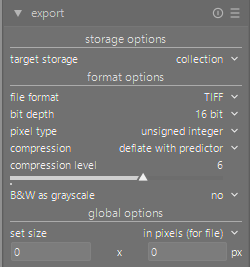
DT will not reduce the pixel count unless you tell it too. In the screen shot at the bottom is the set size option. If a zero is placed here the image is original size . If you type numbers in here the image will have a different pixel count. You have already set this to zero so DT is not reducing the MP count unless you cropped the image in editing.
Also on my camera a RAW file is about 36 MB but the JPG is about 12MB because the JPG is compressed into a smaller file size, but the same number of pixels. I suspect you are mixing up MB with pixel count (MP)
thank you, I did crop it a bit, but I didn’t think it was that much?
Also - when I hover my cursor over an image in lighttable, I do not see the size. it gives me the filename, date, and exposure info and that’s it.
i don’t see where to enable this in settings either.
Thanks for the assistance.
Should have placed this post in the Dumb Questions thread!
Interesting - I opened the processed RAW file, switched off Crop. That changed the image size from 3.8MB to 4.7MB but that is still smaller than my in camera JPG.
Anything I should look for in Settings that I may have changed to cause this?
Resolution might not be the right word…all the images have the same number of pixels…when you export to jpg now you go to 8 bit color and you have image compression for the storage size…here you can see the discrepency with subtle changes…this is a sony image…saved at the highest quality or no subsampling and at 100% its actually larger in storage size than the original raw…Just dropping 100% to 94 which you used now makes a 6mb jpg and further using the lowest quality chroma subsampling goes even smaller to 4mb…you would need to know those numbers for your in camera…but file size is not something to go by esp with jpg as you will likely never see the differenct…it might matter if you are going to further process or print and then you might want to look at a tiff or some other format for that
Raw file is 24mb…I didn’t look at the sony settings it just one I grabbed
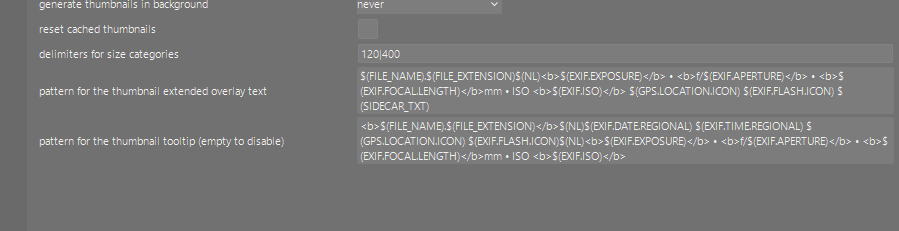
Thank you both. I can see where I might make changes in the export settings, and i will dig through the manual for the correct variable to add to display file size in lighttable.
I do want processed images to have enough information for printing, but i have a lot to learn what settings to use. I assume they’re different than ones used for digital display.
Well I don’t print much and I archive my images as JPG into folder to view on other devices …I use no chroma subsampling so 4:4:4: …I think the default in DT is auto…so I am not sure how that behaves and I use 95% but I could honestly do less for digital review…for play raw I down sample to around 2K on the long edge and about 80% quality and they look quickly to the eye without peeping pretty much the same as a much larger file…
With this Sony file I kept iterating and found that at 96% and no subsampling ie 4:4:4…then that 24mb file gave a 9.4 mb jpg… so maybe that is roughtly what your camera does…likely you can look by checking the metadata…
$(WIDTH.RAW)               width of RAW data in pixels after RAW crop
$(HEIGHT.RAW)              height of RAW data in pixels after RAW crop
$(WIDTH.CROP)              image width in pixels at the end of the pixelpipe, but before export resize
$(HEIGHT.CROP)             image height in pixels at the end of the pixelpipe, but before export resize
$(WIDTH.EXPORT)            image width in pixels at the end of the pixelpipe and after export resize
$(HEIGHT.EXPORT)           image height in pixels at the end of the pixelpipe and after export resize
$(WIDTH.MAX)               maximum width entered in export module
$(HEIGHT.MAX)              maximum height entered in export module
I did a bit of quick reasearch, and changed my export settings to a couple different things to see what I would end up with. Tried JPEG 2000 (12 bit) because my camera records in 12bit RAW, and also TIFF. both generated huge files, and I couldn’t open JPEG2000 in anything.
So I have settled on:
File format JPEG 8 bit
Quality 100%
Chroma subsampling 4:4:4
although I might use auto since I have set my quality to 100%. the pop-up menu notes “auto – use subsampling determined by the quality value”
Global options remain unchanged.
this combination brought my 3.8MB file up to 15.2 MB which is what I would expect a processed RAW file to be for my camera.
I just wish there were a way to process and export in 16 bit.
thanks again for the assistance!