CTL Script: RGB sigmoid curve

I have developed and published an RGB sigmoid curve script.

Purpose of this script
The main purpose of developing this script is to provide a tool for more efficient restoration and editing of faded film or photographic prints images.
In photographs with appropriate colors, especially landscapes, their R, G, and B histograms generally have a similar shape, although with some degree of deviation. In this case, if we take the correlation coefficients between the R, G, and B pixels, they are often greater than 0.90 with respect to each other. This means that the respective channel images of R, G, and B are very similar.

histogram_normal00
[Histogram example of normal image]

However, in faded and discolored photographs, the correlation coefficients between R, G, and B pixels are much lower than in normal images. The channel images are also not very similar compared to the normal images.

histogram_abnormal00
[Histogram example of discolored image]

Therefore, the first step in restoring a faded photo is to make the image and histogram of the R, G, and B channels similar to each other. This script was developed to facilitate this kind of editing.

The basic idea of this script
The goal of this script is to restore the pixel distribution of each channel, which has been corrupted by fading, to a state close to the original pixel distribution by adjusting the dynamic range and applying a tone curve with an adjustable slope. The sigmoid curve is used for this tone curve.


[Basic Idea]

This idea is a little similar with “Separate RGB channels” mode in Color/Tone correction of ART or Level adjustment in GIMP, however I use sigmoid instead of Gamma correction. Gamma correction curve has no “tipping point”, but sigmoid curve has it. I think this difference is difinitively important.

How to get this script
Please download it from the following link.

Please also download the language files for internationalisation from the following link. Please note that the language files are translated directly from DeepL or Google Translate, except for the languages I can understand, so I cannot guarantee their accuracy.

https://drive.google.com/drive/folders/1yLFFn9Yci6wbyArKboFmHH9vI7nfA__b?usp=drive_link

The dialogue of this script

Parameters for each channel
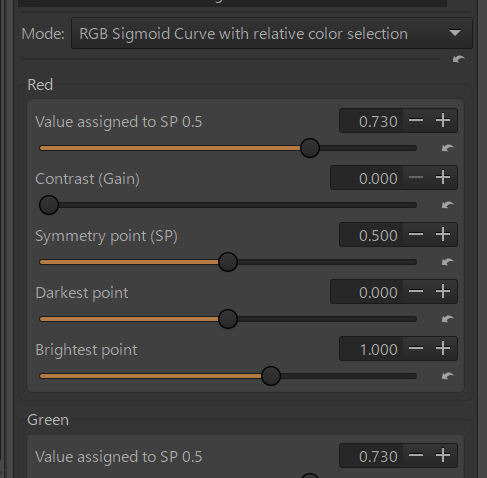
From the top of this dialog, for each of the R, G, and B channels, there are parameters that adjust the pixel distribution (histogram); they adjust contrast, shift, minimum point, and maximum point.

#Contrast
This parameter determines the slope of the sigmoidal tone curve shown above. The default value is 0.1, which is close to the straight line in the black diagonal in the figure above and changes the pixel values only slightly. Lower values are closer to a straight line (in which case the pixel change is negligible), while higher values result in a sharply sloping S-shaped curve (with a larger change).

#Shift
This parameter specifies the brightness point at which the sigmoid curve changes direction, the default value is 0.5 (perceptual mid gray point). Assuming a constant contrast (10.0), the curve would then look like following figure. If the original pixel value is greater than 0.5, the pixel value becomes brighter, while if it is less than 0.5, the pixel value becomes darker.

Sigmoid0.5
[Default: Shift = 0.5]

If this value is set to 0.2, the tipping point of original sigmoid value will be 0.2 and most of the curve will be upward. In the tapping point, the slope direction changes (less steep > steeper or steeper > less steep).

image
[Shift = 0.2]

Setting this value to 0.8 results in the following figure.
It darkens the image for most pixels.

Sigmoid0.8
[Shift = 0.8]

#Minimum and maximum points
These parameters specify the darkest and brightest points in the image. The default is 0.0 for the minimum point and 1.0 for the maximum point, and the original minimum and maximum values are not changed. If the minimum point is changed to a value higher than 0.0, its brightness becomes the new minimum value (0.0) and the overall image brightness is reduced. Conversely, changing to a negative value will do the opposite, brightening the image overall. If the maximum point is set to a value lower than 1.0, it becomes the new maximum value (1.0) and all pixels with a higher value are clipped to 1.0, resulting in an overall brightening. The opposite is true if the maximum value is set above 1.0.
For example, for the green channel in the histogram below, if the highest point in the green channel is lowered to 0.5, the entire pixel becomes brighter and the distribution changes to what is shown in the figure below.

image
[original]

HighlightClip01
[highlight clipped]

Minimum point is equivalent with Shadows/Lift in “Separate RGB channels” mode in Color/Tone correction, and Maximum point is equivalent with Highlight/Gain.

Relative Color Area Mask
Below the Saturation parameter, as in my other scripts, there is a Relative Color Area Mask to limit the effect to a specific color area. Default setting is not to apply any mask (applying editing effect to all color area).
For an explanation of the meaning of this parameter, see, for example, the following article.

5 Likes

Restoration example of faded film image with this script

The example image is taken from Play Raw, posted by @Ofnuts.


[original image]

It is important to edit watching each channel image and histogram.


[in editing process with this script]


[R channel / Contrast: 11.236, Shift: 0.5, Min: 0.0, Max: 0.865]


[G channel / Contrast: 4.944, Shift: 0.466, Min: 0.0, Max: 0.851]


[B channel / Contrast: 3.258, Shift: 0.5, Min: 0.093, Max: 0.380]


[edited result using this script]


[the final result with additional editing]

I believe that this script is very powerful tool for faded film image restoration.

11 Likes

To visualize the applying sigmoid tone curve, I made a spread sheet file.

In this file, if you input Contrast and Shift parameters, you can see the corresponding tone curve.

The “sigmoid adjusted value” curve is the applying tone curve.

I updated this script to rename some parameter labels. And it includes the latest _artlib (version 2025-02-14).

Shift > Symmetry point
Minimum point > Darkest point
Maximum point > Brightest point


This figure shows the relationship between the tone curve and these parameters.
The red line shows the tone curve where the darkest and brightest points are the default value.
The green line shows the tone curve with the darkest and brightest points adjusted.

You can download it from the same link and it is also needed to update the language files.

1 Like

I have renewed this script (version 1.1). In this version I added the parameter [Value assigned to SP 0.5]. With this parameter you can set the channel (absolute) value assigned to the default symmetry point (relative brightness 0.5). Based on this parameter, the gamma correction is applied before the sigmoid transformation. However, gamma correction is applied only when the sigmoid calculation is performed, so this parameter has no effect on the image unless you move the [Contrast] slider. The default value is set much high, the reason will be explained below.

You can download this version from the link below.

You can also download the language files.
https://drive.google.com/drive/folders/1yLFFn9Yci6wbyArKboFmHH9vI7nfA__b?usp=drive_link

Editing workflow

If you need to adjust the exposure, you should adjust it first because the effects of exposure changes on the R, G, and B histograms are not the same between channels.

You are free to use this script, but for those who are not sure how to use it, I will offer the following two workflows.

Workflow A.
In this workflow, you can mainly use [Value assigned to SP0.5] and [Contrast], and other parameters can be used subsidiarily.

The [Value assigned to SP0.5] parameter actually calculates the gamma value and applies a gamma correction to assign the set value to the default symmetry point. The default value is set relatively high to be able to move each channel histogram in a lower direction. In general, red faded reversal film images have too high values of the red channel, so we need to change them much lower. If you want to make each channel image brighter (move the histogram higher), it is needed to set the value below 0.185 (perceptual midpoint). And if you set the value 0.5, the adjustment will work in gamma 1.0. As stated above, this value has no effect on the image as long as you don’t move the [Contrast] slider.

To effect the adjustment, you should move the [Contrast] slider. The default value is 0.0, which has no effect on the image. If you move the [Contrast] slider further to the right, the image contrast will be higher, and at the same time, the channel histogram will move up or down more. If you set the [Value assigned to SP0.5] parameter to 0.185 (perceptual midpoint) and move the [Contrast] slider, only the image contrast will be higher. And the farther you set the value from the perceptual midpoint (0.185), whether it’s above or below, the more the movement effect will outweigh the contrast enhancement effect of the histogram.

You can use the other parameters to further fine-tuning of the histogram shape. The [Darkest Point] and [Brightest Point] sliders are used to adjust the shadows and highlights, respectively; moving them down makes the image brighter, and moving them up makes it darker. They change the output level of images linearly by adjusting the clipping point of the value. The [Symmetry Point] slider defines the “relative” degree of symmetry of the S-curve shape and affects the shape of the histogram.

Workflow B.
In this workflow, you will set the gamma to 1.0 and mainly use the [Contrast] and [Symmetry Point] parameters to adjust the image and histogram. To set Gamma 1.0, you should set [Value assigned to SP0.5] to 0.5.

The effect of the [Contrast] parameter is the same as in Workflow A.

The [Symmetry Point] parameter affects the applied tone curve. As stated above, it affects the “relative” degree of symmetry of S curve shape. If you move the symmetry point lower, the histogram generally moves to the upper direction, and if you move it higher, the histogram generally moves to the lower direction. However, if you set [Contrast] to 0.0, this parameter has no effect.
The other parameters can be used for further fine-tuning of the histogram.

The difference of Gamma correction and Symmetry Point adjustment

The [Value Assigned to SP0.5] and [Symmetry Point] parameters have a similar effect despite the difference in the calculation method. If you move these sliders to the left, the channel image becomes brighter and its histogram moves to the right. If you move these sliders to the right, the result will be the opposite.
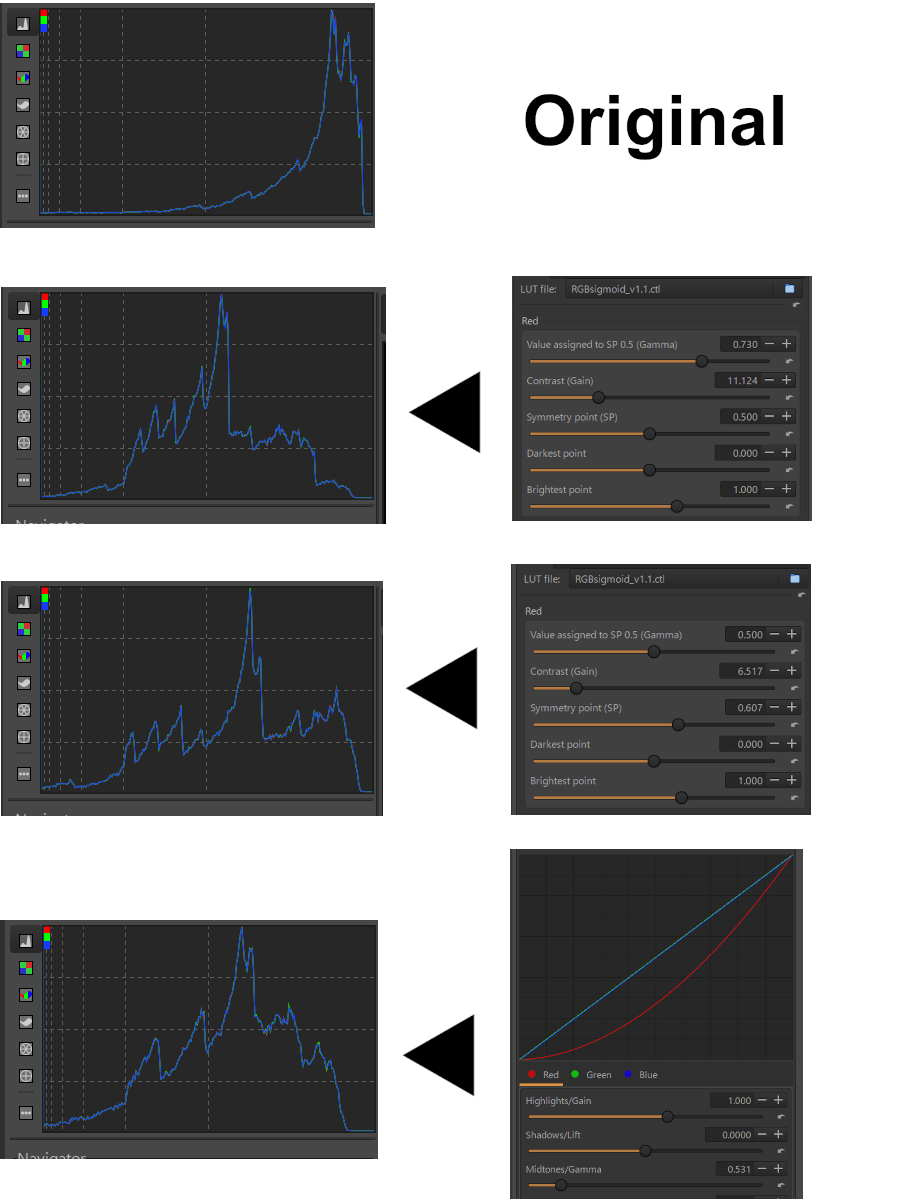
However, gamma adjustment ( [Value Assigned to SP0.5] ) may produce a steeper contrast gradient than symmetry point adjustment and a stronger effect on the shape of the histogram for the same contrast value. While a stronger effect is not always preferable. Using the Libre Office spreadsheet file in the link below, you can confirm the difference of the adjusted tone curve with these parameters.

And if you don’t need to adjust the histogram shape and just need to change the output level, it’s easy to use the gamma correction (Midtones/Gamma slider) of separate RGB channel mode in Color / Tone Correction.


[The difference in the histogram of editing results between using RGB sigmoid and Gamma correction of separate RGB channel mode]

1 Like

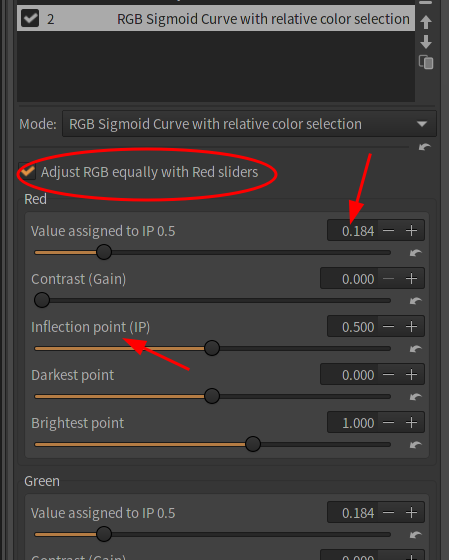
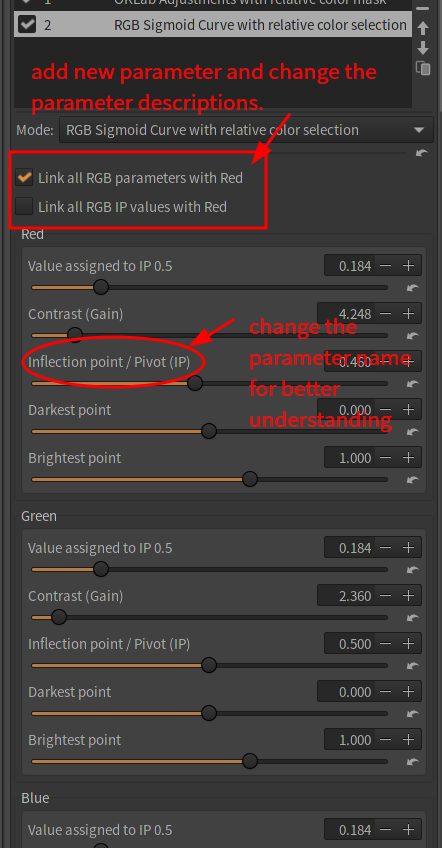
I have renewed this script (version 1.2). In this version I added the option [Adjust RGB equally with Red sliders]. When I created this script first, I thought that the purpose of the script is mainly to restore faded film images. However, now I believe it is useful for more diverse purposes, so I have added this option. If you use this option, this script affects only contrast and doesn’t affects colors.
Along with that I have changed the default value of [Value assigned to IP 0.5] to 0.184 which is accepted, in general, mid gray point value as it is appropriate for more diverse purposes.

Also I have changed the parameter name of [Symmetry Point (SP)] to [Inflection Point (IP)] to clarify the meaning of the point. The name “Symmetry Point” is correct if the value is set to 0.5, however if the value is set to any other values the curve won’t be symmetry, so this name is not appropriate.
The download link is below.

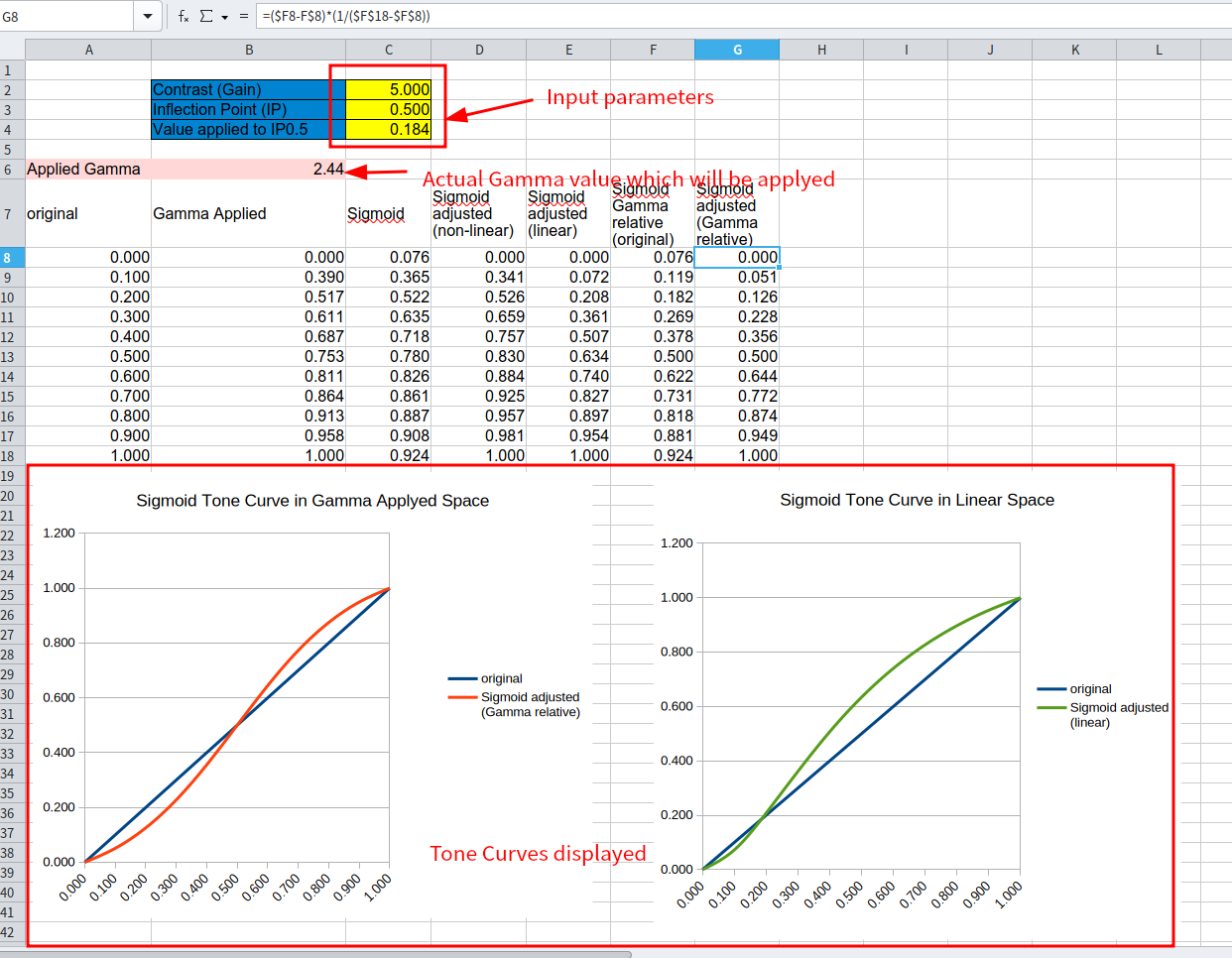
Interactive UI is not available in CTL script, so I provide a libreOffice ods file to confirm the curves which this script creates. If you input parameters on it, it displays tone curves in relative Gamma applied color space and absolute linear space and actual Gamma value which will be applied with input parameters.

3 Likes

From watching many video color grading tutorials by professional colorists, I observed that the Inflection Point is generally shared by the 3 RGB curves. I haven’t seen cases where the IP would be at a different place for the different curves. In that scenario, wouldn’t it be better to move the IP slider towards the top of the module, and have it control a single common point where all 3 curves always intersect?

Having separate IP could be useful for changing color balance, but I think other modules serve this purpose better. But of course if you think it is often useful to tweak the IP separately for each curve, ignore what I said.

By the way, the IP is generally called “Pivot” in color grading tools.

1 Like

Thank you for your advice. I have modified this script (ver. 1.3).

And language files update is needed.

Changes:

2 Likes

It is appropriate for digital images which keep color balance. However my start point is faded film image restoration. The color balance of faded film images are often completely destroyed by dye fading. So I think separate IP adjustment is needed for this tool.

2 Likes

That makes sense.

1 Like