Darktable: how to set warmer tones in cut highlights?

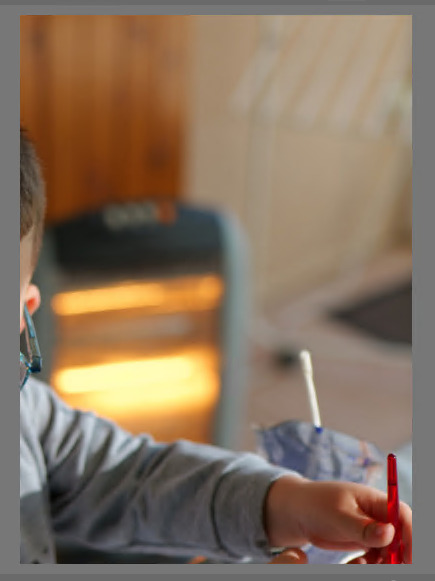
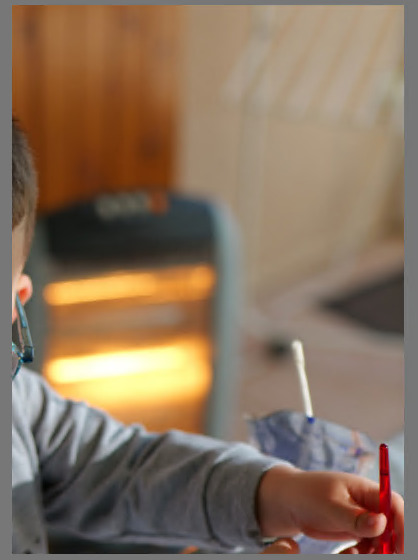
I took a picture (sorry it involves children so I can’t post the RAW file here, unless you know a way to modify a RAW & embeded JPG to hide some parts) that has some cut highlights as I was pointing a heater. This is for instance the look of the JPG that was produced directly by my camera (lumix S5ii if it makes any difference):

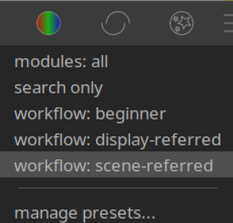
I really like the warm tones. If I open the photo using ART, I get a very close image (to the point that I was struggling to know if I was looking at the original picture or the ART one, the automatic style that tries to mimick the embeded JPG is truly impressive!). But if I open this image in darktable (default scene-refered workflow), I get a very different tone:

I very much prefer the style of ART/original JPG for the heater, but I can’t find a way to mimick it in darktable. I guess this has to do with highlight reconstruction since this part is overexposed (enabled “toogle indication of raw exposure” in the bottom left list of icons behind the picture):
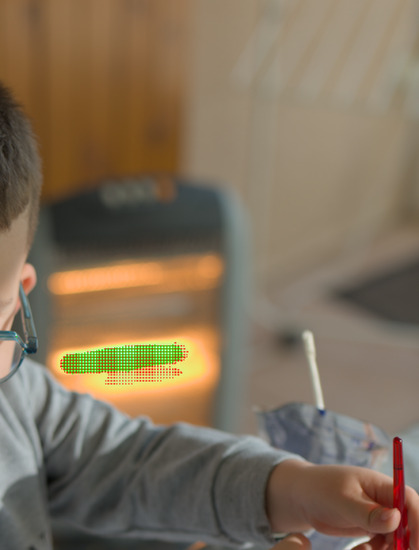
Here is what I tried:

Try #1: use color equalizer to change the tone of the heater… the problem is that this is tool late in the pipeline: the color attributed to darktable to this area is too close to the color of the skin and other wooden elements in the scene: even after applying a very narrow mask on multiple bands, I still get ugly artifacts, so I think this is not the right approach to follow.

Try #2: play with highlight reconstruction: disabled, the tone does not change and I even lose the white part so I dislike this even more:

But one method gets me a bit closer: the “clip highlight” one:

The color are a bit closer, but this is still fairly different from ART’s result that I find much more subtle in the transition (ART uses a mode called “balanced highlight reconstruction”) + you can also observe that the top “heat line” of the heater (that is not clipped) is also warmer:

I tried to use sigmoid instead of filmic, this gives me a bit better transition:

but still not as cool as ART in my opinion.

But while playing with ART, I also realized that it has another feature that plays a huge difference in the color: the color management (ICM) tab:
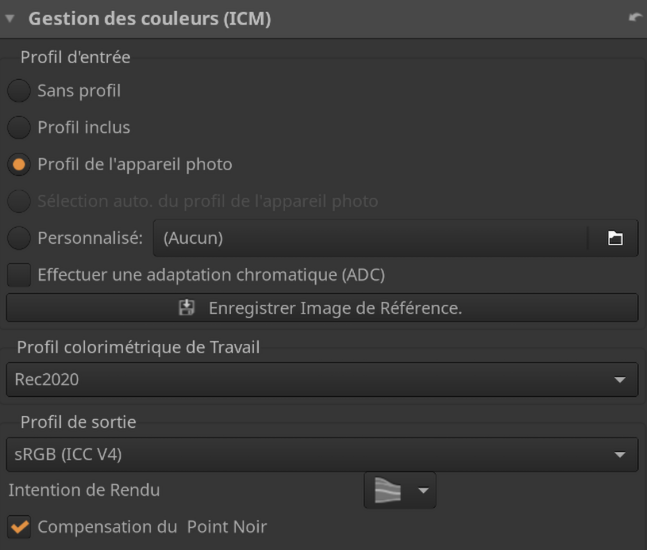
(the selected point translates to “camera profile”) If instead I select “no profile” in ART, I get a less warm result a bit closer to what I get with darktable!

So I’m wondering if this could make a difference… but I can’t find any option in darktable to use the camera color profile. Am I missing something? Any other tip to get a result closer to ART’s one in darktable? Sorry, this question is a bit of a mess without providing an example to test…

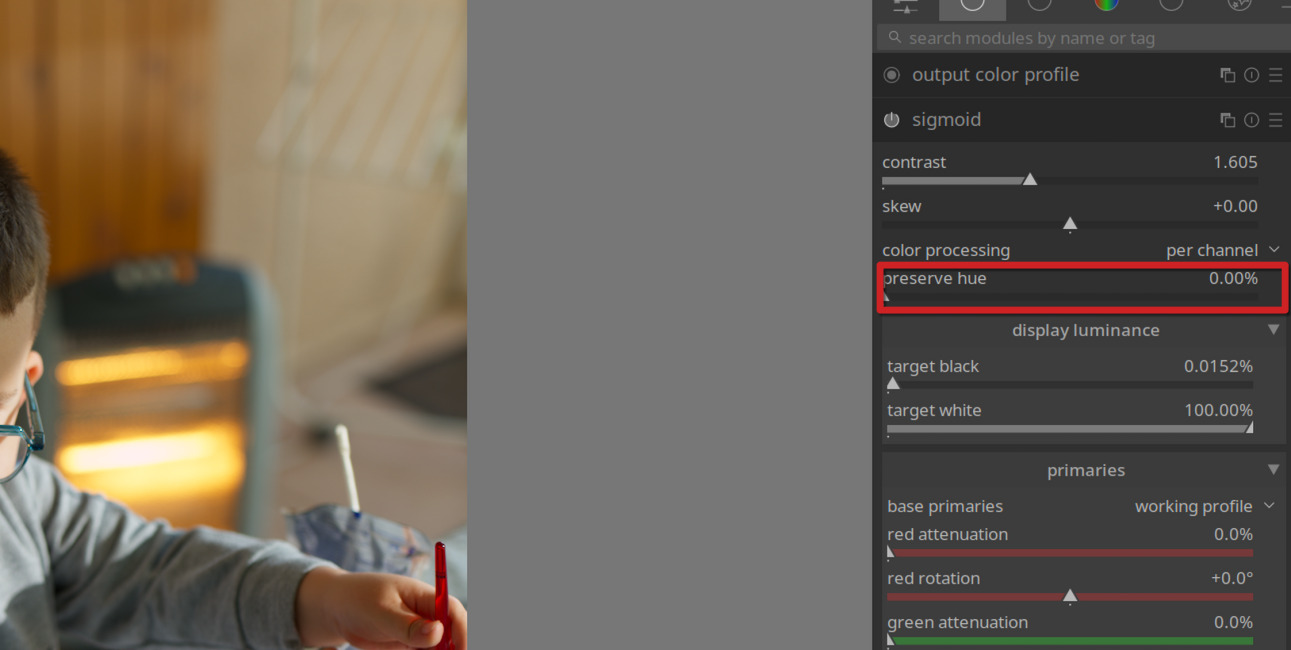
Is it possible to retake the photo so that you can post the RAW. My first suggestion to you would be to try the various tone mappers. You could try Filmic V5 with no chrominance preservation. You could try playing with the preserve hue slider in Sigmoid. Also in DT5.4 you will be able to try the new AgX module. I would expect that a pleasing result can be obtained in DT.

Try darktable with Filmic v5 and no color preservation and then play with the white point… You can also play with the hlr in filmic and bloom it a little…For these sorts of things also you have to hit the sliders just right and maybe play with opacity but in the range of color the old color reconstruction module can often be used to fill that in nicely…

This is only your jpg but here :slight_smile:

CR added with defaults


If you are using v7 or v6 of filmic you will tend to get those more “red” looking highlights as there is some gamut code to preserve hue shifts but many people often prefer the more yellow orange for those unless it morphs into the realm of rat piss yellow

You may find some insight in this topic: Dealing with yellow color shift

It’s pretty lengthy and technical but you might get some insight about why those yellow/orange colors aren’t coming out right.

Are you using filmic or sigmoid? You might want to try sigmoid, maybe using the smooth preset, and see how that works for you. I think the new (coming soon) AgX tone mapper handles this issue really well.

In darktable 5.2, there are 2 versions of the scene-referred workflow: one using filmic, the other sigmoid. Bright reds turning pink (instead of yellowish) is a characteristic of filmic.
If you disable the tone mapper, you simply get a clipping: red cannot increase, green is high → yellow. But that’s just a ‘fortunate distortion’ here (and it shouldn’t be this yellow)

Without highlight reconstruction, the pixels clipped at raw level will look ugly, of course.

‘clip highlight’ is also a pretty bad distortion.

With 5.2, sigmoid with the smooth preset (or perhaps filmic v7 with desaturated highlights, or v5 with no chroma preservation) will probably look best.

3 Likes

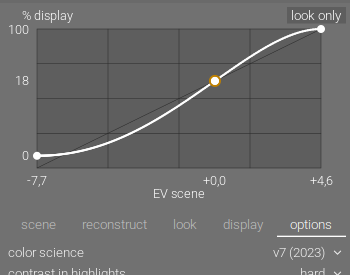
In short, switch to filmiv v5 (under the options tab in filmic), or use one of the other tone mappers, as suggested by @priort . Filmic tries to keep the technically correct colours, and because of that doesn’t take into account some of the tricks our brains play with colour vision.

1 Like

Thanks everyone for the interesting answers.

@Terry unfortunately I can’t take this photo again as I don’t have access to this heater. Too bad it’s that hard to edit a RAW file destructively… I’ll try to investigate but if you have some ideas please let me know! But you are right, even if the bare-bone sigmoid alone does not help, the sigmoid option “preserve hue” put to 0 gave a great result:

I also heard many good things regarding AgX, do you know if the nightly build in https://github.com/darktable-org/darktable/releases will have it enabled? I see it mentionning 5.3 and not 5.4. Also, any idea if it also has a “preserve hue”-like slider to precisely not preserve hue to get this kind of results?

@priort : You got a very good result, where did you started from? I’m curious to see the xmp file. I tried to reproduce with filmic but I’m blocked at the first step: how do you enable filmic v5 when using DT 5.2? I can’t find any menu in the filmic option.

@raublekick thanks for the interesting link. I tried both sigmoid and filmic without good results, but indeed as pointed out above in sigmoid I needed to play with “preserve hue”. But as you point out, smooth-preset is also good (it also sets preserve hue to 0) and also boosts a bit the wood to come closer to the original image (but I needed to increase contrast here). Any idea what’s the motivation behind this preset, notably the hue shift etc?

@kofa oh good point, weirdly enough in the preferences I do see two default scene-referred workflow, while I have a single available workflow in the per-image menu:

Any idea why? And thanks for sigmoid + smooth, see my comment on this a few lines above.

@rvietor yeah, this made me realize that the brain is not actually preserving hue for highly saturated areas ^^ Nothing is simple in life !

Also another question: am I supposed to enable both highlight reconstruction’s module + highlight reconstruction in filmic/sigmoid, or should I enable only one etc?

Yes, AgX is contained in the nightly builds. 5.3 is the current version number of the current development branch, but will become 5.4 when it is officially released.
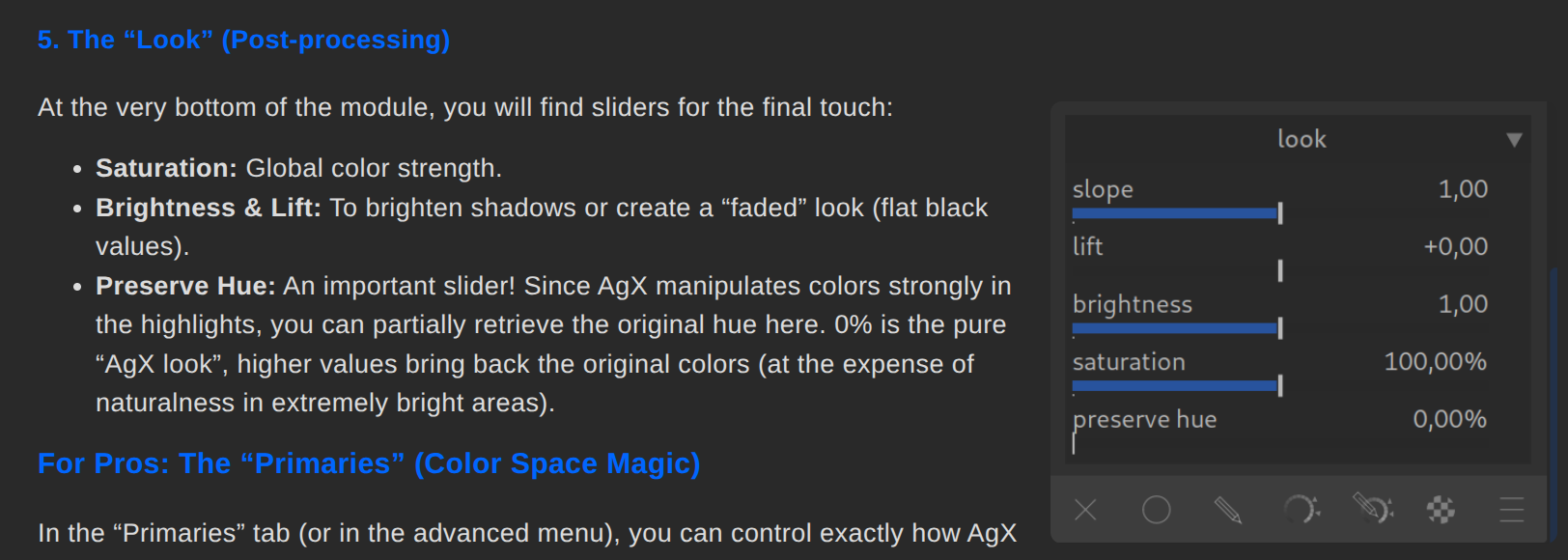
There is also a “preserve hue” slider.

1 Like

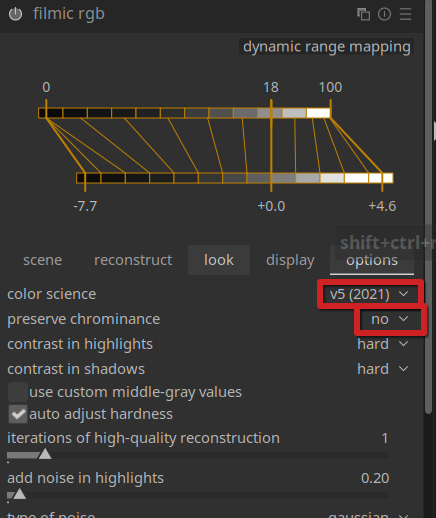
There should be parameter “color science” on the options tab.

1 Like

Out an instance of color balance rgb after filmic, and use hue shift and the 4 way tab to move to the desired tone.

Perhaps try setting highlight reconstruction to clipped.

All I did was add that module (color reconstruction ) as all I had was your uploaded JPG crop… You could take a shot of a fire and that will give you a challenging image to experiment with

1 Like

Ok so here is another feedback:

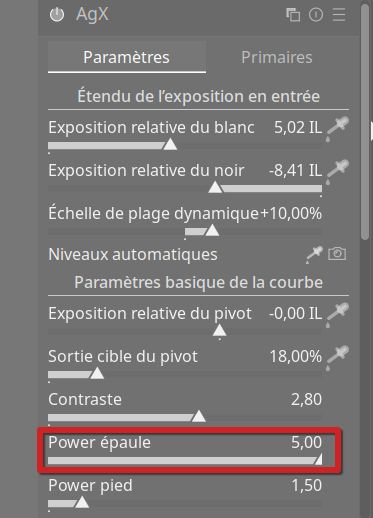
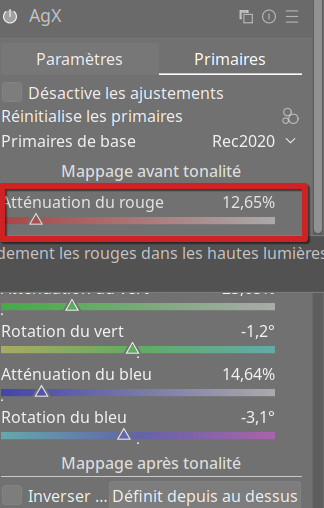
First, I tested with Agx (nightly version). By default, the look is between what I used to have and what I wanted. But after pushing “shoulder power” + playing (=move to left) with the button “reduce red” I managed to recover something close enough to the warm style I wanted:

By curiousity, I also gave a try to the Filmic v5, best results where observed with v5 + no chrominance preservation + boost of the saturation (or all the image would look very flat):

Thanks everyone for all the help! I think that overall sigmoid + don’t preserve hue is the simplest setting, but Agx can also produce good results with some tweaks in the red attenuation, while filmic can get good results only with v5 + no chrominance preservation + boost hue.

Let me know if I missed something else, notably it fills a bit weird to fine tune red attenuation in Agx, is it the way to go? @deekay you mention that there is a “preserve hue” slider in Agx, but I couldn’t find it, am I missing something?

Thanks a lot!

1 Like

https://darktable.info/en/modules/agx/

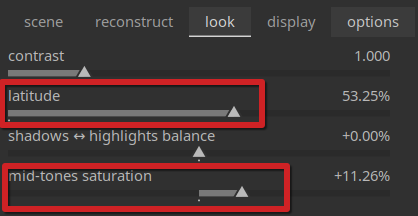
You should play with the latitude in filmic v5… It controls the saturation curve and you look like your set to zero… Your shift and the portion that saturation impacts is impacted by that… Also experiment with safe and hard setting for shoulders in the options. Having said that with AgX coming I think you can get almost any look you need once you get a feel for the settings

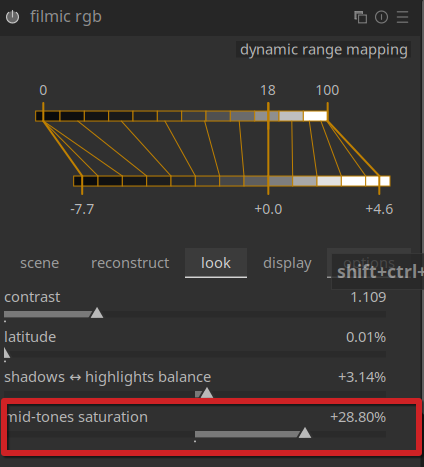
Oh good point, this gives indeed a better result, but I still need to add a bit of saturation to give an additional pop. With same settings as above (v5 + no chrominance) + this:

I get

which is also not bad.

Waiting for this to be officially added, any official deadline for the release?

Oh good point thanks (and cool ressource). But Preserve hue was already set to 0%. I could also get nice results after playing with the saturation, but seems like I still need to play a bit with the red attenuation to get the style I want.

1 Like

You might have been able to just compress the highlights a fraction more to add a touch of glow as well … And move the latitude by shifting it with the highlights/shadows slider to shift the saturation curve to the right spot… Maybe you did

In 5.4, which will be released shortly before Christmas.

1 Like