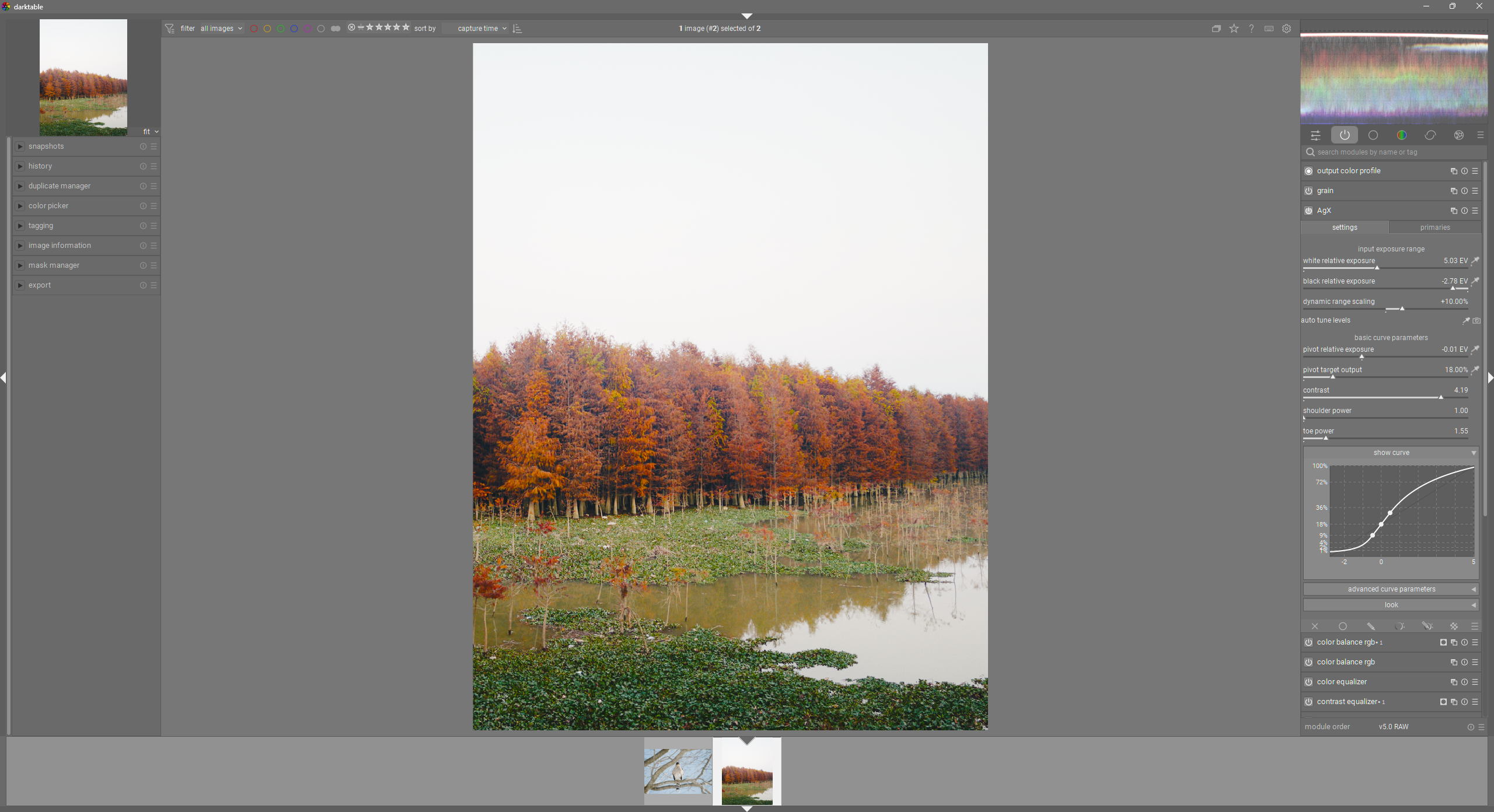
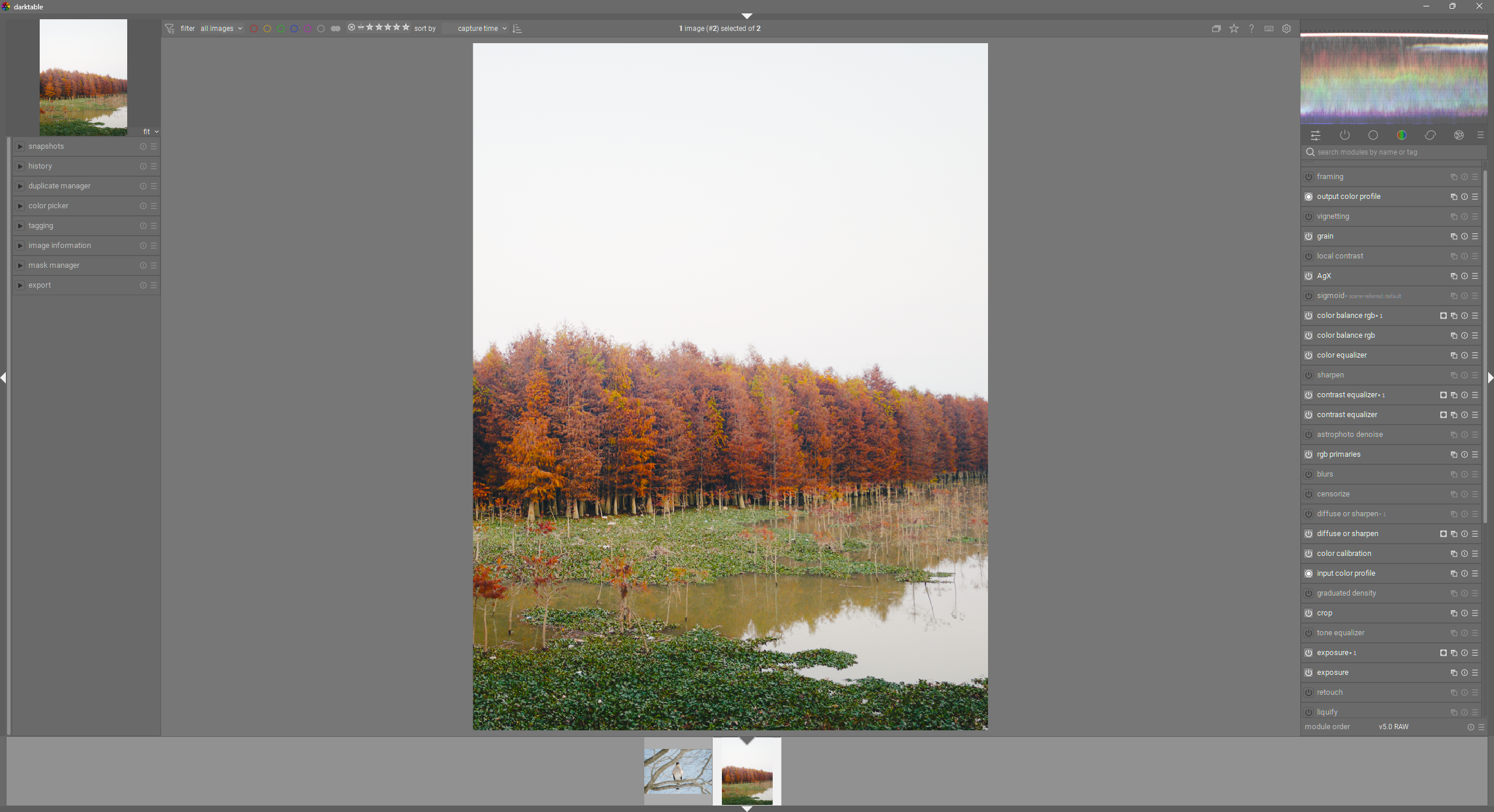
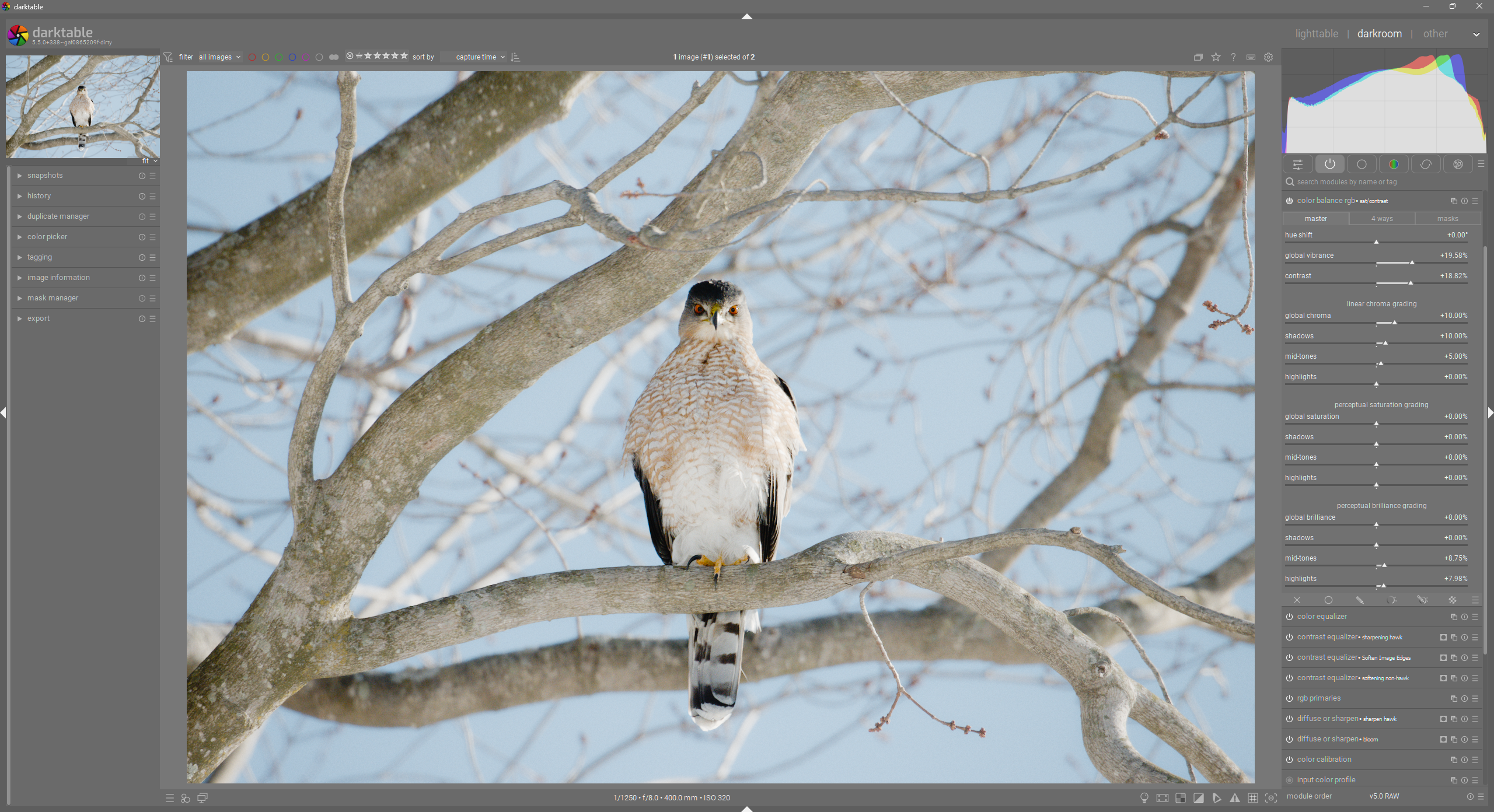
Darktable UI Work

Here I am, another cook hahaha.

But seriously, my desire is to focus on what is lacking from all of these “which module to show where, how…” discussions: improving the UI for what currently exists. That is my goal. I agree with the sentiment that deciding changes to some default list of modules is incredibly difficult, but that isn’t my personal priority. I just want to make the UI look as awesome as possible.

Maybe there should be a separate topic for discussing default module groups and all those adjacent things :grin: I would gladly give my opinion, but I don’t want this topic to become too muddy. Isolating concerns is always helpful, especially when there are so many cooks.

4 Likes

Hi Mica, I am sharing this with my students tonight. One student in particular should benefit from it as he is quickly overwhelmed by too many options. I am going to get them to add it to their module group as another tab and call it something like Simple, Basic, Fundamental. I suggest adding AgX since I have been teaching them that module, but Sigmoid alone is best for new users in my view.

1 Like

Yes, this is the main point. I would say yes if the amount of code is relatively small and it brings an obvious UX improvement. By which I don’t mean that me or you like it more, but that easy to understand abstractions are used consistently in an intuitive and self documenting way, without getting in the way of getting things done.

User interfaces should be self documenting. If they are not, then there is margin for improvement.

1 Like

Do you by this mean the interface that is immediately visible, or do you also include such as hover-over pop-ups?

1 Like

The interface that is immediately visible, ideally, should tell the whole story.

For complex applications, this is generally not achievable due to space limitations. But good layout, labeling, usage of good, descriptive icons (bad icons and too many icons do more harm than good) and logical placement and grouping of items can (and should) go a long way.

Then, tooltips, hovers and context menus (abstractions that users are familiar with, and that they explore when they are confused) can help disambiguate the hard cases.

What a control does should be self-evident using the combination of elements mentioned above. The “click to toggle all vs. active” is problematic in this respect because it is not the behavior that you expect when you click on a tab. Yes, it is written in the tooltip (IIUC), but there is the underlying problem that it is using a UI abstraction to do something unexpected, which creates a friction wrt the tooltip.

That said, I got used to it and it doesn’t bother me a bit. But it is perfectly reasonable that some people find it confusing, because… it is.

1 Like

In general it isn’t difficult to agree with the aims you state for UI.

But on the other hand, the topics of images, color, image processing and digital technology is so complex, that I believe users anyhow must expect to use some/effort on learning to get above a very basic user level. This goes e.g. for both cameras and (other) image processors – and it might perhaps also encompass some quirkiness in UI, as these things are not easy to design.

Yes, we may f. ex. visibly separate the listing of modules that expect scene-referred vs. display-referred input. But unless the user has spent some time to get to an understanding of the difference and what this really means, such a separation is of limited help, since many DR modules may also be useful in a mainly SR based workflow.

I agree, though, that this should not diminish the designers’ striving for f.ex. easy overviews, consistent behavior etc. in UI.

As for very frustrating (mainly for beginners) UI things currently in dt, caused by

  • not being aware that you have triggered an action at all,
  • not understanding its result, or
  • not having very much idea how to proceed after the action has been triggered,

I would list the following:

A.

Where users are suddenly left with (nearly) no trace of any UI at all, or some major part of the UI suddenly has disappeared.

This is the case where Tab has been pressed and all panels are collapsed, and where what’s then left is only the four minuscule triangles on each side – unless you, in frustration of not understanding what to do, has come to hit the b key which then removes also the triangles.

This issue has lately been improved upon by clearly giving a warning the first time Tab is triggered, but I can still see several reasons for why new users may anyhow end up in this black hole many of us has been into a couple of times as beginners.

It may also happen to users whose alternative for exiting from darkroom and into lighttable is limited to clicking on the texts in the top bar, if the top bar becomes collapsed. This can happen if ctrl+h is pressed, (the triangle is still seen, though). As the trigger is not a single key click, the chances are less for ending in this hole, but I anyhow was in that situation once or twice as beginner, (perhaps as the result of a typing error).

B.

The click group header tab to toggle defined module group vs. all modules, as already touched upon in this thread – but which there are NOT any indication of in the pop-up.

There are also some other shortcuts that can be accidentally triggered, and cause a certain level of frustration with a new user, but the result may not be (felt) as fatal as those above, and users more easily find a way back. But together with A all this relates to the dt’s excellent shortcut system which is a boon to trained users, but necessarily to the novice.
This leads me to a question whether certain of those shortcuts could perhaps be functioning only after some kind of “clearance”?

===
And to OP @thumper: Sorry for partly highjacking your thread - UI and UX is a complex matter …

To respond to one more of the things you and @Qor have addressed: Anything that increases the height of a module in the right-hand panel, should be avoided. The same goes IMO for stuff that adds to a shift in in the level of overall grey of the panel.

1 Like

This is why I believe that we should make it clear that they are module filter chips, not tabs.

1 Like

I agree, that is a very sensible proposal in my opinion.

1 Like

Thread highjacking is not a big deal, but I would love for both conversations to be able to be had clearly :slight_smile:

In regards to “Anything that increases the height of a module in the right-hand panel, should be avoided. The same goes IMO for stuff that adds to a shift in in the level of overall grey of the panel.”, I believe these are fine things to make a goal, but for the sake of improvement, they might not always be reasonable. I will do my best to keep them in mind as I continue experimenting, however.

Yes, in IT design we will always need to balance contradictory aims.
As I don’t have native command over the English language, perhaps I came out too strongly. “Shall” to be read as “ought”.

1 Like

No, I think you said it fine. :smile:

As for the module groups tabs and a second click, there are two main aspects involved, as I think of it:

  1. To find/identify an available module a user may need.
  2. To quickly/easily get at a module we more or less know as a potentially useful tool.

If focus is on 2, we’re referring to users who have advanced somewhat from the first initialization to dt. Such users may know that they can take the configuration of the modules group into their own hands, and that there are alternative fast ways to reach a module/control by shortcuts.

So I believe focus in design of the default appearance of the module groups header ought to be on 1 to cater for the group who is more like fumbling their way forward.

IMM there are two thinkable possible outcomes of a second “all-modules” click on the tab:

  1. Under all tabs present the complete list - as it is now.

  2. Expanding the existing list with those modules only that are relevant to the tab theme. (This result would then be like what one initially sees under a tab when the preset "module: all"has been selected.) This will IMO give more meaning and give less reason for confusion.

Only the active tab would then show the full module list on a second click. And if we then also rename that tab to “pixelpipe” – it ought to similarly give somewhat more intuitive meaning. Rounding off with adding a pop-up text that reads something like: "Displays those activated modules that currently makes up the effective pixelpipe. Toggle to see the full list of modules that may be part of the pixelpipe. (The modules execution order is from the bottom upwards.").

A few people mentioned they don’t use the QAP at all, and in fact would prefer to get rid of it.

Well, I like the QAP a whole lot. I daresay I do 90% of my editing right from there. I find it tremendously useful.

Just my two cents.

2 Likes

Only talking defaults. What you do once you’re familiar with the application is your own business :sunglasses:

2 Likes

I do not think custom gui behavior is a good idea. Darktable has a steep enough learning curve, just given the pixel pipe and the granularity of control available.

It is important to remember what the underlying logic of the ui components is and to leverage those established behaviors instead of adding novel logic on top. Currently, the module group buttons are filter toggles:

When clicked, they toggle a filter (ex. module_group = “basic”, or module_enabled = true). If the filter is currently disabled, then a click will toggle the filter on, and if the filter is already enabled, a click will disable it. The particular implementation in darktable does not allow multiple filters to be enabled.

The above behavior is ubiquitous and used throughout many softwares, apps, and websites. We should not create our own proprietary twist of that logic. We should either make the current underlying behavior more obvious, or change the behavior to match the presentation (switching to tab behavior, for example), or change the behavior and the GUI to a different, well-known and established solution(dropdown, drawers, etc.).

For example, here is a potential solution that is already used in other software and would probably be more understandable, easier to explore for the first time, and less prone to confusion by new/existing users:

Drawer System (example alternative that already exists)

Imagine the right panel (where modules live) has no module group buttons, and no search bar (hear me out :laughing: ). Instead this is the layout:

  • Top: Scopes section (identical to the current scopes)
  • Below that: A permanent “Active Pixelpipe” panel that shows only enabled modules (in true pixelpipe order, bottom-up). This panel is expanded and made the most prominent by default. This would be where users work most. All the regular controls would still exist in the module headers.
  • Below that: a collapsible drawer / section “Module Library” that would be collapsed by default, but expandable with a single click. It would contain the full categorized list of modules (Basic, Tone, Color, Corrective, Effects, Depreciated, etc.). Each category would be an “accordion”, or a collapsed drawer, that can be expanded to show the modules inside that category. This would be easier for new users, who would not know the names of the modules they need and would be able to discover modules naturally by exploring the default categories. There would also be a search bar at the top of this drawer so that you could immediately find a module if you knew its name but not its category. In the Module Library drawer, each module would have a button to add an instance of that module to the “Active Pixelpipe” area. This would add the module to the Active Pixelpipe, enable it, and make it expanded, allowing users to immediately start configuring it.

Additional details to enhance this layout:

  • Tooltip for “Active Pixelpipe”: “Displays currently enabled modules in execution order (bottom → top). Use the ‘Modules Library’ panel to browse and add additional modules.”
  • Custom module categories that users could configure. These would be similar to module groups but would appear in the modules library panel.

The above is just an example of how we could drastically alter the behavior and gui of the right panel in the darkroom, without any proprietary behavior and in a way that is understandable and easily explored by users of different experience levels.

This would be the best. I really dislike the fact that currently I need to double click the active modules icon to get my active modules. It’s bothersome and slows down things.

The groups don’t really make sense in my opinion. It would be better to have the category shown when picking a new module to activate.

There is much good in your proposal here. :slightly_smiling_face: Thanks!

A categorized and collapsible Module Library as you describe, sounds very good. It will align with my arguments above to keep something that divides the modules into their rough functionality, (above in relation to not dropping the categorized group tabs at right). I would immediately believe that your solution will be more flexible as the division will not be limited by the maximum number of tabs that can practically be employed.

Do we need to clutter the visible modules list with buttons for adding modules to the active list - or could we just put that in a right-click menu? (I guess if users can’t immediately see anything in a Module Library module, can’t they then be expected to right-click on the item they are interested in?)

1 Like

I would keep the same function buttons available (mask, instance actions, presets), but maybe just change the icons to be more obvious (specifically for instance and preset functions).

Yes, it could be moved to a right-click menu, but having the button visible is even easier for a new user than a right-click menu (especially since right-click is predominantly used for typing in values for controls, and special key presses or modifyer keys is never easy to learn). Also, in darktable, multi-instances is a foundational piece of the workflow, especially for masks to be useful (e.g. additional exposure module instance for custom vignette or selective brightening, etc.). So I think overall, having the buttons visible would be good and would make one less thing for existing users to have to learn.

1 Like

Update on the continuing work.
Example of general UI updates:

Example of improved contrast between active and inactive modules:

I reworked the styling of the module group buttons to make them less “floaty”. I reduced the number of different shades of grey that I was using. I added subtle dark borders to differentiate between elements instead of relying on extra whitespace everywhere. I removed all rounded corners except those on toggle buttons. I improved the visibility of module power buttons, labels, and right-side buttons. I also pulled back on the amount of whitespace I had previously added to module headers and section labels, so things are a little more compact, but still slightly more spacious that the current deployed version of darktable. I also updated the tab styling inside modules, so that they are not really more prominent than the module headers but still obviously tabs.

For reference, this is the original version from my OP.

2 Likes

I like your tab design much more in this latest vs the first one. Well done! The slight stroke to the modules itself is also much more pleasing.