In a recent discussion in a different topic, I pointed out that I believe that valid abstractions exist for many of the controls in the Diffuse or Sharpen module. Someone suggested that I share them in a dedicated topic, so here we are.
I am not suggestiong any change to underlying functioning or of removing any controls. This is all about renaming controls to be more clear in how they change the effect of the module. There is also a case in which one control was moved from the edge management section to the global section. I moved sharpening from the edge management section since it appears to not interact with the controls in that section and since it is a global sharpening control. I have also renamed all sections to be more precise in their use in relation to the overall module effect.
These updated control names are derived from my own mental model developed after watching video tutorials, reading the tooltips, and using the module myself.
V1
Global
Iterations (can stay, relatively understandable)
Detail Protection (previously central radius)
Effect Radius (previously radius span)
Sharpening (moved from edge management)
Effect by Scale Level (Sharpen ↔ Diffuse)
Large Forms (previously 1st order speed)
Medium Forms (previously 2nd…)
Small Details (previously…)
Micro Details (…)
Edge Behavior by Scale Level (Accentuate ↔ Avoid)
Large Forms (previously 1st order anisotrophy)
Medium Forms (previously 2nd…)
Small Details (previously…)
Micro Details (…)
Effect Management
Edge Protection (previously “edge sensitivity”)
Surface Protection (previously “edge threshold”)
Shadow Protection (previously “luminence masking threshold” under “diffusion spatiality”)
If it is impossible to make these changes for backwards compatibility, then I understand. If it is possible to make these changes, when I think it would be a massive upgrade. DorS is a fantastic module for performing many fundamental editing operations: sharpening, dehazing, local contrast, etc. and I think most users would be able to benefit from a more clear ui naming scheme, allowing them to take advantage of this awesome module.
Please tell me what you think. I would love to see this become a PR if the interest can be high enough.
Yeah, I am sure that there are people who wouldn’t want control name changes, but unless it breaks something, I am not sure why we wouldn’t change them. The current names are mostly unhelpful.
I would agree this is worth a discussion. It is a complex module.
Personally, I do not think that renaming controls by itself would be very helpful to users, both new and experienced. I think that it would be best to either a) update the manual with several examples of using DorS on a test image, or b) create (or link) a tutorial that does the same. This could potentially be done in concert with naming changes.
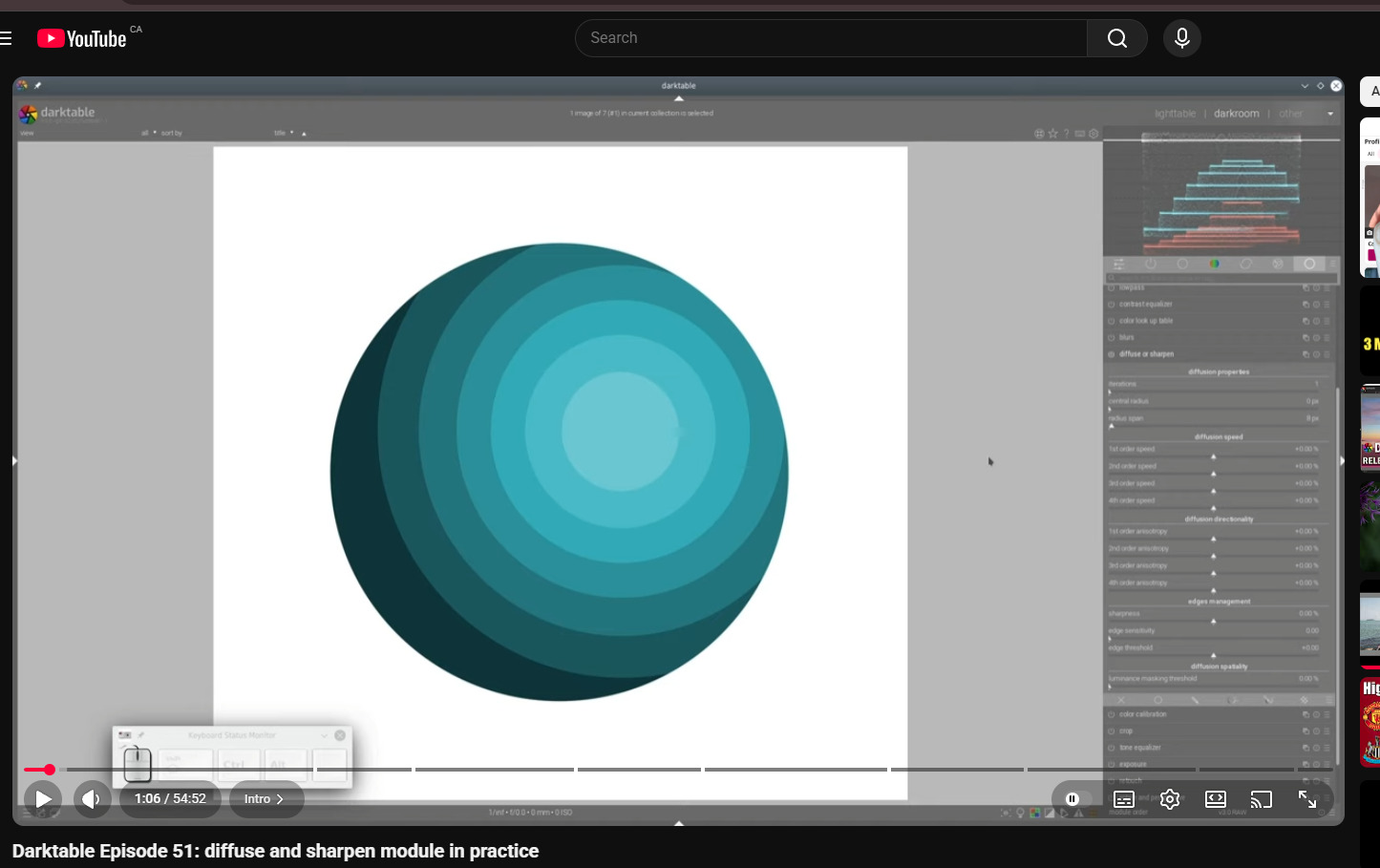
The best online tutorial I have found is a video from Boris: Darktable Episode 51 Similar examples could be shown in the manual, or a written online document linked to the manual.
The manual section on DorS is very good, and documents functionality well, but I think concrete examples would be useful. And sure, along with that some naming changes might be useful.
Perhaps not. But anisotrophy, for instance, is a word to send us non-scientists running for our caves! And far more complex than can be fixed by two minutes with a dictionary.
Yes, I’ve watched Boris’s video. And it is on my to-do list to watch it several more times. Easier labels represent easier entry, but this will remain a challenging module of complex power.
I think that good tutorials and concrete examples in the manual are nice, but they don’t replace a user-friendly UI for a module.
Currently, users have to go watch tutorials or read the manual thoroughly in order to have a hope of understanding how to use DorS. Yes, their are presets, but the point of darktable is to give users the power to completely control their editing pipeline with fine control. Relying on a lot of presets is not congruent with the philosophy of darktable IMO.
Renaming the controls would give users an abstracted foundation from which to start learning the module intuitively.
P.S. If some of the control names I have suggested don’t make sense or seem incorrect, please let me know.
They seem to make sense to me. But I cannot say, as I do not understand the sliders. They are, as I have said, more “friendly.”
I do not understand it but isn’t there a directional aspect to anisotropy that may not be fully expressed in “Edge behaviour?” I’m out of my depth, glug splutter glug glug
Maybe trying doing something with the module with my control names open as a reference and see if you can get an effect on purpose
I think there is, but in my testing, the “anisotropy” sliders seem to control whether the diffuse/sharpen effect at a certain scale mainly targets edges or the “surfaces” near edges. This also agrees with the tooltips as far as I can tell.
Watch Nicolas’s video above he does a nice simple demonstration and also shows that the sliders 1 and 2 are often essentially the same and can be used in an opposing way to control or fine tune the response as can 3 and 4…
DorS is the most frustrating module in Darktable. There, I said it.
I have expressed my feelings on this module many times before, and I know most of my frustration stems from the fact that I simply cannot master it. And I have tried. Lots of times. I have made progress, drawn diagrams, watched videos, researched concepts… And I can obviously use it and appreciate its power. But fully mastering it remains out of my grasp, and I think it’s the only module in Darktable to hold this dubious status.
And yes, I agree that the slider names do not help in the slightest. The module actually borrows concepts from Contrast Equalizer, not that you would know because it doesn’t use any of the same terminology.
So, renaming them to be more understandable would be very welcome. However, I fear getting consensus will be difficult. There is always the “technically accurate vs more intuitive but not accurate” debate, compounded by the fact that no one agrees on what is intuitive. Therefore, “technically accurate” historically tends to win.
My initial thoughts on your proposals are that yes, they give more of an indication of what each slider does. But I’m not convinced by “large forms” etc. As these are based on wavelets, wouldn’t it be better to use similar terminology to Contrast Equalizer and use “coarse details” / “fine details”?
As for others, I’m simply not sure if things like “surface/shadow protection” are technically accurate enough.
In principle though, I am much more of a fan of using concepts that give us a clue about the effect. If “accentuate edges” is technically accurate enough, then I would give it a
“avoid edges” is too obscure for me. I don’t really know what that means.
I am limited to using the presets supplied in the module and presets I have copied from others in the playraw category of this forum. The names of the sliders and their functions are really confusing and if there is a way through renaming or tooltips to better describe their function that would be great.
If each order is a different mathematical function, does that map onto detail scales? Why? (I get that each subsequent derivative can refer to change on a larger scale, but if there are different types of functions at play is that still the case?)
The presets for lens sharpening (iirc) have positive slider values for the odd orders and negative values for the even orders. That implies they are different in kind, not just for a different scale. Unless these presets are “magic” that happens to work rather than being a rational design?
So for the lens deblur they are very similar so what you see is odd orders are sharpening and even is used to moderate any noise created by this. This is why the direction for the even is left at all directions…
The sliders work in pairs with the second being a sort of attenuation or smoothing/fine tuning of the effect by mixing some diffusion with some sharpening…
Interesting questions. Some people have mentioned that for example 2nd order speed can be used to counter balance 1st order speed if you make them opposite (like sharpen for 1st order speed and diffuse for 2nd order speed). But this might just work because they are close enough to each other in scale. You will notice that in the tooltips 1st order and 2nd order both work on low frequencies, and 3rd and 4th order controls work on high frequencies. This is reflected in the control names I chose: 1st and 2nd order become Large and Medium “Forms” and 3rd and 4th orders → small and micro “Details”.
I tend to think that while 1st and 2nd order function might work on the same scale, their respective function might make them effect those scale differently, almost as if the 2nd order function was working on a slightly higher scale. But I am just guessing.
If you check out Nicolas’s video you can see its a bit like thinking of frequency separation for portraits.
The low frequency is the residual image and the HF is the laplacian. He breaks down how the wavelets select the scale and then how the sliders work via the math adding back the rotated gradients x the sliders and how the laplacian of the laplacian essentially a second HF layer derived from the initial HF layer is used in a similar way for order 3 and 4…
If you don’t make any directional change you can blend the module in difference mode and see that the 1/2 and 3/4 slider will oppose or add one another such that 100 for 1st order will be the same as 50 for both, and 50 in each direction will cancel the impact of the change.However from that black screen in difference mode you can now move the direction sliders differentially and see the impact…the combined direction selections will determine the net result because this guides the direction of the adjustment… Having two sliders like this lets you blend direction and magnitude to fine tune the output.
Combining this with Boris’s video especially as he works through this diagram below…it should provide some context…
The test image used at DPReview is nice too. It has brushes yarn text ruler marks and a variety of objects so its a good one to let you focus on real world objects and experiment with the module… for anyone interested…