I have to submit images to a photo group and they sent over specific instructions regarding sizing, color space, etc. They will be projecting images onto a screen, as opposed to viewing on a monitor. I do not know if that matters for the questions I have:
They specify sRGB IEC61966-2.1. A web search suggests this is a version that is commonly used (it appears its what adobe uses?). I assume dt’s “sRGB (web safe)” export profile should be conformant to this. Is that assumption incorrect?
They specify 1920x1200 @ 72dpi. DT exports at 300 in the “in pixels” mode per the manual. This pixls.us thread says that dpi is irrelavant for viewing on a screen, but does a projector make a difference? I can always use exiftools to change the metadata (as shown in that thread), but maybe there is a way to set the “dpi” in dt?
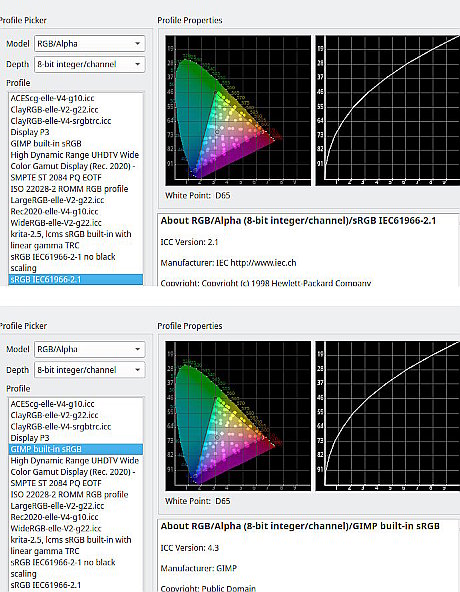
As an aside: I was blissfully unaware of the number of sRGB variants there were. Can someone tell me what dt’s sRGB (websafe) is? Or, if this is a silly question, link me to something which tells me why?
Pardon the pedantry but my understanding is that “ppi” is more correct than “dpi” for those two EXIF tags (assuming that the other tag is set to inches).
The oft-misused “dpi” actually means splodges of printer ink per inch, like my Canon can do a fixed 4000 dpi, IIRC.
I contacted the person in charge and was sent a long FAQ which states:
“software is based on Microsoft PowerPoint software.
PowerPoint (still rooted in the printing world) tries to interpret each image based on printed page size, so it does try to obey the dpi number embedded in your image file. With extreme numbers (such as 4000 dpi from a film scanner), PowerPoint may have difficulty scaling your image to fit the screen, apparently caused by round-off errors. The result would be a slight shift in aspect ratio. To avoid that, please use a dpi number in the “normal” range, say 72dpi or 96dpi. In this range, the exact number will have zero effect on your image display or quality”
300dpi is not extreme, but is significantly higher than 96. I was encouraged to comply with this standard…
So is modifying the embeded dpi setting via exif tool or by bringing the file into GIMP and re-exporting it my best option?
I am having trouble parcing your post. If you are suggesting that I should be able to tell, I would reply that I am not putting this together (just submitting images).
I am tempted to submit at dt’s default and just shrug any issues off. Now that I have been “informed”, though, its harder to plead ignorance if it is brought up.
I mean are they not going to have someone who knows power point put it together? Auto sizing is nice but if something is missized, will they not fix it?
Using Gimp for the size, simple in Image → Scale image. Set the ppi first (1) then either width or height (2) they are linked.
If the aspect ratio is not 1920:1200 , You can “letterbox” or “post” it with Image → Canvas Size Set the required size (3) Center it (4) Set the fill (5) and hit resize.
Yeah that seems kind of odd. Then again:the images I am submitting are for judges to look at, so as to help “sort” me into a correct skill tier for the group. I am sure someone has gotten mad about thier tier assignment and blamed the tech.
I am going to export from darktable in the correct size (pixels), cropping to the correct aspect ratio where desired, and with the correct icc profile. Its just the dpi setting that has to change.
So, if I understand correctly, I import into GIMP without converting (keep existing color profile), use Scale to set the dpi but not change the image dimenstions, and then export as jpg.
I assume GIMP doesnt convert to thier own sRGB on export unless you change the color profile of the image, so I should be good yes?
Btw, the answer you got is incomplete - setting a certain dpi without knowing what is the physical size of the output (print, screen size…) is nonsensical. Out of the 3 (pixels, inches, dpi), you always need to know 2 in advance.
I think you guys are a bit obsessed by the icc profile, however you have the image scaled to 1920x1200 with required color profile.
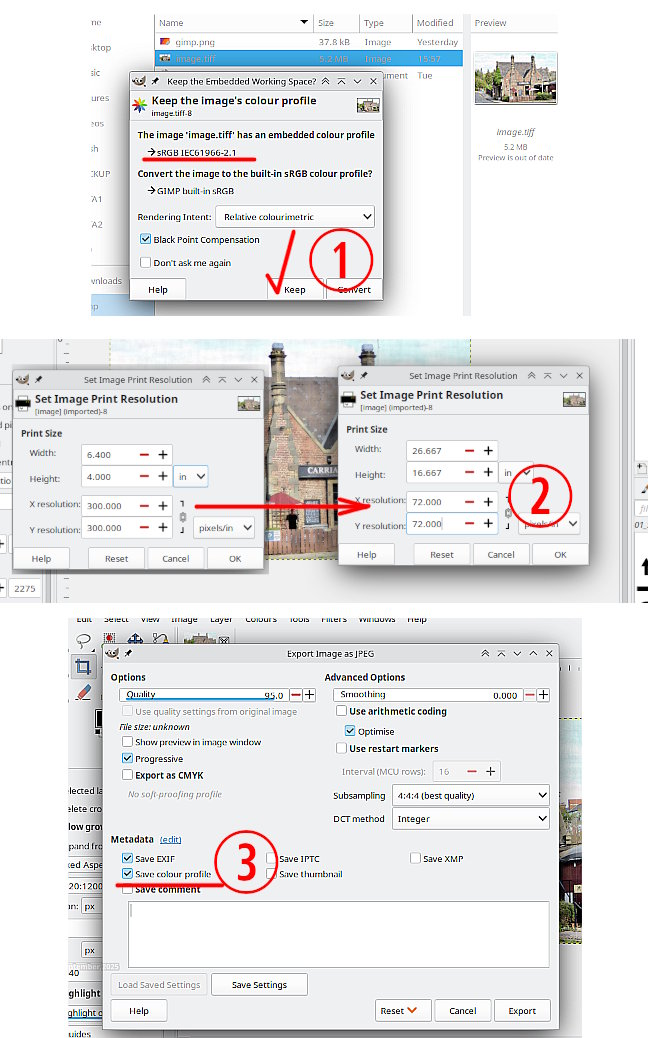
Using Gimp (screenshots are Gimp 3.0.4 - Gimp 2.10 just the same)
(1) You keep the profile that comes with the image.
(2) The place to change the resolution to 72 ppi is Image → Print Size. This does not affect the image pixel size in any way. 72 dpi is just the old resolution for crt monitors - but that is what you require.
(3) Export as a jpeg and check the box for “Save color profile”