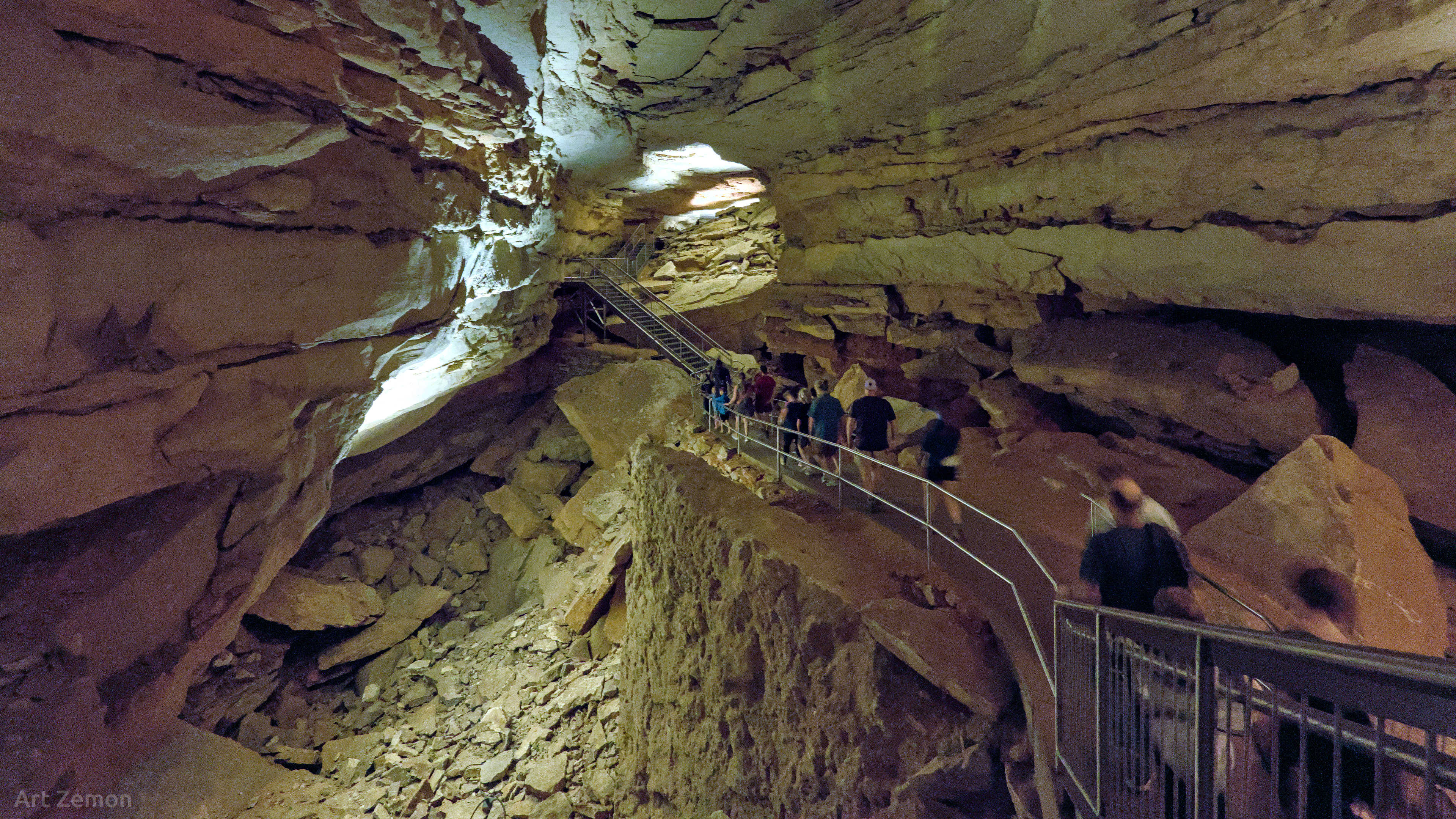
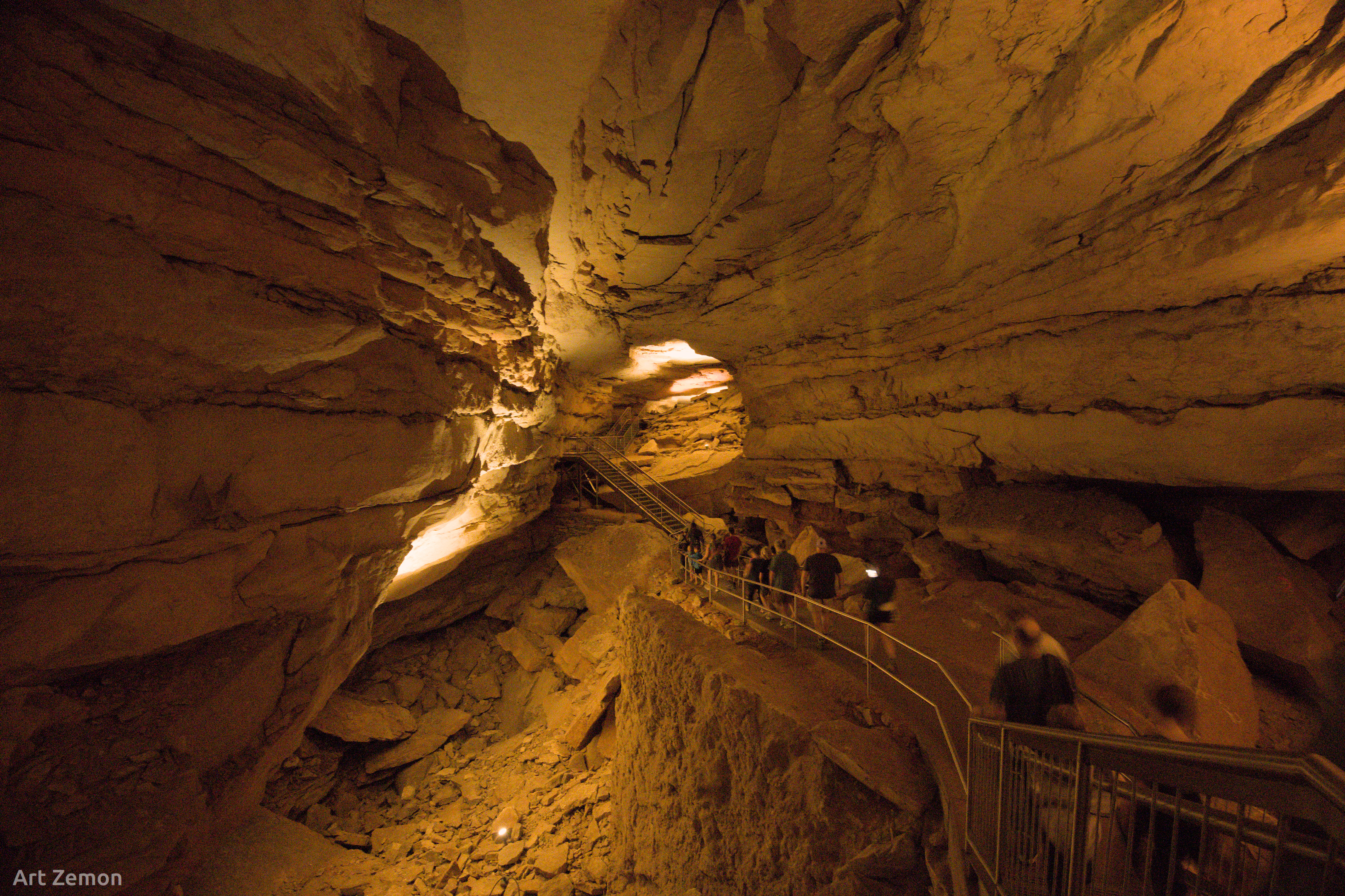
I am using darktable 4.8.0 and editing a raw image with pretty extreme bad lighting, noise, and ISO. I shot this on a cave tour, lots of yellow mood lighting, and ISO 25600.
I am surprised to find a huge color shift when I export with high quality processing set to yes (or if I turn on the high quality processing option in the lighttable bottom bar).
I am just wondering what is going on. I can certainly resolve this by using the same HQ processing setting for both the lighttable/darkroom and for exporting.
Without high quality processing in the darkroom or when exporting a scaled-down image, some scaling is done early in the pipeline, to speed things up. This tends to smoothen out noise. This, and the fact that processing a scaled down image is not the same as scaling down the image processed at full resolution mean the output can be different.
I process a lot of photos in DT and I was surprised for the first time a couple of days ago when processing an image shot pre-dawn at high ISO. The denoise profiled module which I was tweaking gave very different results in terms of magenta-green shift in the shadows depending on high quality processing option. I only realised this on export and then returned to the edit and turned on the high quality processing option to get the desired result. This is the first time I have ever noticed the issue in many thousands of processed images. I am using DT V4.9.
It did make me wish for a more powerful computer to handle the longer processing caused by turning on the high quality processing option.
That’s exactly what happened to me. I have processed a zillion images with DT and only ran across this issue last week while working with images shot inside Mammoth Cave NP at extremely high ISO, which had me using the denoise module for the first time.
Hi Terry, I was pleased when Hanno (developer) planned for including this in version 4.8. As I am using this HQ previewing regularly, together with displaying the 2nd preview window on a separate screen (that one displays also in HQ when turned on in the darkroom), I encountered the opencl processing reaching its mandatory time-out as set in the darktablerc file. On that moment the cpu takes over and the process becomes very lengthy. So you may keep an eye on this and in case you suspect it, generate and screen the logfile as explained in the manual. Marc.
I’ve set that property way higher a long time ago. Basically, it’s a safeguard against broken drivers, that would never return; once you are certain your driver works fine, it’s better raised. Otherwise the timeout, if it occurs, just makes all ‘failing’ operations many times slower.
Hi Istvan, after some tests in 4.7 whereby the time-out still occurred at value 5000 (with HQ mode on and the 2ndary preview on a separate display) I have put it on value 9999 (about 50 seconds ?). That still works fine and the time-out situation does not occur (anymore). (I am using dt on a Windows laptop with a “NVIDIA Geforce RTX 2080 with Max-Q” with 8 GB and always the latest NVIDIA Studio Driver for Windows.)
@kofa@marc.cabuy how do I adjust this timeout. Using the high quality processing is not practical with how my computer is setup. Can you supply a link to the relevant part of the user guide or in some other way help. I never have modified the darktablerc file so this is new territory to me. If relevant I have a windows 11 computer AMD Ryzen 5000 7 series with a Nividia Geforce GTX 1650 CPU. The computer generally functions well and I didn’t have to sell my daughters to buy it, but it is f…king slow when High Quality Processing is activated.
BTW, what is the file 2024-07-17_13-51-21 edit original.jpg? Where does it come from? The other two are exports; your input is a NEF, but what is this large JPG? (BTW: [Friendly reminder] Limit JPEGs to maybe full HD resolution - you could have downsize it in a tool other than darktable, to avoid any processing artefacts potentially added by dt).
As Istvan states, you may indeed first check whether the slow reponse time is due to the mandatory time-out.
The logfile darktable-log.txt sits here: C:\Users\ (username)\AppData\Local\Microsoft\Windows\INetCache\darktable
Delete it or rename it prior to each test, otherwise it just accumulates in the same file.
My preferred way to start darktable with parameters is by creating a .bat file and executing with the following content: @echo off
cd C:\Program Files\darktable\bin
"C:\Program Files\darktable\bin\darktable.exe” -d opencl