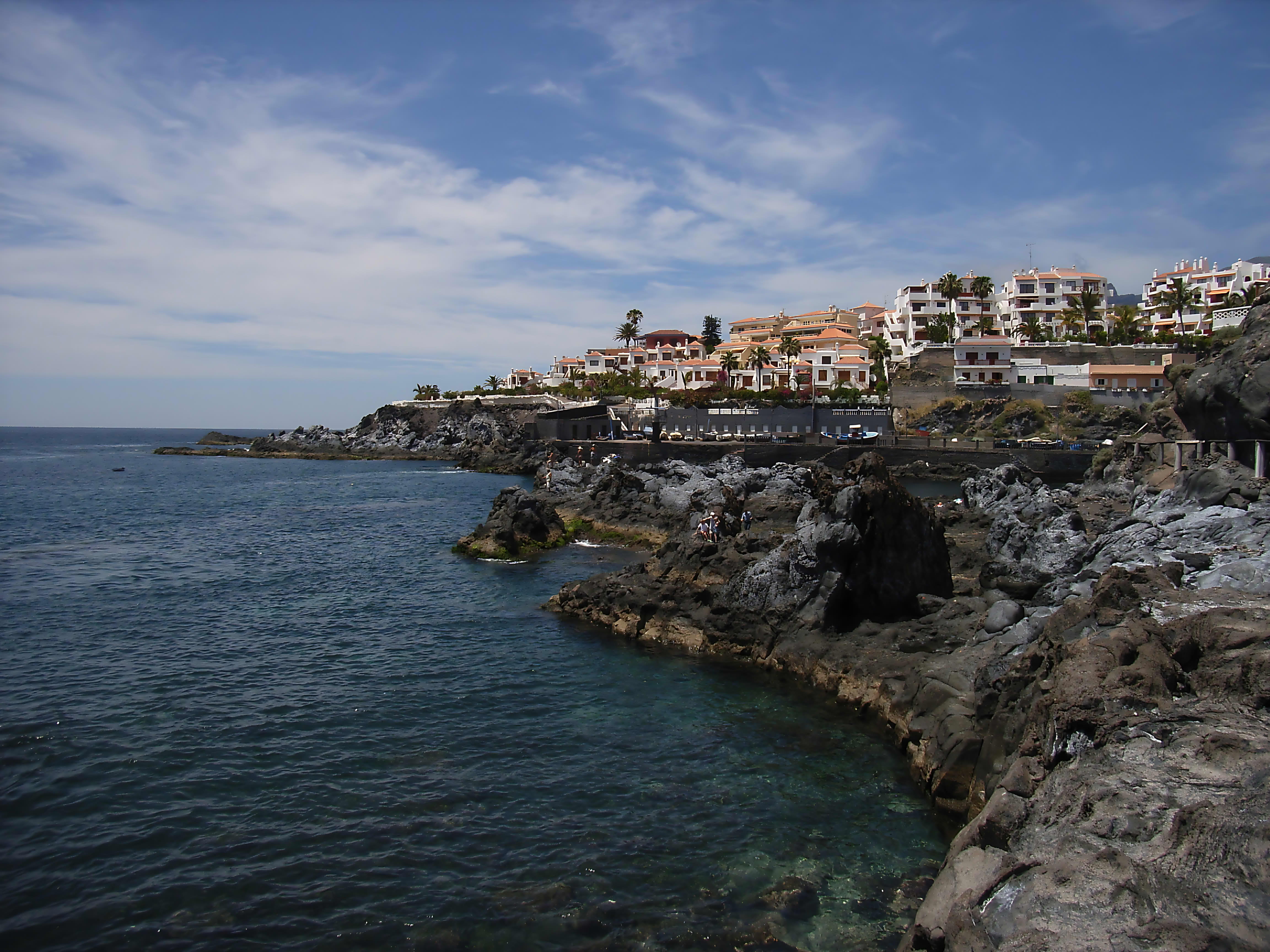
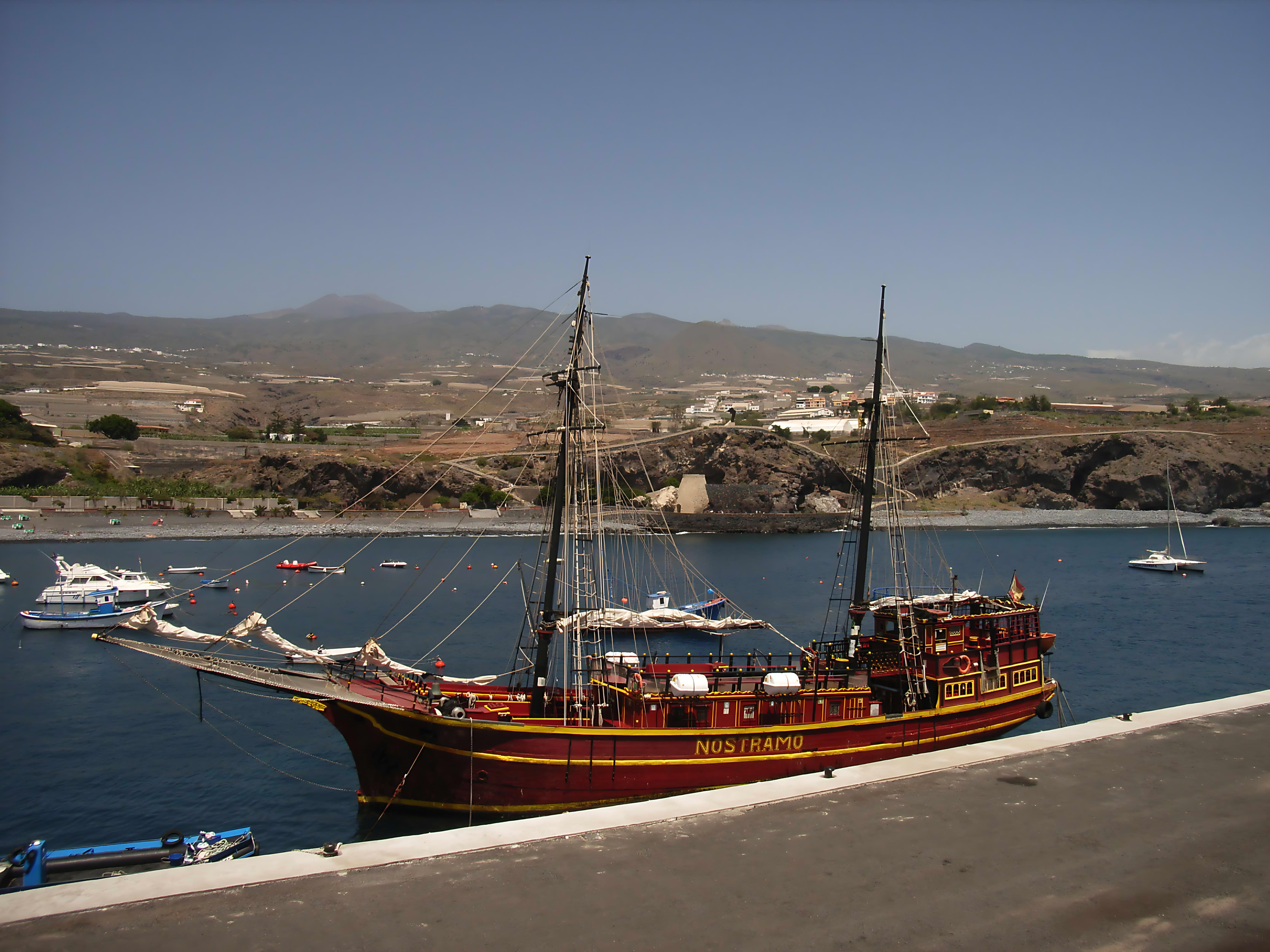
Only GIMP 2.10.38 AI Upscale Scale Factor 2, saving as Jpeg li.
2 Likes
I didn’t know that Gimp can use AI, but you have to pay for it probably or need a subscription or whatever.
Can this be scripted? I mean a command via the command line?
The main pc uses gimp 2.10.36-3ubuntu0.24.04.1, the test pc has 3.0.4-6.1
For sure the village is better than the original, but for my taste too dark, the boat is better.
The idea would be to use the AI-upscale as base for dt
Can you provide the steps you did including the AI registration please.
First I need to understand how to use it and what I have to install. It looks like this is a script. Could you mention the important steps please, so I know what I have to search.
Ahhh sorry, Richardson Lucy sharpening is a filter of Gmic. I use it with Gimp.
2 Likes
I think that for this kind of upscaling I’d try GMIC rather than Darktable. If you have Digikam, its built-in editor Showfoto has a restore option which uses GMIC but you can of course use the full GMIC plugin either in Digikam or Gimp to select various other resizing algorithms.
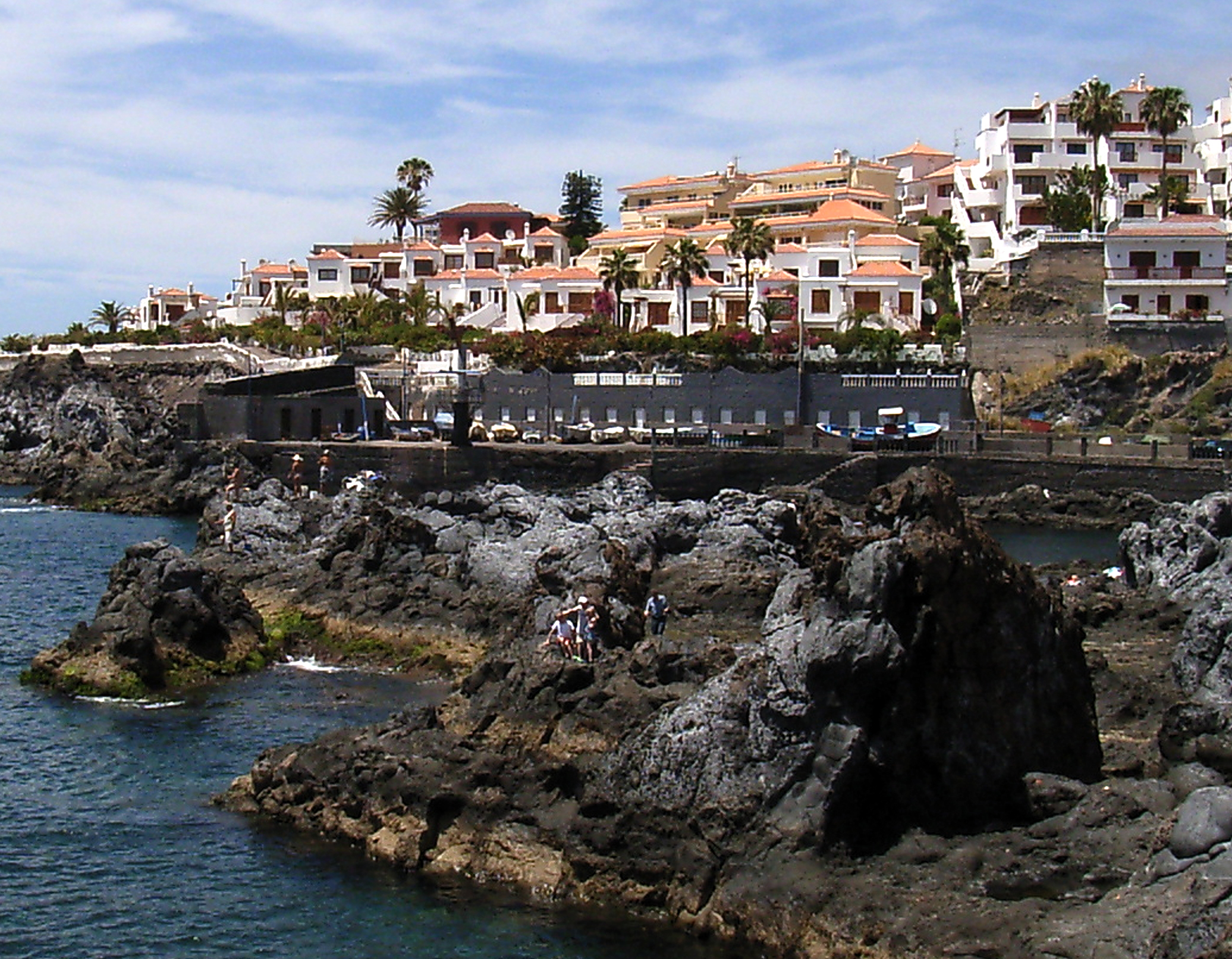
I did this one with the restore option in Digikam but also used the built in color autocorrection. A small crop of the 4608 pixel wide file:
1 Like
I have seen this one mentioned on the forum…I think maybe @kofa has used it… you might give it a try…
At the moment I am lost. Could you please tell me the most imporant steps beginning from the download. Maybe everything is very easy, but I never used this.
It are hundreds, maybe over thousand of photos and I don’t want to upload every photo manually.
I go on with reading, don’t know what to do first. At the end I would like to have control of the result, but starting with AI could be a good idea.
No problem to install it, I use Ubuntu 24.04 normally, and 25.10 with an experimental pc.
As already said, I need some kind of batch-uploading. Assuming 100 photos at once are enough, but there could be some workaround with less files.
Sorry, I don’t do AI at all. I meant GMIC either on its own (scripted) or as a plugin to Digikam or Gimp. Your nick says “linuxuser” so I have to assume you’ll find all of relevant downloads in the package manager of whatever distro you are using.
Digikam has a batch processor built-in.
1 Like
The problem is, that I thought it is plugin for a program, which has to be installed manually
I have installed:
dpkg -l | grep gmic
ii gimp-gmic 2.9.4-4build11 amd64 GREYC’s Magic for Image Computing - GIMP Plugin
ii gmic 2.9.4-4build11 amd64 GREYC’s Magic for Image Computing
ii libgmic1:amd64 2.9.4-4build11 amd64 GREYC’s Magic for Image Computing - shared library
If a newer version is important I have to check my experimental pc.
Maybe anyone can post a command for the terminal to upscale an image (as a beginning)
I am going on to read manpages.
If you fire up the GMIC Gimp plugin, it has an option in the right top to copy the GMIC command to your clipboard. Example with oe of the resizing options (there are more):
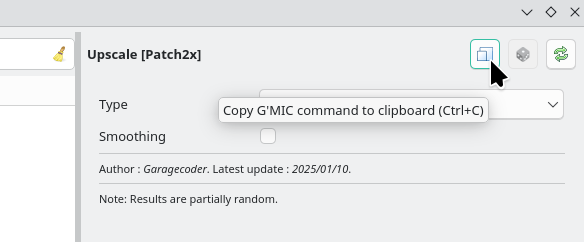
Puts the following command in your clipboard which you can then use in a bash script:
fx_gcd_upscale_patch2x 0,0
You would then use it something like:
gmic -i $FILE-in -fx_gcd_upscale_patch2x 0,0 -o $FILE-out
With your bash script iterating over the input files which I suppose could be all in a folder or found with the find command.
But, to be honest, it may just be easier to create a queue in Digikam and have it processed with the transform command with [Restore]
1 Like
Thanks a lot, this helps very much.
I have a bash-script for preparation already, it renames the file, corrects missing exif.data, etc. I think it should be not so difficult to insert a line with the gmic-command somewhere.
1 Like
$ gmic -i tenerife1.jpg -fx_gcd_upscale_patch2x 0,0 -o tenerife1.upscale.jpg
[gmic]-0./ Start G'MIC interpreter.
[gmic]-0./ Input file 'tenerife1.jpg' at position 0 (1 image 2304x1728x1x3).
[gmic]-1./ Input file '-fx_gcd_upscale_patch2x' at position 1
[gmic]-1./ *** Error *** Unknown command or filename '-fx_gcd_upscale_patch2x'.
Maybe I need gmic 3. I donÄt believe my graphics adapter is the problem.
The main-pc uses gmic 2.9.4-4build11
Looks like there is no newer version with Ubuntu 25.10
$ apt search gmic
gmic/questing 2.9.4-4.1build1 amd64
GREYC’s Magic for Image Computing
gmic-zart/questing 2.9.4-4.1build1 amd64
GREYC’s Magic for Image Computing - ZArt
krita-gmic/questing 2.9.4-4.1build1 amd64
GREYC’s Magic for Image Computing - Helper Tool for Krita
libgmic-dev/questing 2.9.4-4.1build1 amd64
GREYC’s Magic for Image Computing - development files
libgmic1/questing,now 2.9.4-4.1build1 amd64 [Installiert,automatisch]
GREYC’s Magic for Image Computing - shared library
Conversely the artifacts were there in the jpg to start with.
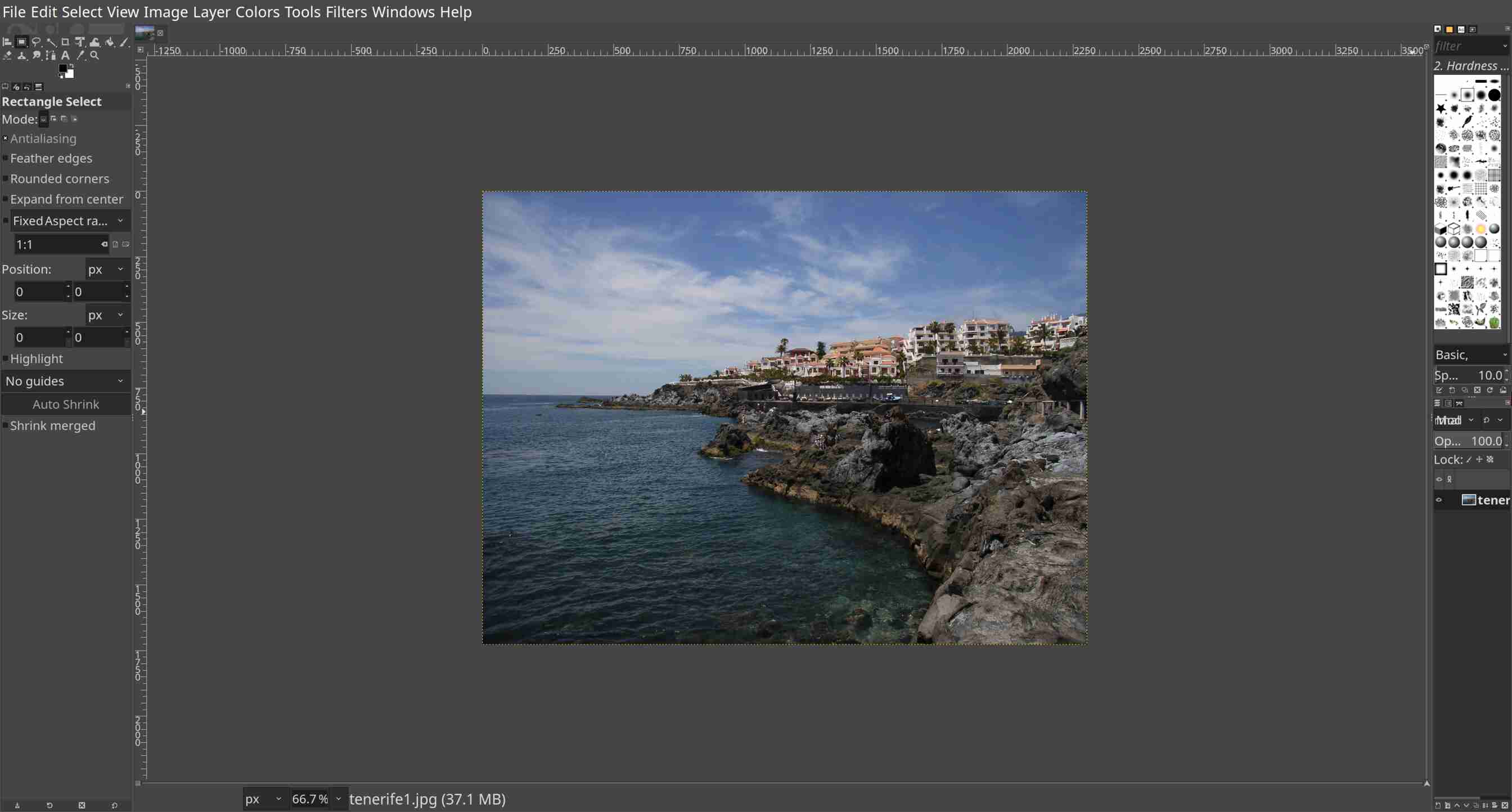
I used flatpak now and installed gimp3
Gimp2 is installed too and gmic2 as deb was removed.
flatpak install org.gimp.GIMP
flatpak install flathub org.gimp.GIMP.Plugin.GMic
Now it looks better:
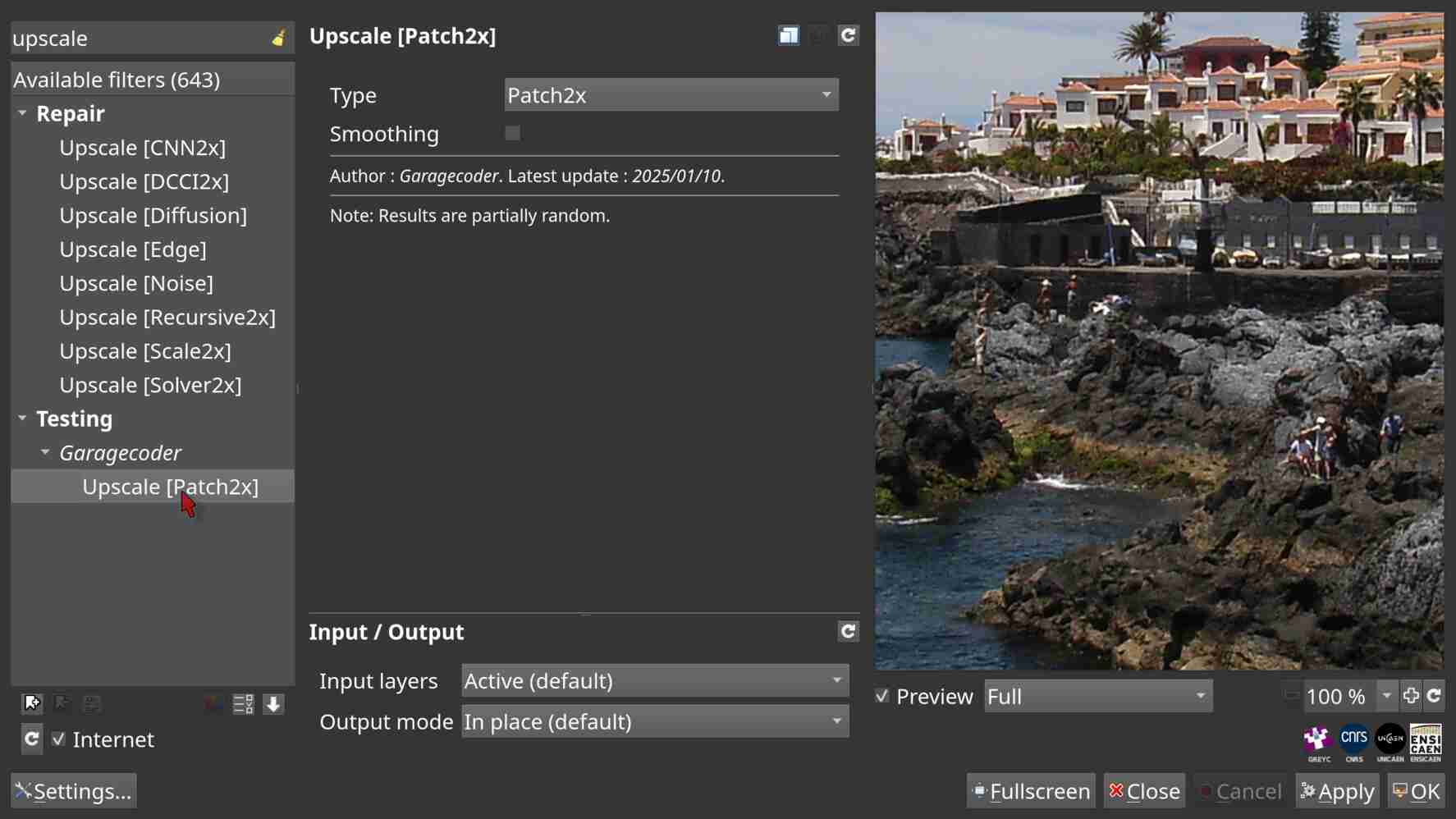
But I still don’t see a command. It looks like gmic is not in the path because of the flatpak installaton or even not installed as version 3.
ls -1 /var/lib/flatpak/runtime/ | grep -i gmic
org.gimp.GIMP.Plugin.GMic
I don’t know if there is gmic from flatpak, which is version 3.
# flatpak search gmic
Name       Beschreibung                           Anwendungskennung             Version     Zweig      Gegenstellen
G'MIC      GREYC's Magic for Image Computing      org.gimp.GIMP.Plugin.GMic     3.6.6       3          flathub
G'MIC      GREYC's Magic for Image Computing      org.gimp.GIMP.Plugin.GMic     3.5.2       2-40       flathub
G'MIC      GREYC's Magic for Image Computing      org.gimp.GIMP.Plugin.GMic     2.9.6       2-3.36     flathub
Looks like there is a plugin only.
I downloaded it from G'MIC - GREYC's Magic for Image Computing: A Full-Featured Open-Source Framework for Image Processing - Download, but then I have no idea how to install it. The download is gmic_gimp_qt
I have now:
dpkg -l | grep gmic
ii gmic 3.7.0 amd64 GREYC’s Magic for Image Computing
I downloaded:
https://gmic.eu/get_file.php?file=prerelease/gmic_ubuntu24-04_noble_amd64.deb
$ gmic -i tenerife1.jpg -fx_gcd_upscale_patch2x 0,0 -o tenerife1.upscale.jpg

[gmic]./ Start G'MIC interpreter (v.3.7.0).
[gmic]./ Input file 'tenerife1.jpg' at position 0 (1 image 2304x1728x1x3).
[gmic]./ Output image [0] as jpg file 'tenerife1.upscale.jpg', with quality 100% (1 image 4608x3456x1x3).
[gmic]./ End G'MIC interpreter.
So the command works. If I compare with a standard “convert resize” I see no difference using an UHD-monitor. According to the IM-manpage “resize” is not the best option for upscaling.
I was searching for 3 icons like in your screenshot. I have 2 only. See red mouse arrow.
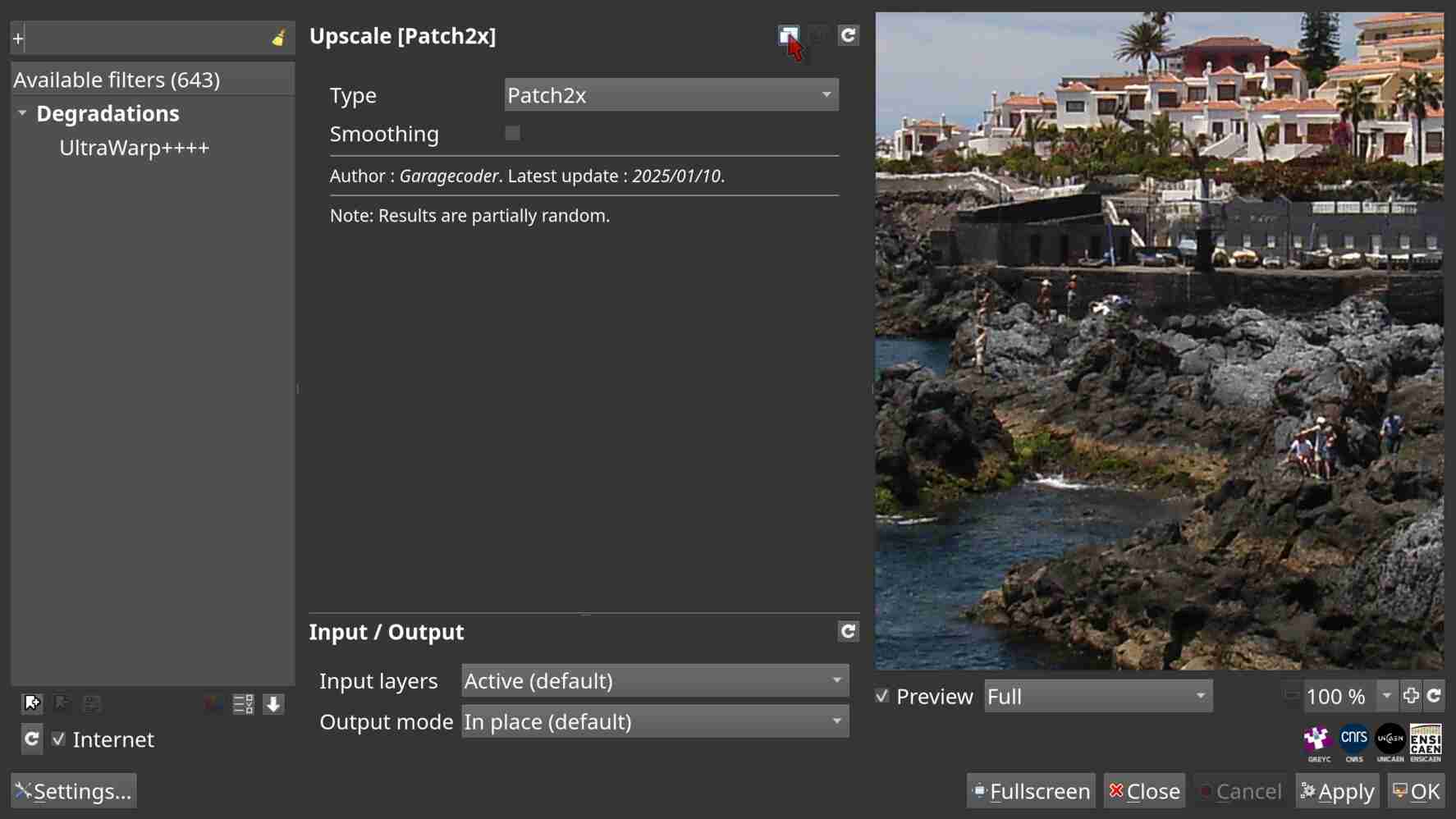
It is easy, simpy check the clipboard, if there is something. 
I am closer to an upscaled base-file for dt, but I am still unsure which is the best solution. I am sure the upscaling must be scriptable. It is with gmic and IM.
I found this discussion here:
So the question for me is, which is the best upscaler with gmic for my photos.
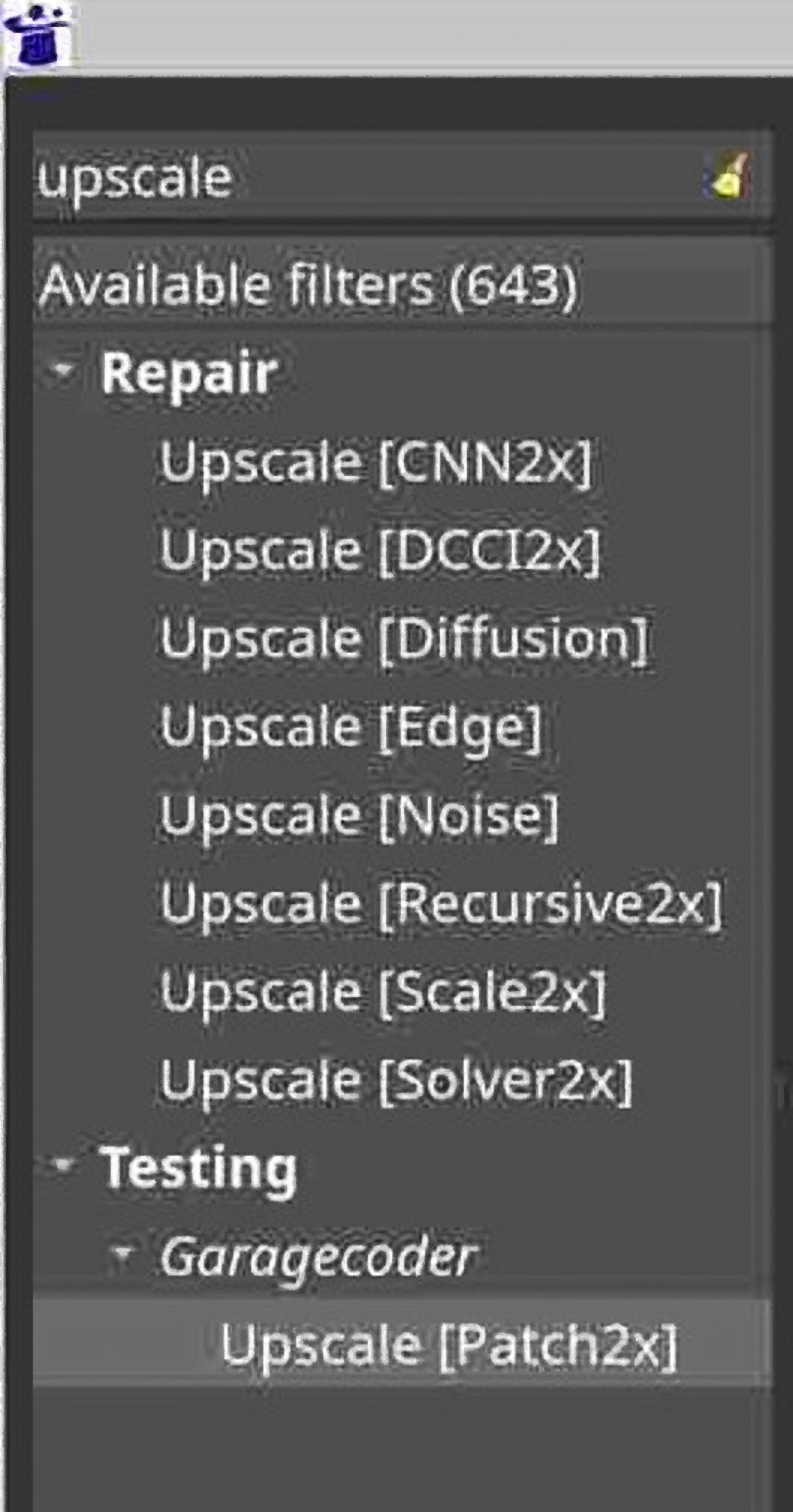
The screenshot was upscaled like this (4x):
gmic -i upscaler.jpg -fx_gcd_upscale_patch2x 2,0 -o gmic-upscaler.jpg
Do I understand it correctly, the only option for upscaling from Garagecoder is smoothing?
fx_gcd_upscale_patch2x 2,1
What is the difference between “patch” and “tile”. A link to a documentation would be very helpful. F1