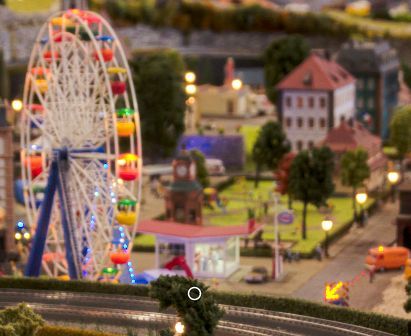
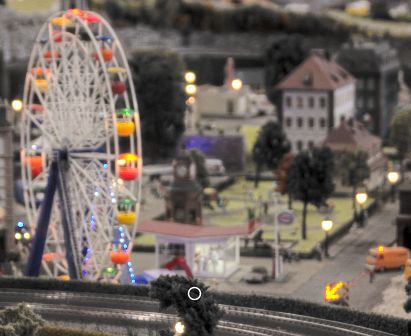
I changed this default value to 0 (local contrast) and also in Jz
Similarly, I changed ‘Invert color’ from ‘true’ to ‘false’ (does not offer color inversion by default).
I also made the changes suggested by Copilot (comments, duplicate…).
The new executables are currently being developed.
@pkr1979
Note that I made these modifications ‘blindly,’ as I didn’t have a negative image to test with, and I didn’t know the (subjective) result I wanted to achieve.
Of course, I’m not using ‘levels’ (which seem problematic in linear mode), but the gamma and slope functions. Which is essentially on the principle the same thing - except that the names are different, depending on the distribution of R, G, and B values based on the equivalent luminance.
The ‘Invert color’ function is actually a function of the same type as ‘RGB curves’ by inverting the curves, but it’s done in one click (as you wanted).
I’ve been fiddling with this a little bit, but I always find that the attenuation is too strong. Perhaps we’re supposed to bump highlights up a bit again via the tone curve or something? Or it’s just my examples that were not ideal for that – perhaps this is just for very hardcore highlights, not just for overly bright flower edges.
Regarding abstract profiles as a whole (well… I feel that I’m using it in a fairly basic way, but still), I’ve been enjoying the feature quite a bit with a few pictures these last few days. But instead of using it to replace other tools and make my workflow faster, I just inserted it and now spend longer on each picture (kinda like when I discovered CAM16 stuff) albeit with more reasonable and efficient values in “Exposure” and “Contrast by detail levels”, and I can get a better “base” upon which to build my tone curve customizations.
Edit: I had completely forgotten that RT had a “Favorites” feature. Just made myself a nice little selection of the stuff I use at the very end for last-minute adjustments (mostly to balance out the effects of tone mapping…), and added Color Management for good measure.
The branch discussed in this thread (cam16slope) has a slider to control attenuation. Personally I still often use Tone Curve to bring things to where I want them to be. Tone EQ would be another choice to brighten highlights if required.
The gamma, slope, midtone sliders can do a lot but doesn’t bring the control of a curve for my skill level.
In my experience the midtone slider is quite dangerous. It can create a look similar to the dreaded “salmon fire” look. But used carefully whilst being mindful of that side effect it’s quite useful.
Oh that’s cool. Hope it’ll become standard at some point. (I’ll stick to my “normal” 5.12 for now to ensure my .pp3-s are correctly interpreted by standard releases. And also because I’m a bit too lazy and scared to try dev versions.)
I tried again on another, more clipped picture and could get something acceptable by bumping the gamma a bit in coordination with attenuation, plus the rest of the basic “Exposure” sliders and a bit of “Shadows / Highlights”.
Wait wat I DuckDuckGo-ed “salmon fire look photo” and just got pictures of… burning pieces of salmon.
I think that so far I have remained in the -5–5 interval regarding midtones. Dunno if that counts as “mindful”. The result looked normal enough.
My experience is similar. I find that the Abstract Profile is great for doing the final tweaking once I’ve got everything more or less in the right ballpark in the Exposure tab.
I just changed the location of the midtones action in the process. Whether it’s for Abstract Profile or Selective Editing > Color Appearance (Cam16 & JzCzHz)
Do you see a difference?
Executables in progress (wait for them to be done, look at the date and time) Cam16slope
It’s a sort of “meme” from this site that refers to how primarily filmic tends/tended to produce salmon coloured fires and skin. One you know it you can identify it.
I’m not knowledgeable enough to know the maths/theory beind it but it now seems to be a known issue discussed beyond this site. Some tricky thing about hue preservation and human vision I believe.
I do it the other way around. Colour appearance or abstract profile to get everything in the ballpark and then the curve to nudge it where I want it.
Nice I’ll have a look. It’s quite a difficult one to be sure about I’ll need to process quite a few images to know.
Exposure compensation (generally remaining in -0.30–0.30) + black.
Abstract profile.
Lightness + contrast.
Tone curve.
(With “Shadows / Highlights” sprinkled a bit randomly in the middle.)
As for CAM16, I do that between “Details” and “Colours”, but generally aim for a subtle – often almost unnoticeable – change in that regard.
I also started tweaking the abstract profile a little bit when I feel that tone mapping (which I activate at the very end) disrupts the balance between a subject and the background, or stuff like that. If I understood the initial post correctly, the abstract profile is applied late in the pipeline, so I assume that tweaking it a little bit would not invalidate my other choices too much.
that’s why I quite like using it for final tweaking along with Color Appearance and Lighting in the Advanced tab (it comes just after Abstract Profile if I understand correctly). I’ve tried goodness knows how many combinations of tools to see which works best for me and seem to have settled on that approach (at least for the moment ). The big plus using the Abstract Profile for me is being able to push the highlights without introducing further clipping. Prior to adopting that approach my edits were invariably a bit dull probably because I got too hung up about clipping.
Following @nosle Nosle’s comments about midtones, I tried to provide a testable answer.
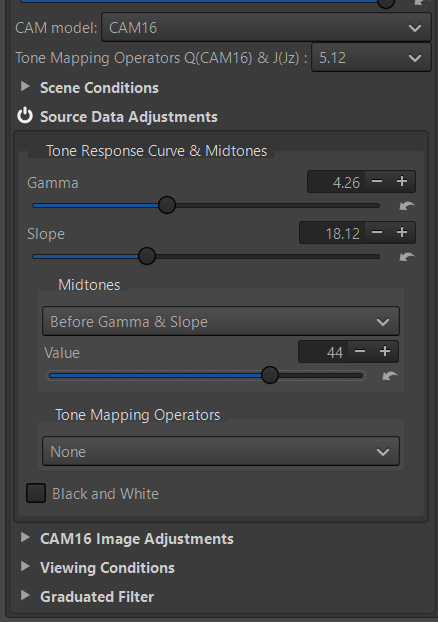
To simplify my work, I only made the following modification in: Selective Editing > Color Appearance (CAM16 & JzCzHz) > Source Data Adjustments (and not in Abstract Profile, but no problem applying the best choice(s) afterwards)
I added a method for Midtones that allows the user to make three choices:
Before Gamma & Slope (of course, before CAM16)
After Gamma & Slope (of course, before CAM16), which was the initial selection until about a month ago
After CAM16 - so after all CIECAM processing, and therefore, of course, after Gamma & Slope
This ‘black and white’ option allows you to better adjust all the sliders (gamma, slope) and especially the “Tone mapping operators”, particularly for controlling low and high lights, because on the histogram you only see the resulting luminance. This request is totally justified for me. It is not aimed at obtaining a pure black and white image. Perhaps a tooltip is needed?
it is only really operational in Global mode or by setting Scope to 100
So this should be used while adjusting the sliders and, once finished, b&w should be unchecked?
Ah, setting Scope to 100 gives a b&w picture indeed! Works as well in mode Full image and Scope=100, the image turns 100% b&w, saving the photo gives a b&w image as well.
A tooltip for the b&w option could be “Set scope to 100” or something like that.
I just added a ‘thing’ that adjusts saturation based on variations in RGB equivalent luminance between before gamma/slope and after gamma/slope (pixel by pixel). This is in addition to the device already provided for any ICC profile (abstract profile is one) which globally compensates for saturation, when we change the TRC, ic we change pixel by pixel.
This doesn’t matter if gamma=2.4 and slope=12.92 - the reference situation.
These changes are made for with a checkbox “Saturation”:
in Selective Editing > Color appearance (Cam 16 & JzCzHz) > Source Data Adjustments.
in Color > Color Management > Abstract Profile
Executables (with probably the same problem for windows): Text cam16slope
 Or it’s just my examples that were not ideal for that – perhaps this is just for very hardcore highlights, not just for overly bright flower edges.
 albeit with more reasonable and efficient values in “Exposure” and “Contrast by detail levels”, and I can get a better “base” upon which to build my tone curve customizations.
 ). The big plus using the Abstract Profile for me is being able to push the highlights without introducing further clipping. Prior to adopting that approach my edits were invariably a bit dull probably because I got too hung up about clipping.