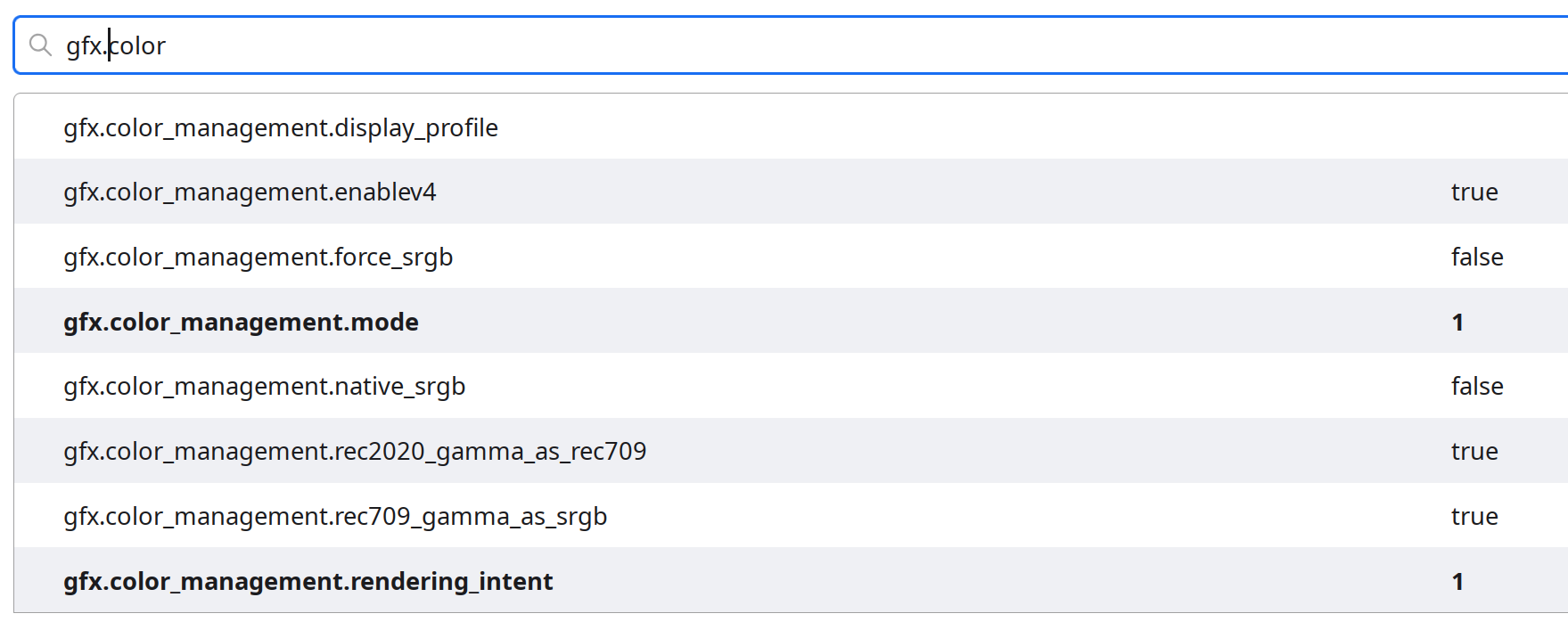
I’ve tried these in Firefox, and, according to them, my browser’s settings provide correct colour management:
https://displaycal.net/icc-color-management-test/
https://www.wide-gamut.com/test
I’ve tried these in Firefox, and, according to them, my browser’s settings provide correct colour management:
https://displaycal.net/icc-color-management-test/
https://www.wide-gamut.com/test
Thanks. Well, tried creating and filling up ~/.config/RawTherapee-AppImage/iccprofiles/output/, but nothing. Even if I set this directory explicitly as the one for profiles in RT’s settings (instead of /usr/share/color/icc/).  But not really an issue now that I get the impression that RT’s default profile is fairly reliable.
Oddly enough, it seems that the strange GDK profile was copied into ~/.config/RawTherapee-AppImage/ when I did my tests earlier. I therefore also tried placing the color dot org profile alongside it, but nope. 
Ah okay I am not qualified to help you but I think there is some nuance to color management and some other issue when you use appimages…
You might try to build RT at some point and see if it behaves in a more predictable way…
Or the clever folks here might be able to share any appimage gotcha’s… for potential configuration issues…
Yeah, I’m especially afraid of stuff like the chosen profile not being found when running the CLI’s binary from the extracted version of the AppImage. Stuff like that. Won’t try to fiddle with that right now. 
Well, anyway:  Now that my worries are mostly cleared, I could publish this:
Thanks again to all of you.
To correctly display an image, an application needs to (1) correctly interpret the colors in the image file and (2) give the correct RGB values to the monitor.
You already know each pixel is expressed with three values representing red, green, and blue, but what exactly is red? What exactly is green? What exactly is blue? That’s where the profile in the image file comes in. The profile defines the precise meaning of red, green, and blue. Without a profile, an application can only guess how to interpret the colors.
Some applications have poor or non-existent support for reading color profiles. Typically, such applications will interpret the image as sRGB regardless of what profile is actually embedded in the file. It is problematic because the applications may misinterpret the colors. A common example is when an application attempts to read an image containing a profile with a wide gamut (Adobe RGB, Rec. 2020, or even ProPhoto). When interpreted with the smaller sRGB gamut, images appear less saturated. You say that when viewing an image with the Rec. 2020 profile, “the colors are very subdued in my image viewer”. That, unfortunately, indicates Ristretto lacks the ability to read the embedded profile.
TLDR: The embedded profile is essential for applications to correctly interpret the colors. Some applications lack support for using the embedded profile, which typically means they can only be used for sRGB images.
Each pixel in a monitor is comprised of 3 sub-pixels displaying the red, green, and blue components of the pixel. The exact variation of red, green, and blue is dependent on the model. There are even slight variations between monitors of the same model.
To display the correct colors, something must be responsible for adjusting the RGB values of an image so that they “play well” with the RGB characteristics of the monitor. Usually, it is done either by the individual applications, or by the operating system. If done by the applications, the operating system must not touch the colors. If done by the operating system, the applications need to supply the image RGB values to the operating system in an agreed-upon color space.
Based on the fact that changing the monitor profile in your operating system settings does not affect the entire system, I’m guessing you do not have operating system level color management for your monitors. The responsibility falls on the applications. RawTherapee and Firefox are detecting your laptop’s built-in monitor’s profile.
The default Firefox settings and RawTherapee with the system default profile enabled allows both applications to correctly display color when viewed from your laptop’s monitor. However, colors will appear incorrect on your external monitor! For correct colors on your external monitor, you’ll need to find the profile for that monitor. It might turn out that it expects sRGB. If that’s the case, setting RawTherapee’s display profile to “None” or one of the sRGB profiles is correct, and enabling Firefox’s native sRGB option is correct. If there is a non-sRGB profile for your monitor, you should set that in your operating system so that RawTherapee and Firefox can see it. Then, tell RawTherapee to use the system default profile and reset the Firefox setting to the default value (disable the native sRGB option).
As for why the profile-less image makes Firefox agree with the other applications, my guess is that in this scenario, Firefox sends the RGB values straight to the operating system. The image was originally encoded in sRGB, so Firefox sends the sRGB values, just like the other applications.
TLDR: Find the profile your external monitor expects (if it is not sRGB) and use that profile in your operating system and applications.
There is only one sRGB, but there are many different sRGB profiles out there. Most only deviate from the true sRGB by a tiny amount, too small to be noticeable. Elle Stone wrote an excellent article about this. You can read it here:
What an excellent link and so clearly written as is usual for her.
I liked: It would be nice if all the software packages that we use would agree on just one sRGB profile. It would be nice if that one sRGB profile were color-balanced and normalized. However, it is not likely that the various open source and proprietary software developers are ever going to agree on “one” sRGB color space profile. (By the way, if you dig around, you’ll find multiple variants of all the standard working spaces; the proliferation of profile variants is not confined to sRGB.)
Thanks for popping up and for this clean explanation. 
Interesting. I would have naïvely thought that it was just because I was using a sRGB monitor, but indeed, GIMP succeeds in opening the Rec. 2020 version while producing something that looks like the other versions, regardless of whether I choose to “Keep” or to “Convert” the profile.
I dunno, I assumed that the presence, out-of-the-box, of “Color profile” settings on Ubuntu / Xubuntu meant that there was some kind of management available, but perhaps it’s a weird thing like “Only GTK-based apps can benefit from it” or whatever.  But then, if that were the case, I’d expect at least to see stuff like my desktop wallpaper to show some change when toggling the profile. Weird…
Frankly, I wonder if that odd built-in profile that popped up seemingly out of nowhere makes sense at all. Colors on my internal and external monitor look similar enough (for my use-cases) without enabling that weird profile. Enabling it just seems to (in FF and when using it as a work profile in RT) skew colors towards red-ish tones instead of narrowing a potential “appearance gap” between the two monitors. Colors get skewed the same way on both monitors, to they still look similar to each other but both become odd.  Hardly a benefit in my book. So maybe the mysterious profile is wrong-ish. Dunno.
OK, I already half-guessed the first part, but then I’ll also toggle Firefox’s setting just in case, even if just disabling the potentially wrong system profile seemed to prevent Firefox from reddening stuff.
Thanks; bookmarked (need to get some work done right now  ).
).
Interestingly enough, the other day I was looking for a way to determine, in my slideshow-generating Bash scripts, which of my pictures had been taken with the HDR PQ mode (in order to label them as such in the descriptive text). It turned out that one nice way to do that (at least in my case) was to look into the color-space related metadata fields of the raw: “normal” ones show “sRGB”, while HDR PQ ones state “Uncalibrated” (or “n/a” depending on the selected output format), apparently because that’s a way for them to retain a wider range.
Gemini said that the actual color space for HDR PQ was probably BT.2020 but I saw no explicit mention of it in the data. Perhaps that was the meaning of the (65535) value found in Exif.Canon.ColorSpace (different from Exif.Photo.ColorSpace):
exiv2 -pa ./*.CR3 |
        awk '$2 == "Exif.Photo.ColorSpace" { print $NF }' |
        sort | uniq -c
     20 sRGB
      5 Uncalibrated
(It gets a bit weirder after the RT export, though: the resulting JPGs show no such tag in the exiv2 output anymore, and the more basic exif tool pretends that they are all uncalibrated, but I don’t pay those details much attention as long as the profile is correctly embedded. But basically, performing the analysis on the raw is a better idea. )
I think the color management that Lawrence is speaking about is the process of getting a (potentially expensive) color calibrator (Spyder, Colormonki, etc.,) to generate a specific color profile for your monitor (a profile for a certain color space with the lease deltaE that is under the lighting condition of the calibration, for the monitor’s current brightness setting) and using this profile system wide. I would not trust any out-of-box color profile and certainly not use them in any case, due to the fact that there are no 2 same monitor panels in the world. It’s fortunate that your profile didn’t do anything funny to your color.
Those settings only tell applications what the monitor profiles are. On other systems, the operating system uses those profiles to perform the color correction and tells applications to use some standard profile like sRGB. If your desktop environment allows it, you can experience the difference when flipping between X11 and Wayland. I use KDE Plasma. On X11, the system settings behave like yours. I can set the monitor profile and RawTherapee is able to use it. On Wayland, the profile is applied system-wide. RawTherapee does not see any profiles.
That’s strange. I hope that doesn’t mean both your monitors need profiles. All your edited images have the wrong color if that’s the case!
Yes and no. Creating a profile from a calibrator is the best option for accurate colors, but monitors usually have a default profile that gets colors “in the ballpark”. My laptop’s display has <60% sRGB coverage. Without a profile, sRGB colors values are used directly by the display which makes everything look muted. With the default profile, colors look much more accurate.
Thanks for the extra inputs.
Interesting. Indeed, XFCE (used by Xubuntu) has not migrated to Wayland yet (and does not seem too keen on doing so AFAIK, even if there’s talk and tests about it).
I hope not as well, but they look basically the same on my older laptop. But…
… maybe I’m just too used to muted colors? But the way the built-in profile seems to skew stuff towards red-orange, and the fact that some Firefox users observe the same thing and find it as weird as I do, tend to make me think that my eyes are not deceiving me.
Woops, I wrote my explanation blurb for Ardèche (France), 14–17 July 2025 in such a rush (had to catch a train) that I forgot to tell people to warn me if colors seemed oddly warm to them. I’ll maybe add it now but it’s a bit late for that now.  And it’s already so long that I doubt people read the whole thing.
Sadly (or funnily) enough, it’s on my Fairphone 3+ that my pics look the best. And it seems to be somewhere between my laptop’s “with-profile” and “without-profile” versions. It has a (naturally?) higher contrast so it’s hard to tell for sure. I don’t know what to think.
Gemini says that the default profile I see is generated by colord “by reading the monitor’s EDID (Extended Display Identification Data)”. Apparently, this is generally far from perfect but should not be utterly wrong either… but can bring an odd warm or cold tint too in some cases. It also considers that since my external monitor is an IPS monitor, I should be able to trust it more that the built-in one, even with the auto-generated profile. 
Also, this is apparently a known limitation of Firefox on Linux that it uses the laptop’s built-in screen profile even on external monitors.
Perhaps I should start considering calibration, but the “potentially expensive” part makes me wonder if it’s worth it at my level. I mean, my edits do not look terribly off to me no matter the device I check them on, and I don’t do that for a living. And I guess that even if I have to print stuff in years and if RawTherapee (God forbid!!) dies, it is possible to do soft-proofing to some extent from the 16-bit PNGs I intend to back up. (And I haven’t looked for a way to use the resulting profile as a working profile for RT with the AppImage version, but I suppose there’s a way.)