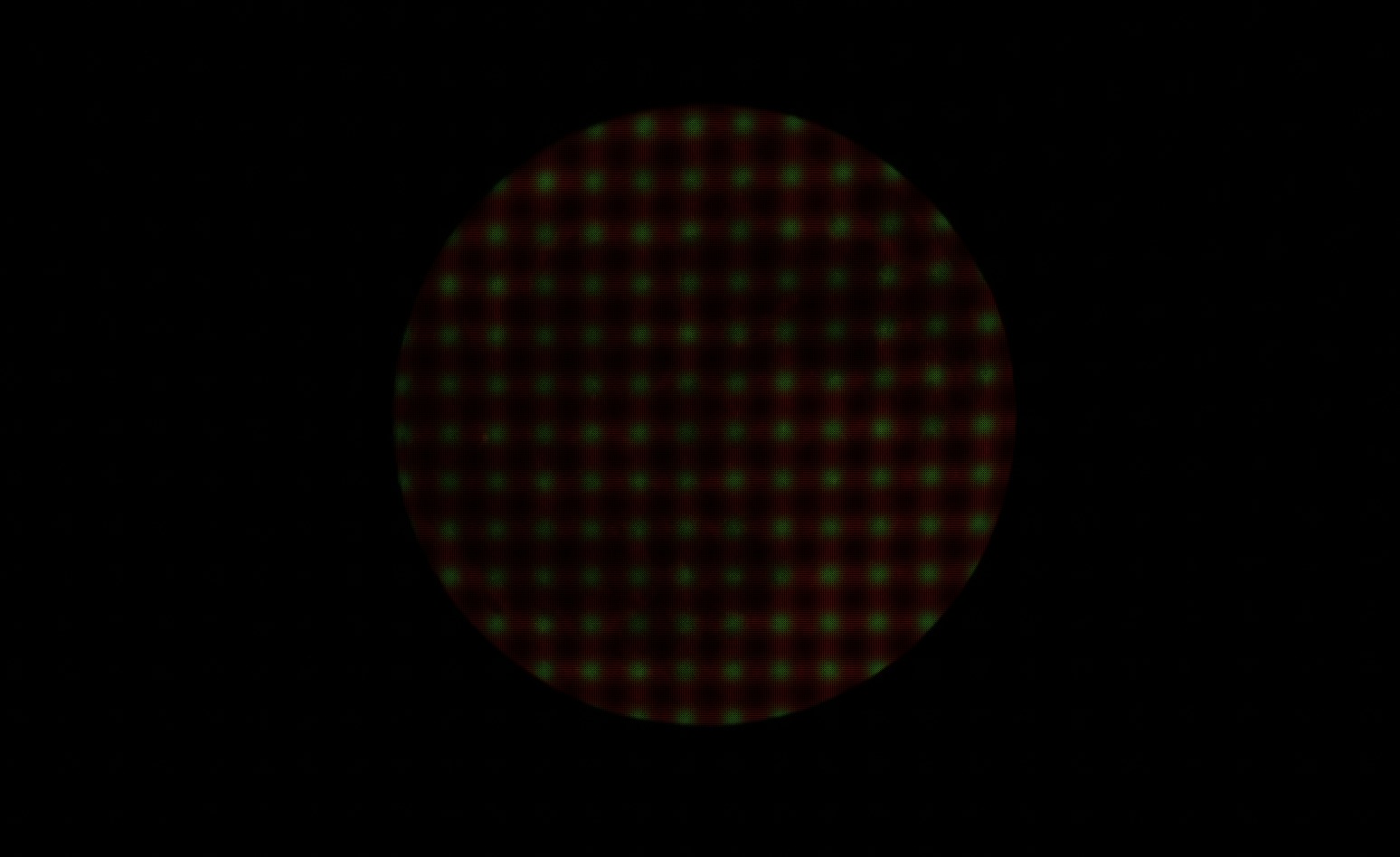
In Rawpedia it says this about the White Balance module :
The white balance tool can be turned on/off. When off, the multipliers are set to R=1 G=1 B=1 when working with raw files. This can be useful for diagnostic purposes or when working with UniWB images.
What I hope would happen if I do this, is I get a view without of what’s in the raw data - usually because I’ve mucked about with the WB when taking the shot, got it wrong so any EXIF is also wrong. Instead I get a green image.
At the moment I resort to creating a DNG, (using Digikam) using the options to strip out as much EXIF as possible which seems to get close to what I’m looking for, so I can go some way to finding an appropriate white balance.
Yeah, the reply at #2 you posted explained why you get a green image (because your sensor have 2 green pixels in every of its 4 pixels) when disable white balance.
If your camera’s white balance setting is wrong, maybe you can try using RawTherapee’s Temperature Correlation (in White Balance - Method - Automatic & Refinement) to get a better auto white balance.
I’m not making myself clear…
I know about temperature correlation - it quite often throws up propositions as wide of the mark as my messing with white balance in the camera.
What I’m looking for is a way of assessing what the image looks like without EXIF colour info being taken into account - then I can use Temperature Correlation because I know roughly what I’m looking for…
If you’re looking for some sort of “correct” WB multipliers - there are none.
Raw data is “green” (RGB gains = 1,1,1)
What happens next is (usually) As Shot gains are applied (i.e 2.5, 1, 2.0) or D65 gains are calculated from the provided information in the metadata, and then appied on the “green” data.
I believe RawTherapee already doesn’t use most of the EXIF color info. The only things RawTherapee tries to attempt to match your in-camera processes (that I’m aware of) are white balance and auto-matched tone curve. When you use another WB setting and disable auto-matched tone curve, you’ll get an image that doesn’t take any in-camera settings into consideration, at least that’s what will happen under my impression.
Knowing what, exactly? Curious what are you looking for.
If you have set the WB on your camera manually to the wrong setting, just eyeball it in the software.
Thats quite literally what “auto white balance” is, it’s a rough guess.
If “what you shot is what you got” approach is what you’re looking for, set the camera to D65 or D55, but that will mean that every picture will always need a manual white-balance adjustment of sorts.
The only way of “measuring” is having a gray card (or equivalent) in the shot. But even that doesn’t always produce “correct” results.
Essentially every image we take is a fiction and we “must trust the software” which I don’t, and nor would anyone in their right mind.
Turning off the Colour Balance tool gives a factor of 1 to the 3 colours, which is useless because it leaves you with green. I don’t see why there couldn’t be a check box that reduced R and B to a factor of 1 and G to a factor of 0.5 (or some calculation that compensates for the excess of green)
That is more or less part of white balancing, no? Weight the RGB channels correctly for your camera + temp and tint.
It isn’t clear what goal you are trying to achieve by getting just the rgb channel normalization. Perhaps making that idea more clear would help the rest of us answer your questions.
I’ll try again
I have images where I didn’t use auto white balance - quite a lot because I forgot I’d changed the settings. So any EXIF data is useless for determining the white balance in RT.
I have been told that whatever I do in camera settings, with the exception, I suppose of aperture and exposure, has no effect on what is recorded directly from the chip - or whatever the thing’s called that replaces the film in a camera.
From this, I think it should be possible to consider this as a form of “negative” to use an old term and therefore be able to have some idea of where the colours were when I messed up the settings in the camera… if I could find a way of neutralising the excess of green.
Sadly, your premise that there’s some sort of negative captured is incorrect. There’s an interstitial image in the film negative, there’s only data (numeric and metadata) in the digital file.
A sensor in a nutshell, is a photon counter. “3 landed in the green well, 1 landed in the red well, 2 landed in the blue well”.
It is not possible to solve for “neutral white” from this information.
The tools that are at your disposal to achieve a roughly balanced image:
Manual “eyeballed” WB, using the sliders
Spot WB tool. Where you point the software at something you know was achromatic, using the picker (doesn’t need to be white, can be gray, etc.)
WB approximation where it “averages” all the values to produce a rough estimate.
All of these will take your “green” (gains of 1,1,1) and produce appropiate gains, such as your own proposed (1, 0.5,0,8) etc.
True. What your sensor actually records for a raw file is a matrix of numbers that represents each pixel on your sensor. There is no color in your raw file, there isn’t an image at all (except the embedded jpg), just a bunch of numbers.
Perhaps you could share a problematic raw file and that could be of more help?
N.B. Film is the same way, but instead of pixels its grains of silver (at least for b&w film). When you expose a frame on film, there is no image there, just a bunch of grains that have recorded a light intensity value.
Based on what you’ve described, I’ll suggest taking a look at ART (“Another RawTherapee”). It is based on RawTherapee and retains a similar interface, but also has a number of differences. The things you are asking about are among them.
In the White Balance module, there are two methods RawTherapee doesn’t have: “Custom Multipliers” and “Camera Preset.”
“Custom Multipliers” lets you plug in arbitrary multipliers for Red, Green, and Blue–any values you want.
“Camera Preset” is available for many cameras, and provides a list of preselected multipliers for various conditions (Daylight, Cloudy, etc.). These usually are the same as the values selectable on the camera and embedded in the EXIF data. Once selected, the values are also exposed by the “Custom Multipliers” sliders.
Another avenue is that some cameras embed in the EXIF data the multipliers they would have used for Auto white balance. They can be exposed (if they are there) with the command line program ExifTool. This would “recover” the camera’s auto white balance settings, which you could then plug in as custom multiplers.
I think it should be possible to consider this as a form of “negative” to use an old term
I think perhaps a better analogy is that it more resembles what would have been recorded on transparency film. It isn’t a negative image in any sense, and has some of the same limitations as slide film (at least until the camera makers get off their dead centers). Once you find a set of multipliers that is a good general approximation for your camera, different lighting conditions will affect the image in much the same way as they would have on slide film.
Maybe try to be sure that you have no automatch tone curve altering color and try the adobe dcp color profile for your camera. You can experiment with that and see if it gets you a better starting point or works a bit better with WB…Try using the Adobe tone curve and experiment with adding the look table or not…it often corrects hues or it might not depending on your expectations…
Film had a baked-in bias to balance a particular illuminant, so if you used daylight film in daylight colors were rendered appropriately. Digital cameras have no such built-in bias; instead, a deliberate white balance adjustment is needed to produce appropriate colors. Baking white balance into a digital camera would lock it to one particular illuminant temperature, not exactly ‘general purpose’.
Of note, not all cameras’ unbalanced data biases green. My Z 6’s unbalanced raws are not colorimetric, but they’re not far off. My old D7000 is definitely biased green.
BTW, the green cast in demosaiced images is not about the preponderance of green pixels in the mosaic, it’s about the relative spectral response of the three channels. Where the bias due to green pixels shows up is in raw un-demosaiced images, which don’t look right for all sorts of reasons.