This fourth tutorial aims to explain the concept of ‘Game changer’ on a noisy (very noisy??) image.
In this tutorial, we will see how to use ‘Capture Sharpening’ , ‘Demosaicing method’, three possible uses at various points in the process to reduce noise, ‘Selective Editing > Generalized Hyperbolic Stretch’ (GHS), ‘Capture Deconvolution’, ‘Abstract Profile’ together. Of course, other tools are necessary, which we will cover later.
Image selection:
Raw file : (Creative Common Attribution-share Alike 4.0)
This image is very noisy; I’ve already used it in Rawpedia… This process must be seen as a path, not a solution.
Rawpedia Image
Learning objective:
The user will have assimilated the ‘Game changer’ concepts presented in the first three tutorials :
-
See the role of presharpening denoise and postsharpening denoise.
-
The impact of the demosiacing method and how to compensate for the lack of a contrast mask in this case.
-
The distribution of denoising along the process.
-
The role of GHS in balancing the image.
-
How to (partially) use the new possibilities of ‘Selective Editing > denoise’.
-
How to restore vitality to the image (Capture deconvolution, abstract profile).
Teaching approach:
- I will attach a single (pp3) containing all the settings provided as a guide (at the beginning) regarding the referenced image, the settings are often arbitrary, So consider this a starting point, not a final destination.
First step: Capture Sharpening
-
Disable everything, switch to ‘Neutral’ mode
-
In the ‘White Balance’ (Color Tab), choose ‘Automatic & Refinement > Temperature correlation’
-
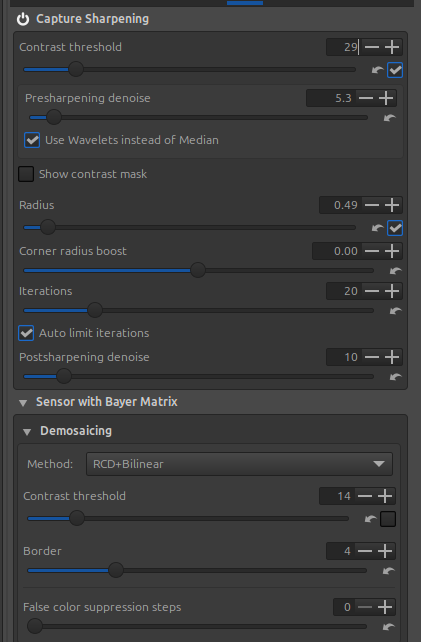
Enable ‘Capture Sharpening’ (Raw tab).
-
Verify that ‘Contrast Threshold’ displays a value = 0
-
Enable ‘Show contrast mask’, which is also insensitive to the Preview position.
-
Adjust the ‘Presharpening denoise’ setting until the mask appears (or a little more)
-
Set the demosaicing method to a dual demosaicing system. There’s no mask for this system (it’s complicated to implement), but you can use the one from ‘Capture sharpening’. Increase the value in ‘Demosaicing > Contrast threshold’, for example, up to 14 (disabling auto… which remains at 0). Through trial and error, choose the method that minimizes artifacts and noise. I chose RCD + Bilinear.
Remove noise on flat areas
-
Disable the mask.
-
View the image at 100% or 200%, then adjust the ‘Postsharpening denoise’ setting, which will take the mask information into account to process the noise. Adjust this denoising to your liking.
Second step
Use ‘Noise reduction’ sparingly - this isn’t (at least in my opinion) a comprehensive processing step, as it affects the entire image, resulting in a lack of nuance. I’ve chosen relatively low values for ‘Luminance’ and ‘Chominance’ (see pp3 settings)
Third step: Generalized Hyperbolic Stretch - GHS
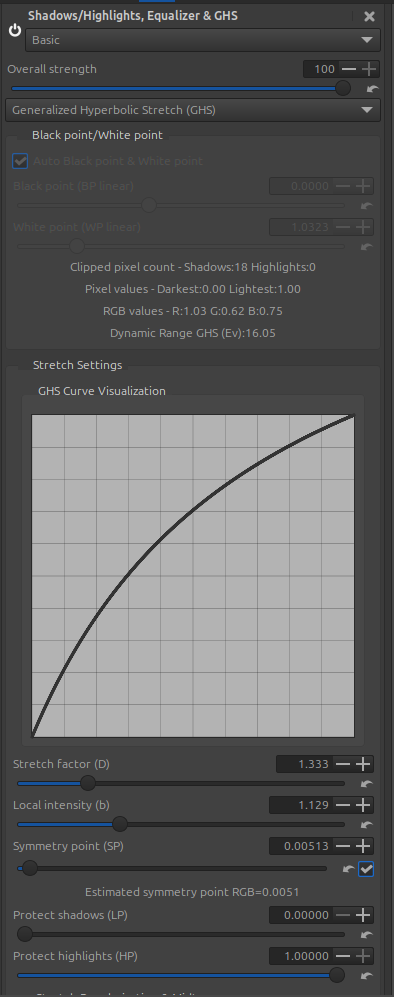
The goal of this step is to adjust the White Point (WP linear) and Black Point (BP linear), and at a minimum, to adjust the image contrast.
The choices are fairly arbitrary.
Note the very high value of ‘Dynamic Range GHS (Ev)’ probably due to residual noise.
Fourth step: Adjust the noise reduction to your liking
At this stage, nothing is clear, everything is arbitrary. We are subject to the constraints of the Preview…and in the current state of the process, there is no ‘proper’ method. So we make do.
Add a new RT-spot (Blur/Grain & Denoise > Denoise) in Global mode (of course you can choose Full image and use deltaE, or a normal Spot…, but to simplify the explanation I chose ‘Global’)
-
Enable ‘Contrast threshold’
-
Enable ‘Show contrast mask’
-
Adjust the ‘Denoise contrast mask’ and ‘Equalizer denoise mask’ to isolate areas to be treated or excluded. You can balance the system by adjusting the ‘Ratio flat-structured areas’ slider.
-
Adjust the luminance and chrominance wavelets ‘as best as possible’… there’s no magic bullet.
-
The importance of ‘Locks MadL noise evaluation’ :
Depending on the position in the Preview, the image analysis is performed using the concept of ‘MAD’ - median absolute deviation - which evaluates noise by decomposition level (here from 0 to 6) and by direction (Horizontal, Vertical, Diagonal). Unfortunately, this evaluation is performed here (as in the ‘Noise reduction’ Detail tab) on the Preview and not on the entire image.
If you want to see the interaction between the position in the Preview and the zoom level, select ‘Advanced’ for this RT-spot. You will see 21 sliders that display the MadL value. ‘Locks MadL noise evaluation’ must be enabled. Move the image into the Preview and see the MadL changes.
Low levels (0, 1, 2, 3, 4) represent the most visible noise, while higher values tend towards ‘banding noise’. Refer to the tooltips; they attempt to explain the (necessarily complex) operation.
In this mode (Advanced), you can manually adjust the MadL values and replace the automatic calculation with your own evaluation… not straightforward, but possible nonetheless.
Whether in ‘Basic’, ‘Standard’, or ‘Advanced’ mode, when you activate ‘Locks MadL noise evaluation’, the entire image will be processed like the Preview (at least that’s my intention).
Note that I could have done the same for chrominance noise (MadC).
Why is there a difference between what’s displayed in ‘Residual Noise Levels’ and the MadL sliders?
For the former, these measurements are taken after processing and take into account what is empirically visible (using weighting coefficients).
For the latter, they represent the actual values used by the core algorithm designed in 2012 by Emil Martinec (who also created Color Propagation and Amaze). Of course, Ingo and I have significantly enhanced the capabilities of the noise reduction functions.
Fifth step - Restore some sharpness using ‘Capture deconvolution’
Open a third RT-Spot in Global mode and choose ‘Add tools to current spot…> Sharpening > Capture Deconvolution’. Can you leave the default settings or change them.
Sixth step - adapt the image and give it more vibrancy
Use ‘Abstract Profile’, and note the reduction of ‘Attenuation response’ in the ‘Contrast Enhancement’ settings. This slider reduces the signal width and therefore focuses its action on minimizing the increase in local contrast in the most suitable areas; in short, the image remains noisy. You must try your best not to amplify the noise.
Image at the end of processing
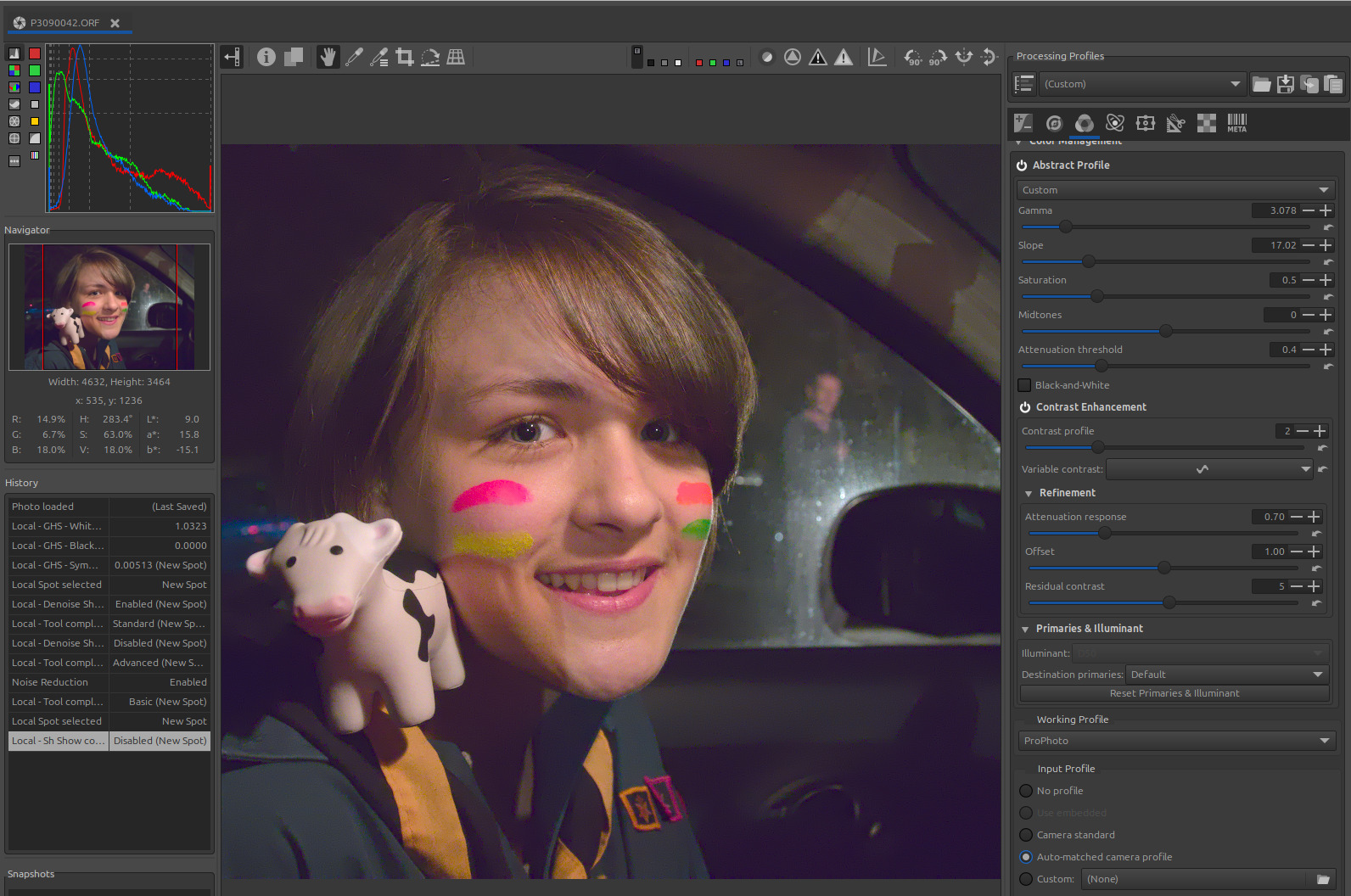
Of course, there are other ways to do it, for example, adding RT-spots in ‘Normal’ mode to process specific parts of the image (Color & Light, Denoise, etc.). You can also use CIECAM (Color Appearance & Lighting), for example, to perform color matching (chromatic adaptation), the image temperature is close to StdA (2825 K).
Thank you
And excuse my bad english… As with the other tutorials, additional explanations will probably be needed.
Jacques


