Gimp Plug-in using ART as raw editor-importer

I have made new GIMP3 plug-in using ART as raw editor-importer.

This is UI activated version of following plug-in.

In installation plug-in, you should edit config.ini file appropriate for your environment. Default setting is as follows.

COMMAND_NT;C:\\Program Files\\ART\\1.26.1\\ART
# Do not add ".exe" for COMMAND_NT
COMMAND_LINUX;/home/username/Programs/ART/ART
COMMAND_DARWIN;/Applications/ART.app/Contents/MacOS/ART
TMP_FILE_FORMAT;png
TMP_FILE_BITDEPTH;16
# TMP_FILE_FORMAT and TMP_FILE_BITDEPTH specify temp. file format and bit depth.
# The value of TMP_FILE_FORMAT must be tiff or png
# The value of TMP_FILE_BITDEPTH must be 8, 16 or 32

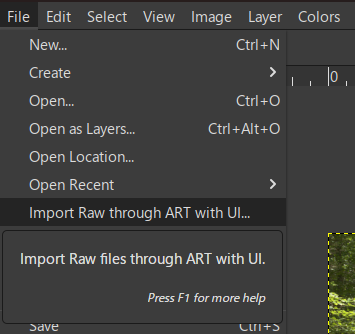
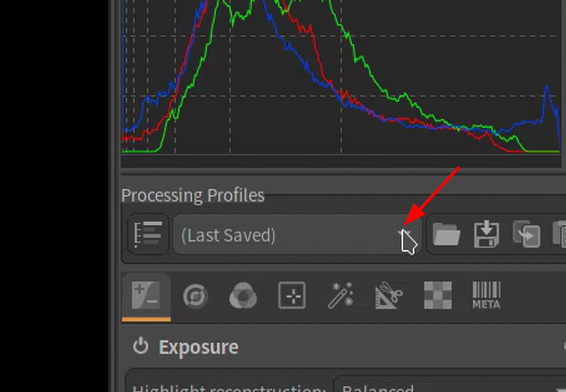
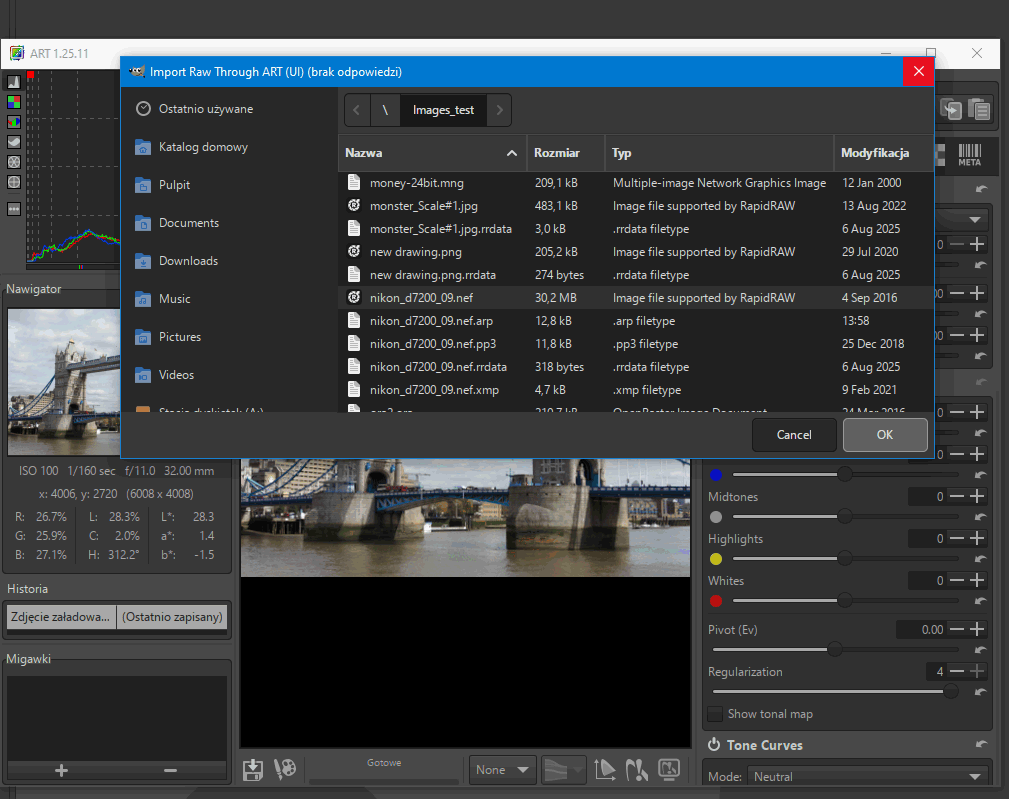
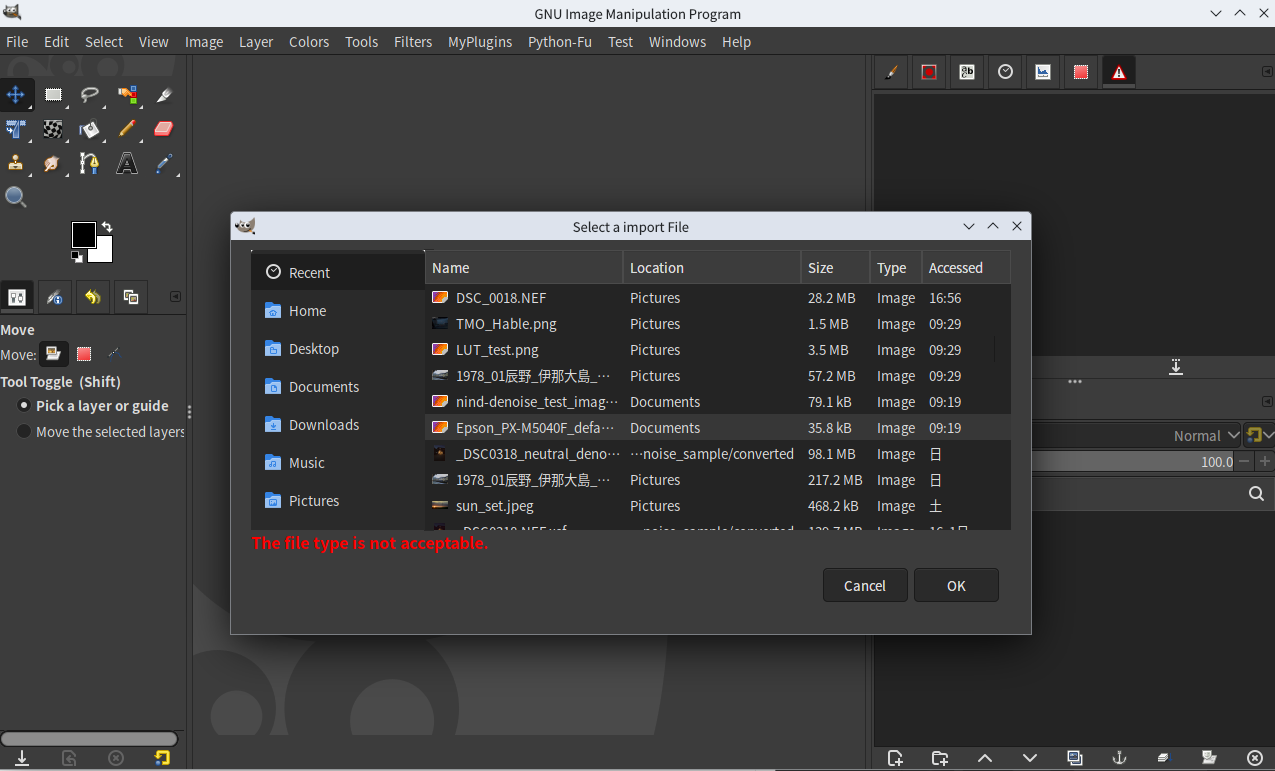
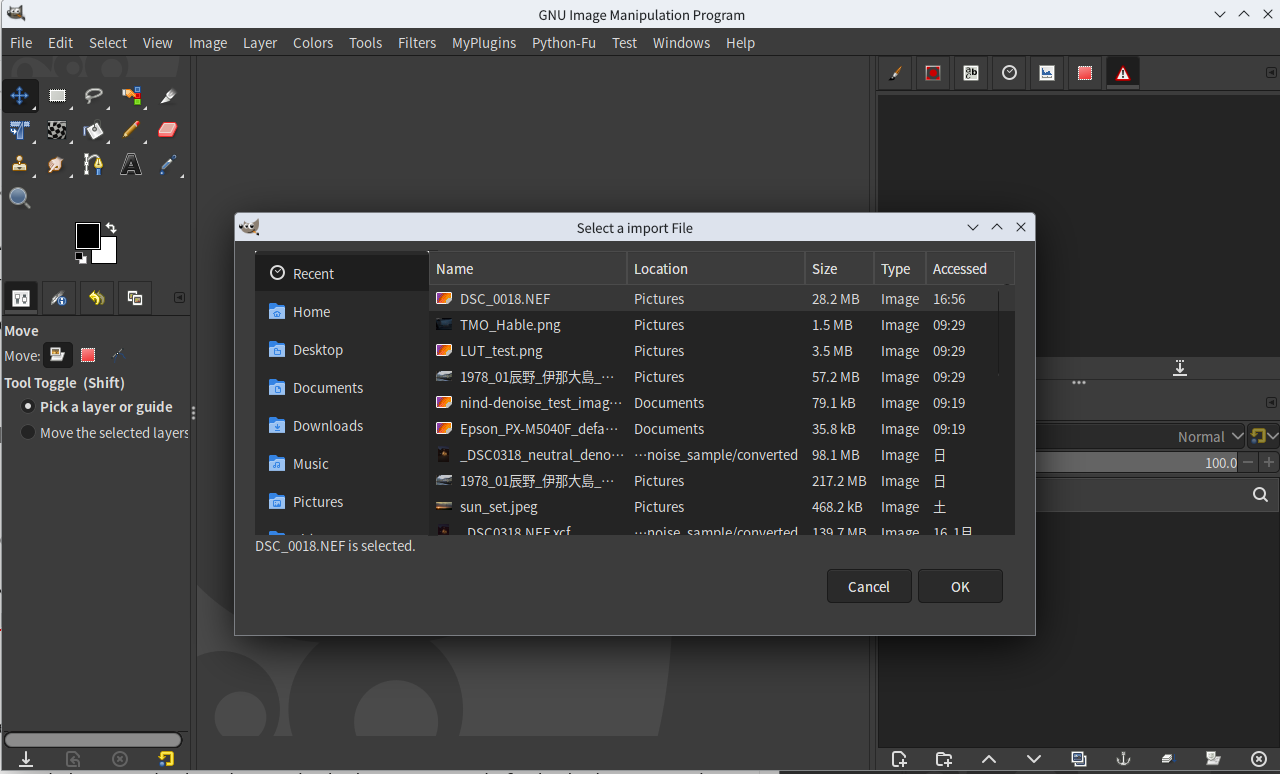
If you install this plug-in, you can start it as image bellow.

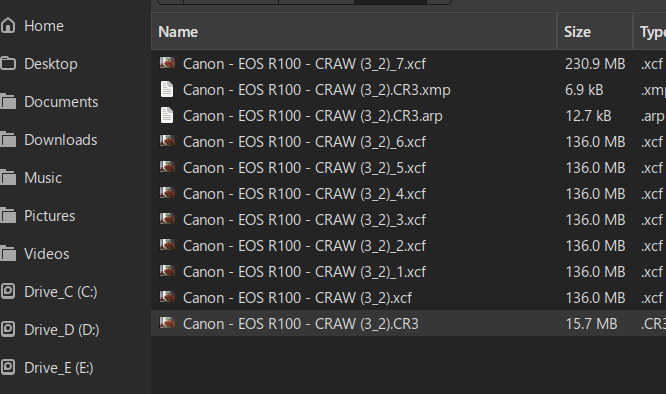
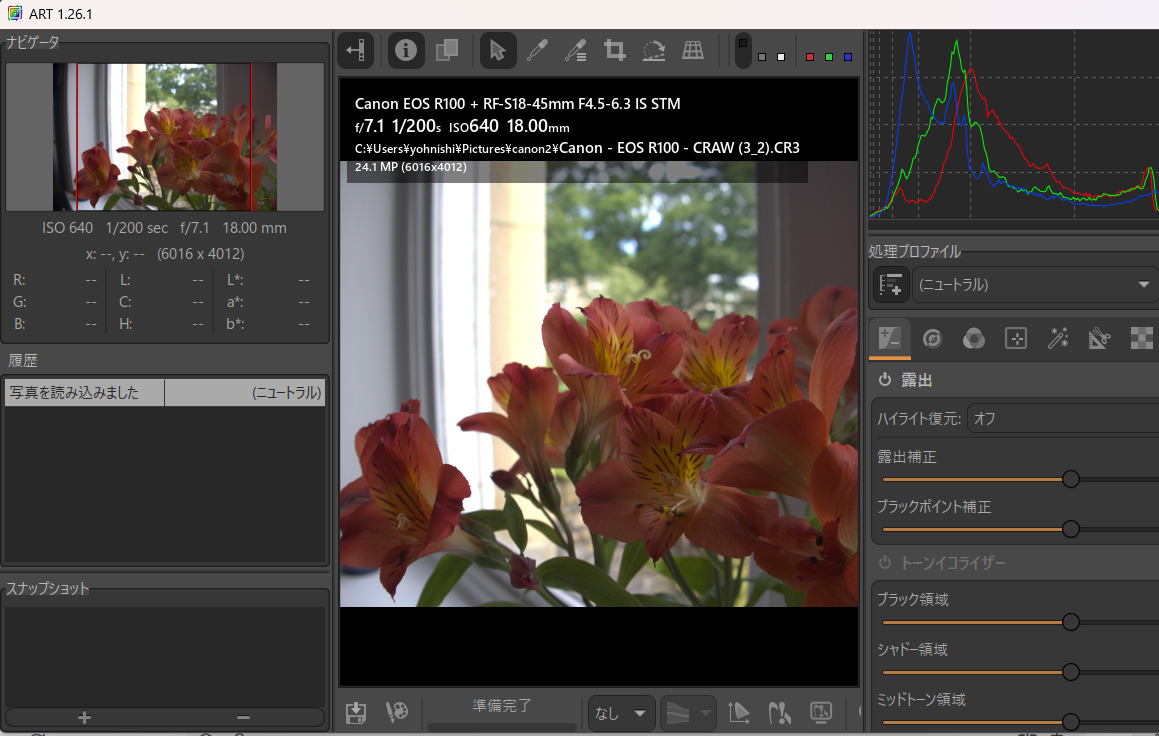
After selecting target file, ART UI will start.

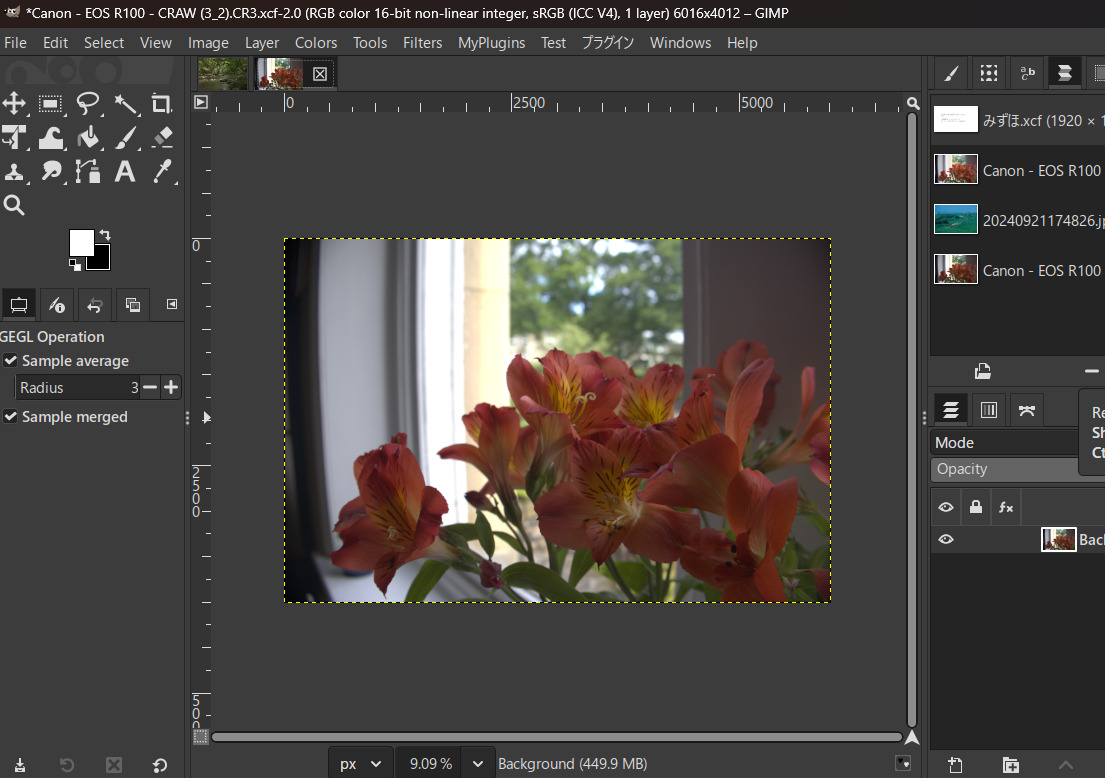
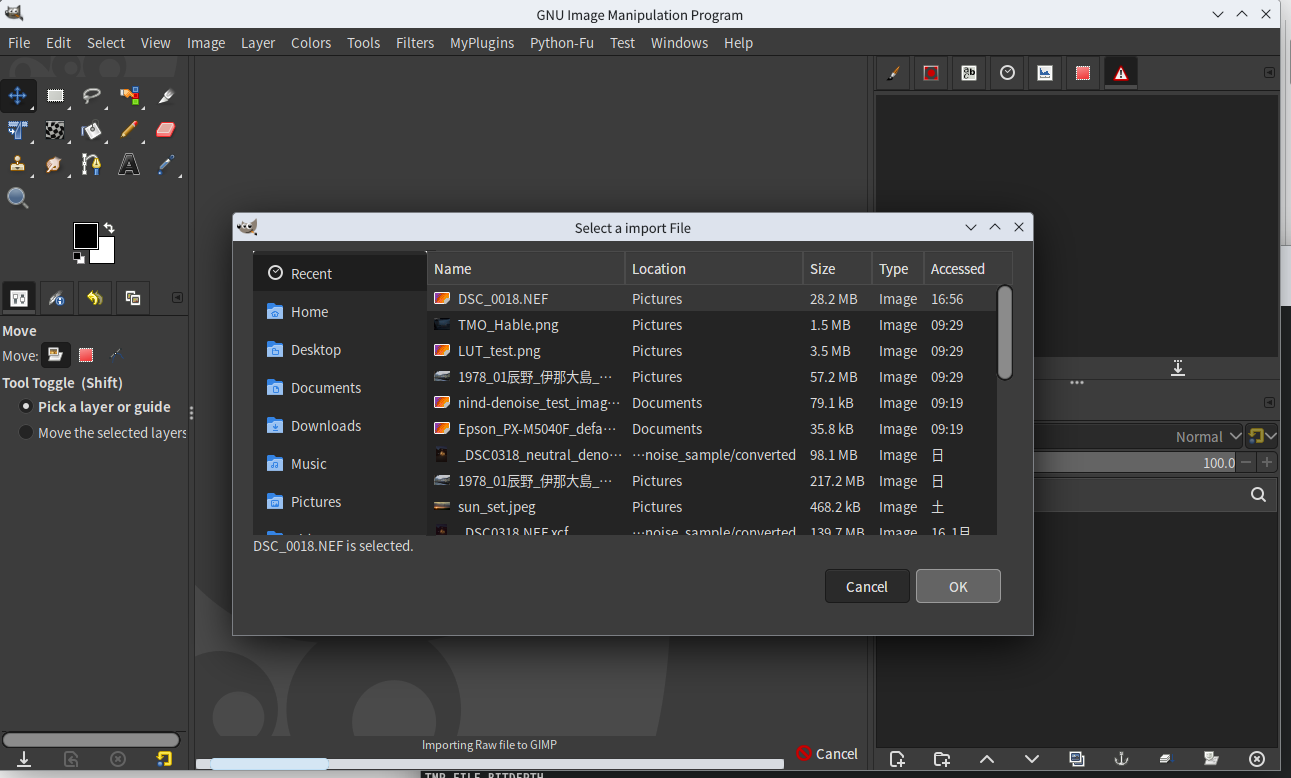
After closing ART, edited image will be imported in GIMP.

It is usable even on GIMP3 flatpak version, however you should start GIMP3 flatpak version with “–socket=session-bus” option. And ART must be non-flatpak version, because Flatpak does not support cli utilities and this plug-in uses ART-cli.

2 Likes

That’s awesome!

1 Like

Hi,

thank you @yasuo, it’s a very interesting plug-in. What happens if we use another type of installation, such as AppImage or a distro package, .deb for example?

Sorry, my writing was misleading. It can be used on any other installations without problems and it is also usable even on sandboxed flatpak version with the condition.

2 Likes

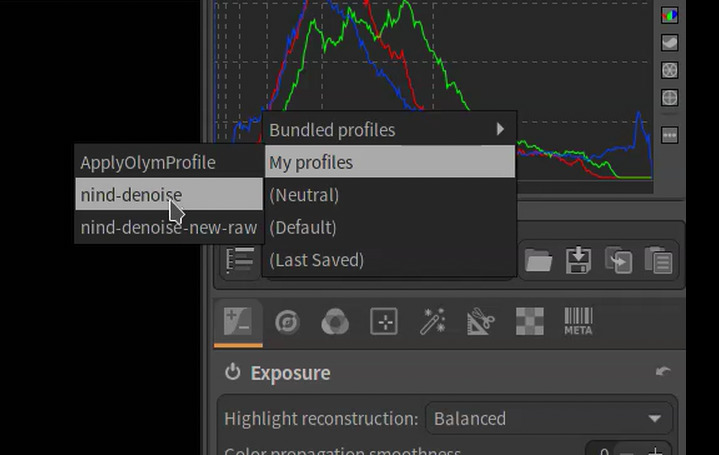
Here are ART sidecar files appropriate to import RAW with this plug-in to apply nind-denoise on GIMP3.

nind-denoise_arp.zip (757 Bytes)

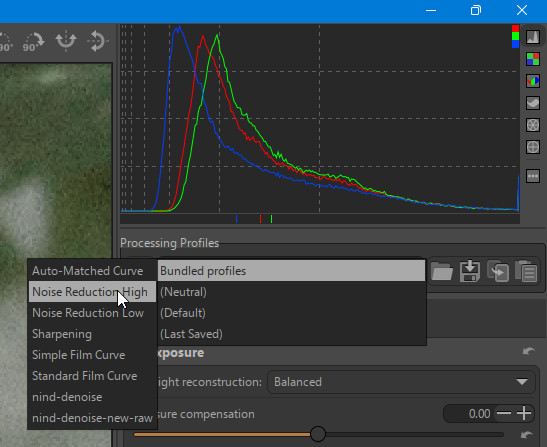
Extract this zip file and copy the extracted arp files to profiles directory under ART setting directory (for example, $HOME/.config/ART/profiles on Linux). And you can select the profile appropriate for applying nind-denoise plug-in.

If the targeted raw file has already sidecar file of ART, apply “nind-denoise” profile. Otherwise, apply “nind-denoise-new-raw”.

1 Like

Also, thank you very much for the great plugin.
One question:
Why can’t the Import Raw window be closed until the export from ART to GIMP is complete?

Persistently trying to close it crashes GIMP (Win10, GIMP 3.0.6 and 3.2.RC2)

I’m sorry, shouldn’t something else be installed here to get action?

It is caused using Gtk.FileChooserDialog. If I destroy the dialog of Gtk.FileChooserDialog in the middle of program process, the whole process also stops.
I will look for another widget to replace Gtk.FileChooserDialog.

I think no other program installation needed but GIMP3 and ART.


Noise Reduction High - works
nind-denoise_arp.zip installed
nind-denoise-new-raw not working
That’s why I asked the question

Sorry, my naming of arp files is misleading.
These files don’t directly perform nind-denoise. They are for preparation to perform nind-denoise plug-in for GIMP3. So they are premised following work-flow.

  1. Using this plug-in and nind-denoise arp profile, import target raw file in GIMP.
  2. Using GIMP3 plug-in of nind-denoise, perform denoise on GIMP.

I will rename these arp files.

Here is renamed version of profiles for nind-denoise to avoid misleading.
preprocess-4-nind-denoise.zip (809 Bytes)

Hi,

I have updated this scripts.

Improvement points are below.

1. User can specify acceptable file extensions.

User can specify them with config.ini file. Default values are follows.


[Acceptable file extensions]

EXTENSIONS;.dng .DNG .cr .CR .nef .NEF .nrf .NRF .arw .ARW .sr .SR .raf .RAF .orf .ORF .rw2 .RW2 .rwl .RWL .pef .PEF .x3f .X3F

2. Improvement of UI for file selection.

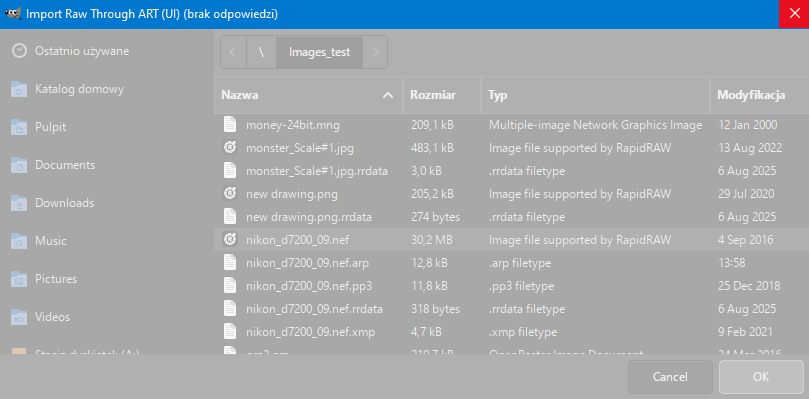
As file chooser dialog, I used Gtk.Dialog + Gtk.FileChooser instead of Gtk.FileChoooserDialog. And if user select an unacceptable file, warning message will be displayed.

However I couldn’t solve the problem that file chooser dialog sticks till the end of the process of the plug-in, but UI improvement may be some help.

1 Like

Gimp 3.2 RC2 Windows 10.
This is a very good change because the file selection window closes after selection and importing works correctly.
Thank you very much for the very quick update.

1 Like

Thank you for your report. In Windows, I confirm that the plug-in operates as intended. It seems that Linux and Mac OS version of Gtk.FileChooser has a bug.

Sorry for the stupid question again;
I reinstalled the files from
preprocess-4-nind-denoise.zip
installed:
preprocess-4-nind-denoise.arp
preprocess-4-nind-denoise-new-raw.arp
appear in Procesing Profiles
but they still don’t work
I think I’m leaving out something that should have been installed earlier
and which was not mentioned here.

Hi,
Those files are for only preprocess for nind-denoise. So after using those profile and importing the target image into GIMP, apply nind-denoise plug-in to denoise.

Nind-denoise plug-in is here.

And some Raw files may look like same even if apply those profiles.

One more question, I have these files installed
In gimp 3.2RC Windows 11 (2H2) a menu item appears
but a message appears
Operation Canceled
Python interpreter not found. Set the correct path.
/home/username/scripts/nind-denoise-hqhoang/.venv/bin/python
The file _tmp.tif appears
What I did incorrectly

Here:

saw info:
Windows is currently unsupported because file and directory names use characters that are incompatible with the Windows file system, so cloning from Github is not possible on Windows.

The site was written by me :sweat_smile:
However after written the post, I found nind-denoise CommReteris version is usable on Windows. It is the only version available even on Windows.

Here is the information.

In nind-denoise GIMP3 plug-in, I included the Python script to check whether the setting is correct or the version of nind-denoise script is usable.

Please check your setting using the script.

I have updated this plug-in.

In this version, I added the option to decode Nikon High Efficiency compressed Raw and JPEG-XL encoded lossy compressed dng files. This option uses Adobe DNG Converter as compression decoder and Exiftool for file compression type determination. Therefore if you would like to use this option, Adobe DNG Converter installation is needed and in Mac OS it is also needed to install Exiftool. In Linux and Windows, ART includes Exiftool so its installation is not needed. If you don’t use this option, their installation is not needed.
To install DNG Converter on Linux, use wine and DNG Converter Windows version for it.

To use the option, you need to specify it with config.ini file in plug-in directory. The default values in config.ini are as follows.

[ART directory path on Windows]

COMMAND_NT;C:\\Program Files\\ART\\1.26.1

# Do not add ".exe" for COMMAND_NT

[ART directory path on Linux]

COMMAND_LINUX;/home/username/Programs/ART

[ART directory path on Mac OS]

COMMAND_DARWIN;/Applications/ART.app/Contents/MacOS

[Temp file format]

TMP_FILE_FORMAT;png

# The value of TMP_FILE_FORMAT must be tiff or png

[Temp file bit depth]

TMP_FILE_BITDEPTH;16

# The value of TMP_FILE_BITDEPTH must be 8, 16 or 32

[Acceptable file extensions]

EXTENSIONS;.dng .DNG .cr .CR .nef .NEF .nrf .NRF .arw .ARW .sr .SR .raf .RAF .orf .ORF .rw2 .RW2 .rwl .RWL .pef .PEF .x3f .X3F .tif .TIF

[Decode Nikon HE Raw and JPEG XL encoded dng]

NIKON_HE;False

# The value of NIKON_HE must be True or False

# Following parameters are needed if only NIKON_HE=True

[Exiftool path on Mac OS]

EXIF_DARWIN;/opt/homebrew/bin/exiftool

[DNG Converter path on Windows]

DNG_NT;C:\\Program Files\\Adobe\\Adobe DNG Converter\\Adobe DNG Converter.exe

[DNG Converter path on Linux]

DNG_LINUX;/home/username/.wine/drive_c/Program Files/Adobe/Adobe DNG Converter/Adobe DNG Converter.exe

[DNG Converter path on Mac OS]

DNG_DARWIN;/Applications/Adobe DNG Converter.app/Contents/MacOS/Adobe DNG Converter

[Delete temp. dng file]

DELETE_DNG;True

# The value of DELETE_DNG must be True or False

To use the option, you should change [Decode Nikon HE Raw and JPEG XL encoded dng] parameter to True and specify file path of DNG Converter and Exiftool (in Mac OS only).

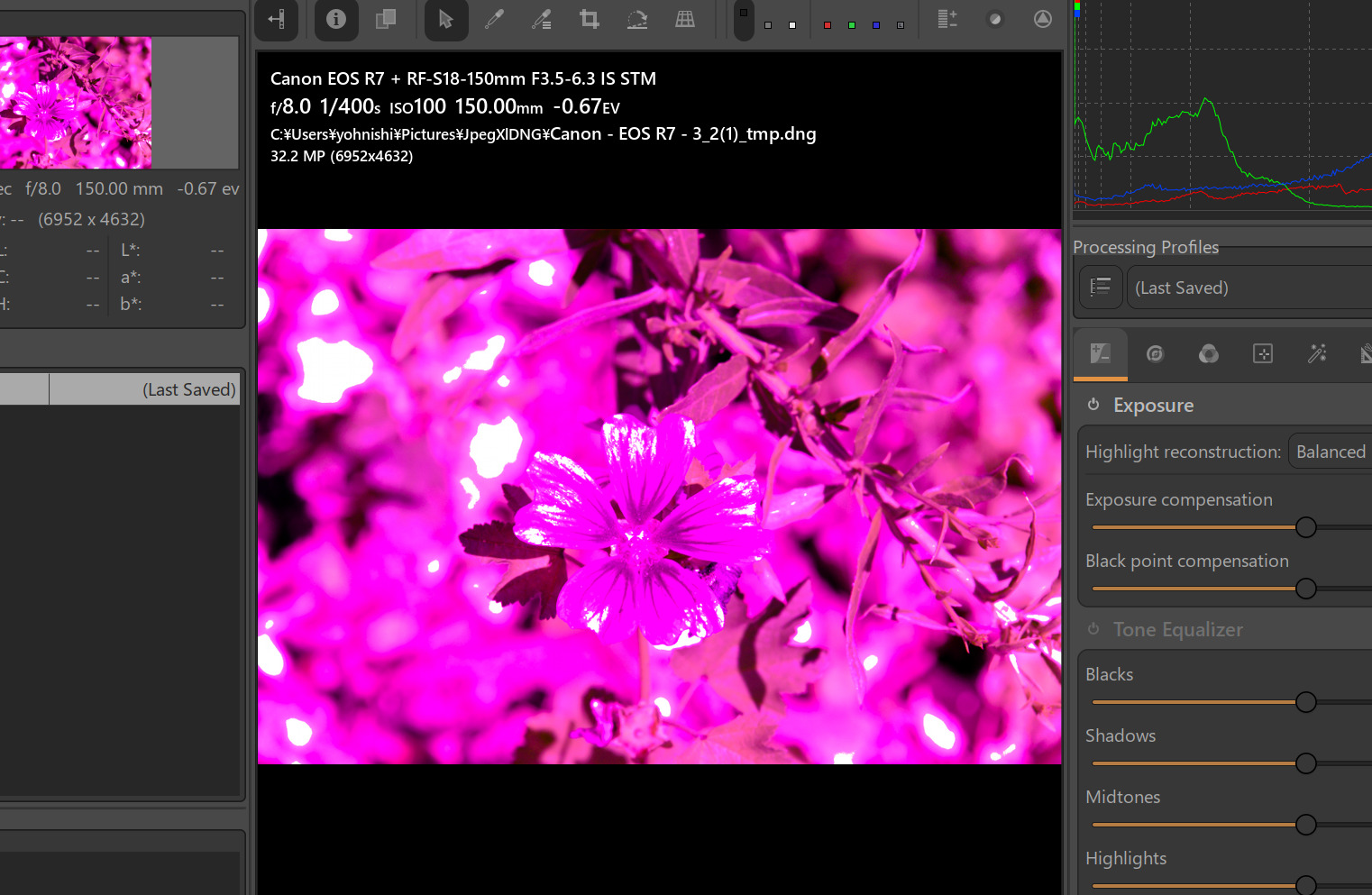
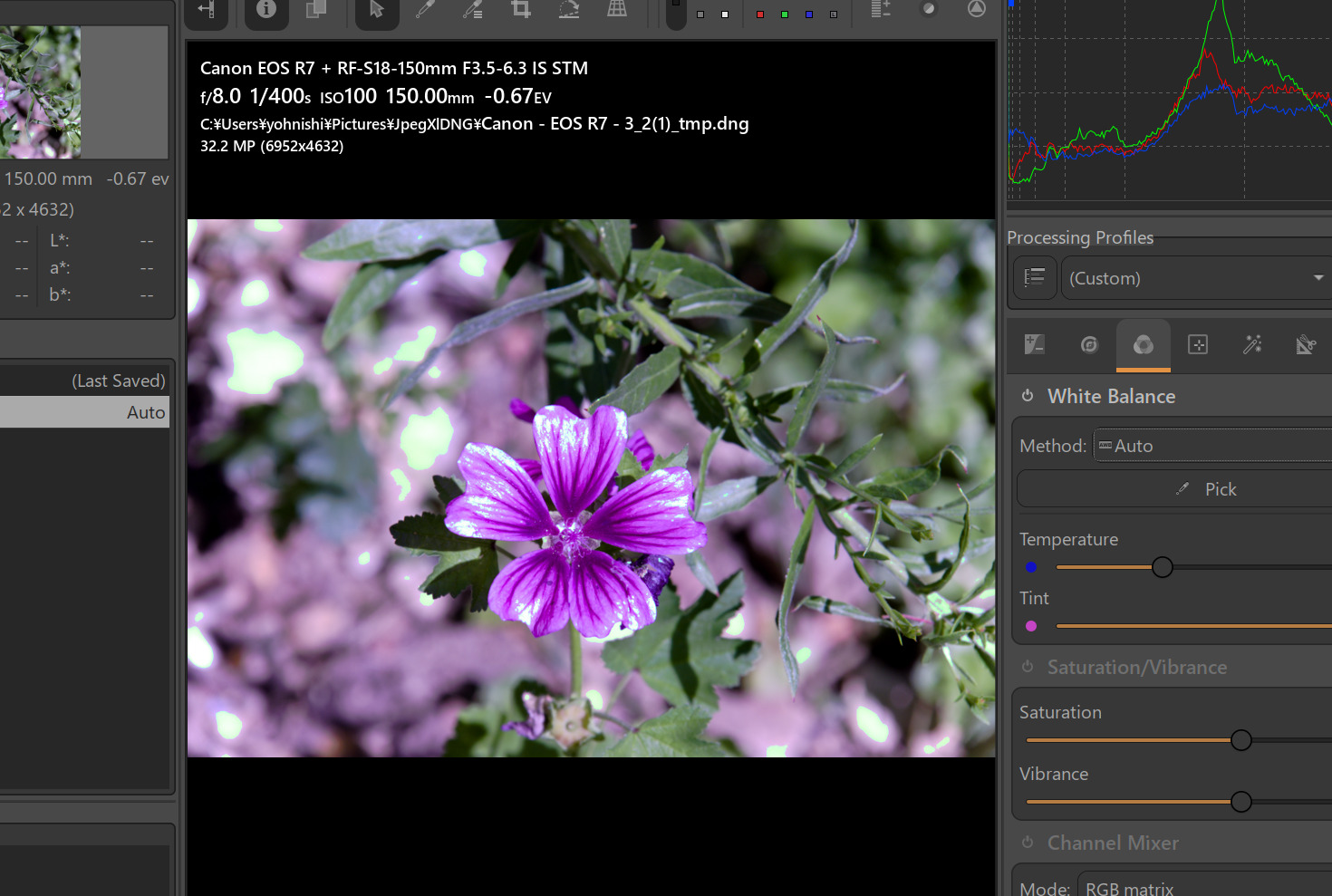
However, the conversion result of JPEG XL encoded dng is unstable. The quality of conversion depends on the combination of DNG Converter version, your PC environment and original data. In many cases, the result will be pinkish, however it can be fixed using white balance in ART.

In some cases you can get good results, however in other some cases DNG Converter exports the result which ART cannot read.

I suppose that DNG Converter is not intended to decode JPEG-XL compressed dng to uncompressed dng, so the conversion results are not certificated by the developper.

I think it is the best that libraw supports JPEG-XL compressed dng, and it seems that they have the plan to support it. However it is not implemented yet.

The conversion results of Nikon HE compressed Raw are stable.